
dns2811
Display the Entry Name in the Edit Window
Hi,
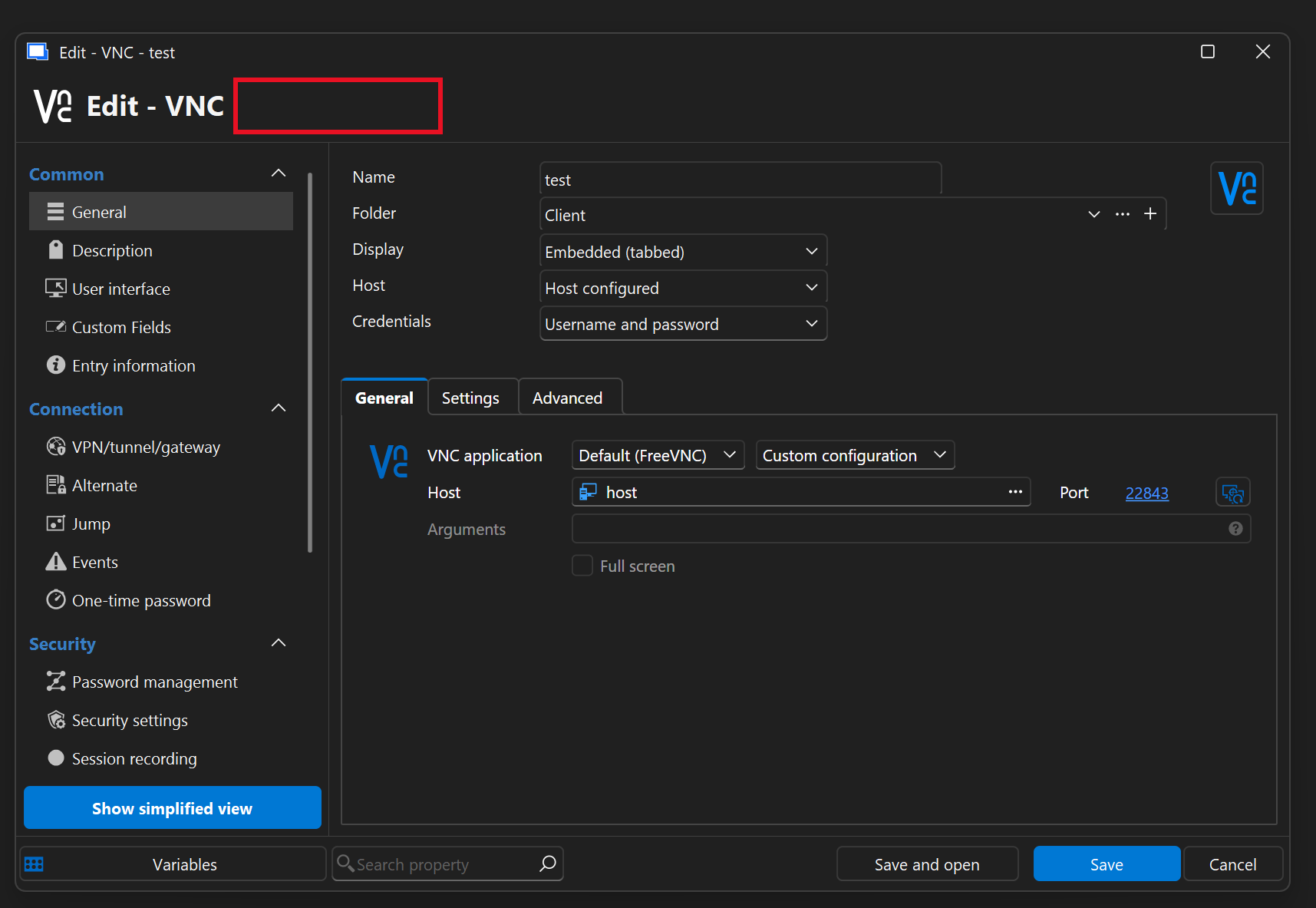
When opening an entry for editing via right-click → Properties or right-click → Edit, the large heading inside the edit window currently displays only:
Edit - [Entry Type]
The entry name is already displayed in the window title bar, where it appears as:
Edit - [Entry Type] - [Entry Name]
I think that it would be clearer and more consistent to also include the entry name in the large, bold heading inside the window.
This would make it immediately clear which entry is being modified, especially since the large heading is much more prominent and easier to identify at a glance than the window title bar.
Thanks!
Show hostname in Navigation panel mouse-over when description is empty
You're absolutely right - just as I feared, the labels make things less clear. Thank you so much!
Also, omitting prefixes is an advantage for entry types that don't have a host field, such as passwords, for example. For such fields, a fallback to other fields (e.g. Username) could be implemented or not.
Show hostname in Navigation panel mouse-over when description is empty
do you think adding the “Name:” and “Host:” labels could be confusing or unnecessary, or would they make the information clearer at a glance?
Show hostname in Navigation panel mouse-over when description is empty
That sounds perfect to me. The mouse-over could sometimes partially cover the entry name, so I think the safest and clearest approach would be to always display the entry name as well.
Then showing the host and description in that order seems like the best solution.
Thanks!
Show hostname in Navigation panel mouse-over when description is empty
In the Navigation panel, when hovering over an entry, RDM currently displays the entry description. When the description is empty, it displays the entry name itself. However, the entry name is already visible in the Navigation panel, so displaying it again in the mouse-over provides no additional information.
I think it would be more useful to display the hostname as a fallback when no description is configured. This would be particularly helpful when the hostname of an entry is changed frequently, as it would allow users to quickly verify which machine they are about to connect to without having to open the entry properties.
The current behavior of displaying the description when it is configured can remain unchanged; the hostname would simply be displayed when the description is empty.
thanks!
RDM Import Issue: Incorrect Destination Handling
Hello RDM Support,
I am experiencing an issue when importing an RDM file into the vault on Remote Desktop Manager version 2026.1.22.0 64-bit (JIT).
When I select “Root” as the destination during the import process, the option is ignored and the entries are imported into the currently selected folder instead.
When I select a specific folder as the destination, the entries are imported into:
“Chosen Import Folder / Folder Selected Before Starting the Import”
instead of being imported directly into the chosen folder.
The expected behavior would be for “Root” to import directly into the vault root, and for a specific folder selection to import directly into that folder only.
At the moment, the folder selected before starting the import always seems to be used as the base path for the import.
Additionally, it would be helpful to have a “Back” button after selecting the destination folder instead of only having a “Cancel” option. While testing this issue, I had to restart the entire import process every time because there was no way to go back and change the selected folder.
Please let me know if this is a known issue or if additional logs or screenshots are required.
Best regards,
Stefano
SSH: curly brackets do not work with Alt key combinations
Hi, this issue seems fixed on version 2026.1.11.0 (64-bit, JIT). Do you confirm this? Thanks!
Copy version number to clipboard
Thanks!
Copy version number to clipboard
I ran some more tests, and you're right. Let me rephrase that: when you click, the version is copied, but the user doesn't notice because no flash notification is displayed. Automatic copying is certainly very practical, but the user must be informed. Alternatively, if you think a flash notification system does not fit with the UI, you can always take a more classic approach and allow text selection and/or enable a context menu. Obviously, these are just my personal opinions, feel free to ignore them.
I would also add that on the dark theme, the version is written in gray on black and is difficult to read, unlike the other “links” which are blue.
thanks!
Copy version number to clipboard
It seems that this feature is broken in 2026.1.10.0. Could you check it out? Thank you!
SSH: curly brackets do not work with Alt key combinations
Good morning, it seems to me that with the latest RDM updates, curly brackets can no longer be typed using the Alt+123 and Alt+125 combinations in SSH sessions. Is this the case for you too? Can I make them work with a specific setting, or have changes been made? The Alt+123 combination, for example, generates the string: [<user>@<hostname> ~]$ .{bash{_{history,logout,profile},rc},c{ache,onfig}}.
Thanks for your help!
Copy version number to clipboard
It works perfectly, thanks!
Full-Screen RDP Session Window Disappears After Minimize
I am sorry that it is not possible to resolve the issue, but I take note of it.
One idea could be to rename the Fullscreen button to Restore or something similar when clicked, so that it is easier for users to figure out how to solve the problem on their own.
Alternatively, you could give the button a “selected” appearance once it has been clicked for the first time, so that it is easy to understand that a second click on the same button will deactivate full-screen mode and thus resolve the display issue.
Thank you for your inquiry, and have a nice day!
Copy version number to clipboard
Thanks!
Clipboard removing accents and inserting blank lines
Thanks!
Translation not applied
Thanks!
Translation not applied
Good morning, I recently started collaborating on Italian translations and would like to ask for clarification: in November 2025, I entered some translations. I followed the guide and I think I submitted the translations correctly, and in fact I can see them in the localizer. Since I submitted them, several versions of RDM have been released, but I still don't see them applied. Do I need to do anything else to apply them, do they need to be reviewed, or will they be applied in future versions of RDM? Thank you! I am attaching an example:

Copy version number to clipboard
To facilitate support, it would be useful to be able to copy the RDM version to the clipboard from the Help > About menu. It would clearly be sufficient to allow the text to be copied, which is currently not selectable and forces the user to use OCR. Thank you!

Version display issue
I don't know if this is a widespread issue or not, but the app version is not fully visible (menu: help > about). Although it is a minor issue, I am reporting it anyway in the hope that it will be helpful. I am available to provide further information that may be useful in resolving the issue.

Clipboard removing accents and inserting blank lines
The update to 2025.3.29.0 fixed the accent issue but not the blank lines, while adding the tag to the configuration file fixed the blank lines issue. Thank you very much!
Viewing Each Monitor Individually In A VNC Session
Understood, thanks!
Viewing Each Monitor Individually In A VNC Session
Okay, I just tried it. Even on UltraVNC Viewer, the view switches from single monitor to side-by-side monitors, and it is not possible to view one of the two monitors individually. The UltraVNC Server version is 1.6.4.0, but at the moment I cannot determine the UltraVNC Viewer version that was used for the connection in this test. If necessary, I can retrieve it.
Viewing Each Monitor Individually In A VNC Session
I tried it yesterday with rdm on another computer and it cycled between a single monitor (I don't know if it was the primary or secondary monitor) and both monitors. In fact, in order to be able to read, I activated the side-by-side monitor mode, moved the window to the other monitor, and then reactivated the single monitor view. However, if you say it works for you, I'll do some more testing with rdm and ultravnc viewer.
thanks!
Clipboard removing accents and inserting blank lines
I sincerely apologize for the error, and I am sorry for wasting your time, but I realized that I wrote the wrong protocol. The problem occurs with an UltraVNC connection. In any case, I ran a test with the Microsoft RDP utility in Windows, without going through RDM, and the problem does not occur.
Navigation panel shifts after failed connection attempt in RDM
Thanks, solved! It was set to always. I didn't know about that option. Out of curiosity, why did you decide to enable it by default? In the case of long host lists, it seems problematic to me. Thanks!