
kniem
RDP entry suddenly shows expired
Thanks! Found it :)
RDP entry suddenly shows expired
I tried to find the setting that controls when and why an RDP entry in the console is marked as expired and can no longer be used. It seems to be hidden somewhere in a rather unintuitive location :O
Type Username / Password hotkeys on macOS?
Hi,
does the Type Username and Type Password hotkeys work normally on macOS?
I've configured them like this:
Type Clipboard: ⌃⌥⇧⌘2
Type Username: ⌃⌥⇧⌘3
Type Password: ⌃⌥⇧⌘4
For some reason only Type Clipboard works. The username and password hotkeys don't seem to do anything at all.
Is this supposed to work on macOS, or am I missing some setting somewhere?
Type Clipboard action and VMware Web Console
Hi,
Thanks a lot for such a detailed and precise explanation! It makes perfect sense now, and I really appreciate you taking the time to explain what’s happening behind the scenes and why it’s not such a straightforward change on macOS.
Great to hear that there’s now a ticket for it as well. I’ll keep an eye out for any updates.
Thanks again for looking into this and for the great explanation!
Type Clipboard action and VMware Web Console
I'm using RDM Mac.
Type Clipboard action and VMware Web Console
This is something I've been wondering about and why it doesn't work with RDM. I've only used Edge/Chrome for VMware Web Console connections to virtual machines, and when trying to use the Type Clipboard action, it never works. If I remember correctly, I also opened a support case about this in the past.
Typically, I connect to an RDP jump box and use the VMware Web Console from there in situations where I need a direct console connection to a VM.
I think I may have found the reason why this is happening. It seems to be the same issue described here, and there may be nothing that can be done on the RDM side. Apparently, the workaround is to use Firefox or VMware Remote Console instead.
The issue is described here in the context of a different Windows application:
https://github.com/jlaundry/TypeClipboard/issues/6
Clipboard randomly stops working between macOS and RDP sessions
I mean "copy username and password" works when i close BTT.
It might be that BTT is also causing the other clipboard issue—the one that made me start this thread in the first place. But that one is harder to reproduce because it happens randomly, although often enough to be annoying. :)
Clipboard randomly stops working between macOS and RDP sessions
I tried deleting the Type Clipboard shortcut, but it didn't fix the issue with RDM, so it must be caused by one of the other configurations. I just couldn't find anything else related to the clipboard when I searched. I have lots of different configurations in BTT, so it's hard to know which one is causing the issue. But it must be related to BTT, because if I shut it down, the RDM clipboard works without any issues.
Clipboard randomly stops working between macOS and RDP sessions
Hello
Just to restate, I'm not saying these issues aren't our bugs, but in order to play nicely with other programs that manage the clipboard we have to understand what they are doing.
because I have a custom function in BTT that I created “Type Clipboard”, it kind of partially activates BTT’s clipboard functionality.
Yes, that's what I was wondering - if just using a clipboard function in BTT activates their clipboard manager.
I'm trying to reproduce this on my side, but I'll be honest that I'm lost in BTT. Can you share how your custom clipboard function is set up, so I can recreate it on my side?
Thanks and kind regards,
@Richard Markiewicz
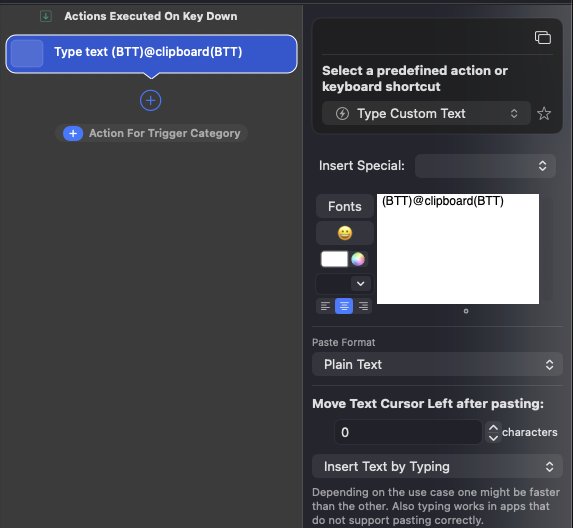
It's configured as a keyboard shortcut like this.
Clipboard randomly stops working between macOS and RDP sessions
Hello
Thanks for the update, this is important information.
BTT has it's own clipboard manager that continuously polls the clipboard and records what it sees. Do you have that feature enabled? Note from the thread, that toggling that feature requires a restart of BTT. If it's the case we could be seeing an interaction between BTT, Maccy and RDM.
With regard to it breaking the copy username / password feature, that might be something we can address independently.
Thanks and kind regards,
@Richard Markiewicz
I don’t directly use BTT’s own clipboard as I use Maccy as my clipboard manager. However, because I have a custom function in BTT that I created “Type Clipboard”, it kind of partially activates BTT’s clipboard functionality.
Clipboard randomly stops working between macOS and RDP sessions
Hello,
Thank you for the additional information.
Since Maccy is currently installed and running, could you temporarily disable it and see if the clipboard issue occurs again while using RDP sessions in Remote Desktop Manager?
This would help us determine whether Maccy may be interfering with the macOS clipboard synchronization.
Please let us know if the issue still occurs with Maccy disabled.
Best regards,
@Carl Marien
Update to this. Adding RDM as ignored application in Maccy did not solve the issue.
Clipboard randomly stops working between macOS and RDP sessions
Hello
The implication is that something is interfering with clipboard handling, and maybe seizing the clipboard contents on a local copy in a way that we're not anticipating.
When you copy username / password, RDM tags the copied values in a way that is supposed to stop a password manager intercepting them (because, typically, you don't want a copied password for example showing up in your clipboard history).
It's possible that the clipboard contents are still getting seized, but with those copies "flagged" whoever seized the clipboard now has nothing to paste.
To be clear - I'm not saying the issue you see isn't on the RDM side, just something that we're not expecting that we need to account for.
If you temporarily disable handoff as well, does the copy username/password start working as expected?
Thanks for your patience
Kind regards,
@Richard Markiewicz
Hello,
Thanks for the explanation. I did some further testing and was able to trace the issue to BetterTouchTool. Once BetterTouchTool is disabled, the “copy username and password” actions in RDM work as expected.
It looks like BetterTouchTool is interfering with the clipboard handling, probably by capturing or modifying the clipboard contents after RDM places the protected values there.
Edit:
I found the cause of the issue. I have a custom hotkey configuration in BTT that types the clipboard contents. I guess I’ll have to live without this RDM feature because I can’t disable BTT — I rely on it too much for my workflow.
Clipboard randomly stops working between macOS and RDP sessions
I don't know if it's related, but the copy username and password action doesn't work at all, even when Maccy isn't running.
Clipboard randomly stops working between macOS and RDP sessions
Hello,
Thank you for the additional information.
Since Maccy is currently installed and running, could you temporarily disable it and see if the clipboard issue occurs again while using RDP sessions in Remote Desktop Manager?
This would help us determine whether Maccy may be interfering with the macOS clipboard synchronization.
Please let us know if the issue still occurs with Maccy disabled.
Best regards,
@Carl Marien
Hello
Thank you for the suggestion.
I have configured Remote Desktop Manager as an ignored application in Maccy. Maccy also allows certain pasteboard types to be ignored, although I’m not sure whether that would help in this particular case.
I’ll test with these settings and see if they resolve the clipboard issue I was experiencing. If the issue persists, I’ll temporarily disable Maccy completely and test again.
I’ll let you know the results.
Clipboard randomly stops working between macOS and RDP sessions
Hello,
Thanks for the answer.
Yes, I do have Maccy installed and running, so that could potentially be related to the issue.
Handoff is enabled on my Mac.
For Spotlight, clipboard history is disabled
Clipboard randomly stops working between macOS and RDP sessions
Hi,
I'm having an issue with Remote Desktop Manager on macOS Tahoe.
I'm currently using Remote Desktop Manager 2026.2.4.4 (latest and greatest) and when using the clipboard between my Mac and RDP sessions to different Windows hosts, the clipboard randomly stops working. This happens quite often.
There are no errors or warnings. Copying something on my Mac and trying to paste it into the Windows RDP session simply stops doing anything.
I found that I can get the clipboard working again by going into the RDP session and copying something from the Windows side first. After doing that, clipboard functionality is restored, and I can once again copy something on my Mac and paste it into the RDP session.
So basically:
Mac → Windows RDP: randomly stops working
Copy something inside Windows RDP: restores it
Mac → Windows RDP: works again
Has anyone else run into this with macOS Tahoe, or is this a known issue?
Add “Type Username” and “Type Password” Options to Ribbon Under Action Menu
Wow! Thanks! Upgrading now :)
Configured Shortcuts Do Not Work Inside RDP Session
This was my error =) The hotkey is indeed working, but the configured hotkey needs to be a very carefully chosen, exotic key combination that does not interfere with anything in RDM.
Configured Shortcuts Do Not Work Inside RDP Session
Hi kniem,
Could you please try the following within the RDP session properties:
Local Resources > Keyboard > On the remote computer
This should make the Windows key combinations execute inside the remote session instead of on the host machine.
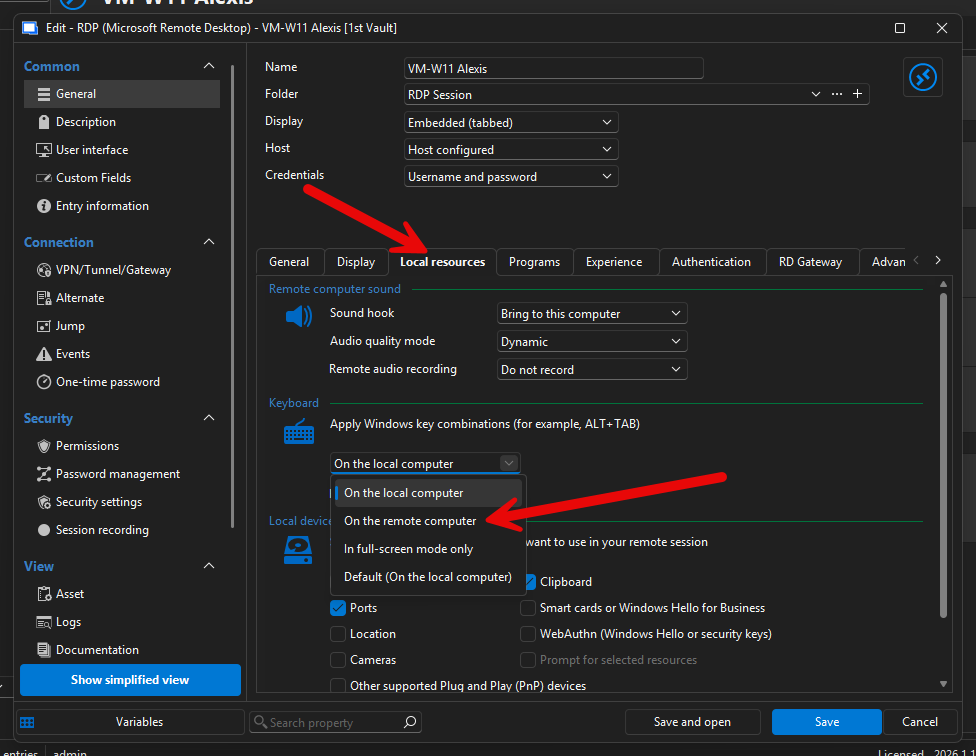
Please let us know if that resolves the issue.
Best regards,
@Eduard Sepúlveda López
It seems that you are using the Windows version of RDM while I’m using the macOS version. I cannot get the hotkeys to work regardless of how I configure them. they only work from the menu.
Add “Type Username” and “Type Password” Options to Ribbon Under Action Menu
Thanks! This makes sense. I need to install RDM on my Windows VM and test from there. It seems that the Windows version has many more features than the macOS version.
Add “Type Username” and “Type Password” Options to Ribbon Under Action Menu
Curious, and a bit off topic: In the Windows version, do Type actions work when you’re connected to a Windows Server via RDP and then open a VMware web console session and try to use a Type action there? On macOS, "Type Clipboard" doesn’t seem to work at all in the VMware web console session
Add “Type Username” and “Type Password” Options to Ribbon Under Action Menu
Hello,
Doh! I will forward this to the mac team. This should not be hard to add.
Sorry about that.
Regards
@David Hervieux
Thanks! That would be very useful to add. I use it all the time to auto-type usernames and passwords in places where you can’t copy and paste, such as when an RDP session is locked on the Windows login screen and you need to retype the password.
Add “Type Username” and “Type Password” Options to Ribbon Under Action Menu
Hello,
This is already supported. What version and entry type are you trying to use?

Regards
@David Hervieux
I didn’t know you could use the Windows version of RDM on macOS :)
Hotkey to Launch RDP from Vault in External Window
Hi,
Is it possible to create a hotkey to launch a selected Remote Desktop connection from my vault directly in an external window? Any built-in options or workarounds would be appreciated.
Thanks!
Add “Type Username” and “Type Password” Options to Ribbon Under Action Menu
It would be helpful to add “Type Username” and “Type Password” options to the ribbon under the Action menu. Currently, only “Type Clipboard” is available.
Adding these options would improve usability and streamline credential input workflows.