
Jimmy P
RDM Web Form Login with Domain
Hi!
Thanks for reaching out.
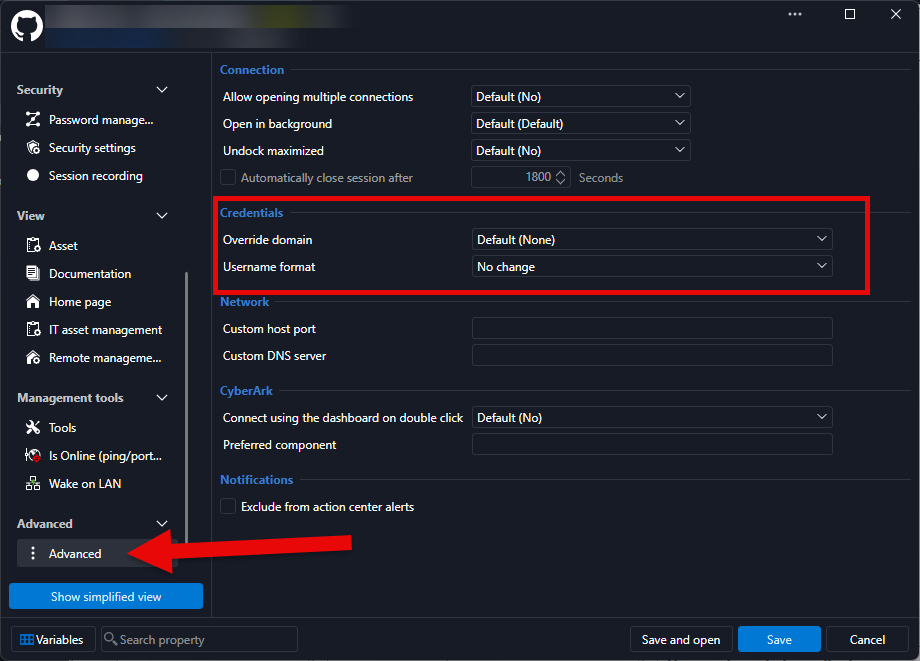
You will find this setting in the WebBrowser session's Properties > Advanced section (at the bottom on the left).
You should find a Username format setting that will apply this format to the entry.
Let me know if this helps!
Best regards,
@Alexandre Bélisle
This was awesome and worked great! TY!
RDM 2026.3.15 – Frequent DVLS Authentication Prompts, Slow Connections, and Freezing
Hello,
Thank you for your patience while our team looked into the issue you reported.
I'm happy to let you know that the latest version of Remote Desktop Manager (2026.3.16.0) includes a fix for this problem. You can download it from our website here:
https://devolutions.net/remote-desktop-manager/download/
Once you have installed the update, could you please test it in your environment and confirm that everything now works as expected? If the issue persists or if you notice anything unusual related to the same original problem, just reply to this message with a few details, and we will be glad to look into it further.
Thank you for your collaboration.
Best regards,
@Maxim Robert
This worked perfectly! Thank you so much!
RDM Web Form Login with Domain
Hi Team,
How do we get the web form to auto populate the domain + user instead of just user?
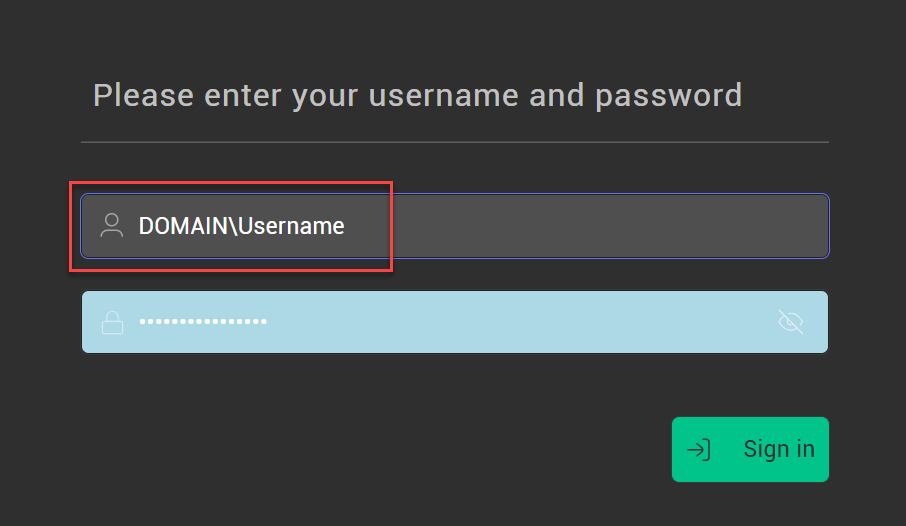
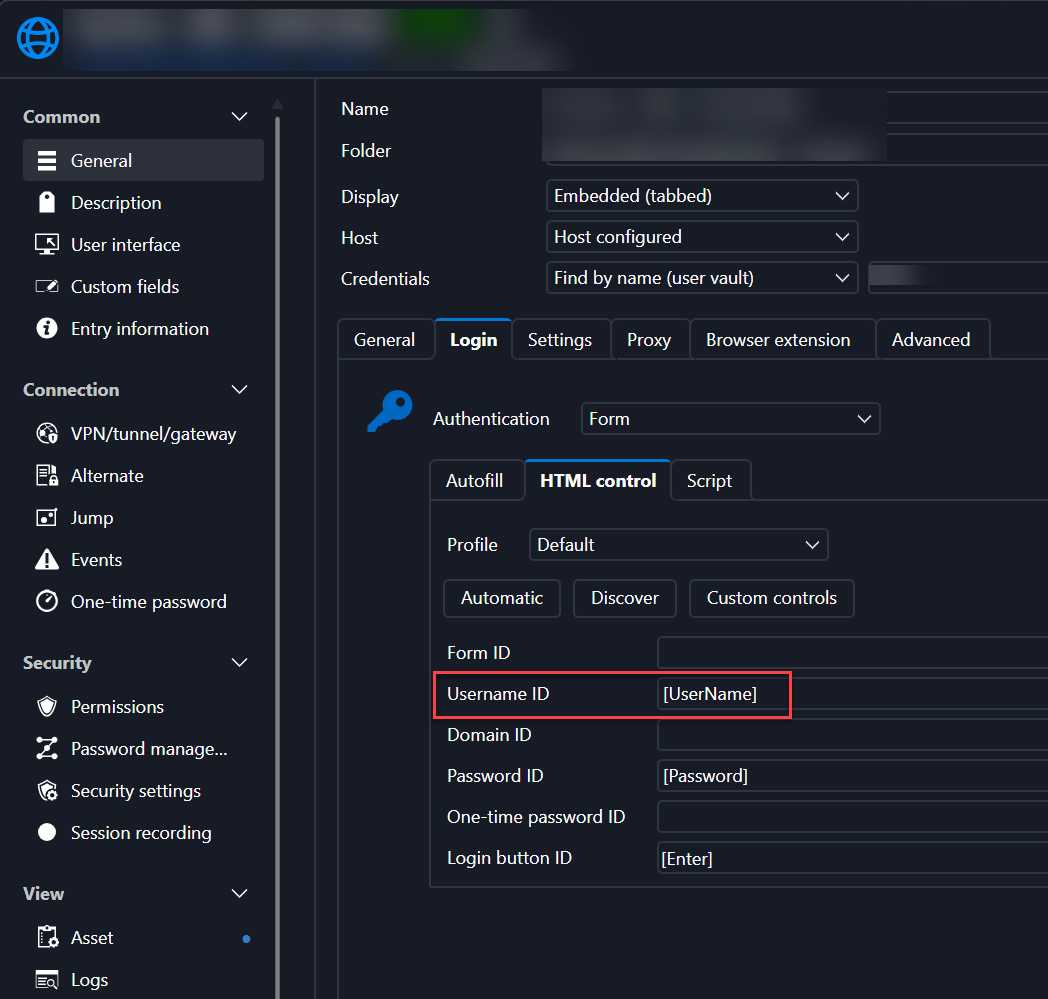
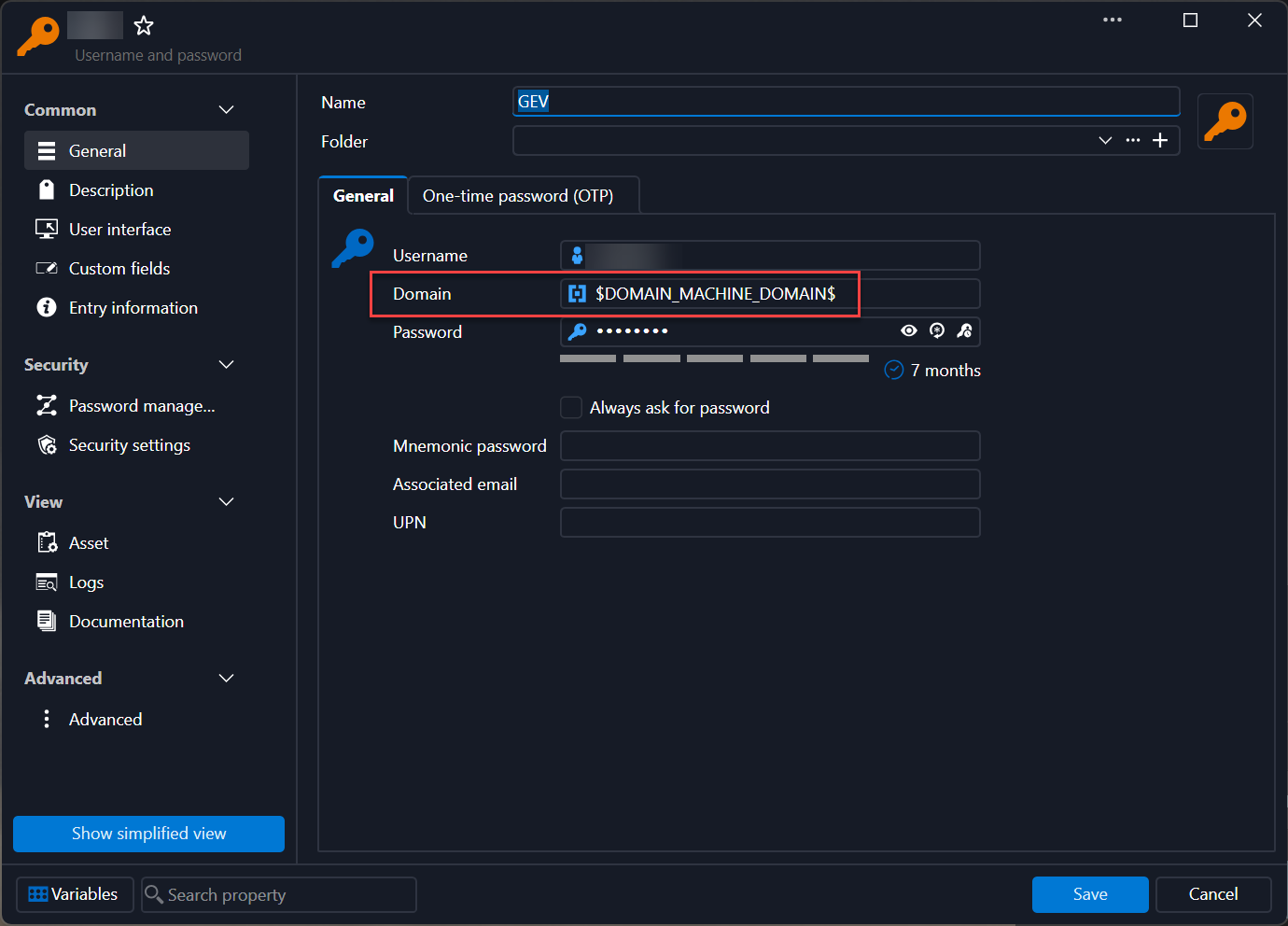
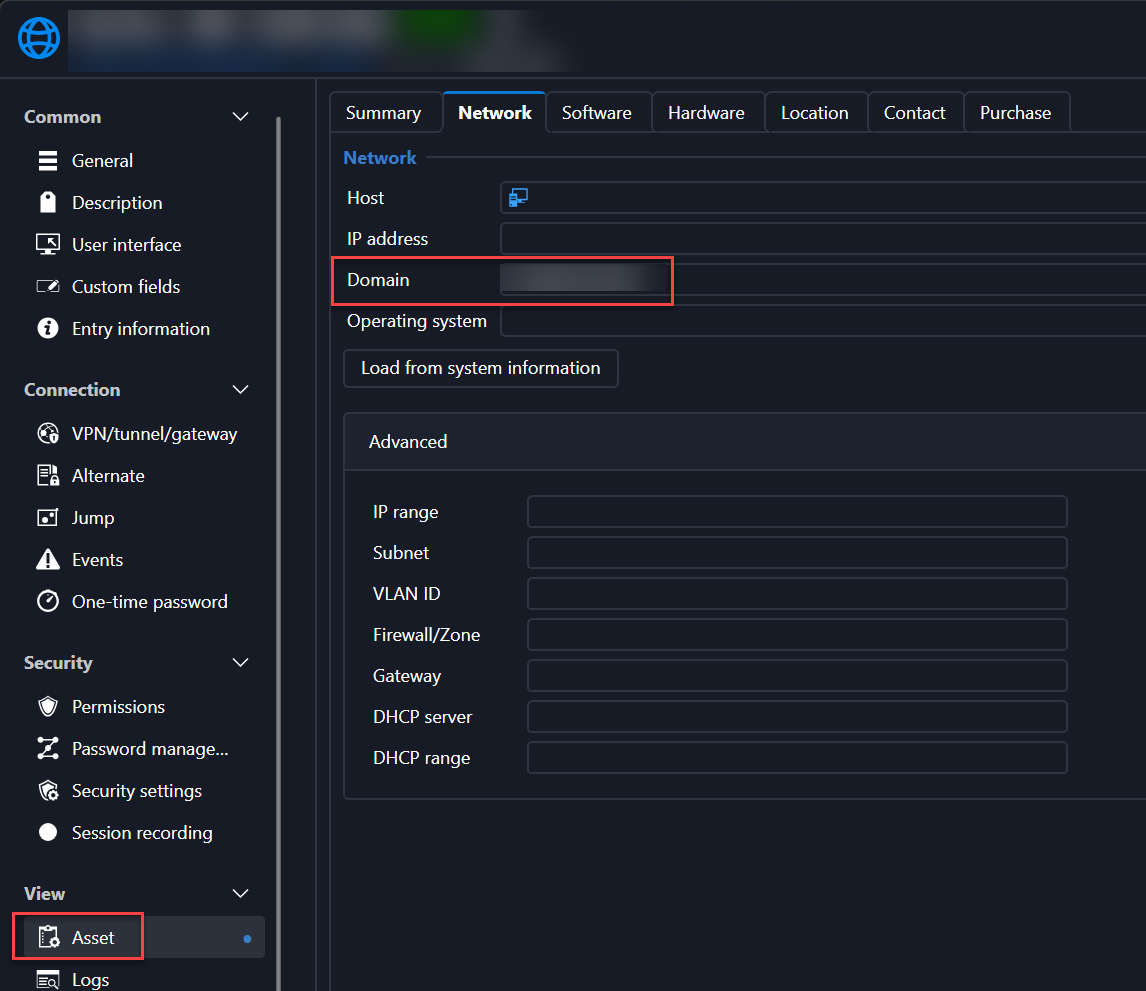
Note, at least for RDP sessions, we are using User Vaults with $DOMAIN_MACHINE_DOMAIN$ and Asset > Network > Domain option on the server properties to call the domain out. This would be great if we could do the same on the web interface.
RDM 2026.3.15 – Frequent DVLS Authentication Prompts, Slow Connections, and Freezing
Hello,
Thank you for reaching out to Devolutions Support, and for the screenshots.
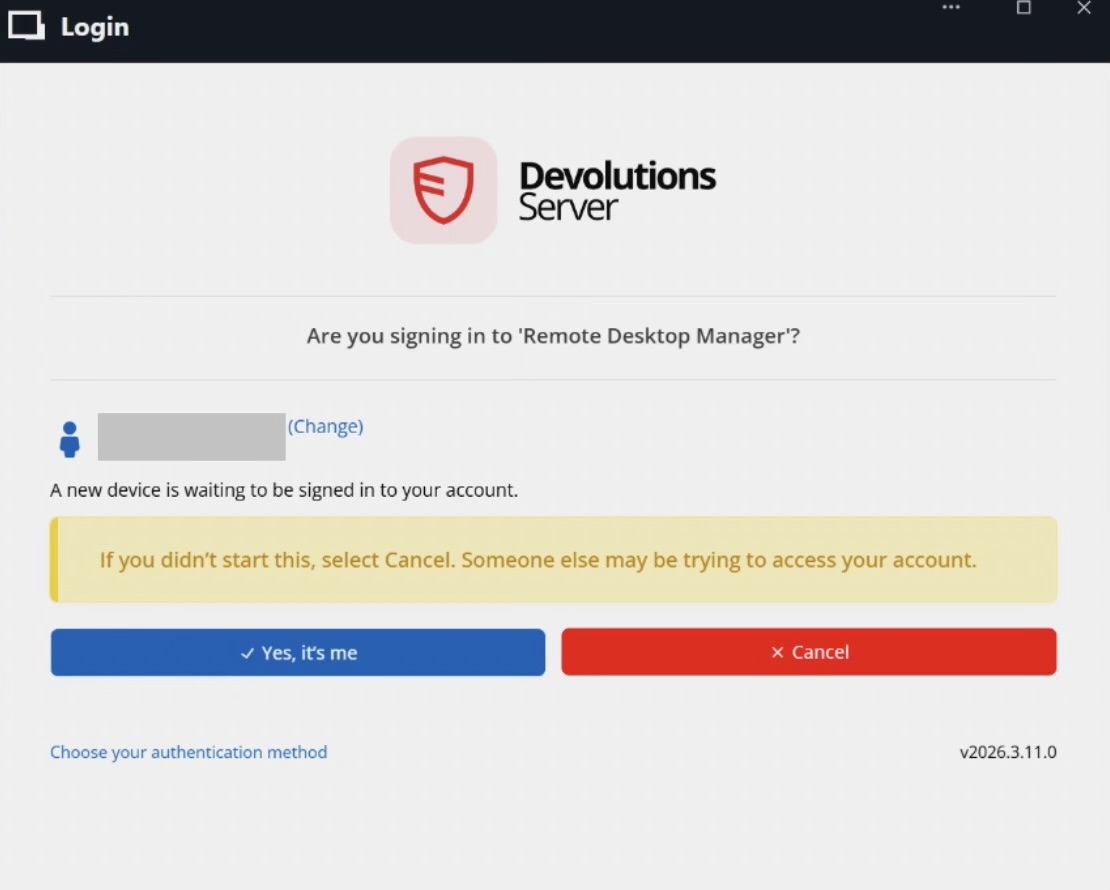
The "Yes, it's me" confirmation comes from a security change in recent Devolutions Server versions, which fixed a phishing risk in the device sign-in flow. This step can't be turned off, but it should only appear when Remote Desktop Manager needs a completely new sign-in. Normally, RDM restores the previous session at startup using a token saved on the device.
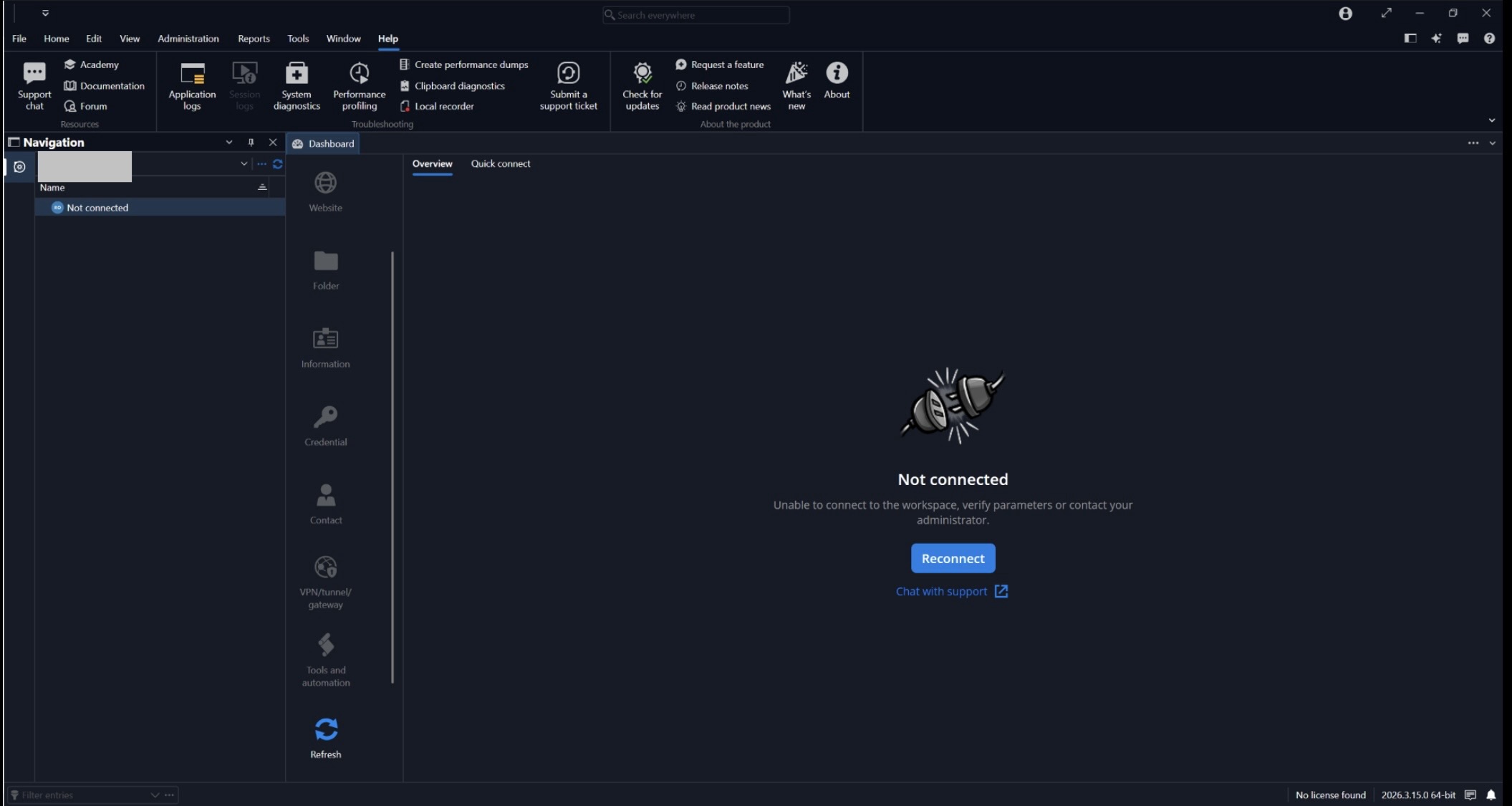
The "Not connected" screen in your screenshot appears when that sign-in doesn't complete. Because your users see the prompt this often, it seems their session isn't being restored, which also explains the slow connection attempts.
Could you please confirm the following?
Which authentication method is used for the Devolutions Server workspace (Windows SSO, Microsoft Entra ID, or a Devolutions Server user)
Whether Always ask for username is enabled in File > Workspaces > Edit workspace > General
The Refresh token lifetime value in Administration > Server settings > Advanced in the Devolutions Server web interface
Whether the affected users are on persistent workstations or non-persistent VDI
When the "Not connected" screen appears, whether clicking Reconnect connects right away or RDM becomes unresponsive
Could you also collect a debug log from an affected user by following the "Collect a debug log" section of this article, ideally including a time when the "Not connected" screen appears or RDM becomes unresponsive, with the approximate time it happened? This will help me find out why the session isn't being restored and what happens while RDM is frozen.
I look forward to your reply.
Best regards,
@Jacob Lafrenière
Thanks Jacob. I appreciate the solid explanation. Note, this hasn't been happening to all users or is more frequent for others. To answer your questions:
Which authentication method is used for the Devolutions Server workspace (Windows SSO, Microsoft Entra ID, or a Devolutions Server user)
Windows Domain SSO
Whether Always ask for username is enabled in File > Workspaces > Edit workspace > General
Always ask for username is NOT enabled and we do not have them use that setting
The Refresh token lifetime value in Administration > Server settings > Advanced in the Devolutions Server web interface
30 days
Idle log off time is set 120 min
Whether the affected users are on persistent workstations or non-persistent VDI
Persistent workstations that are connected to the corporate domain whether locally at the corporate office or remote
When the "Not connected" screen appears, whether clicking Reconnect connects right away or RDM becomes unresponsive
RDM becomes unresponsive. After a few moments (typically a minute or few) it may become responsive again.
I'll work to get some logs when this happens again.
RDM 2026.3.15 – Frequent DVLS Authentication Prompts, Slow Connections, and Freezing
We’ve been experiencing intermittent issues connecting to our Devolutions Server (DVLS) vaults. While these issues were extremely rare in earlier RDM 2026.3 releases, they have become significantly more frequent since upgrading to RDM 2026.3.15.
Users are repeatedly encountering authentication prompts asking them to confirm a new device sign-in, along with “Not connected” errors indicating that RDM is unable to connect to the workspace.
Repeatedly closing RDM and then selecting “Yes, it’s me” often results in extremely slow connection attempts, and RDM will sometimes become unresponsive or freeze during the process. Eventually, after multiple attempts or an extended delay, the connection succeeds, and everything works normally afterward. The issue appears to be primarily during the initial authentication and connection process rather than during normal operation once connected.
I’ve upgraded DVLS to the latest version available to us and rebooted the DVLS server, but neither has resolved the issue.
Our environment:
RDM: 2026.3.15.0 (64-bit)
DVLS: 2026.3.11.0
Operating System: Windows Server 2022 (virtual machine)
Database: Microsoft SQL Server 2022
User base: Approximately 200 users, with 25–50 concurrent users
Server performance metrics have remained extremely stable, with no apparent resource constraints or performance degradation that would explain these connection failures.
The timing suggests a possible regression introduced in the RDM 2026.3 releases, particularly 2026.3.15, given the substantial increase in frequency. Updating and rebooting DVLS have made no noticeable difference (sometimes it works and sometimes it doesn’t).
I’ve attached screenshots showing the repeated authentication prompt and subsequent workspace connection failure.
Has anyone else experienced similar behavior with RDM 2026.3 and DVLS? Is Devolutions aware of any authentication, session management, or connection-handling issues introduced in these releases?
We’re particularly interested in whether there are any known issues involving repeated device verification prompts, authentication timeouts, or RDM becoming unresponsive while connecting to DVLS.
Any recommended troubleshooting steps, fixes, or workarounds would be appreciated, as this is becoming increasingly disruptive to our users.
Thanks!
2026.3.12.0 - Graphical Repaint Issue
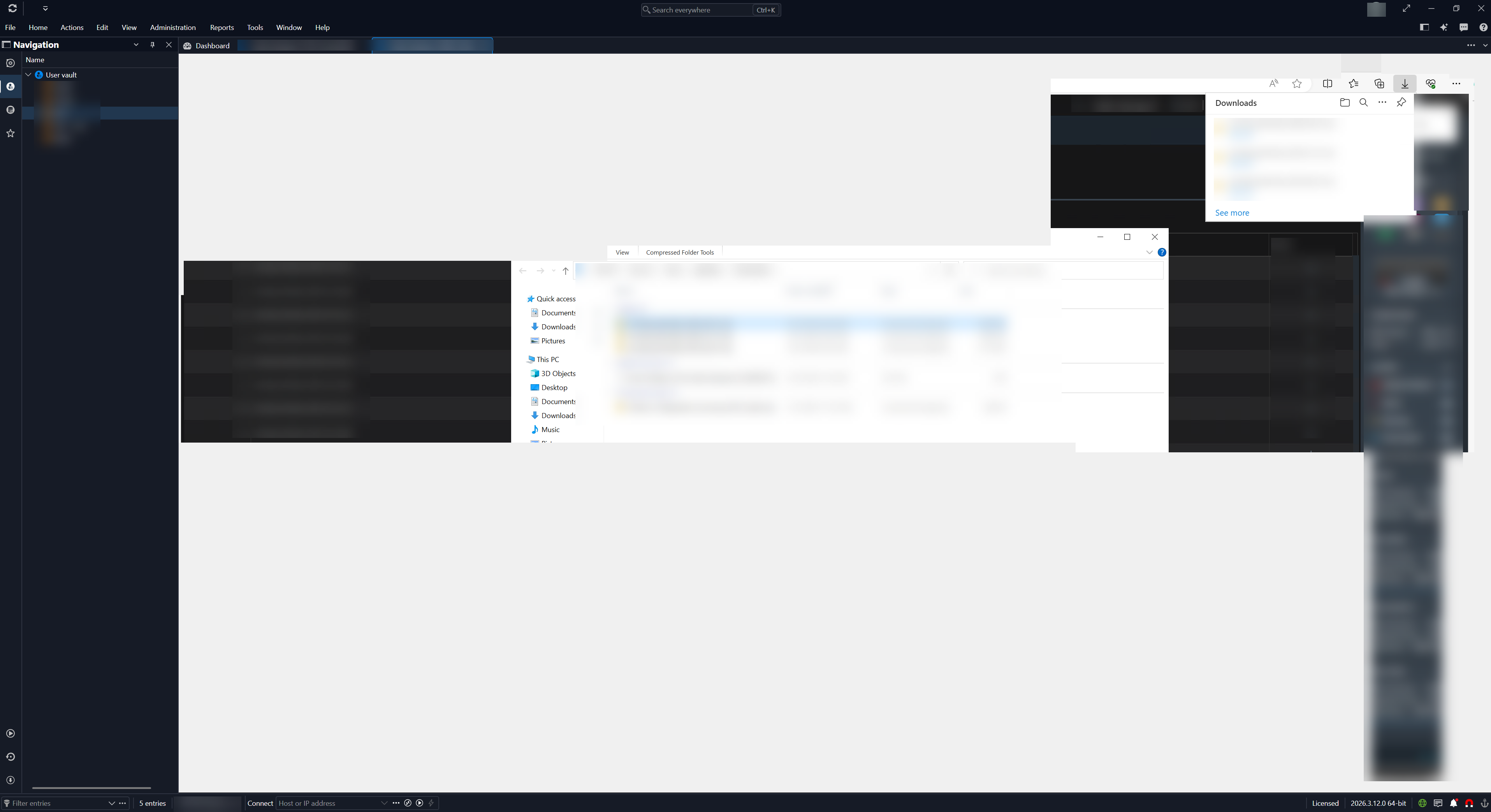
When switching to other apps, I'm still getting this odd screen graphical black out repaint issues with latest 2026.3.12.0 build. It's fine after clicking on another tab in Devolutions and then back.
RDM v2026.3.5.0: RDP Session Display Issue
Hello @Søren,
Thank you for the detailed answer and for testing 2026.3.10.0.
Good to hear the display garble issue is gone.
For the undocked sessions, I still can't reproduce it on my end, so a few more details would help.
Which Undocked windows mode do you use: Tabbed, Grouped or Standalone? Go to File > Settings > User interface > Tabs > Undocked windows. It's a dropdown menu.
What custom desktop size is set on the entry, and what Windows display scaling is set on the 3840x1600 monitor?
Does the issue also happen now that you use Dynamic Resolution?
Does it also happen with a brand new RDP entry set to open undocked?
Could you send a short screen recording that shows the whole sequence?
For example, open the session from the navigation pane, move and resize the window, close it, then open it again.
Since this is a public thread, please send it to me by private message rather than posting it here.
If you'd rather not share a recording, a test entry pointing to a non-sensitive machine works just as well.
With this, I can try to match your setup exactly and pass the details to our developers.
Best regards,
@Alexis Beauparlant
FWIW, we're seeing the same issue with the undocked sessions, as well. I'll work to get some details from my teammate, based on your ask above, and respond back.
RDM v2026.3.5.0: RDP Session Display Issue
Hello,
Thank you for being so patient!
I'm pleased to inform you that a new version of RDM (2026.3.8.0) has been released, featuring the fix for your issue.
Latest Version: Download RDM
Please let us know if this works or if you encounter any issues.
Best regards,
@Maxim Robert
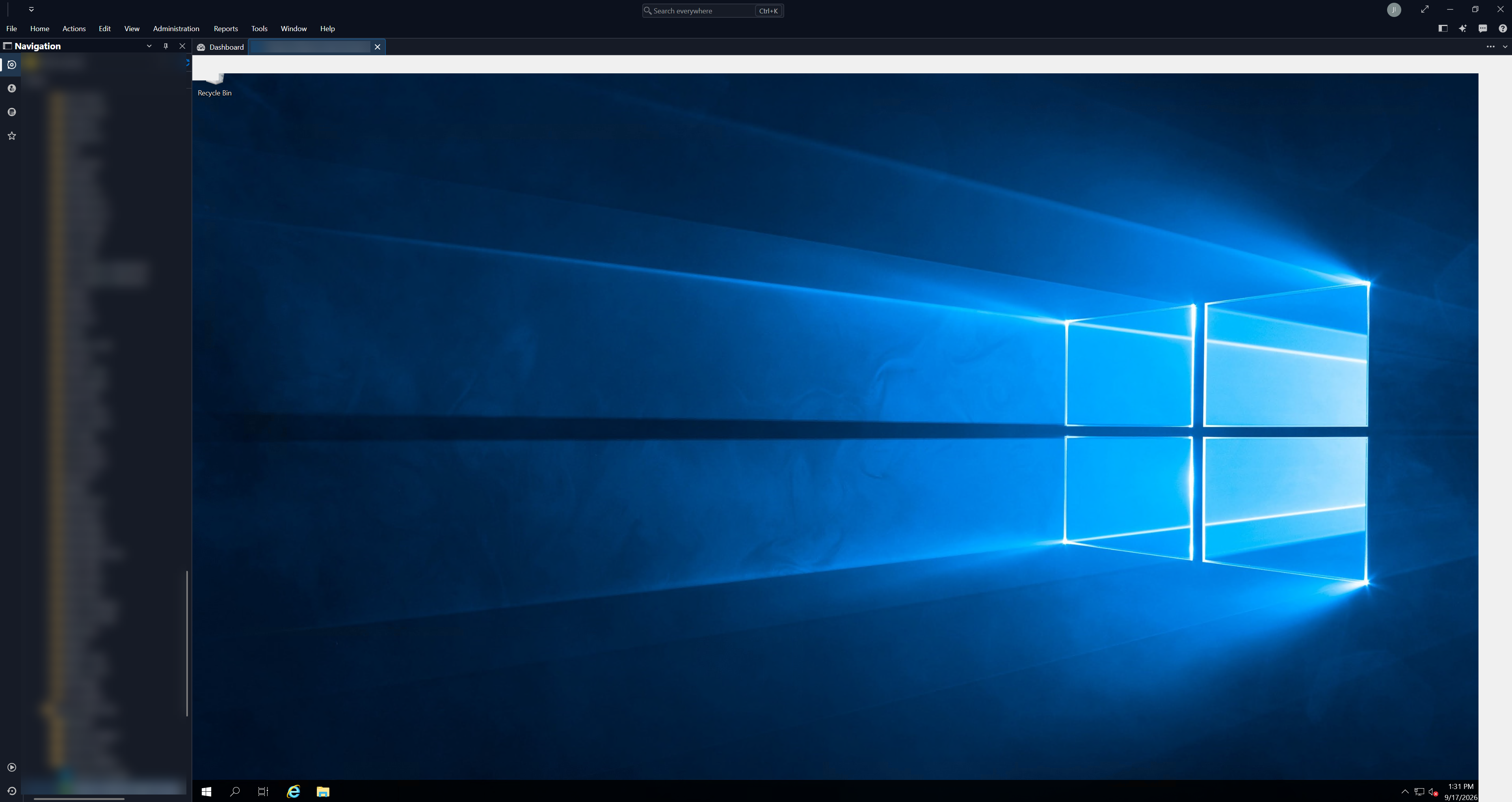
It's mostly fixed, but there are still some display quirks that happen as you jump from RDP to RDP session:
RDM v2026.3.5.0: RDP Session Display Issue
Hey Jimmy and Paul,
I am having the exact same issue with the latest update. Double clicking opens everything small however using the connect button on the ribbon works without issues. I also noticed it only happens sometimes when double clicking and not all the time.
Remote Desktop Manager 2026.3.5.0 64-bit (PreJIT)
Runtime: .NET 10.0.12
Platform: Microsoft Windows 10.0.26200
Workspace: Devolutions Hub Personal
Allocated memory: 547 MB
@kyleschultz
Hello Kyle,
I think the double clicking and very small view issue is fixed in our 2026.3.6 build which should be released very shortly (maybe today, I'm not sure). Let me know if the issue still happens in that version.
Thanks,
Paul
@Paul Dumais
This works for me, as well (clicking "Open session" versus double clicking). That said, at least with Windows 2012R2 and newer, Dynamic Resolution setting works mostly fine with double clicking.
RDM v2026.3.5.0: RDP Session Display Issue
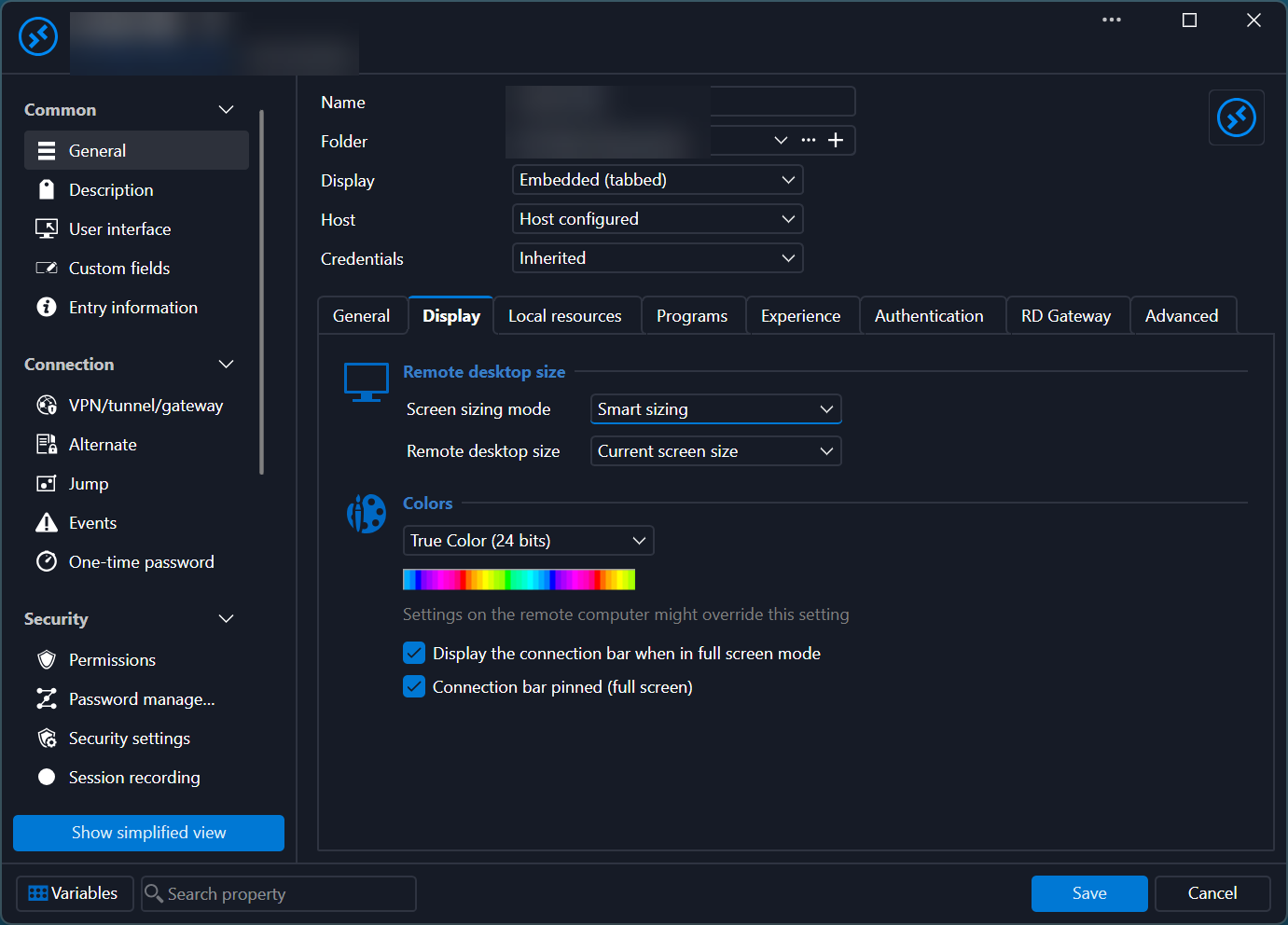
For 2008R2, the only way it displays right is with this setting
RDM v2026.3.5.0: RDP Session Display Issue
Hello Jimmy,
Do you know what the difference are in settings with the connections that show up small versus the ones that work properly, things like the RDP Version (Latest versus others), display sizing modes? The ones with the repaint issue, i have an idea what the issue is, I can look into that. You can also send me a Direct Message with more information about the connections if you would like to share it privately.
Thanks,
Paul
@Paul Dumais
Hey Paul, you were on the money, and I should have verified that. The issue is with sites set like so:
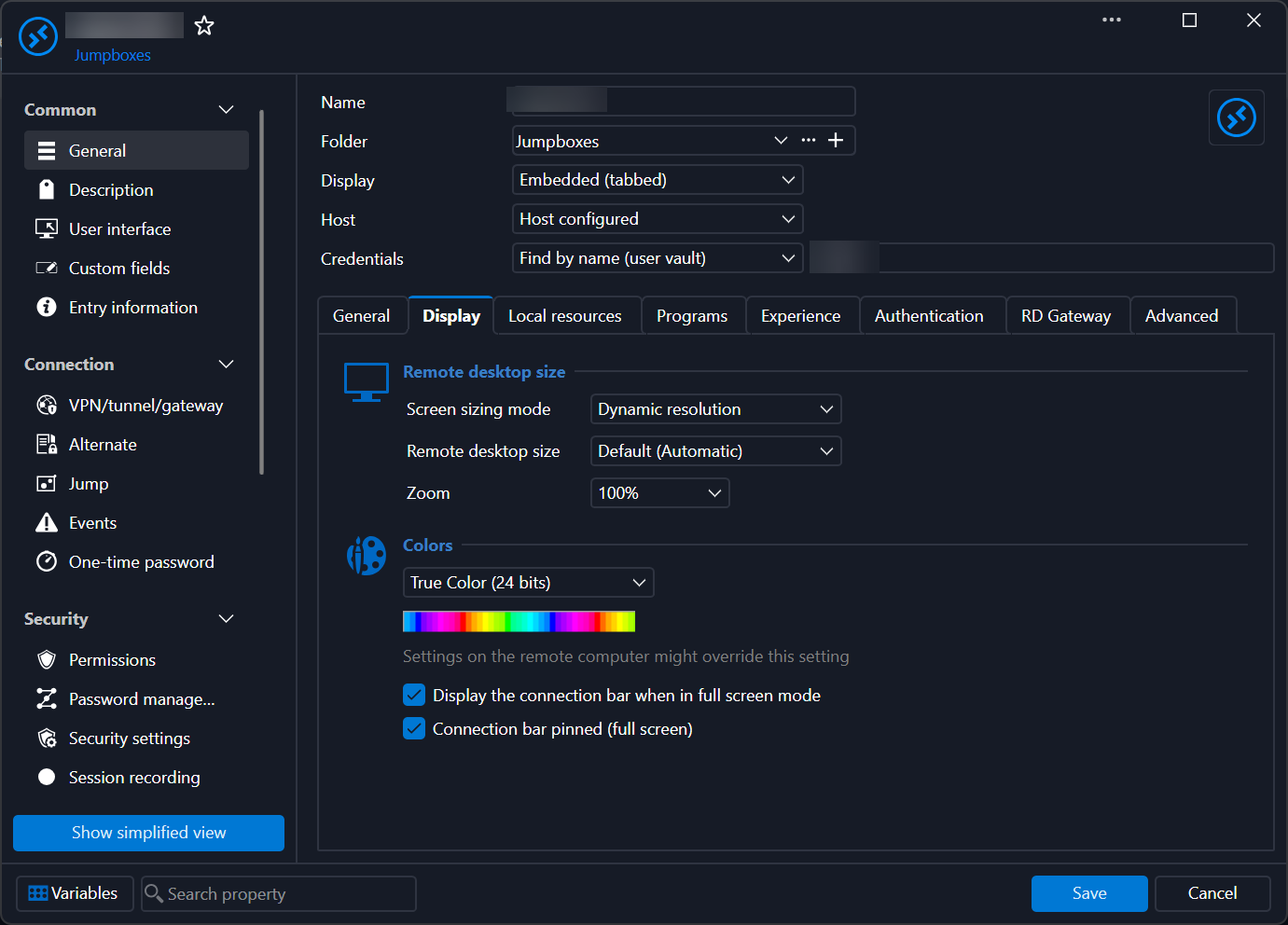
Set like this we don't have the issue:
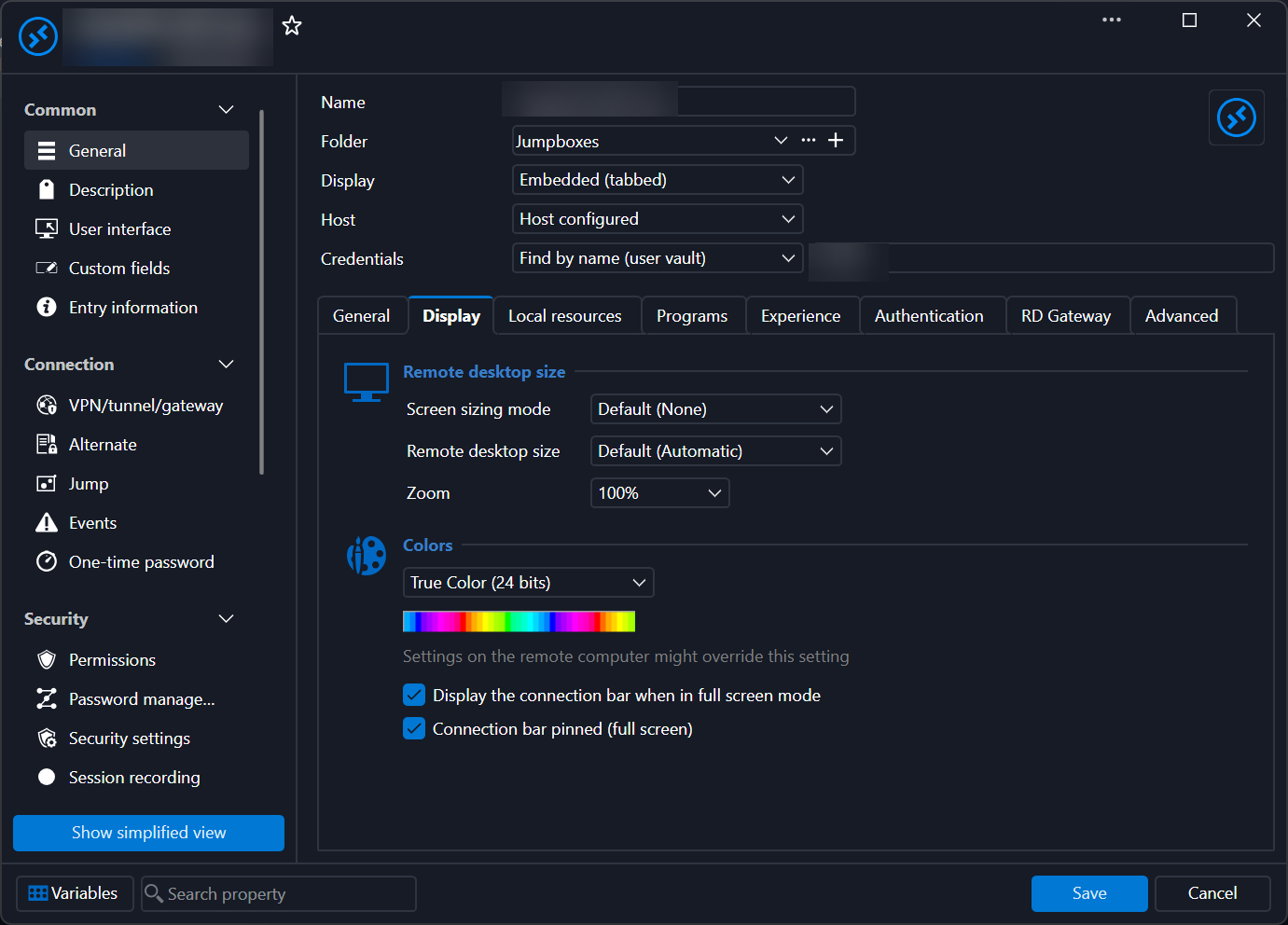
This only semi fixes it, FYI. The issue still happens but will clear up shortly after. However, for Windows 2008R2, it doesn't work at all (still super small square screen).
RDM v2026.3.5.0: RDP Session Display Issue
Hello Jimmy,
Do you know what the difference are in settings with the connections that show up small versus the ones that work properly, things like the RDP Version (Latest versus others), display sizing modes? The ones with the repaint issue, i have an idea what the issue is, I can look into that. You can also send me a Direct Message with more information about the connections if you would like to share it privately.
Thanks,
Paul
@Paul Dumais
Hey Paul, you were on the money, and I should have verified that. The issue is with sites set like so:
Set like this we don't have the issue:
RDM v2026.3.5.0: Vault Folder Ordering Issue
Update: Confirmed "Sort priority" does work but only when changing in RDM and then viewing in DVLS. They do not update in RDM and instead only show in alpha order.
RDM v2026.3.5.0: RDP Session Display Issue
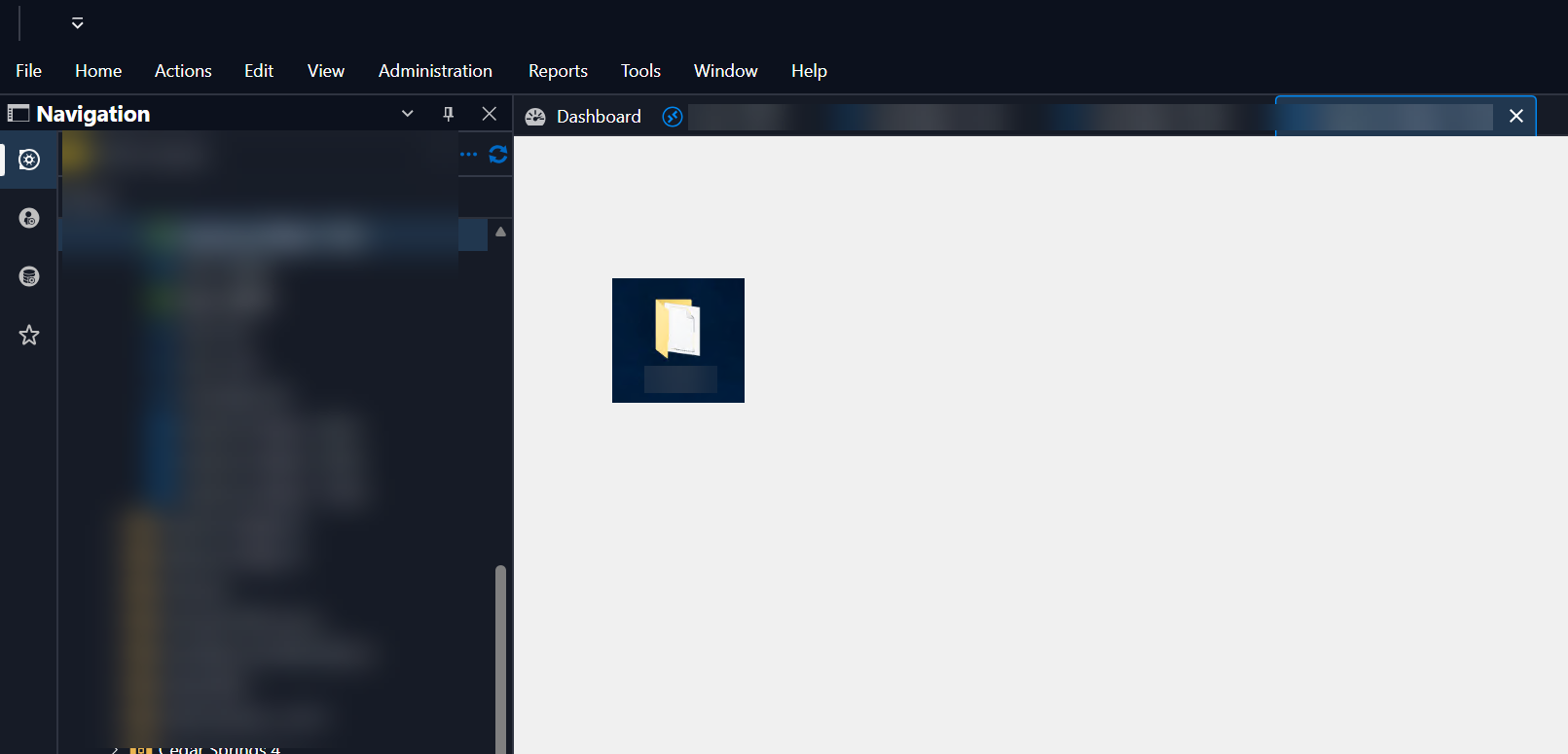
And on RDM RDP sessions that are working decently, I can go out of the application and come back and they'll sometimes look odd like this below. If I click on another open RPD session and back to it then it'll display correctly:
RDM v2026.3.5.0: Vault Folder Ordering Issue
After updating to RDM v2026.3.5.0 today, my vault folders are out of order. I'm unable to drag them around. I also do not see a "Sort priority" option on the folders.
Edit: The "Sort priority" is there now (odd, I swear it wasn't earlier), but it doesn't work no matter what I change the folders to.
I go into DVLS and they are in the proper order that I originally created and set them to.
Apologies if I'm missing the obvious.
RDM v2026.3.5.0: RDP Session Display Issue
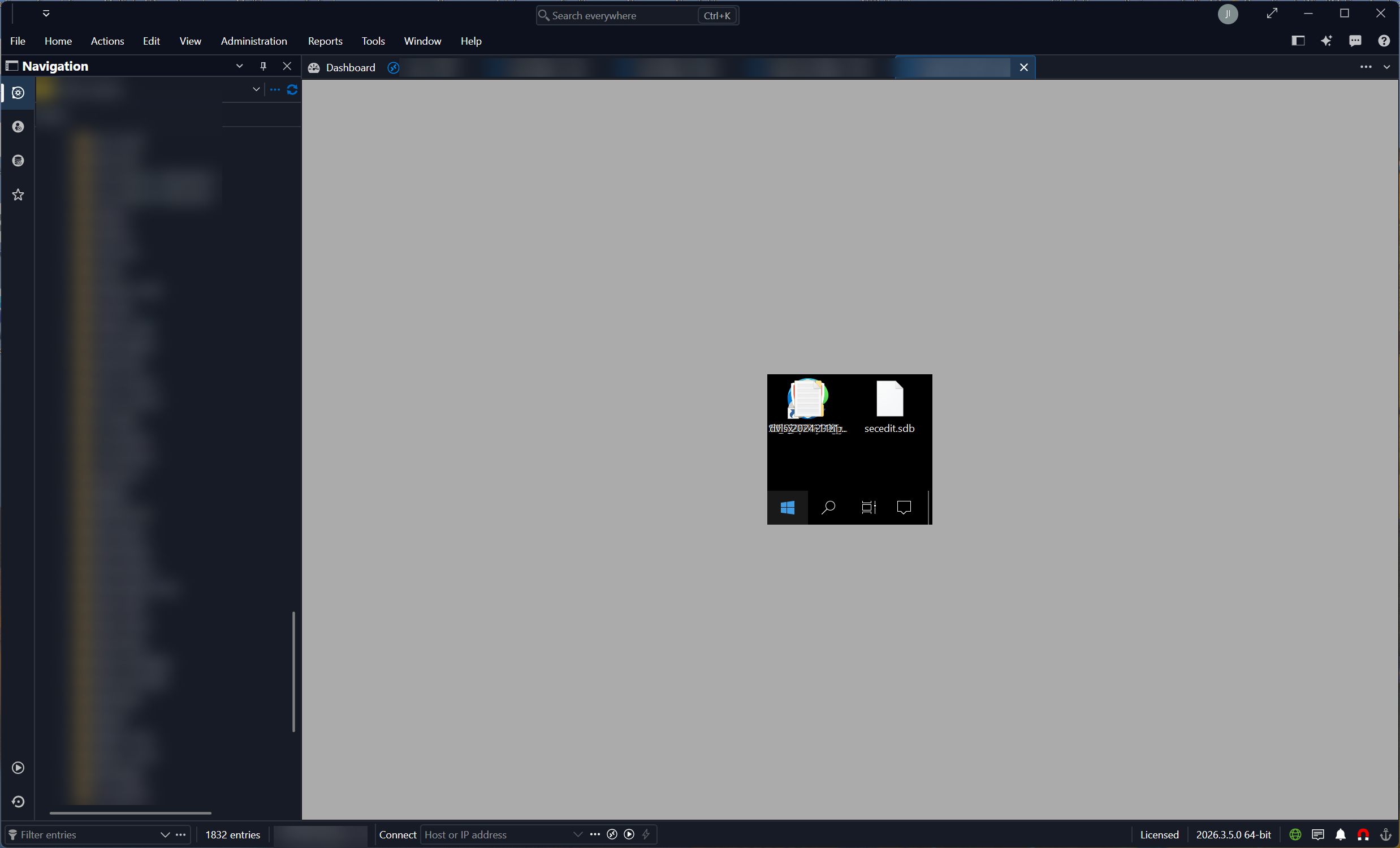
After updating RDM to v2026.3.5.0 today, my team and I are having numerous issues with display sizing of RDP sessions with RDM. The only fix is to use RDP outside of RDM. I updated DVLS to latest v2026.3.5.0 and the same thing persists. See screenshot below.
Internet Explorer Mode
Hi Team, do you have a method to force IE Mode using the Edge browser embedded? I can modify it to external and then change it, but it would be nice if that can be done using the embedded mode.
Thanks!
User Creation Slowness
@Marc-Andre Bouchard great! I look forward to this being resolved. Do you have an ETA on a fix? Thx!
Failed to load sensitive options
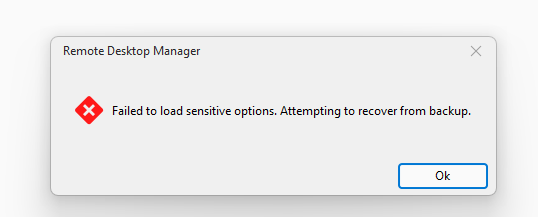
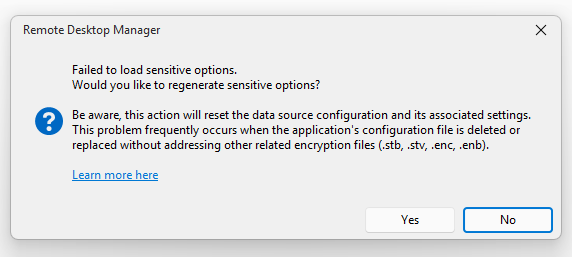
One of my teammates is getting a similar issue:
2026.1.0.22 - Session Launching Issue
Here’s an example of what it shows from my iPhone when I click on a browser in my vault. It flashes “Loading attachments” and never goes anywhere.
This is hit or miss. Sometimes it opens to Overview on other browser entries.
Also, is there a way to default RDM to immediately opening an entry versus having to 2-step (click entry then click open)?


2025.1.0.0: Autofill Login Not Working
This is fixed. Thanks!
User Creation Slowness
Team,
Is it common when creating usernames that it takes 30 to 120 seconds to process? It'll pinwheel until complete, naturally.

Creating more tags
Hello,
Thanks a lot, it is clear. The ticket is created, I don't have ETA, but will keep you posted once we have update.
Best regards,
@François Dubois
Hi there, do you know if this feature was ever implemented?
Thanks!
RDM: Pre-configuring DVLS Data Source / SSO Settings for All Users
Hello Jimmy,
Is there a supported method to pre-configure or “bake in” the DVLS data source settings (host, SSO enabled, etc.) for all users?
Indeed, I would suggest the Custom installer service, where you can deploy the MSI file including a pre configured data souce.
Is there a recommended approach for multi-user or RDS/VDI environments to ensure a consistent, zero-touch initial setup?
For TS advices I can recommend the following KB topic: Remote Desktop Services (Terminal Services).
Regards,
Min
@Min Destens
Thanks for pointing me to the Terminal Services documentation — I’ve reviewed that approach around using a shared/default configuration.
I understand how default.cfg can be used to standardize settings, but I’m unclear on how to ensure our DVLS data source is fully preconfigured and used by default.
Our goal is for users to launch RDM and automatically connect to our DVLS using SSO, without needing to manually add or select a data source.
From the documentation, it’s not clear:
how to define the DVLS data source (host, SSO enabled) within default.cfg
how to ensure it is automatically selected on first launch
and whether this approach works reliably in multi-user / RDS environments
Is there a recommended or supported way to achieve this using the Terminal Services / shared configuration method, or is the Custom Installer still the only way to fully preconfigure the DVLS connection?
Also, for users who have already launched RDM, is there a way to centrally enforce or update this configuration?
Appreciate the clarification.
Jimmy
RDM: Pre-configuring DVLS Data Source / SSO Settings for All Users
Hi Team,
We are currently deploying Remote Desktop Manager (RDM) in a shared/server-based environment where vendors log into a Windows host, launch RDM, and connect to our Devolutions Server (DVLS).
Today, users are required to manually configure the DVLS data source (host + “Use domain single sign-on (SSO)” option) the first time they open RDM. We are looking for a way to streamline and standardize this experience.
Objective:
We want users to log into the server, open RDM, and be immediately ready to go — without needing to configure the DVLS connection themselves.
Questions:
Is there a supported method to pre-configure or “bake in” the DVLS data source settings (host, SSO enabled, etc.) for all users?
Can this be achieved via:
Pre-configured user profile / default profile
Registry keys or configuration files
Deployment via GPO, MSI parameters, or PowerShell
Is there a recommended approach for multi-user or RDS/VDI environments to ensure a consistent, zero-touch initial setup?
Are there any best practices for enforcing SSO by default in this scenario?
(lots of questions, feel free to combine)
Environment Context:
Centralized DVLS deployment
Domain-joined environment using SSO
Users access RDM from shared Windows systems (non-persistent sessions possible)
We’re trying to eliminate user-side configuration drift and reduce onboarding friction while maintaining a secure, standardized connection method.
Appreciate any guidance or documentation you can point us to.
Best,
Jimmy