
Stéfane Lavergne
Copy Username and Password" button not working after update to 2026.3.5.0
@Maciej The Move Next shortcut is only triggered when needed, specifically when an app requests clipboard content without providing a handle (handle = 0), preventing it from being identified.
Unfortunately, this behavior is becoming increasingly common, particularly with Chromium-based apps, which now make up a significant portion of applications.
So yes, it's expected that the shortcut won't always work. However, when pasting into a Chromium-based app, it should trigger as intended.
Copy Username and Password" button not working after update to 2026.3.5.0
@Maciej
Thank you for sticking with this, and for all the testing you did along the way. Your last finding, that it only breaks with “Show in taskbar” set to minimize to the tray, was the key. With it we reproduced the problem here and found the root cause.
Each time RDM comes back from the tray, it ends up handling the clipboard request twice. The username is pasted, and the password is skipped right away. That’s also why it worked again after a reboot, until the next time RDM was minimized to the tray, and why the RDP sessions showed the same behavior.
We’re working on a fix now. Until it ships, you can avoid the problem by setting “Show in taskbar” to “Always visible” and restarting RDM.
Thanks again for your patience and the excellent repro steps.
Copy Username and Password" button not working after update to 2026.3.5.0
@Maciej I’ve started looking at the information in your two other posts. I’m juggling six things at the same time, so it might take a little while. I’ll try to get back to you before the end of the day, as I don’t work on Fridays.
One quick thing I can already say: yes, RDP will be an issue. The clipboard has to be handed off to the other machine through the RDP protocol, and the paste then happens on that machine without us being notified. Could you try the “Clipboard - Next value” shortcut (Ctrl+Alt+Shift+V by default; if you changed it earlier, use your own) to see whether you can then paste the password in the RDP session too? If that doesn’t work, for now your only option with RDP is to copy each value individually until we figure out whether we can get around this limitation.
Copy Username and Password" button not working after update to 2026.3.5.0
Hi Maciej,
Thanks for the logs.
It shows something we rarely see. Usually when the paste doesn’t work, another application (a clipboard manager, a remote session syncing the clipboard, a security tool) reads the value before you get to paste, and the log shows it. In your log it is the opposite: nothing asked for the clipboard at all. RDM put the values on the clipboard each time (four copies in your log), and your screenshot of the notification confirms that part worked too. But every paste request should add a line starting with “Clipboard - Render”, and there are none. The “Clipboard - Clear” at the end also tells me the last copy was still unread when the clear delay ran out.
Clipboard - Render - Requester : 2692046 - Format : 13
Clipboard - Requester : 2692046 - Process Id : 28112 - Name : notepad++
Clipboard - Set - Format : 13
Clipboard - Render - Allowlisted - Requester : 2692046
Could you try three more things?
Do the same steps but in Notepad++ use then menu
Edit>PasteThis takes the CTRL+V key combo out of the loop to isolate the issue
Run the script below in a normal (non-administrator) PowerShell window and post its output together with the Clipboard diagnostic log (Help > Clipboard diagnostic > Debug). It checks whether another application has taken Ctrl+V as a global shortcut, shows which application owns the clipboard right after the copy, and reads the clipboard once from PowerShell. It never displays the value.
Save as Check-Clipboard.ps1 and run with:
powershell -ExecutionPolicy Bypass -File .\Check-Clipboard.ps1
Output should look something like:
PS C:\Users\slavergne\Downloads> powershell -ExecutionPolicy Bypass -File .\Check-Clipboard.ps1
1. Global hotkeys on the paste shortcuts
  Ctrl+V : free
  Shift+Insert : free
  Ctrl+Insert : free

2. In Remote Desktop Manager, open Help > Clipboard diagnostic > Debug,
   then click "Copy username and password" on an entry.
   Press Enter here once that is done:

   Clipboard owner       : RemoteDesktopManager (PID 78360)
   Clipboard held open by: (none)

3. Reading the clipboard from PowerShell (this uses up the first value, the username)
   Returned 6 characters (value not shown).
PS C:\Users\slavergne\Downloads>
While we investigate further and a a last resort, reboot the system and run the same test again.At this point, nothing makes sense anymore, so this might actually work.
Best regards,
Copy Username and Password" button not working after update to 2026.3.5.0
Sorry nothing worked.
I changed the shorcut to another one, "use global" and "no in session" > restart app after change... no work :(
I pasted to the RDM,. RDP, notepad++ - no working.
@Maciej
To help us investigate your issue further, we would need you to run a test using the Clipboard diagnostic window and send us the results.
Help>Clipboard diagnostic>Debug(tab)click
Paste once - 2 itemsPaste both values
Do this for apps that work and some that don't
Send us the outputs to compare
Copy Username and Password" button not working after update to 2026.3.5.0
@zfernezir
Thank you for bringing this to our attention. We've received similar reports from other users and have already made a few changes to address the issue.
In v2026.3.16, we've:
Changed the default shortcut to Ctrl+Alt+Shift+V.
Limited when the shortcut is active to only when it's needed (during the copy username and password operation), since even the new combination may conflict with certain keyboard layouts.
In the meantime, you can work around the issue by manually changing the shortcut in RDM's settings.
We apologize for the inconvenience!
Best regards,
Multiple instance broadcast shortcut not working
Hello Patrick,
Thanks for the details. Our QA team tested 2026.2.20 and 2026.3.16. In Global hotkey mode, the shortcut only works in the first instance on both versions. Windows lets only one application own a global key combination, so the other instances can’t register it. In Default mode, it worked in every instance on both versions, so something in your setup must be different.
Could you check these:
Close all RDM instances after you switch the shortcut to Default. The first instance keeps the global hotkey until it closes.
Make sure the broadcast shortcut mode is Default, not “When not in session”. That mode is skipped while the focus is inside a session.
In each instance, check the keyboard grab icon in the status bar. It must be on, or Default shortcuts are ignored.
If it still fails, please send your exact version (Help > About), the session type, and a short screen recording.
Best regards,
Multiple instance broadcast shortcut not working
Odd, I will need to ask QA to investigate and reproduce the issue on my end. I don't understand how or why this could have worked before.
I will get back to you once I find something.
Best regards,
BUG: Paste two times from Clipboard not working anymore
Chromium-based apps break the copy username and password functionality because they access the clipboard without identifying themselves.
A workaround has been introduced in the latest version of RDM. You can use CTRL+ALT+V to move to the next value and then paste the password.
Note: The next release of RDM will use CTRL+ALT+SHIFT+V. We had to move away from CTRL+ALT+V as it caused issues with certain language-specific keyboard layouts, so the shortcut had to be changed. The key combination is also configurable.
More information here (the documentation still shows the old shortcut, but an update will be pushed once the RDM release is available):
https://docs.devolutions.net/rdm/ribbon-menu-bar/home/clipboard
Multiple instance broadcast shortcut not working
Thank you for the detailed steps. This comes from how Windows handles global keyboard shortcuts.
When a shortcut is set to Global mode, RDM registers it with Windows as a system-wide hotkey. Windows lets only one application own a given key combination at a time. The first RDM instance you open claims it. When the 2nd and 3rd instances try to register the same combination, Windows refuses. From then on, Windows sends that key combination to the first instance only, even when another instance has focus. So pressing the shortcut in instance 2 actually toggles broadcast in instance 1’s sessions.
A few ways to work around it:
Use a different shortcut in each instance. For example, Ctrl+Alt+B in the first and Ctrl+Alt+N in the second. This only works if each instance uses its own configuration.
(not tested) Switch the broadcast shortcuts away from Global mode (File > Settings > User interface > Keyboard). Each instance then handles the shortcut itself while its window is active. Check that it still fires with focus inside your sessions.
Keep toggling broadcast from the menu in the other instances, as you do today.
Best regards,
Copy Username and Password" button not working after update to 2026.3.5.0
You are pasting into an RDP session is that correct?
Could it be that the RDP session receives the CRTL+ALT+V and not RDM?
As a test can you try clicking away from the RDP after the first paste (username), CTRL+ATL+V, then paste the password in the RDP session.
Best regards,
Copy Username and Password" button not working after update to 2026.3.5.0
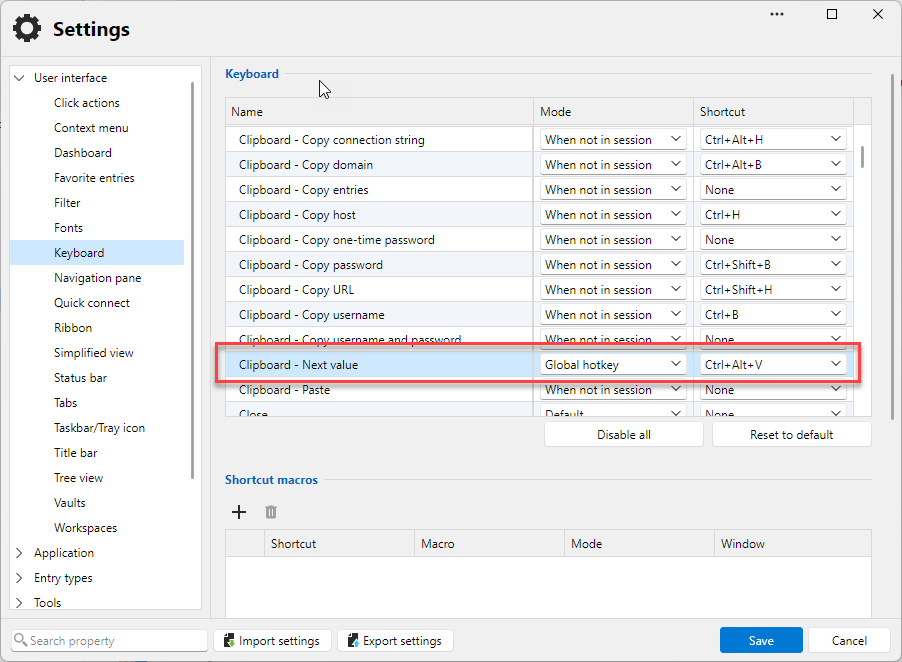
File > Settings > User interface > Keyboard > Clipboard - Next value
Copy Username and Password" button not working after update to 2026.3.5.0
Hi all,
With RDM v2026.3.15.0, you can now use CTRL+ALT+V to move to the next element in the paste sequence.
With the proliferation of Chromium-based applications (Slack, for example), RDM has an increasingly difficult time detecting paste operations. This is because Chromium and some other applications request clipboard content without properly identifying themselves. While Chromium isn't the cause of your specific issue, I believe the solution we've implemented to address this limitation should also work in your case.
Note: documentation is being updated and should be published shortly.
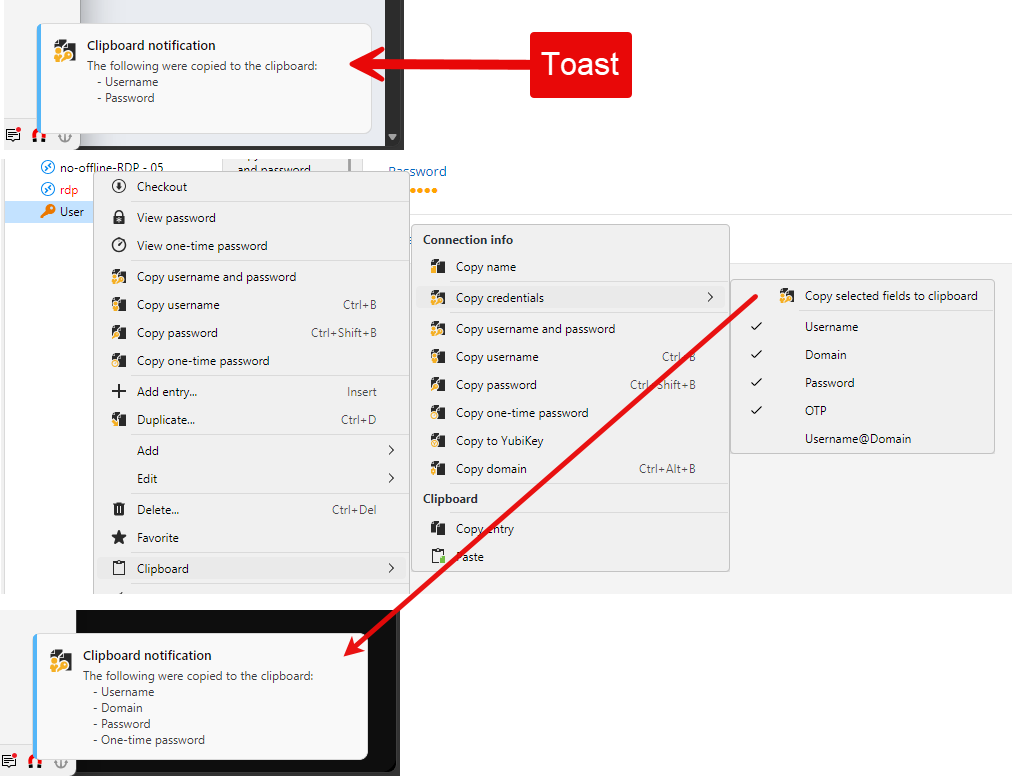
This also works when using Copy Credentials (username, domain, password, OTP).
With this new approach, the workflow becomes:
Copy the credentials in RDM.
CTRL+V → Paste the username.
CTRL+ALT+V → Move to the next value.
CTRL+V → Paste the domain.
CTRL+ALT+V → Move to the next value.
CTRL+V → Paste the password.
CTRL+ALT+V → Move to the next value.
CTRL+V → Paste the OTP.
In v2027.1, the toast notification in the bottom-right corner will also be updated to indicate your current position in the paste sequence.
In applications like Notepad, CTRL+ALT+V will effectively be a no-op because RDM can already detect the paste operation and automatically advance to the next element. In these cases, you can either skip the additional shortcut or continue using it. The advantage of always using it is that your keystroke sequence remains consistent, regardless of which application you're pasting into.
Give it a try and let me know if it resolves the issue for you.
I recognize that CTRL+ALT+V is a compromise. Ideally, simply pressing CTRL+V twice would be the better experience. Unfortunately, we keep encountering exceptions where automatic paste detection doesn't work reliably.
Our thinking is that:
CTRL+V → CTRL+ALT+V → CTRL+V
is still significantly more convenient than:
Copy username in RDM → CTRL+V → Copy password in RDM → CTRL+V
It's not quite as seamless as we'd like, but it provides a more predictable and consistent workflow across applications, including those where automatic paste detection isn't reliable.
Note: CTRL+ALT+V is configurable if you want to change it.
Best regards,
RDM offline synch specific vault
I like the idea! I'll add it to my list of improvements. It shouldn't be too difficult to implement.
OFFLINE EDITS item named MUR
This is odd. MRU is the entry that stores your "most recently used" data. It's saved in the user settings vault (not visible in the UI) and should not be listed in the Offline Sync window.
I'll double-check and make the appropriate fix.
For now, you can accept and hit OK.
Best regards,
Copy password delay
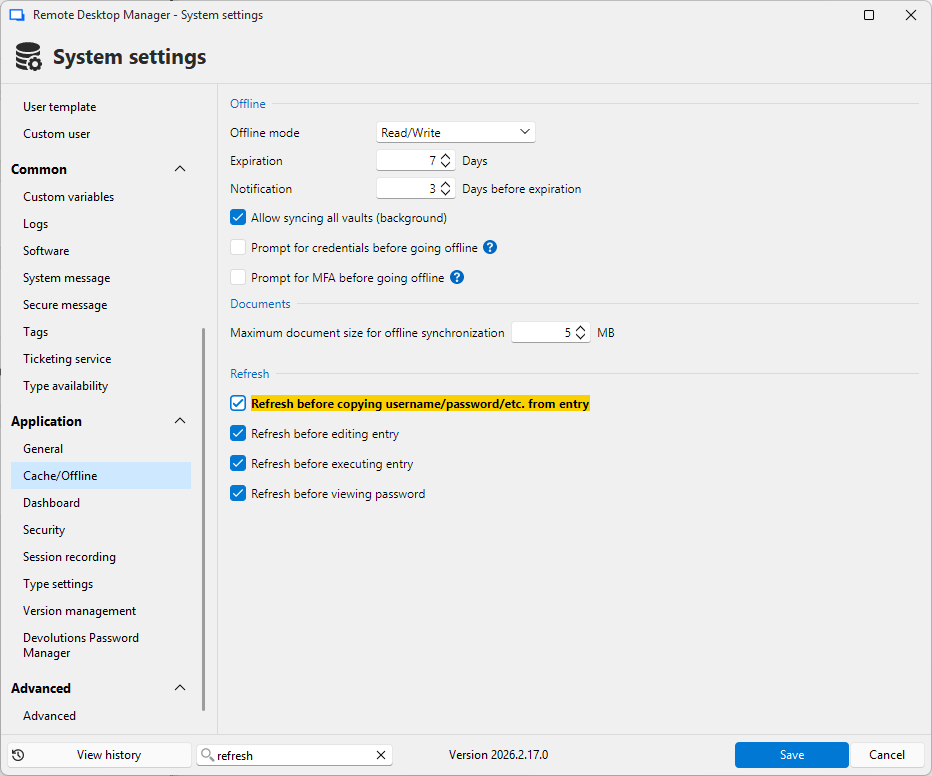
The option Refresh before copying username/password/etc. from entry has to be turned on as fix of another issue we were dealing with in the past
Understood, no problem.
On the hotkey delay: the trace does explain it. The 1604 ms is the issue we have just fixed, and it will be resolved in 2026.2.19.0 & 2026.3 beta.
What I cannot explain yet is that the click action also spends roughly 900 ms in the same refresh, even though it feels immediate and that part is not covered by the fix.
If it is not too much trouble, could you send the complete profiler trace for both actions, untrimmed, while it is still reproducible? That would let me account for the remaining time properly. Otherwise we can re-test once you are on 2026.2.19.0 and go from there.
Best regard
Copy password delay
Hello,
Do you still have Disable multi-threaded loading checked?
The reason I as is we still see DecryptData - Multithreaded : and not DecryptData : in both profilers.
The odd thing here is the DecryptData - Multithreaded in the keyboard shortcut trace represents 96% of the total refresh time while in the click copy password it represents less than 1%. Note sure how to explain that one honestly.
Clicking Copy password:
...
                            DecryptData - Multithreaded : 9 ms - Count : 2
        LoadConnections [Microsoft SQL Server : COMPANY - User Settings Vault] - ReadOnly : 33 ms
		...
RefreshConnections : 946 ms
Keyboard shortcut:
...
                            DecryptData - Multithreaded : 1604 ms - Count : 1
...
        LoadConnections [Microsoft SQL Server : COMPANY - User Settings Vault] - ReadOnly : 1637 ms
		...
RefreshConnections : 1660 ms
Also depending on how often your passwords change you could uncheck Refresh before copying username/password/etc. from entry in Administration > System settings > Appllication (section) > Cache/Offline
Copy password delay
Hello,
Thank you for taking the time to run the test, it confirmed the cause right away.
The issue has been fixed. Vault loading no longer waits unnecessarily, so load times should be back to normal without any special configuration.
The fix is scheduled for v2026.2.19.0 and v2026.3.3.0 (beta). Until you update you can leave "Disable multi-threaded loading" enabled; once you are on one of those versions, you can turn it back off.
Best regards,
Copy password delay
Hi.
Stéfane here from the dev team, I've been keeping an eye on this thread.
Your profiler trace is very interesting. At this point the only thing that comes to mind is a thread-pool scheduling stall, odd but that's what the trace suggests.
The good news is we can test this relatively easily. In RDM File > Settings > Advanced > Settings > Diagnostic (section) > check Disable multi-threaded loading.
Does it solve the issue? Please post the new profiler trace.
To be clear, that setting is a diagnostic to confirm the cause, not the final fix. If it checks out, we'll address it properly in the app.
Best regards,
Performance Issues
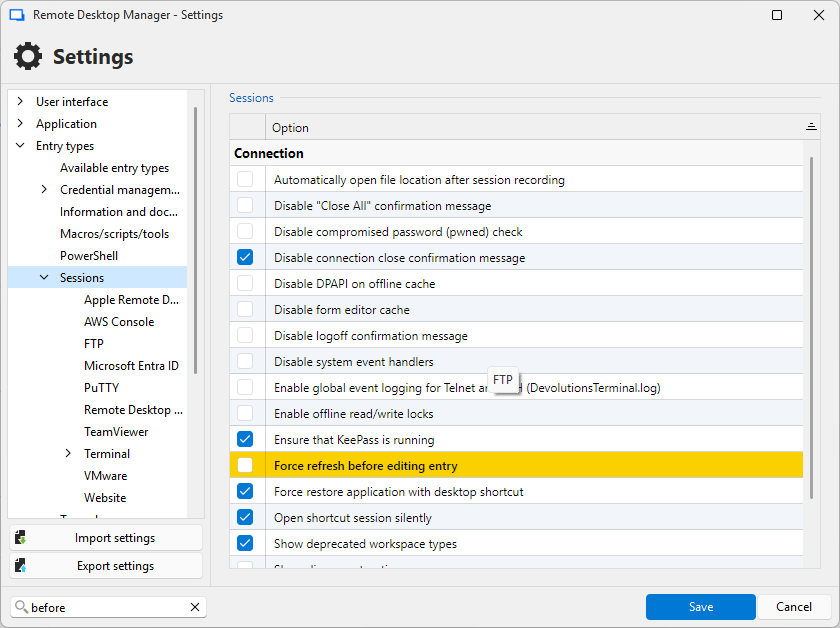
Do you have Force refresh before editing an entry enabled? (File > Options > Entry types > Sessions)
If so, disabling it will make the edit window open faster.
The tradeoff is that you might occasionally edit an outdated version of an entry. You can manually refresh from time to time to reduce the chances of working with stale data. If you do end up editing an outdated version, you can use the entry history to recover any lost changes.
RDM 2026.2.5.0: very Slow when have active Vault Filter
Hi @Andreas ,
Thanks again for the traces. They confirmed there's still a noticeable delay, so there's definitely more to investigate.
I'm heading out on vacation shortly, so I won't be able to dig into it right away. Once I'm back in mid-August, I'd like to schedule a remote session with you. Since we haven't been able to reproduce the issue locally, I think that's the quickest way to identify what's causing the remaining slowdown.
In the meantime, if you notice anything else or have additional traces, feel free to add them here.
Thanks again for all the time you've put into helping us track this down.
Best regards,
RDM 2026.2.5.0: very Slow when have active Vault Filter
@Andreas
Perfect, thank you. Let me analyze these, and I'll get back to you.
Just from a quick glance, we can already see delays of more than 2 seconds on some traces. That's definitely not good.
Performance Issues
@Marco Hofmann @Martin
Have the Profiler window open while you perform the slow actions. If it captures anything interesting, feel free to post it here.
Use these settings (this is the sweet spot):
Profiler Level: 1
Auto Mode: Enabled
Threshold: 100ms
Info: Enabling too many profiler level flags, especially a few of the more verbose ones, can and will negatively affect performance. Start with Level 1, and Auto Mode is always preferred.
Best regards,
RDM 2026.2.5.0: very Slow when have active Vault Filter
@Andreas
Thank you for the update.
Can you give us an idea of how fast it is now?
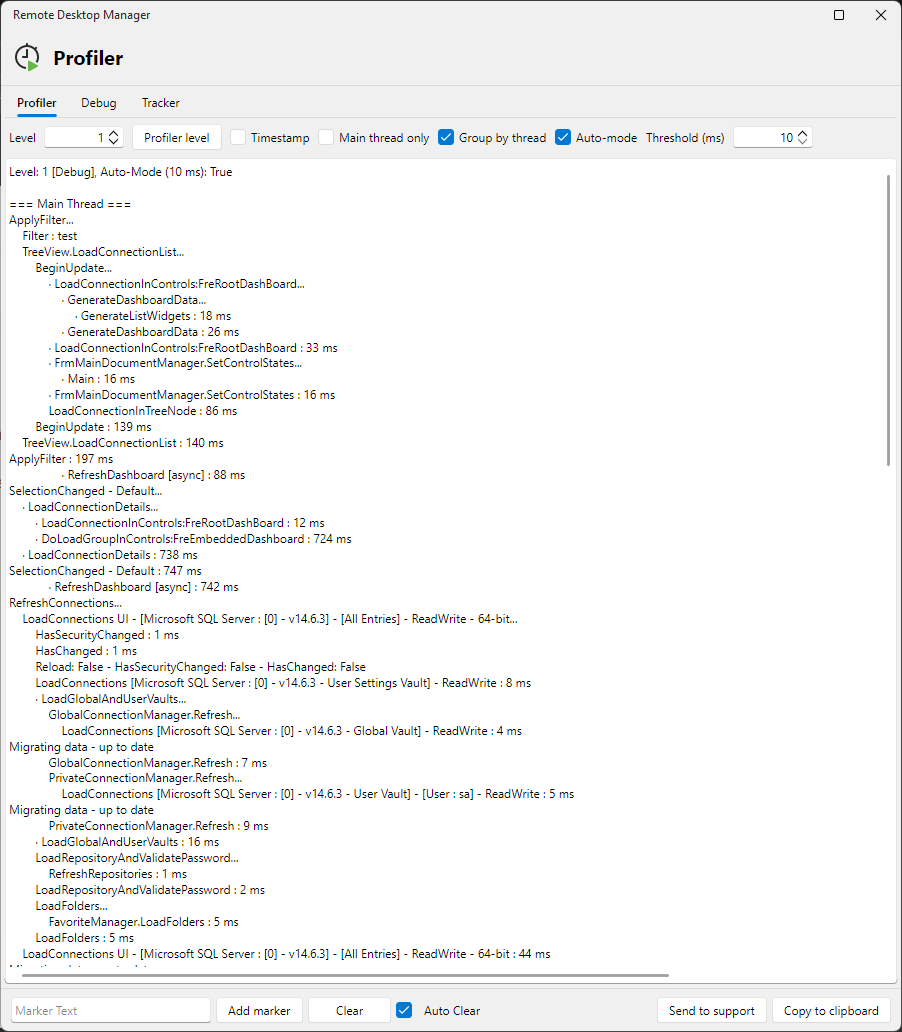
Could you try one last thing to help us gather the diagnostic information we need to pinpoint the issue?
If so:
Start the Profiler (Help > Performance Profiling).
Set the level to 1.
Enable Auto Mode and set the threshold to 100 ms.
Perform the slow filter.
Copy the profiler output (paste it somewhere so you don't lose it).
Change the threshold to 10 ms.
Perform the filter again.
Copy the profiler output again.
Please send me both profiler traces via direct message.
The 10ms trace might be quite verbose, but having both the 100ms and 10ms traces should give us a better chance of diagnosing the issue.
Best regards,
DVLS Upgrade Issue - Database Schema Error (from 2025.3 to 2026.2.11)
I have a feeling the Docker container isn't upgrading the DB schema. I'm not a Docker expert, so I will need to check with someone here who is.
Can you please send me your schema (via direct message is best)?
The schema will help me determine if I'm on the correct path.