
thorsten
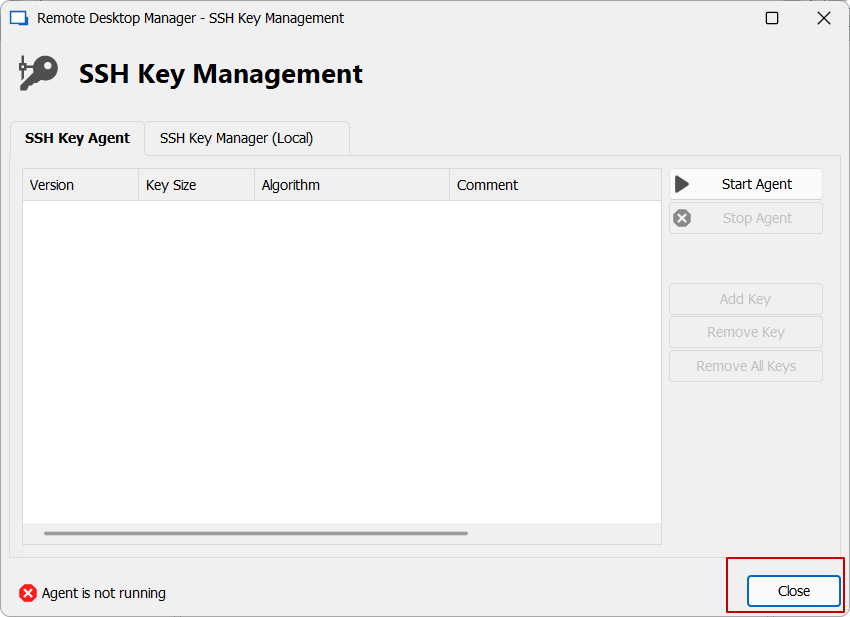
SSH Key Management: Close button does not work
Remote Desktop Manager 2023.2.6.0 64-bit (Windows): the Close button in the lower right of the "SSH Key Management" tool does not work - meaning the button does not close the tool window; while the close button (X) in the upper right does work.
Other tool windows - like "SSH Key Generator" are not affected.
Keyboard shortcut to switch between tabs
For me it's Ctrl+<TAB> (on Windows 11 with a German keyboard layout, RDM 2022.3.27). I can't see it anywhere explicitly assigned (under "Options > Keyboard") - yet it works and it's probably the most intuitive one.
Thorsten
SSH Shell issues - 2022.3.8.0 64-bit (Beta)
Multiple issues with SSH Shell sessions make the new RDM hardly usable for us:
using a German keyboard, the whole "Alt+Gr" generated characters ("{", "[", "]", "}", "\", "~", "@", "|") are unavailable.
the session tab becomes unresponsive to key presses (or generates only upper case characters) after switching between GUI windows. If you close the SSH Shell tab and reconnect (the shell is running in GNU screen) the tab becomes responsive again - for a short time.
the font display is severely blurry. See

versus RDM 2022.2.26.0 below

The icons are actually displayed correctly (the font is DejaVuSansMono NF) but the text is difficult to read on the upper screen shot. The operating system is Windows 10.
"SSH authentication agent forwarding" does not work to Ubuntu 22.04 LTS
The issue is fixed with RDM 2022.2.6.0
"SSH authentication agent forwarding" does not work to Ubuntu 22.04 LTS
Gabriel,
please find attached the requested logfile. This was generated while opening a SSH session to the Ubuntu 22.04 server (successfull) and then doing a "ssh localhost" (not successfull). "Allow SSH agent forwarding" is enabled.
Please note that the same sequence works when using a PuTTY session (which is deprecated) instead of a "native" RDM "SSH Shell" session.
Regards, Thorsten
"SSH authentication agent forwarding" does not work to Ubuntu 22.04 LTS
Enabling "Allow SSH authentication agent forwarding" in a "SSH Shell" session (under General > Advanced) does not work when connecting to a SSH server on Ubuntu 22.04 LTS.
Every outgoing SSH connection from the Ubuntu machine fails without an explicit error.
Windows (RDM) -> Ubuntu 22.04 (works)
Ubuntu 22.04 -> any other host (does not work)
OpenSSH_8.9p1 Ubuntu-3, OpenSSL 3.0.2 15 Mar 2022
RDM 2022.1.25.0 64-bit
Session variables not substituted in parameters of command line (external application) sessions
Session variables are not substituted in parameters of command line (external application) sessions.
Affected version is 2021.2.25.2021.2.23 is okay.
Example:
Run: cmd
Arguments: /c echo name="$NAME$" host=$HOST$ user="$USERNAME$" password=$PASSWORD$ & pause
After latest Update 2020.3.20.0 my default view was reset resp. empty
I'm using a SQLite database locally
After latest Update 2020.3.20.0 my default view was reset resp. empty
David,
unfortunately the application log (RemoteDesktopManagerFree.log) stays empty...
After latest Update 2020.3.20.0 my default view was reset resp. empty
Maurice,
yes I did manually delete all lyt files (RemoteDesktopManagerFreeLayout.lyt and the backups labeled with the date)
Regards, Thorsten
After latest Update 2020.3.20.0 my default view was reset resp. empty
Confirming the above issue. Resettng the layout does not work (the navigation panel does not show):
Reverting to 2020.3.19 to get a working RDM

SSH Shell session hangs after logout
David,
unfortunately the issue hasn't changed.
Regards, Thorsten
SSH Shell session hangs after logout
New Information: the problem starts with Windows SSHD 7.9. The changelog says the following changes occurred from 7.7.2:
"Workaround for PTY regressions
Changes from #353 enabled closing of previously duplicated Console handles - this is causing TTY rendering issues in ssh.exe.
Added a workaround for now to skip closing Console handles."
So from this it looks like the issues is partially caused by a change on the server side and partially because of the new terminal SSH emulation (because the problem does not occur with the old, legacy terminal option.
I'm attaching a log from the last working Windows SSHD (7.7.2) with the new terminal emulation.
SSH Shell session hangs after logout
David,
I'm connecting to a Windows server and the shell is cmd. There is no "logout" command. And even on Linux servers the logout command does not work: "bash: logout: not login shell: use `exit'". Anyway: as I wrote, I typed "exit" which does perform a "close". The effect is the same as "Ctrl-D".
I'm attaching two log files, SSH.log which exhibits the issue (close but no disconnect) and SSH-legacy.log which does not exhibit the issue.
Regards, Thorsten
SSH Shell session hangs after logout
[RDM 2019.1.41.0 64-bit]
After disconnecting from a SSH session to a Windows SSH server via Ctrl-D or "exit" the session hangs and the session tab does not close. Task manager on the server shows that the cmd process exits but two sshd and one conhost processes remain. After closing the session tab with the mouse, these remaining processes exit, too.
The SSH server is native Microsoft OpenSSH on Windows server 2019. When activating "use old terminal" in RDM's settings, the issue does not occur.
Thorsten
Overriding default configuration path creates configuration folder on desktop
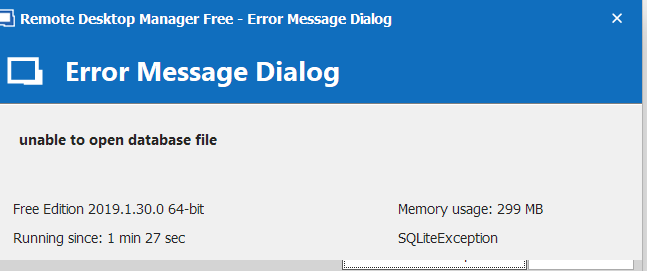
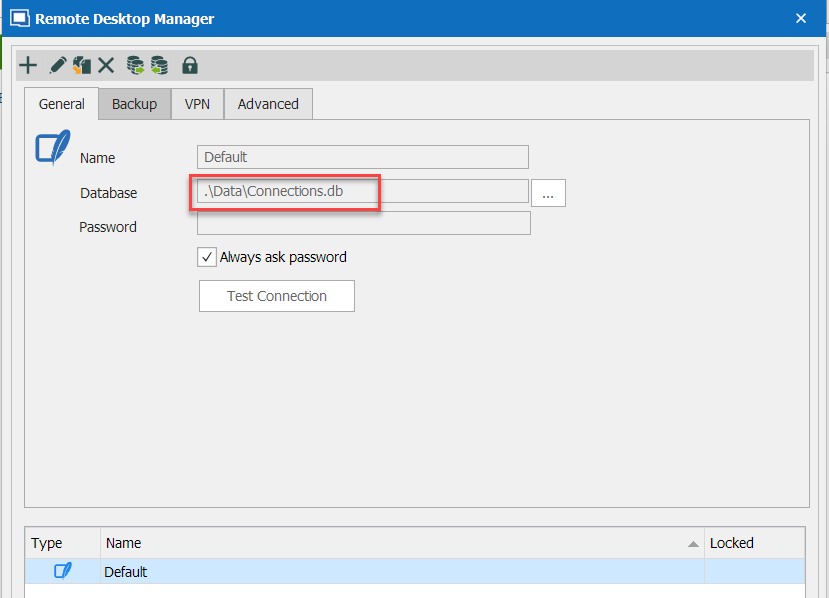
Apparently the same root cause: when using a relative path for the database, trying to attach a file results in an error:
Deleting attachment removes all sessions
James,
I'm sorry for the long delay. Trying to isolate the issue I likely discovered the root cause and opened another ticket: https://forum.devolutions.net/topic32007-overriding-default-configuration-path-creates-configuration-folder-on-.aspx?MessageID=129482 .
Could you please close this ticket?
Overriding default configuration path creates configuration folder on desktop
[RDM 2019.1.30.0 64-bit]
Hi,
overriding the default configuration path creates configuration folder on desktop when using a relative path.
Steps to reproduce:
Create a text file called "override.cfg" in RDM's installation folder (reference: https://help.remotedesktopmanager.com/installation_configurationfilelocation.htm)
Set the content of the file to ".\config"
Start RDM
Add an attachment to a session (this is where it goes wrong!)
A folder called "config" is created on the user's desktop containing "connections.log" and various configuration files (CFG, EXT, LYT) after closing RDM. These obviously belong to the config folder in RDM's installation folder.
Deleting attachment removes all sessions
After deleting an attachment all sessions are removed from the navigation pane. After closing and starting RDM again, all sessions reappear.
Problem with paste text on ssh session
David,
the "Alt-." issue is fixed
the paste issue is not fixed (actually it has become worse since Unix line endings now also result in an extra empty line
the "invisible dark gray text" issue is fixed
there's an additional "Alt" issue: Alt-Tab from a SSH session to another application (say browser) and then Alt-Tab back into the SSH session. The SSH session will not receive any key strokes anymore.
Problem with paste text on ssh session
David,
I'm using the default theme in Textadept. Anyway, another way to generate dark gray text is to execute
echo $'\e[1;30mXXX\e[m'
in a bash shell. That will print "XXX" in dark gray with a black background. With the new terminal it's black on black.


Problem with paste text on ssh session
Alt key example: entering Alt-. (Alt plus Dot key) in a bash shell will insert the argument of the last executed command into the command line. With the new terminal, the menu of RDM is invoked - meaning Alt is not applied to the terminal SSH session inside of RDM but to the main RDM application.
Dark gray example: I'm attaching two screenshots of an editor on Ubuntu. The editor in question is Textadept. The dark gray text in the legacy terminal is shown as black in the new terminal and thus made invisible.


Problem with paste text on ssh session
Under File > Options > Types > Terminal > Advanced there's an option "Use legacy terminal" which solves this and other problems - scrolling with mouse or keyboard, Alt-key, grey text invisible - with the new terminal.
Can't type into command line (external application) session
Hi,
starting with RDM 5.0.3.0 I cannot type text into command line (external application) sessions (like cmd.exe). The issue only happens when the application is embedded (tabbed) - undocked or external works. RDM 5.0.2.0 does not show the issue. RDM 5.0.4.0 still shows the issue.
On another computer of mine, the issue seems does not occur.
Thorsten
"Run As" on "Command Line (External Application)" has no effect
Sorry for not responding for a month!
I finally figured it out: I was running RDM from a substituted drive F: (F:\ -> C:\data\flash drive). When I used "cmd" with "Run As", RDM was looking for a command "C:\data\flash drive\Remote Desktop Manager\cmd.exe". The underlying reason likely is that substituted drives are per user - so there is no F:\ for the user "TEST". I confirmed that by running RDM from the non substituted drive.
The solution is to specify the full command (%SystemRoot%\System32\cmd) instead of just "cmd" when using "Run As" or not to use a substituted drive.