
Alexis Beauparlant
SSH entry session experience
Hello Aleksey,
Thank you for checking again.
I tested this in our lab. In an SSH session from Remote Desktop Manager, Shift+Up and Shift+Down select files in Midnight Commander as expected. Since it also works for you outside Remote Desktop Manager, this points to something specific to your setup, and I would like to find it.
Could you run these two commands in an SSH session from Remote Desktop Manager, and then in Windows Terminal to the same server?
echo $TERM

cat -v
Once cat -v is running, press Shift+Up, Shift+Down, Shift+Left and Shift+Right, then Enter, then Ctrl+C to stop it. cat -v prints the codes it receives as text instead of acting on them, so comparing the two windows will show whether Remote Desktop Manager sends different codes for these keys. A screenshot of each window is enough.
Could you also send a screenshot of the Keyboard tab of your SSH entry, and one of File, Settings, Entry types, Sessions, Terminal, on its Settings tab where the Keyboard options are? I will compare them with the settings that work in our lab. The entry's Keyboard settings are described on this page.
https://docs.devolutions.net/rdm/knowledge-base/knowledge-base-articles/entry-settings/ssh-terminal/
Best regards,
All RDP sessions open with scroll bars.
I saw build 18 came out yesterday. I retested this issue, and it is exactly as I last described still. First session launched in a batch works as expected, all other sessions in that batch still have the scrollbar bug. Workaround of Smart Sizing after still removes them. Doesn't appear to have changed at all in this new build, though, that's not unexpected since AFAIK, it wasn't intended to fix this. Still, thought it worth confirming that this bug is still impactful in this new build.
@jtapp
Hello,
Thank you for your feedback.
While I can't say when, the fix is now ready to be tested. If it passes, it will be delivered in the next release.
We will let you know as soon as it is available.
Best regards,
RDM v2026.3.5 - Open Tabs Moving and Undocking on single mouse click
@ThePelado
Hi,
Thank you for the information.
We were able to reproduce it on 2026.3.17.0 when switching between RDP and web sessions, but like you said, it's hard to reproduce because it's erratic.
No need to send us anything else for now, thanks.
Best regards,
All RDP sessions open with scroll bars.
Hi,
Thank you for your feedback and the details!
I've forwarded them to our development team for review.
Best regards,
RDM v2026.3.5 - Open Tabs Moving and Undocking on single mouse click
I have the problem with the accidental undocking as well. I'm currently on version 2026.3.16 and use it in a VDI environment with Windows 11.
@bgoedhart
Hello,
Thank you for the details.
Would you be able to reproduce it and send us a video of the issue occuring?
You can send it to my DMs.
Let me know if you also can't reproduce when screen recording.
Best regards,
Window is slightly too small to fit the RDP session
@pavlyukoff Can you further explain the "smartfit"? Are you talking about the workaround with smart sizing or something else?
You can also follow the forum thread for updates.
Best regards,
@Alexis Beauparlant - yes, i'm about it and yes. As for me - helps turn on scaling (not smart sizing) and then turn off it (every time).
Already moved to watch progress to those topic. Thanks
@pavlyukoff
I see, thank you for clarifying that!
Best regards,
Window is slightly too small to fit the RDP session
@kelemvor
Hello,
Yes, this is the same thing.
You can follow the thread on the forum for updates: https://forum.devolutions.net/topics/56781/all-rdp-sessions-open-with-scroll-bars
@pavlyukoff Can you further explain the "smartfit"? Are you talking about the workaround with smart sizing or something else?
You can also follow the forum thread for updates.
Best regards,
All RDP sessions open with scroll bars.
Hi!
Our development team is still working on a fix regarding this issue.
We will keep you updated as soon as we have news.
Best regards,
RDM Web Form Login with Domain
@Jimmy P
Hello,
Thank you for your feedback. We're pleased to hear that everything is now working as expected.
Please don't hesitate to create a new thread if you need any further assistance.
Best regards,
RDM v2026.3.5 - Open Tabs Moving and Undocking on single mouse click
Sorry for the late response.
I cant get a video.
However I am also using RDM in a jump box (Azure WVD), and it happens probably 25% of the time that I click back into RDM from doing something else.
Its very annoying.
Another annoying thing, although templates have been added back to the quick connect, by default none is selected when you first open RDM.
Previous versions kept the template selected.
Honestly I think I am just going to go back to the previous version. I had 0 issues in that version. It worked perfectly.
@peterbartels1
@chrispoulter
Hello,
Thank you both for trying to record the issue and for the extra details.
Since we can't get a video, I have sent everything you shared to our investigation team.
They will try to reproduce the issue in a setup like yours, with RDM running inside a remote session.
Any extra information would still help us reproduce it faster:
RDM application logs taken right after it happens, from Help > Troubleshooting > Application Logs.
The exact RDM version you are running now, from Help > About.
Whether it still happens on 2026.3.16.0, which was released on October 27.
How you connect to the jump box, and whether the host is shared by several users.
You can upload the files directly to my DMs.
We will post here as soon as we have news.
Best regards,
High RAM ussage
I think so, even though I tried turning auto refresh back on. I don't mind leaving it off and I'll refresh via F5. It's already solved for me too. Thanks
@martin25
Thank you for confirming. I will go ahead and mark this thread as resolved.
Best regards,
High RAM ussage
Hi Maxim,
I can confirm: memory issue is resolved.
Hello,
@jjaritsch
Thank you for your feedback! That's great news!
@martin25
Is the memory issue also resolved on your end?
Best regards,
All RDP sessions open with scroll bars.
I'm happy to let you know that the latest version of Remote Desktop Manager (2026.3.16.0) includes a fix for this problem. You can download it from our website here:
https://devolutions.net/remote-desktop-manager/download/
Once you have installed the update, could you please test it in your environment and confirm that everything now works as expected? If the issue persists or if you notice anything unusual related to the same original problem, just reply to this message with a few details, and we will be glad to look into it further.
Hello @Maxim Robert - I updated to v2026.3.16.0:
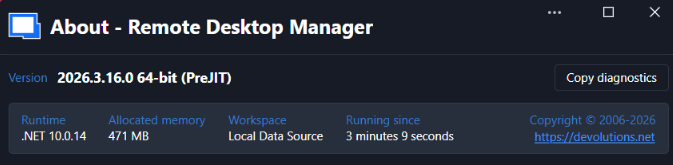
Unfortunately, this bug is still occurring! From my perspective, nothing has changed. As soon as I opened up my first RDP session, the scroll bars were there, just as they have been since this bug was introduced in 2026.3.12.0 as you can see here:
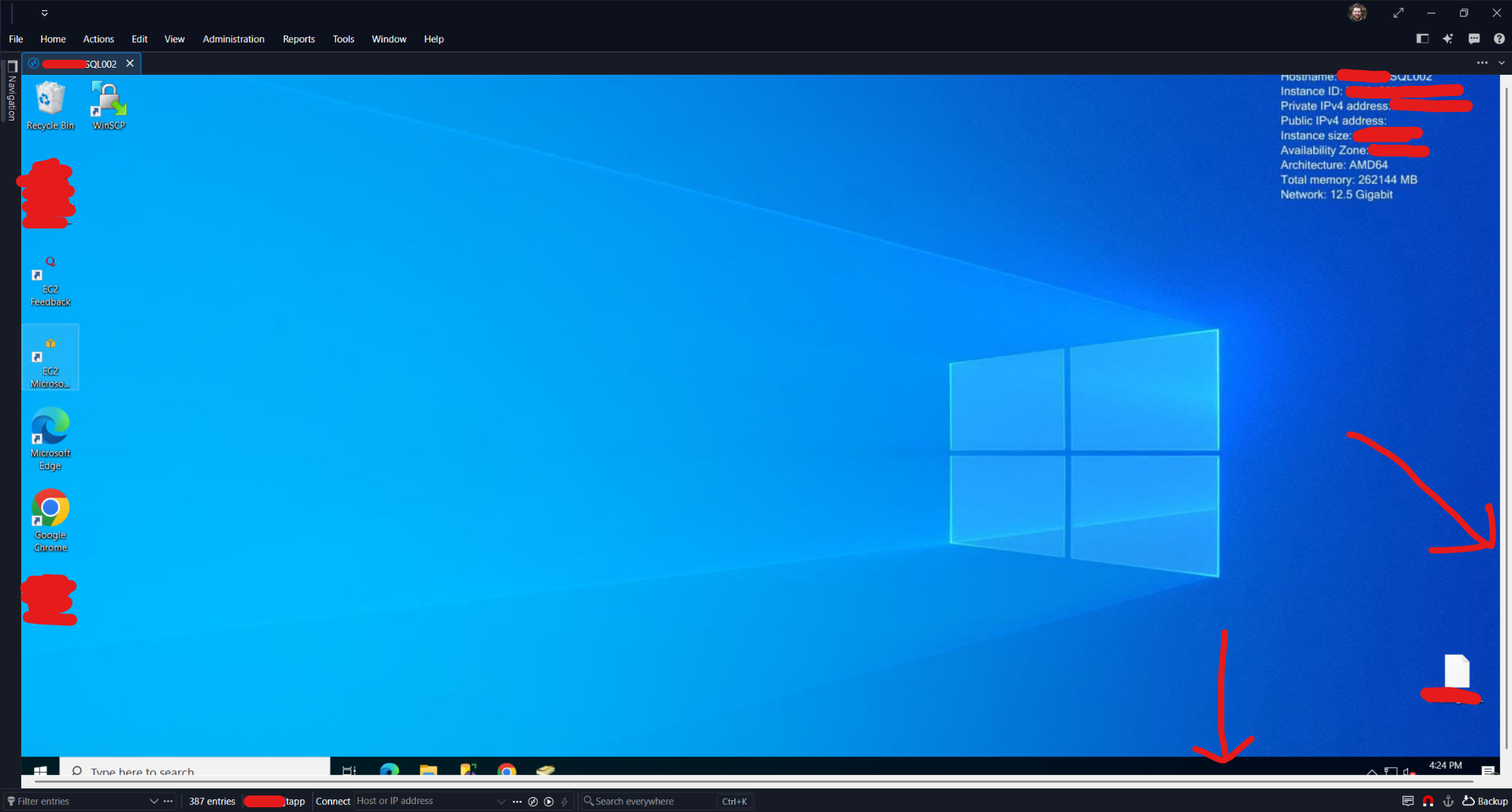
Closed / reopened RDM, tried a different RDP, and it's happening on every session still... Doesn't look like this was fixed.
Like the last build, I can confirm that if I enable Smart Sizing here:
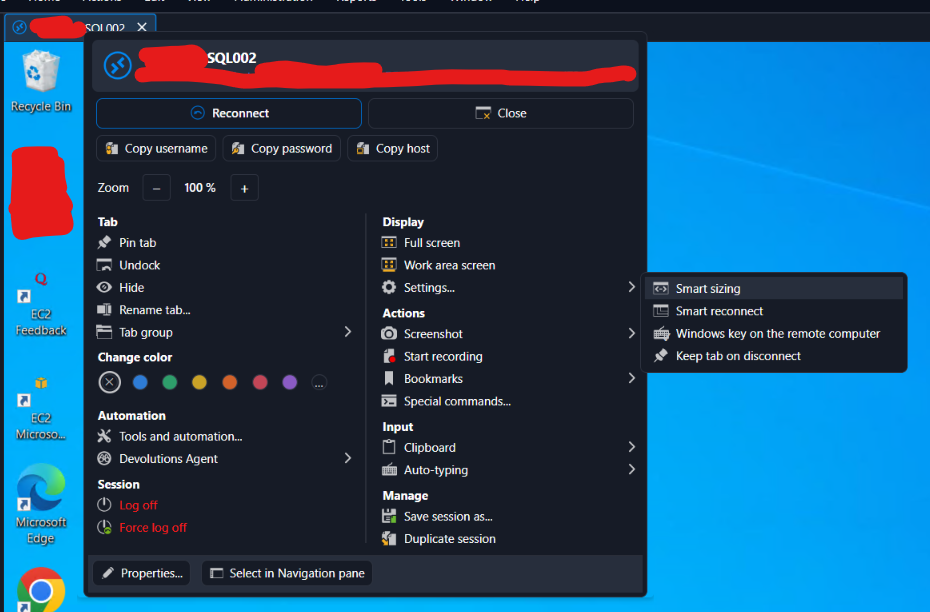
Then the scroll bars will disappear. Turning Smart Sizing back OFF - the scroll bars are still gone. So like before, it seems that this is only an issue when the session first opens.
Each new RDP session I connect to has this issue until I enable Smart Sizing as a workaround. So from my perspective, this issue remains the same as it was in 2026.3.15.0 prior.
Looking forward to a fix! This bug is an annoyance on every RDP session we open with RDM, which is the only thing we use RDM for... LMK if you need more info from me?
@jtapp
Hello,
Thank you for your feedback! I'm forwarding this to the development team to let them know that the issue still occurs on your end.
I'll let you know as soon as we have news.
Best regards,
Search filter not show empty folder
Just installed the 2026.3.16 update this morning.
It's much better now ! Issue is completly solved for me.
Thank you !
@baptisterivard-ext
Hello,
Thank you for your feedback! That's great news.
I'm marking this thread as resolved.
Best regards,
Search filter not show empty folder
Hello @baptisterivard-ext,
Thank you for being so patient!
If possible, could you update your RDM to 2026.3.16.0 and see if the problem persists? This version should resolve your issue.
Latest Version: https://devolutions.net/remote-desktop-manager/download/

If the problem persists after the update, please let us know so we can inform our development team.
Best regards,
High RAM ussage
Hi all,
since ~1 week RDM is eating up to 30GB of memory, if kept running over night. Even after closing all connections, there is no memory decrease (waited for about 1 hr).
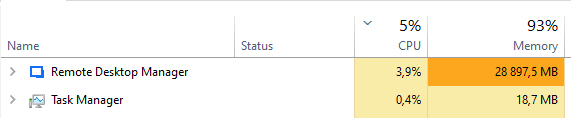
RDM is installed on a Windows Server 2022 Standard VM with 32GB memory. All Microsoft updates installed. RDM Version 2026.3.15.0 64-bit, installed.
Diag from RDM:
Remote Desktop Manager 2026.3.15.0 64-bit (JIT)
Runtime: .NET 10.0.6
Platform: Microsoft Windows 10.0.20348
Workspace: xx
Allocated memory: 35043 MB
Running since: 23 hours 52 minutes
Klicking around while high memory usage happens, results in unresponsive application. Can be closed only via Task Manager.
Virtualization with VMWare vSphere 8.0.3
Hardware Specs: PowerEdge R640, 2x Xeon(R) Gold 6154, 3x SAS-SSD Samsung PM1643 3,84TB RAID5 with BBU
VM Specs: 6 Cores, 32GB RAM
Workspace Diagnostics:
SQLite · Connections.db · v1.155
Workspace
Name: xx
Workspace type: SQLite
Workspace ID: A966D145-C267-43B0-xxxxxxxxxxxx
Caching mode: Disabled
Database
Filename: Connections.db
Path: C:\_admin\Connections.db
Schema: v1.155
File size: 16.3 MB
System information
Version: 2026.3.15.0 64-bit
.NET version: .NET 10.0.6
Current user: 55IT\jjaritsch
I access this Windows Server only via RDP. Application performance is a complete nightmare (like seconds of delay on clicks; up to 10 sec wait for establishing new SSH connections, etc) and it got worse since the last 2 or 3 updates of RDM. After disabling all the options in "File > Settings > Performance > Avalonia Rendering", performance got improved like 2 or 3 times(!), but application crashes came up like every few hours.
I already tried to close RDM, rename C:\Users\$user\AppData\Local\Devolutions\RemoteDesktopManager to RemoteDesktopManager.old. The application starts with all the original settings and no new folder RemoteDesktopManager gets created?
Only renaming the folder C:\Users\$user\AppData\Roaming\Devolutions\RemoteDesktopManager to RemoteDesktopManager.old causes RDM to generate a new config and a new folder RemoteDesktopManager in C:\Users\$user\AppData\Roaming\Devolutions.
With the new config "profile" it runs at ~550MB memory usage, but is quite useless, cause all my personal keys are not imported. Only Connections.db is linked.
Steps I've done to get a clean config:
I've renamed RemoteDesktopManager to RemoteDesktopManager.new
I've renamed RemoteDesktopManager.old to RemoteDesktopManager
In RemoteDesktopManager I've renamed RemoteDesktopManager.cfg to RemoteDesktopManager.cfg-backup-before-test
I've copied RemoteDesktopManager.cfg from RemoteDesktopManager.new to my RemoteDesktopManager folder
Now I have a working version with config reset (something I can deal with, for a few days of testing). Performance slightly increased - let's see how this works in the next 24 hours. Should I share my config file?
@jjaritsch
Hello,
Thank you for the detailed report and for testing with a reset configuration.
What you describe matches the memory issue reported earlier in this thread. Our developers were able to reproduce it, and a fix is planned for an upcoming RDM release. I will update this thread as soon as it is available.
You do not need to share your configuration file for this issue. If you still want to send it, please do not post it on the forum, since it can hold sensitive data. Send it to me in a private message instead.
Until the fix is released, restarting RDM once a day is the simplest way to keep the memory under control. You do not need to restart Windows, closing and reopening RDM is enough.
If RDM keeps crashing with the Avalonia rendering options turned off, please open a new topic with the crash details so we can look into it separately.
Best regards,
High RAM ussage
I have uploaded two memory dump files.
rdm.dmp is a full memory dump captured when memory usage reached 2.2 GB (created via Task Manager > Create memory dump). The second file was generated using the command: cmd /c '"C:\Program Files\Devolutions\Remote Desktop Manager\RemoteDesktopManager.exe" /dump' Afterwards, I noticed RAM usage dropped to just 600 MB. Auto-refresh is disabled.
@martin25
Thank you for the two dump files.
I analyzed the minidump you created with the /dump command.
It shows that about 1.9 GB of memory was held by RDM's own objects at that moment.
No thread was stuck, and nothing was waiting to be cleaned up.
The drop to 600 MB right after the dump is also a useful clue.
It tells us that most of these objects were no longer needed, but RDM had not released them yet.
This also fits what you saw before, when the memory went down after you connected to the desktop over RDP.
Since this happened with auto-refresh turned off, auto-refresh is not the only trigger.
I added both dumps and your results to the bug report our developers are working on.
They will use the full dump to see exactly which part of RDM keeps these objects.
Until a fix is available, restarting RDM once a day is the simplest way to keep the memory under control.
You do not need to restart Windows, closing and reopening RDM is enough.
One more thing:
When the memory climbs, is the RDM window usually minimized, hidden in the system tray, or behind the Windows lock screen?
I will update you here as soon as I hear back from the team.
Best regards,
Remove undocked floating connection toolbar
That's fabulous news, thanks Alexis.
Please let the development team know that to many this might sound like a trivial request but it will save me a great deal of frustration!
Keep up the great work!
@mark_emeny
You're welcome :)
I will let them know. As of now, they know this is a gap, and it needs to be fixed.
Best regards,
RDM v2026.3.5 - Open Tabs Moving and Undocking on single mouse click
@chrispoulter Hello,
Could you provide a video of the issue please?
Best regards,
@Alexis Beauparlant
I have been attempting to get a screen recording of the issue but everytime i active the screen recorder the issue doesn't happen. Correlation does not mean causation.
As @peterbartels1 stated, its very annoying and rolling back to 2026.2.x is definitely on the table at this point. Both the undocking issue and RDP session refreshing issue are driving me insane.
@chrispoulter
Hello,
Thank you for trying to record the issue. Our developers think it depends on timing, so the load from screen recording may be enough to keep it from happening.
1. Recording
Could you try another recorder, such as OBS Studio, ShareX or the Windows Snipping Tool? If you were recording on the jump box, try recording from your local workstation instead, outside the RDP session.
2. Your remote session setup
Your environment seems to be key to reproducing this, and we'd like to rebuild it on our side. Could you tell us:
Is the jump box a standalone Windows Server 2025 machine, or a Remote Desktop Session Host shared by several users?
How do you connect to it (RDM, mstsc directly, RD Gateway, RD Web Access or RemoteApp)?
What OS is your local workstation running, and how many monitors does the session use? Do they have different resolutions or scaling (DPI) settings?
Do you use any custom RDP settings for that connection, such as a GPO, a custom .rdp file, or graphics/H.264 settings?
About how many tabs are open in RDM when it happens?
3. Logs Please send us the RDM logs from the jump box right after the issue happens (Help > Troubleshooting > Application Logs).
I will send you an upload link in your DMs for the files.
@peterbartels1 Could you provide a video of the issue? I will also send you an upload link for it in your DMs.
Best regards,
Remove undocked floating connection toolbar
Thanks again, Alexis. Unfortunately, I do have "Current Work area size" selected as I want the RDP session to be as large as possible, without hiding the Taskbar (which is why I don't use Full Screen). It is a shame, as I'm sure it used to work fine. I have a different machine, with possibly an older version of RDM, so will see if I can verify that.
@mark_emeny
Hello,
Good news! I talked with our devolpment team and they created an internal ticket to take care of this.
I don't have information on when it will be out, but it will be fixed in a future realease.
Best regards,
High RAM ussage
Hello @martin25,
Thank you for running this test, the auto-refresh result is the clue we needed.
It matches an issue our team is already looking into on RDM 2026.3.
Each automatic refresh rebuilds the list of entries in the navigation pane.
In some cases, RDM does not free the old copy of that list.
With a 10-second interval, this happens about 360 times per hour.
That is how the memory can climb to several GB over a few days.
It also explains why the memory did not go down when you turned auto-refresh off again.
The copies that were already created stay in memory until RDM is restarted.
There is also one point about where your workspace is stored.
Keeping a workspace in a folder synced by OneDrive is not supported.
The sync can lock or replace the file while RDM is reading or writing it.
Your test with a local copy still showed the memory growth, so OneDrive is not the cause of this issue.
Still, we recommend keeping the file on a local drive.
You can then use the File backup option to save a backup to OneDrive: https://docs.devolutions.net/rdm/knowledge-base/how-to-articles/sqlite-and-xml-local-backup
If you need the same entries on more than one computer, a Devolutions Cloud workspace is the supported option: https://docs.devolutions.net/cloud/knowledge-base/how-to-articles/share-a-workspace-across-operating-systems
Could you also confirm a few things for us?
Is auto-refresh also turned on in RDM on your laptop, where it stays around 390 MB?
In your usual setup, what file path is shown when you edit the workspace in File > Workspaces?
Is that same Connections.db file opened by RDM on more than one computer?
If the memory still climbs above 3 GB with auto-refresh turned off, a dump file would still help.
Please create a minidump instead of the Task Manager dump from my last message, using this guide: https://docs.devolutions.net/rdm/knowledge-base/troubleshooting-articles/hung-rdm-dump-file-creation
Also, please review our security note on dump files: https://docs.devolutions.net/rdm/knowledge-base/troubleshooting-articles/hung-rdm-dump-file-creation/security-disclaimer-for-sending-a-dump-file
The file should be between 100 MB and 300 MB, since a file over 1 GB is a full dump.
Please do not post it on the forum, I will send you a private link to upload it in your DMs.
Best regards,
Remove undocked floating connection toolbar
@mark_emeny Hello,
This seems to be intentional since the checkbox was replaced by the Undocked windows mode.
It is under Settings > User interface > Tabs > Undocked windows (under the Visibility section), set it to "Standalone (no tabs)".
It is also available by right-clicking the empty tab bar area.
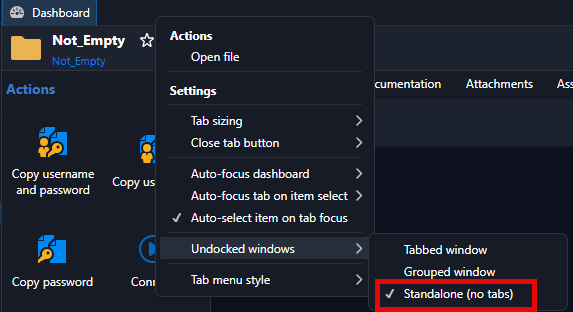
This way, undocked windows should open without a tab bar from my testing, unless Remote desktop size is set to "Current Work area size" on the entry under the display settings.
Let me know if that works out for you.
Best regards,
Remove undocked floating connection toolbar
Thanks for the reply. I'm fairly sure the "Show close button on undocked windows" option used to hide the toolbar, but now it doesn't appear to do anything.
I used to use the Taskbar to close the window, so didn't need the toolbar.
It gets in the way for me as it appears when the cursor is at the top of the window, which can cause me to close the session by mistake, as it appears just before a mouse-click.
@mark_emeny
Hello,
You're right!
I went back to 2026.2.19.0 to see if there was any difference and found that in 2026.3, the option "Show tab bar on undocked windows" is missing. This is the setting that would hide your tab bar before.
I'm asking the development team if it is intentional or a regression, and will get back to you.
Best regards,
Jetscocat/SOCKS proxy stops when closing extra tab that is connected over DVLS gateway
Every since upgrading from RDM 2026.2 to 2026.3 we are encountering the issue that RDM stops the socks connection when you open a extra web session tab, and close this tab, the other session is also closed.
It's 100% reproducable by using a DVLS gateway connection for a web session, opening info in a new tab, and closing that tab instantly. The other tabs stops responding, and when you refresh it states the socks socket is closed.
@patrickknobbout
Hello Patrick,
Thank you for the clear description and the reproduction steps.
We were able to match this behavior to a known regression introduced in Remote Desktop Manager 2026.3.
When a Website entry goes through Devolutions Gateway, all the tabs of that session share the same local tunnel.
In 2026.3, closing any extra tab stops that tunnel, so the remaining tabs lose their connection.
Our development team has completed a fix, and it is now in testing.
It is planned for an upcoming 2026.3 maintenance release.
Until then, here is how to limit the impact.
Keep the extra tab open while you still need the main tab, then close the whole entry when you are done.
If a tab already stopped responding, close the entry and open it again to start a new tunnel.
If this blocks your daily work, you can go back to Remote Desktop Manager 2026.2.19, where this issue does not occur. DVLS will also need to be rolled back to 2026.2.
We will let you know as soon as the version with the fix is available.
Best regards,
Add an icon in entry properties to copy the value in the host name field to clipboard
On behalf of a customer:
Add an icon here to copy the value in the host name field to clipboard.
