mikesimmons
Multiple Endpoints Using the Same File
A further option is to store a credential under Platform > Variables vault and use that credential to authenticate against the endpoint, but if your goal is to restrict some users from using POST/PATCH, you’re going to need some form of user identification outside of authentication - which I’m not sure is possible, certainly it would be convoluted and messy.
Is there some reason authentication can’t be enabled or configured in your environment?
Multiple Endpoints Using the Same File
Ah, yes. I remember I came across that before.
I had to create a role named Public, which basically included all users and then set Public as the security profile of the endpoint.
Multiple Endpoints Using the Same File
I think you should be able to use the built in variables $Method, $Identity and $ClaimsPrincipal. Set the endpoint with no authentication then switch on $Method and set your own rules using $Identity and/or $ClaimsPrincipal for POST or PATCH.
For ease, I’d probably build two endpoints and allow Powershell Universal to handle the authentication.
Best way to create a new schedule from a dashboard?
If granular roles isn’t an option you could create an endpoint as a wrapper and pass through the app token and schedule changes as parameters
This could verify the app token and force a constant script into the New-PSUSchedule command or API.
Editing Scripts with an App
Can’t you invoke the script with the paramaters you’ve selected?
universal-docs/cmdlets/Invoke-PSUScript.txt at v5 · ironmansoftware/universal-docs
-OnSubmit {
    $Art = $EventData.SelectArt
    $OU = $EventData.SelectOU
    $Group = $EventData.TxtAdGruppe

    Invoke-PSUScript -Name "Script to invoke" -Parameters @{
        Art = $Art
        OU = $OU
        Group = $Group
    }
}
If you’re looking to save the script with hard parameters, you can use placeholders;
For example, if you created the script below in a file named test.ps1
# Filename test.ps1
Write-Output “Hello ~HelloWhat~”
Then did something similar to this with your app
# App Content
…
New-UDSelect -Id ‘HelloWhat’ -Label ‘HelloWhat’ -Option {
    New-UDSelectOption -Name ‘World’ -Value ‘World’
    New-UDSelectOption -Name ‘Kitty’ -Value ‘Kitty’
    New-UDSelectOption -Name ‘Sailor’ -Value ‘Saillor’
} -DefaultValue ‘Alle’ -FullWidth
…
(Get-PSUScript -Name test.ps1).Content -Replace “~HelloWhat~“, “$($EventData[0])” | Set-Content -Path NewFile.ps1
I’ve put that together off the top of my head and the syntax might not be quite right - but the method should work even though a bit of tweaking might be needed.
Suggestion for a cleaner job-log
I’ve had a need limit log entries. When the log table gets over a certain size the queries take too long to complete and cause issues.
I’ve taken a different approach which is to purge entries in the table older than 5 days by changing the setting in Powershell Universal Admin > Settings > Data > Database Retention Log
I have a script scheduled daily that archives the entries to log files. It might need a little tweaking depending on your set up.
<#
.DESCRIPTION
    Powershell Universal Job Output Export

.NOTES
    Author: Mike Simmons
    Created: 05/03/2026
    Reviewed: 05/03/2026

.CHANGELOG
	<< 01/01/1970 >> << Editor Name >>	<< Change Description >>

#>

# Days to keep log files
$RetentionPeriod = 90

# SQL Server
$SQLServer = '<sql server>'

# SQL Database
$Database = '<database>'

# Ignores certificate issues on SQL server
Set-DbatoolsInsecureConnection -SessionOnly | Out-Null
Set-DbatoolsConfig -FullName logging.errorlogenabled -Value $false -PassThru | Register-DbatoolsConfig
Set-DbatoolsConfig -FullName logging.errorlogfileenabled -Value $false -PassThru | Register-DbatoolsConfig
Set-DbatoolsConfig -FullName logging.messagelogenabled -Value $false -PassThru | Register-DbatoolsConfig
Set-DbatoolsConfig -FullName logging.messagelogfileenabled -Value $false -PassThru | Register-DbatoolsConfig

# Get logs from previous 25 hours 15 minutes (Allows 1 hour overlap and allows for daylight saving issues)
$Query = @"
    SELECT
        j.ScriptFullPath,
        o.Message,
        o.Timestamp
    FROM [$Database].[dbo].[Job] j
    INNER JOIN [$Database].[dbo].[JobOutput] o
        ON j.Id = o.JobId
    WHERE o.Timestamp >= DATEADD(MINUTE, -1515, GETDATE())
    ORDER BY j.ScriptFullPath, o.Timestamp ASC;
"@

$Logs = Invoke-DBAQuery -SqlInstance $SQLServer -Query $Query -Verbose

# Loop through each log and save to a file
# C:\ProgramData\UniversalAutomation\Repository\Logs\<ScriptFolder>\<ScriptName>\<LogDate>.Log
Foreach ($Log in $Logs) {
    $ScriptPath = $Log.ScriptFullPath
    $Message = $Log.Message
    $TimeStamp = Get-Date($Log.Timestamp) -Format "dd-MM-yyyy HH:mm:ss"
    $Date = Get-Date($TimeStamp) -Format "yyyy-MM-dd"

    # If script path has changed, it means the date or the script has changed and we need a new file
    # So we append any existing data, deduplicate and write the content of $Rows to the file.

    if ($ScriptPath -match '\\') {
        $Folder = $ScriptPath.split('\') | Select -First 1
        $ScriptName = ($ScriptPath.split('\') | Select -Last 1).split('.') | Select -First 1
        $LogPath = "$Repository\Logs\$Folder\$ScriptName\$Date.log"
    } else {
        $ScriptName = $ScriptPath.split('.') | Select -First 1
        $LogPath = "$Repository\Logs\$ScriptName\$Date.log"
    }

    if (-not(Test-Path $LogPath)) {
        New-Item -ItemType File -Path $LogPath -Force | Out-Null
        Write-Output "[INFO]:: Created $LogPath"
    }

    if ($LogPath -ne $LastLogPath) {

        Write-Output "[INFO]:: Processing script $ScriptName"

        if ($LastLogPath) {
            if (Test-Path $LastLogPath) {

                $ExistingData = Get-Content $LastLogPath

                if ($ExistingData) {
                    $ExistingDataLineCount = $ExistingData.Count
                    $ExistingData += $Rows

                    $Rows = $ExistingData | Select -Unique

                    Write-Output "[INFO]:: Appending $($Rows.Count) lines to existing $ExistingDataLineCount lines in $LastLogPath"
                }
            }

            Set-Content -Path $LastLogPath -Value $Rows -Force
            Write-Output "[INFO]:: Updated $LastLogPath"

        }

        # Reset Rows variable
        $Rows = @()
    }


    # If we don't have a new file, we continue to build the log by adding to the $Rows array
    $LastScriptPath = $ScriptPath
    $LastLogPath = $LogPath

    $Rows += "[$TimeStamp]:: $Message" -Replace "`n"

}

# Write the final file
if (Test-Path $LogPath) {
    $ExistingData = Get-Content $LogPath

    if ($ExistingData) {
        $ExistingDataLineCount = $ExistingData.Count

        $ExistingData += $Rows

        $Rows = $ExistingData | Select -Unique

        Write-Output "[INFO]:: Appending $($Rows.Count) lines to existing $ExistingDataLineCount lines in $LogPath"
    } else {
        Write-Output "[INFO]:: Creating new file $LogPath with $($Rows.Count) lines"
    }
}

Set-Content -Path $LogPath -Value $Rows -Force

if ($ExistingData) {
    Write-Output "[INFO]:: Appended: $LogPath"
} else {
    Write-Output "[INFO]:: Created: $LogPath"
}


# Clean up after retention period expired
Get-ChildItem "$Repository\Logs\" -Recurse | Where {$_.CreationTime -lt (Get-Date).AddDays($RetentionPeriod * -1)} | Remove-Item -Force | Out-NullIteractive calender PSU
As I was grabbing the code it did just occur to me that I schedule all my tasks using cron and that’s what the script specifically searches for and converts into calendar events.
It’s not going to work with simple scheule in current form, but a new function could be added to parse the other properties of Get-PSUSchedule if cron property is null.
<#
.DESCRIPTION
    Generates an iCalendar (.ics) file for scheduled Universal jobs.

.NOTES
    Created: 22/12/2025
    Reviewed: 22/12/2025

.CHANGELOG
	<< 01/01/1970 >> << Editor Name >>	<< Change Description >>

#>

[array]$CronObjects = (Get-PSUSchedule -Integrated | Where { -not $_.Paused} | Select Cron, Script)
[datetime]$StartDate = (Get-Date).AddMonths(-1)
[datetime]$EndDate = (Get-Date).AddMonths(1)
[string]$OutputFile = "$Repository\Calendar\Schedule.ics"

function Parse-Cron {
    param([string]$Expression, [string]$Summary)

    $parts = $Expression -split '\s+'
    if ($parts.Count -ne 5) {
        throw "Invalid cron format for '$Summary'. Expected: m h dom mon dow"
    }

    return @{
        Minute     = $parts[0]
        Hour       = $parts[1]
        DayOfMonth = $parts[2]
        Month      = $parts[3]
        DayOfWeek  = $parts[4]
        Summary    = $Summary
    }
}

function Match-Part {
    param($Value, $Part)

    if ($Part -eq "*") { return $true }

    foreach ($token in $Part -split ',') {
        if ($token -match '^\d+$') {
            if ([int]$token -eq $Value) { return $true }
        }
        elseif ($token -match '^(\d+)-(\d+)$') {
            if ($Value -ge [int]$matches[1] -and $Value -le [int]$matches[2]) { return $true }
        }
        elseif ($token -match '^\*/(\d+)$') {
            $step = [int]$matches[1]
            if ($Value % $step -eq 0) { return $true }
        }
    }
    return $false
}

function Matches-Cron {
    param(
        [datetime]$Date,
        [hashtable]$CronParts
    )

    return (Match-Part $Date.Minute $CronParts.Minute) -and
           (Match-Part $Date.Hour $CronParts.Hour) -and
           (Match-Part $Date.Day $CronParts.DayOfMonth) -and
           (Match-Part $Date.Month $CronParts.Month) -and
           (Match-Part ([int]$Date.DayOfWeek) $CronParts.DayOfWeek)
}

function Generate-ICS {
    param([array]$Events)

    $ics = @()
    $ics += "BEGIN:VCALENDAR"
    $ics += "VERSION:2.0"
    $ics += "PRODID:-//CronToICS//EN"
    $ics += "X-WR-CALNAME:Universal Cron Schedule"

    $StatusCheck = @()

    foreach ($event in $Events) {
        $uid = [guid]::NewGuid().ToString()
        $start = $event.Start.ToUniversalTime().ToString("yyyyMMdd'T'HHmm00'Z'")
        $end   = $event.End.ToUniversalTime().ToString("yyyyMMdd'T'HHmm00'Z'")

        if ($Event.Start -lt (Get-Date)) {
            $Category = 'Universal Historic'
        } else {
            $Category = 'Universal Scheduled'
        }

        $Status = $StatusCheck | Where {$_.Script -eq $Event.Script} | Select -ExpandProperty Status

        if (-not $Status) {
            $LastJob = Get-PSUJob -Script $Event.Script -Integrated | Select -First 1
            $Status = $LastJob.Status
            #$LastJob
            $StatusCheck += [PSCustomObject]@{
                Script = $Event.Script
                Status = $Status
            }
        }

        if ($Category -eq 'Universal Historic') {
            if ($Status) {
                $Category = "$Category, Universal $Status"
            }
            <#if ($Status -eq 'Completed') {
                $Category = "$Category,Universal Success"
            } elseif ($Status -eq 'Warning') {
                $Category = "$Category,Universal Warning"
            } elseif ($Status -eq 'Failed' -or $Status -eq 'Error') {
                $Category = "$Category,Universal Error"
            } elseif ($Status -eq 'Running') {
                $Category = "$Category,Universal Running"
            } elseif ($Status -eq 'Canceled') {
                $Category = "$Category,Universal Canceled"
            } #>
        }

        $ics += "BEGIN:VEVENT"
        $ics += "UID:$uid"
        $ics += "DTSTAMP:$start"
        $ics += "DTSTART:$start"
        $ics += "DTEND:$end"
        $ics += "SUMMARY:$($event.Summary)"
        $ics += "CATEGORIES:$Category"
        $ics += "END:VEVENT"
    }

    $ics += "END:VCALENDAR"
    return $ics -join "`r`n"
}


$events = @()

foreach ($obj in $CronObjects) {
    try {
        $cronParts = Parse-Cron $obj.cron $obj.script

        $current = $StartDate
        $Hours = $CronParts.Hour -split ','
        while ($current -le $EndDate) {
            Foreach ($Hour in $Hours) {
                $CronParts.Hour = $Hour

                if (Matches-Cron $current $cronParts) {
                    $events += [pscustomobject]@{
                        Start   = $current
                        End     = $current.AddMinutes(15) # default 15 min duration
                        Summary = $cronParts.Summary
                        Script  = $obj.Script
                    }
                }
            }
            $current = $current.AddMinutes(1)
        }
    }

    catch {
        Write-Error $_.Exception.Message
    }
}

if (-not $events) {
    Write-Warning "No events generated."
} else {
    $icsContent = Generate-ICS -Events $events
    Set-Content -Path $OutputFile -Value $icsContent -Encoding UTF8 -Force

    Write-Host "ICS file created with $($events.Count) events."
}
It also adds categories, so you can set colours for these in Outlook so you can see at a glance if anything went wrong on the latest run - it could use a little work but it’s not high on my priority list.

Iteractive calender PSU
Are you looking to create a web app that functions in a siilar manner to an Outlook calendar, or create a .ics file to imort into a calendar or use MSGraph to update an existing Outlook calendar in real time?
I’ve made a script to export PSU schedules to a .ics for a visual representation of what will be running and when. I have plans in the future to switch it to MSGraph to update a calendar in real time. I’m happy to share what I have right now if it’s of use.
[BUG] Parameter Sets when setting schedule
Product: PowerShell Universal
Version: 5.6.13
When configuring parameter sets, simply running the code works fine. A modal pops up and the parameter set can be selected.
When setting a schedule, the modal pops up, but changing the parameter set locks the admin portal and it requires a refresh.
I’ve used a simple code to test and added a short video here
 <#

    .SYNOPSIS
    Test Parameter Sets

    .DESCRIPTION
    Test Parameter Sets

    .PARAMETER ParameterSet1
    $True will activate Parameter Set 1

    .PARAMETER ParameterSet1Parameter
    A test parameter for Parameter Set 1

    .PARAMETER ParameterSet2
    $True will activate Parameter Set 2

    .PARAMETER ParameterSet2Parameter
    A test parameter for Parameter Set 2

#>


Param (

    # Set 1
    [Parameter(ParameterSetName = 'ParameterSet1', Mandatory = $True)]
    [Switch]$ParameterSet1,

    [Parameter(ParameterSetName = 'ParameterSet1')]
    [Switch]$ParameterSet1Parameter,

    # Set 2
    [Parameter(ParameterSetName = 'ParameterSet2')]
    [Switch]$ParameterSet2,

    [Parameter(ParameterSetName = 'ParameterSet2')]
    [Switch]$ParameterSet2Parameter

)Long-Term Stability for using Microsoft 365 and Azure Modules
I’ve started to query the Graph API directly using HTTPS rather than using the modules. It was a bit of work to set up, but it’s bulletproof against module upgrades.
Call API endpoint that then uses invoke-psuscript
Definitely possible and I do it when creating an on-premises user account and adding to mail enabled secrity groups on Exchange Online.
I think it’s more efficient to check that the account is replicated in Entra (or in my case, has an Exchange Online mailbox) and catch any issues.
I check for sync completion every 60 seconds with a 1 hour timeout and graceful fail.
# Set start time to prevent infinit loop while waiting for 365 to update
$StartTime = Get-Date

# Wait for 365 sync or abort after 1 hour
Do {
    Start-Sleep -s 60
    Connect-ExchangeOnline -CertificateThumbPrint $Secret:CertThumbprint -AppID "xxxxxxxx-xxxx-xxxx-xxxx-xxxxxxxxxxxx" -Organization "xxxxxxxxxxxx.onmicrosoft.com" -ShowBanner:$False

    $Sync = Get-EXOMailbox $Params.UPN -ErrorAction SilentlyContinue

    if (-not $Sync) {
        Disconnect-ExchangeOnline | Out-Null
    }

} Until ($Sync -or $StartTime.AddHours(1) -le (Get-Date) )


# If 365 doesn't sync for over an hour
if (-not $Sync) {
    Write-Host "365 failed to sync for $($Params.UserID)"
    # Abort actions here
    Exit
}


# Successfully synced actions here
.
.
.Errors around if else and pages and $Roles
I use this syntax which works fine for me. I don’t call pages specifically, but execute additional code based on roles.
if ("IT" -in $Roles) {
     # Role based code here …
}Menu / Navigation Bar
Also, I have $Hostname stored as a variable in the database under Platform > Variables rather than setting it in the App code. I placed it in the example code for easy visibility on the forum.
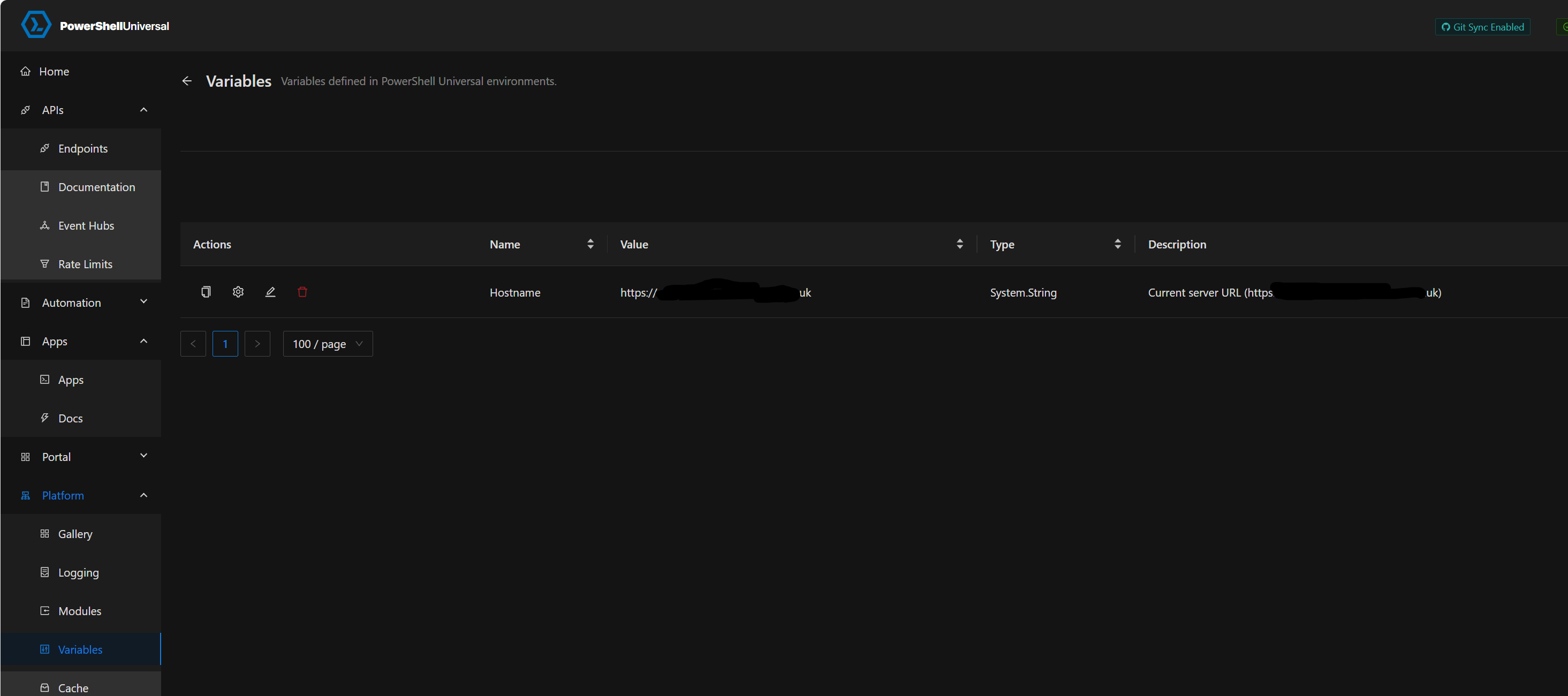
It means if the URL ever changes you only need to change it in one place.
For me, it also means I can easily move the script between my development server and production server without changing the variable in every app.
Menu / Navigation Bar
$BaseURL = $_.BaseURL
Slight mistake on my part;
In the code for the endpoint, Get-PSUNvigation, around 10 lines from the bottom;
Replace
$BaseURL = $_.BaseURL
With
$BaseURL = $App.BaseURL
I edited the original code in the previous post.
Menu / Navigation Bar
As promised,
I have the below code as an endpoint /Get-PSUNavigation
# Define a script block
$ScriptBlock = {

    # Create a new list with the ID "DashboardsList"
    New-UDList -Id "DashboardsList" -Content {

        # Add an empty list item
        New-UDListItem -Label " "

        # Add a "Home" list item with a redirect action and an icon
        New-UDListItem -Label "Home" -OnClick { Invoke-UDRedirect "$Hostname/" } -Icon (New-UDIcon -Icon 'Home')

        # Retrieve applications from the specified hostname that are active and within the user's roles
        $Apps = Get-PSUApp -ComputerName $Hostname -Integrated | Where { $_.Roles -and $_.Status -eq 1 -and  ( Compare-Object -ReferenceObject $Roles -DifferenceObject $_.Roles -ExcludeDifferent ) } | Sort Name

        # Check if the number of applications is greater than or equal to 10
        # If it is we're going to split the apps into sub-categories
        if ( $Apps.Count -ge 10 ) {

            # Loop through each unique category tag in the applications
            Foreach ($Category in ($Apps.Tag | Sort | Select -Unique) ) {

                # Determine if the category matches the current dashboard name's tag
                if ($Category -eq ($Apps | Where {$_.Name -eq $DashboardName}).Tag ) {
                    $Open = $True
                    $ParentIcon = 'AngleDoubleRight'
                } else {
                    $Open = $False
                    $ParentIcon = 'AngleRight'
                }

                # Initialize list parameters
                $ListParameters = @{}

                # Set list parameters for the category
                $ListParameters = @{
                    Label = $Category
                    Icon = (New-UDIcon -Icon $ParentIcon)
                    Open = $Open
                    Children = {

                        # Loop through each application and return other apps in the same category
                        $Apps | Where {$_.Tag -eq $Category} | Foreach {

                            # Set the default icon
                            $ChildIcon = 'AngleRight'
                            $BaseURL = $_.BaseURL

                            # Determine if the application name matches the current dashboard name
                            # If it does, apply a different icon
                            if ($_.Name -eq $DashboardName) {
                                $ChildIcon = 'AngleDoubleRight'
                            }

                            # Add a nested list item for the application with a redirect action and an icon
                            New-UDListItem -Label $_.Name -OnClick { Invoke-UDRedirect "$Hostname$BaseURL" } -Icon (New-UDIcon -Icon $ChildIcon) -Nested
                        }
                    }
                }

                # Add the category list item with the specified parameters
                New-UDListItem @ListParameters
            }
        } else {

            # Loop through each application if the number of applications is less than 10
            Foreach ($App in $Apps) {
                if ($App.Name -eq $DashboardName) {
                    $Icon = 'AngleDoubleRight'
                } else {
                    $Icon = 'AngleRight'
                }

                $BaseURL = $App.BaseURL

                # Add a list item for the application with a redirect action and an icon
                New-UDListItem -Label $App.Name -OnClick { Invoke-UDRedirect "$Hostname$BaseURL" } -Icon (New-UDIcon -Icon $Icon)
            }
        }
    }
}

# Convert the script block to a string
$ScriptBlock.ToString()
Then I call it in the -LoadNavigation parameter of each App.
# Set the hostname
$Hostname = 'https://powershell-universal-url.com

# Load the app theme
$Theme = Get-UDTheme -Name 'AntDesign'

# Create the App
New-UDApp -Theme $Theme -Content {

    # App Content Here

} -LoadNavigation (Invoke-RestMethod -Uri $Hostname/Get-PSUNavigation -Method GET)
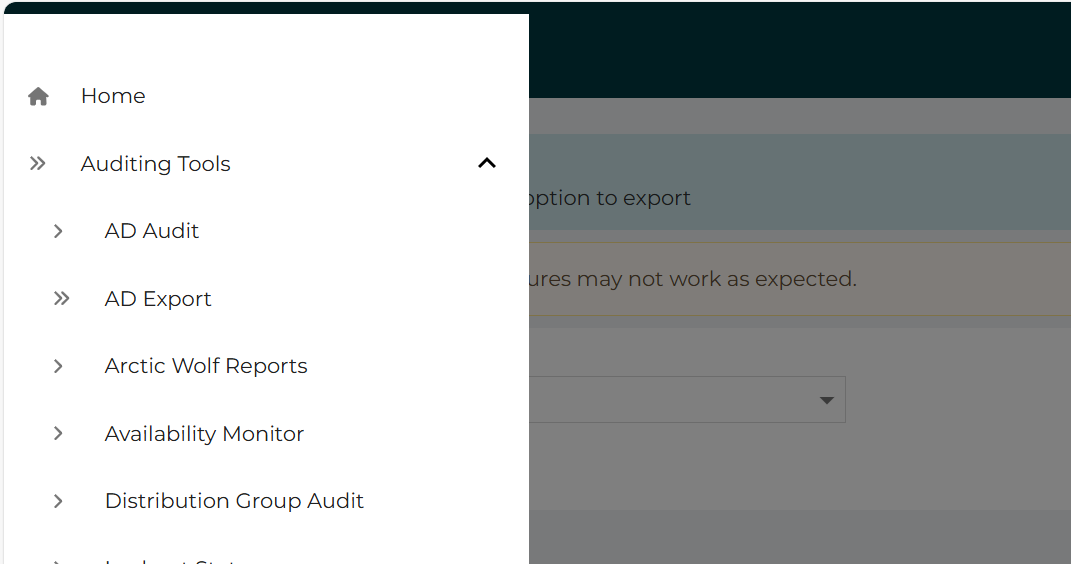
If all goes well, you’ll end up with something like this;
Nested App/Endpoint Authorization
I’ve also used another method where I store the token in cache and retrieve it from there.
Set the token in your dashboard
Set-psucache -key psuapptoken -value $PSUAppToken -persist
Retrieve it in your endpoint
$PSUAppToken = Get-psucache -key psuapptoken
Nested App/Endpoint Authorization
Pass the token into the body and retrieve it into a variable in the first endpoint. You can the pass the variable again into the header of the second endpoint call.
Code to call first endpoint something like below
Invoke-restmethod -uri '/endpoint1' -headers @{ authorization = "bearer $PSUAppToken" } -body @{ psuapptoken = $PSUAppToken }
Then code in endpoint1’ something like below
$PSUAppToken = $Body.psuapptoken
Invoke-restmethod -uri '/endpoint2' -headers @{ authorization = "bearer $PSUAppToken" }Menu / Navigation Bar
I’ve got code to do this, but don’t have access to it right now.
The code I made uses tags to group apps and only displays apps that the logged in user has access to, so it may be overkill for your requirements.
I store the code as an endpoint and call that from the loadnavigation parameter of new-psuapp.
I’ll post it later.
In the meantime, something basic like the below might get you on your way. I’m doing this from memory and typing on a phone, so apologies if the parameters/properties aren’t quite right.
New-PSUApp -LoadNavigation { Get-PSUApp -Integrated | Foreach { New-UDListItem -Text $_.Name -onClick { New-UDRedirect -url $_.url } }
[Bug] Cache Expiry and non-US date format
Product: PowerShell Universal
Version: 5.5.1
I can’t get a valid but non-US formatted date into the -AbsoluteExpiration parameter of Set-PSUCache
It reports invalid date format. I’m fairly sure that this is when day > 12
# Current date 30/04/2025 (Day > 12)
$Date = (Get-Date).AddHours(2)
$Date
$Date.GetType() | Select FullName
Set-PSUCache -Key Test -Value Test -AbsoluteExpiration $Date -Persist

# Calculated date 02/05/2025 (Day < 12)
$Date = (Get-Date).AddDays(2)
$Date
$Date.GetType() | Select FullName
Set-PSUCache -Key Test -Value Test -AbsoluteExpiration $Date -Persist
If you ever wanted to send a broadcast to all pages
Ah, i got you.
I quickly skimmed the code and thought it was presenting an additional page, like a header.
You’re right. Broadcast method wouldn’t work, but I think implementing a dynamic element with autorefresh at the top of each dashboard that shows only when cache item is set might be a workaround.
If you ever wanted to send a broadcast to all pages
I like this.
You could probably set parameters as cache items which would allow multinode if servers are git synced or using SQL database.
Set-PSUCache -Key BroadcastStatus -Value $True -AbsoluteExpiration (Get-Date).AddHours(1) -Persist
Set-PSUCache -Key BroadcastMessage -Value 'Upgrade in progress. Expect disruption for 1  hour'
…
$page:broadcast=@{
    set=$true
    active= Get-PSUCache -Key BroadcastStatus
    message= Get-PSUCache -Key BroadcastMessage
    duration=10
}Invoke-PSUScript fails when using custom role - PSU version 5.5.1
I’ve seen this error a few times with Get-PSUApp command. I managed to work around it using the ‘-Integrated’ parameter.
I’m not sure if the same parameter is valid for Invoke-PSUScript, but if it is it might work around the problem.
PowerShell Universal - 5.5.0
It’s mainly for historic reasons and probably mostly doesn’t apply any more. There was a time when PSU had problems with memory leak and processor run away causing the server to lock up.
If using Integrated, everythng ran under a single process. By selecting a different environment, each process ran under it’s own instance of pwsh.exe which meant I could monitor the processes and if anything started getting a little intensive I could kill it programmatically and take out maybe a single dashboard rather than the whole server.
I also heavily rely on HaloAPI module and did have issues with parameter conflicts with PSU. I can’t specifically remember if this only affected Integrated environment, but I have a gut feeling it might have.
I now have over 100 apps, scripts and APIs running and it would be a somewhat arduous task to revert and test them in a different environment with little, if any gain.
PowerShell Universal - 5.5.0
Further to the above, it only errors if I run in this environment;

Integrated works ok and I have additionally installed Powershell 7 directly on the server and pointed a new environment at it - that works ok also.
PowerShell Universal - 5.5.0
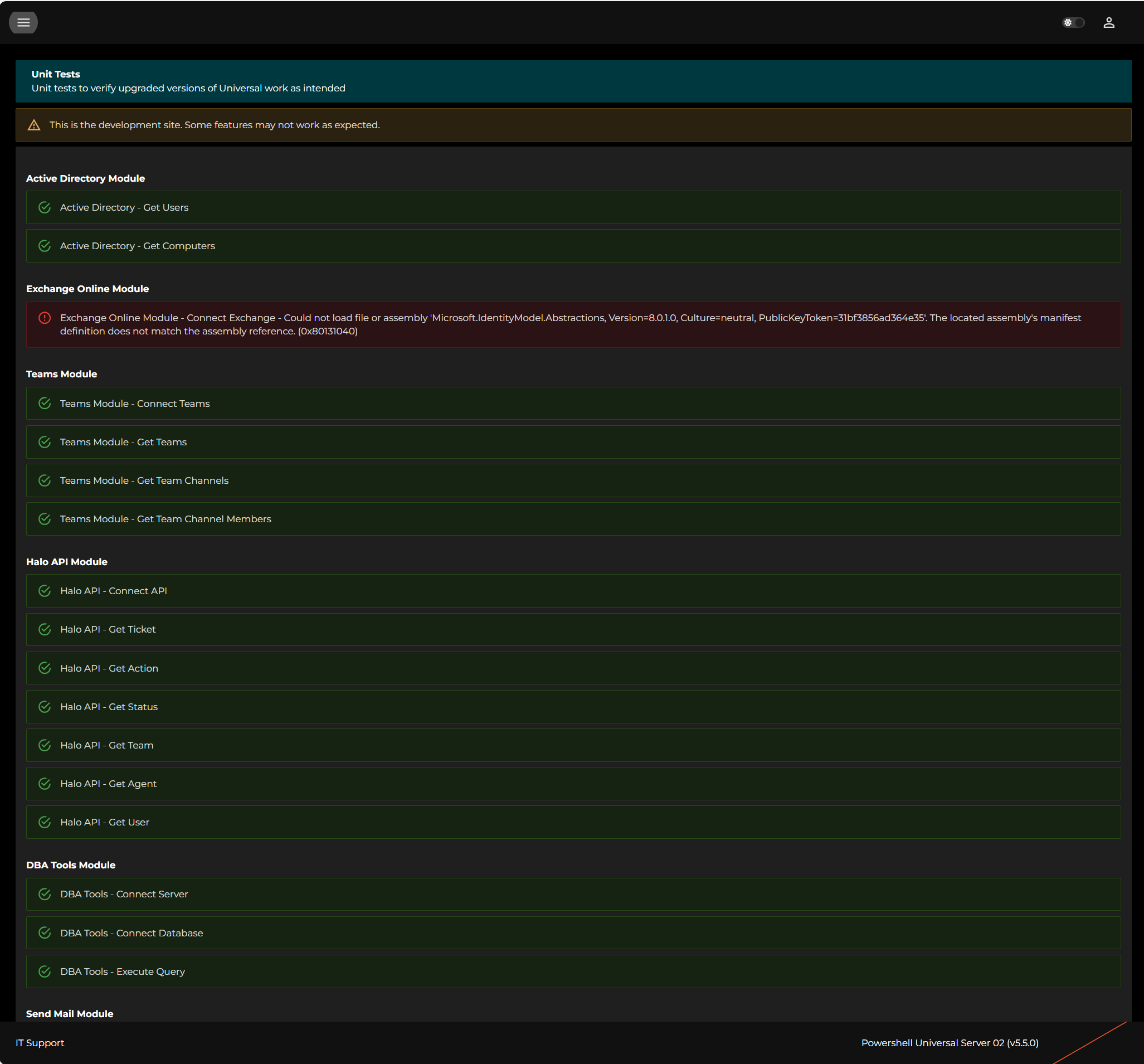
I’m still seeing issues connecting to Exchange using ExchangeOnlineManagement module version 3.7.2 using the command below;
Is there anything I’m overlooking or that might need updating on the server? Or was this particular issue not addressed in 5.5.0?
Thanks.
Connect-ExchangeOnline -CertificateThumbprint $Session:Thumbprint -AppID "xxxxxxxx-xxxx-xxxx-xxxx-xxxxxxxxxxxx" -Organization "xxxxxxxxxxxxxx.onmicrosoft.com" -ShowBanner:$False