
chaoscreater
How to configure a connection to Azure Virtual Desktop
You might also want to check the instructions here:
How to configure a connection to Azure Virtual Desktop
Can we revisit Jane's issue. I am stuck at the same place.
i've imported the the rdp file from the rdclientwpf folder, Display is set to External, RDP version is set to MSRDC, my rdm version is 2021.1.12.0
I continue to get 'logon attempt failed' on the windows sercurity credential prompt.
When I ustilize the Microsoft Remote Desktop application the credential prompt is with my email and my microsoft/AD password. When I try to launch from RDM, the prompt wants a username, domain, password
You're on a really old version. Update to the latest first and then test again. No point reporting bugs in an old version from years ago, when they probably already got fixed in the latest. One of the issues I had with AVD login was because I was on an older version.
Azure WVD client
Hi,
Unfortunately, Microsoft provides no way for third-parties to control the first authentication with Azure Virtual Desktop. I see that your .RDP file also uses enablerdsaadauth:i:1 (RDS AAD auth), which is unfortunately also something Microsoft doesn't give us control over beyond just enabling it. I wish we could integrate this better in RDM, but that's pretty much what can be done given how Microsoft is not helping us in any way to integrate AVD in RDM.
This being said, there is a command-line argument that msrdc.exe accepts to select the user account for AVD authentication. I mapped it to the RD Gateway username, even if we can't inject the credentials. Maybe try setting it and see if it helps? Without this option, you normally have to select which account to use manually for AVD authentication:
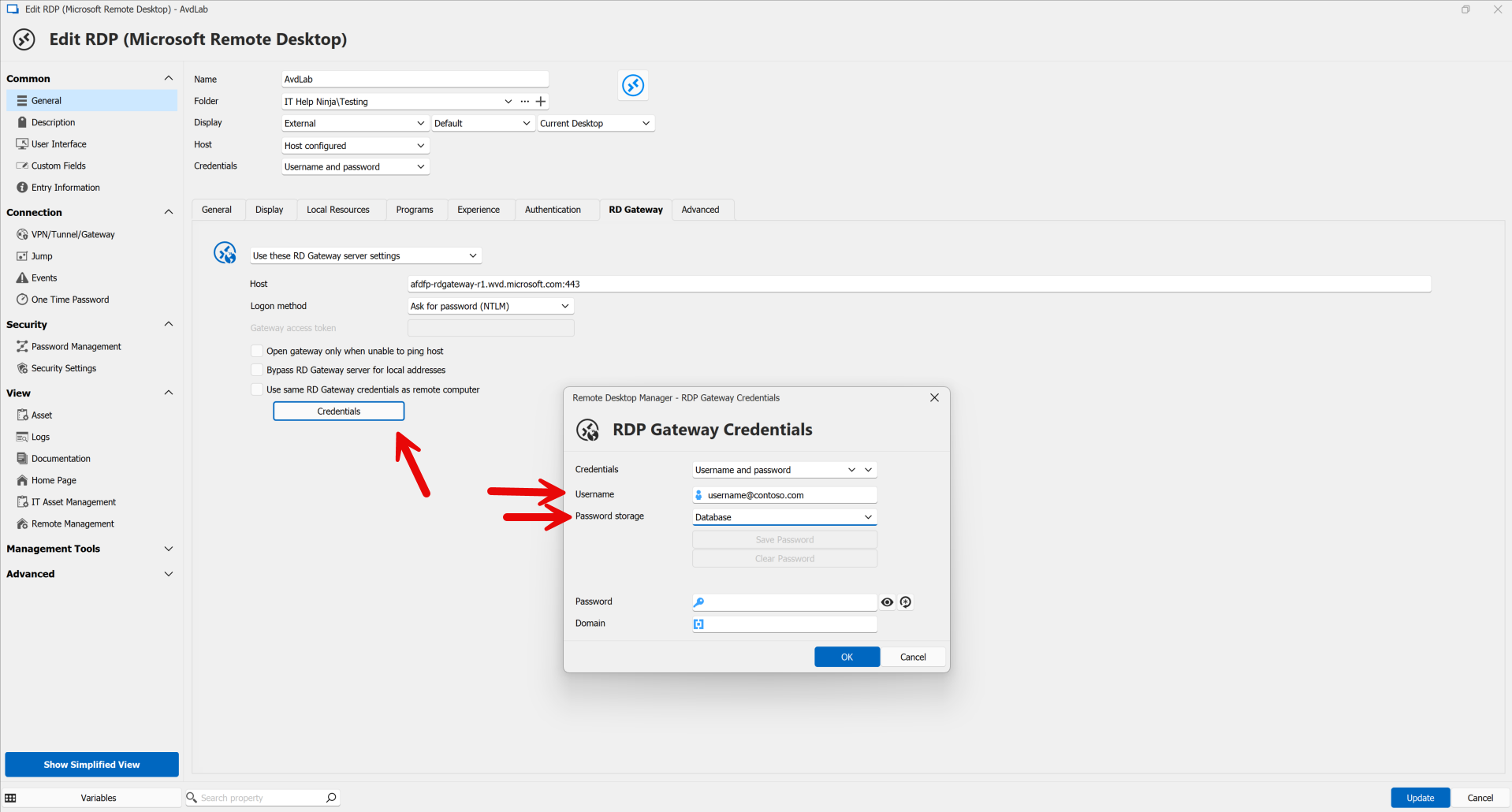
Thanks for your reply. Yes, I'm using that already. I don't get the modern prompt popup to enter email + password, I just get a RDM prompt to put in my password, as the email address is already pre-filled based on the setup in RDP Gateway Credentials. But this is the issue that I was referring to in my previous post, I still have to put in the password in the first popup prompt, then after that there's a slightly different prompt where I need to put in the password again.
With MSRDC, I log in once in the morning and the rest of the day I can just connect to the AVD session without ANY prompt whatsoever, no password input required. Hopefully, you guys will find a workaround to address this issue one day, but AVD is currently not really useable with RDM because after all, it just does external display and requires additional password input from the user, making it rather annoying to use.
How to configure a connection to Azure Virtual Desktop
Hello
I'm sorry to hear this isn't working quite right for you.
Can you confirm a couple of things?
As per an earlier post, did you install MSRDC from the App Store, or using the standalone .msi installer?
Your RDM version is pretty old - have you tried this on a more recent version? 2024.1 has been released for several months already and as of today we're now on to 2024.2. There have been changes to the library that integrates these features in that timeframe.
Please, let me know if something isn't clear
Thanks and kind regards,
Hi, yes I ended up getting it working by updating to the latest RDM version. However, I still had to provide my password twice, whereas with MSRDC I only had to login once. Any subsequent connections will just be established straight away without any further credential prompts.
Azure WVD client
When I try to import the .rdp file into my RDM, it doesn't populate any of the stuff shown in your screenshot. Property attributes such as Workspace ID, Alternate full address etc do not show up.
After I manually enter them in and launched the session, I expected to see the AAD Broker prompting me to login, but it doesn't. I followed everything exactly and I'm using MSRDC as the connection method.
If I open the .rdp file with MSRDC, it works fine. Using latest x64 bit MSRDC. For RDM, I'm using 2023.3.32.
UPDATE:
Never mind, I got it to work after updating to the latest RDM 2024 version. The import now captures everything needed (which looks to be the same as what I had before), but now it's able to start the AVD session whereas before it couldn't.
One issue I've noticed is that when using RDM to connect to my AVD session, it launches the session in fullscreen on one monitor. However, using MSRDC, it maximizes the window but doesn't make it go fullscreen, which means I can still see the taskbar of my local machine and that's exactly what I want. If I look at the .rdp file, it's configured correctly:
remoteapplicationmode:i:0
drivestoredirect:s:
audiomode:i:0
videoplaybackmode:i:1
redirectclipboard:i:1
redirectprinters:i:1
devicestoredirect:s:
redirectcomports:i:1
redirectsmartcards:i:1
usbdevicestoredirect:s:*
enablecredsspsupport:i:1
redirectwebauthn:i:1
use multimon:i:0
enablerdsaadauth:i:1
audiocapturemode:i:1
encode redirected video capture:i:1
redirected video capture encoding quality:i:0
camerastoredirect:s:*
keyboardhook:i:1
smart sizing:i:1
screen mode id:i:1
singlemoninwindowedmode:i:1
I don't see why RDM would make the session go fullscreen and completely cover my primary monitor. It doesn't respect the screen mode in the RDP file at all. I had to change the session in RDM to use current work area size under Display to fix this issue.
The other issue is that I have to enter my password twice when using RDM. I think one is for the RD Gateway prompt and the other is for something else that I'm not sure of. But with MSRDC, I just had to login once. Even when I disconnect my session, I can connect back to it without needing to provide my username and password at all. With RDM, this is a required step all the time.
How to configure a connection to Azure Virtual Desktop
I can't get RDM to connect to AVD at all.
Firstly, the local machine I'm on is not AAD or Hybrid-Joined to the tenant. It's just a personal home laptop.
I have the Remote Desktop (MSRDC) app installed, latest x64 bit version. I also have the Azure Virtual Desktop Preview modern app installed. Both of these can be found under here:
If I use either Remote Desktop (MSRDC) or Azure Virtual Desktop Preview, or even the Windows App (modern app) to connect to AVD, it works fine. If I look at the connection using Process Explorer, I get this:
Windows App (modern app) result:
"C:\Program Files\WindowsApps\MicrosoftCorporationII.Windows365_1.3.252.0_x64__8wekyb3d8bbwe\msrdc\msrdc.exe" "C:\\Users\\Ricky\\AppData\\Local\\Packages\\MicrosoftCorporationII.Windows365_8wekyb3d8bbwe\\LocalCache\\LaunchFiles\\dbcce29b-d270-48fb-e8b2-08dc3b3eaa2e.rdp" /settingsfile:"C:\\Users\\Ricky\\AppData\\Local\\Packages\\MicrosoftCorporationII.Windows365_8wekyb3d8bbwe\\LocalCache\\LaunchFiles\\dbcce29b-d270-48fb-e8b2-08dc3b3eaa2e.json"
Remote Desktop (MSRDC) result:
"C:\Program Files\Remote Desktop\msrdc.exe" "C:\Users\Ricky\AppData\Local\rdclientwpf\0fd20809-4e51-41c1-b9ea-d0eeb6b7b5ad\dbcce29b-d270-48fb-e8b2-08dc3b3eaa2e.rdp " /settingsfile:*1.9bf5ad11-e73f-47e3-a220-d99ebcd70000.06172024-030616-163.json
If I try to import the .rdp file from either of the above, then change the RDP version to MSRDC, then try to connect, it will not work.
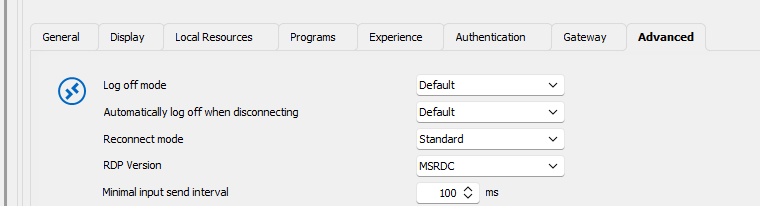
The error I'll get is this:
There was a problem connecting to the remote resource. Ask your network administrator for help.
My RDM version is 2023.3.32.0
Apply display settings on RDP connections opened from .RDP files?
Hi, how is the progress on this?
Apply display settings on RDP connections opened from .RDP files?
I got it working. But I don't like this solution.
The issue is basically what I had mentioned already. If your VM is in subscription A and your bastion resource is in subscription B, then RDM will by default use the subscription of the bastion resource to find your VM.
The fix is to set the subscription and resource group for the VM, as per below:
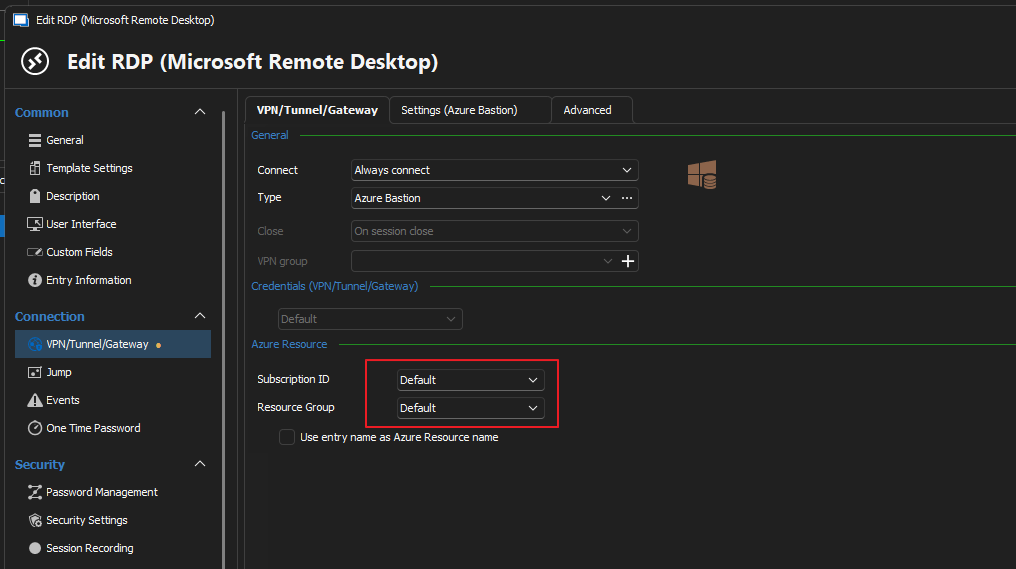
However, this is a pretty terrible solution and here's why:
Whenever I want to connect to an Azure VM using Quick Connect in RDM, I normally just set it to use a specific RDP template, like this:
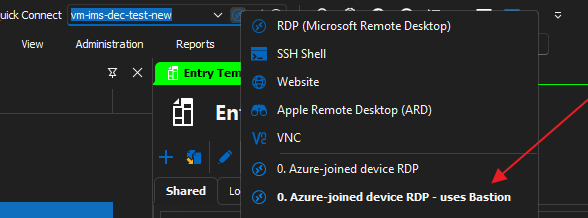
The benefit of this is that you don't have to create RDP entries just to apply RDM specific settings. You can just connect to VMs on the fly and they'll apply the existing RDP template that you've already configured and that's great.
Now here's the problem. Let's say I have VMs in subscriptions A, B, C, D and my bastion resource is in subscription Z. When I connect to these VMs in the different subscriptions, I will be using the same RDP template for all of them. I can't be expected to make changes to the RDP template (i.e update the subscription and the resource group) for each VM that I'm trying to connect, every single time. That's very inefficient. This solution is only good for SAVED entries, where it's fine to hardcode the settings just once. But if you're trying to do this on the fly, it won't work well.
What should really happen is that you take the resource ID of the VM (which contains the subscription and the resource group) and you paste it into the Quick Connect field. RDM should then take that and extract the subscription ID and resource group, then automatically populate these values in the background.
Anyway, ignore Bastion and Azure for now. The root issue is still there. If I connect to an on-prem VM on the fly, by clicking on the .rdp file to open with RDM, then I'd expect RDM to apply my pre-configured RDP template to this RDP connection. I don't always need or want to save entries into RDM, especially if I only need to temporarily jump on the VM once or twice in a year.
Apply display settings on RDP connections opened from .RDP files?
I followed the guide here:
I'm getting this error:

I'm not sure what that means. I think it's saying it can't find the Bastion resource. I've let it prompt me for auth and I'm definitely auth to my Azure tenant properly. Also tried to use AZ CLI and Powershell login as prompt options. For the host, I'm not sure what to put there. In your guide, the example is "Devolutions-202309011056-vnet-bastion", but I don't know how this was derived.
The other issue is that my Bastion is located under the Connectivity subscription, while my VMs are located in another subscription. Not sure if RDM will support using Bastion from a different sub and then connect to the VM that belongs to another sub. And what about situations where you have the same VM name found in different subs? How does it know which one to connect? Normally, you'd specify the resource ID of the resource.
Also, while I do want to get the Bastion setup working, I still think it's worthwhile for your team to look at my original issue. There may be situations where I just download a .rdp file and it doesn't have to do with Azure or Bastion at all. I may just want to open the .rdp file with RDM and have some of my default RDM settings applied automatically, without having to save the RDP entry.
Apply display settings on RDP connections opened from .RDP files?
Didn't know about that, I'll try it out.
Apply display settings on RDP connections opened from .RDP files?
Hi all,
In RDM, you can configure templates for RDP sessions. Any new RDP entry you create in RDM will be able to use the template and this saves you time from having to configure specific settings over and over again. The problem is that this only works for entries that you create in RDM. I'm trying to figure out how to apply this template to .RDP files that I open with RDM.
We use the Bastion native connect method to connect to our Azure VMs with our AAD credentials. For those unfamiliar, Bastion native connect is an AZ CLI extension and you basically run some command in Powershell. In the background, AZ CLI will download a temporary .rdp file under %temp% and then open it up with MSTSC to connect. I've figured out a way to use a script to intercept this .rdp file and modify a few settings inside the .rdp file, then open it up with RDM instead of MSTSC. It works great, the only problem is that it doesn't apply the RDP-specific display settings such as smart-sizing, because this is obviously unique to RDM and can't be added to the .rdp file itself.
My question is, for any .rdp file that we open with RDM, is there a way to force RDM specific settings onto it? I don't want to always have to save a RDP entry into RDM. Sometimes, opening a .rdp file with RDM is just a temporary session.
Change colour of inactivate tab
Ah, I didn't notice the options in there. I searched tab colour and didn't find what I wanted. I've got it fixed now, thanks!
Questions regarding credentials input
Yes, my issue is resolved, I can connect to the server even though it blocks saved credentials, so thanks for that. I just wanted to fully understand the setting as it's implemented into RDM after all and want to understand its behaviour and its effect. To use any application fully, you need to play around with these settings and understand what they do, otherwise you're not really using the software with full proper knowledge.
Anyway, seeing as this is confusing for everyone and there's no consistent answer on this, I'm happy to park this for now.
I did notice that if I change the prompt for credentials setting in the .RDP file from 1 to 0 or vice versa, then open the .RDP file with RDM, then it does show a slightly different behaviour. RDM will show this connection popup with a username and password, but not the usual one that I'm normally used to. Then after that window disappears, you'll get ANOTHER prompt and this time it will be the normal prompt that I'm used to. So it's like a double prompt in a way, which matches with one of the links that I found and posted in a previous message.
Change colour of inactivate tab
I have a custom colour set on an active tab, but I don't see an option to set colour for inactive tabs. If I set the colour to green and I open a few tabs, they are all green, just with a slightly different shade. The active tab will be the most green colour, while the others are not as green. I just want the active tab to show the ONLY green colour, the others should just be reset to a grey colour or something. How can I achieve this?
Questions regarding credentials input
Hi,
Question #1: What's "Prompt for credentials on client"
It is "prompt for credentials on client:i:1" in the .RDP file (external mode) and IMsRdpClientNonScriptable4::PromptForCredsOnClient in the RDP ActiveX (embedded mode). There's also a group policy setting. Unless you explicitly disable RDP NLA (not recommended) this setting won't do anything: it really means "prompt for credentials on client when it is possible to prompt it on the server, which only happens in the rare case of an RDP connection with RDP NLA disabled". We expose the same options provided by the Microsoft RDP client, and they don't always have good, meaningful names.
Question #2: Will RDM work with the "Always prompt for password upon connection" group policy enabled
Yes. We bypass the check the marks the injected password as being "saved" in the Microsoft RDP client, so as long as you launch the RDP connection from RDM, it will work. The server only forces the prompt on the client when it sees the flag set by the RDP client, so as long as the RDP client doesn't report the password as being saved, it works.
Question #3 is not related to RDP and probably would be better answered by a colleague, I jumped in on this thread because of the tricky RDP questions. I hope I have answered questions #1 and #2 to your satisfaction though.
Best regards,
Regarding Question #1, I'm still a bit confused here. I've tried to disable NLA on both my client and the remote host and then tried to connect with mstsc.exe and played around with the setting prompt for credentials:i:1 and prompt for credentials:i:0 and it didn't make a difference. I don't notice any different at all. In terms of the effect, what is it supposed to look like? I keep thinking that toggling this on/off will be like what's shown in my screenshots in my previous post, but I don't see any change at all. I've also read the ADMX documentation you've provided and tried to look up for more information, but to no avail.
I did manage to find this and it seems to match what I was describing in my previous post, where the screenshots show the credential prompt on the client side and on the remote host side:
However, I didn't have to adjust prompt for credentials:i:1/0 at all. Those screenshots were from a different configuration.
I've also found this:
https://www.donkz.nl/overview-rdp-file-settings/
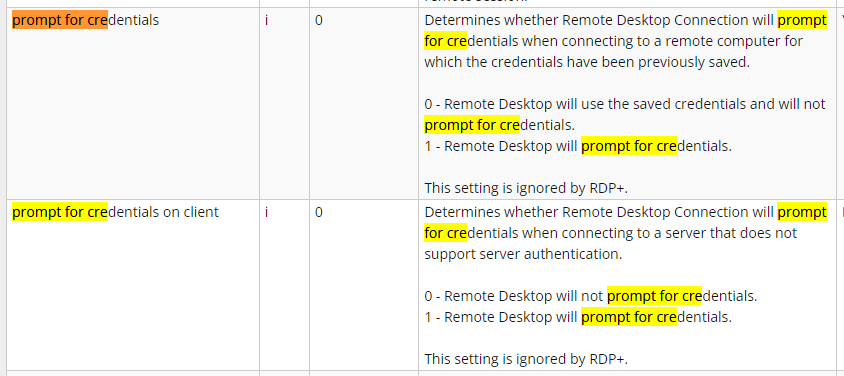
The explanation here seems to suggest it's related to saved credentials, which isn't the same thing as "prompt for credentials on client when it is possible to prompt it on the server". This is all rather confusing and inconsistent.
Questions regarding credentials input
Hello,
Question #1 - Prompt for credentials on client
As per my knowledge, when you launch a RDP session, you will have the possibility to enter the credential when the connection is establish, prior to connect on the client. It will not be prompt prior to establish the connection, but when the connection is made. I am not 100% sure, but I will validate with my team and get back to you on this one.
Question #2 - The Server’s Authentication Policy Doesn’t Allow Connection with Saved Credentials
This means that your organisation has put in place a policy that doesn't allow you to save the credentials inside the session and launch it. It's usually for security reasons that organization enable this type of policy. However, there's maybe something that you can try via Remote Desktop Manager (RDM).
If you go in File -> Options -> Types -> Sessions -> Remote Desktop and select FreeRDP (Latest) for the RDP option, which is the first one in that window.
Question #3 - How do you clear the search history
I don't see an option to clear that filter. What are you trying to accomplish? Maybe you could provide us more details on that part please.
Best regards,
Thanks for your reply.
Question #1
I understand what you wrote, but I'm a bit confused as I'm not understanding the relevance of it. To me, "Prompt for credentials on client" would suggest that the prompt can either be on the client side or on the remote host. My understanding is that when the credential prompt is on the client side, it looks something like this:
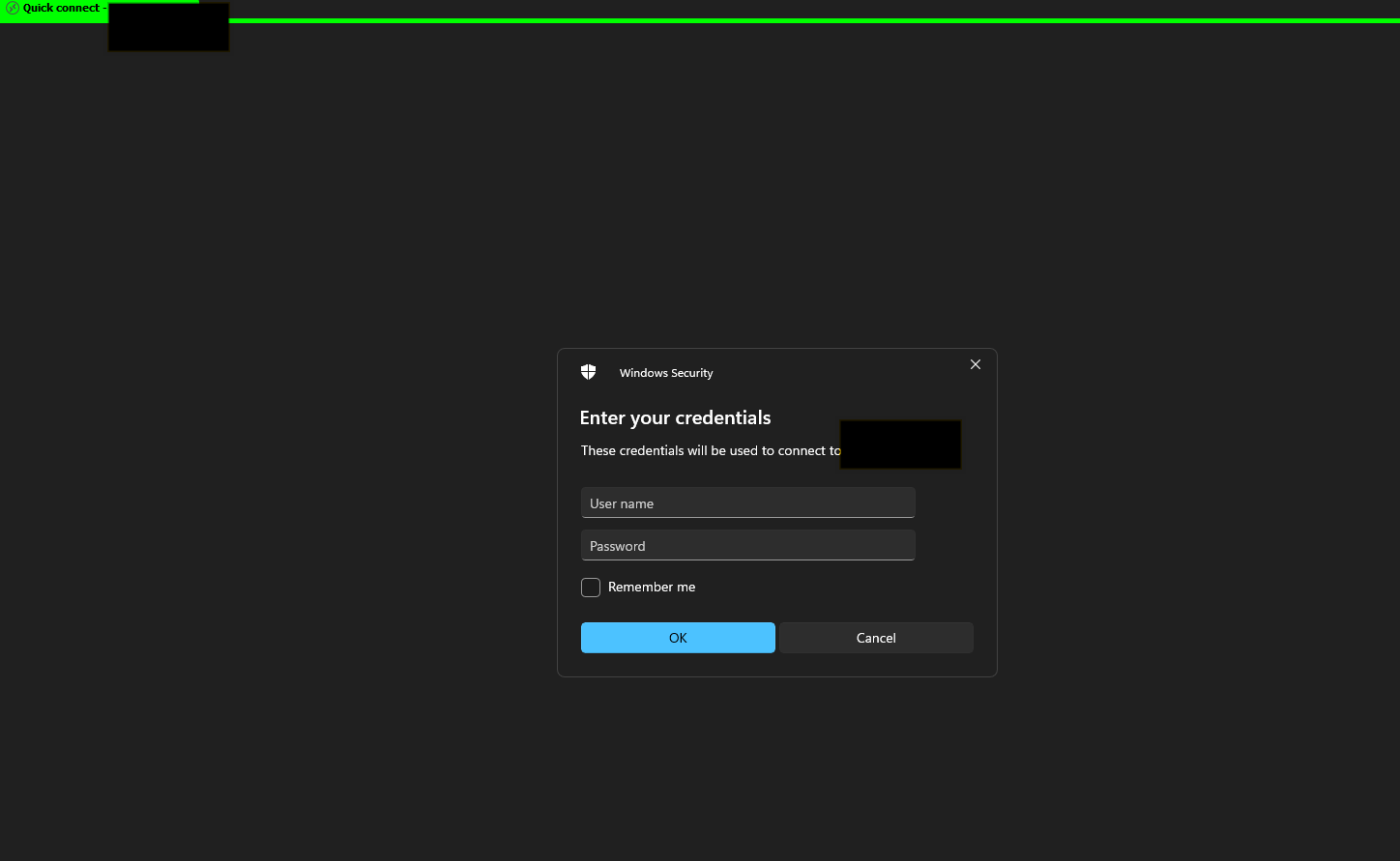
But when the prompt is on the remote host, it'll look like this (this is after you've connected to the VM and you get to enter the prompt at the lockscreen):
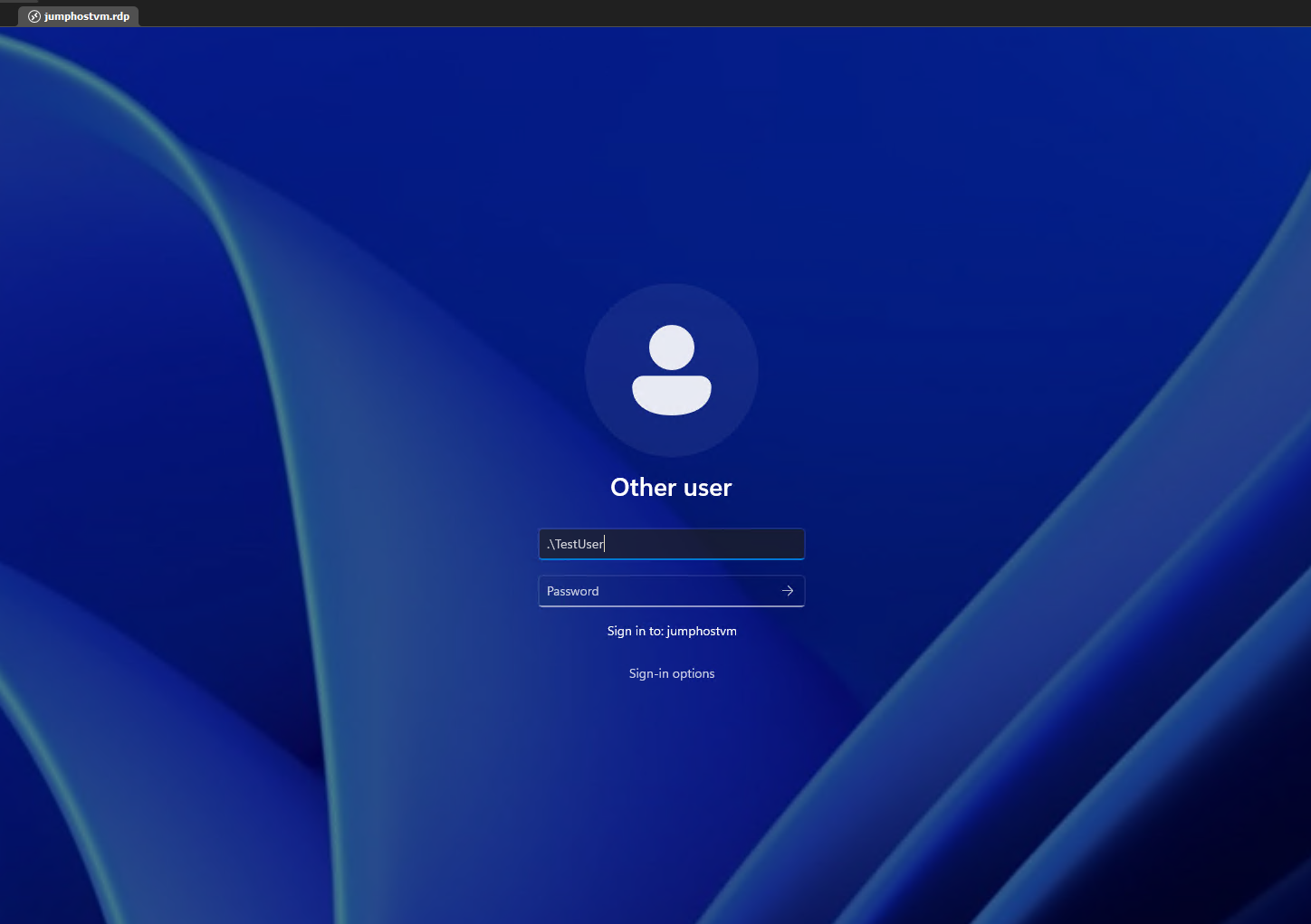
In both cases, my understanding is that connection to the remote host is made, which is why you're then prompted for credential entry. If the connection is not made, i.e you cannot telnet to remote_host_ip on 3389, then you wouldn't even get a credential prompt.
If the description "Prompt for credentials on client" has got nothing to do with what I wrote above, then could you please clarify what it means?
Question #2:
Yes, there is a configured policy that prevents you from using saved password during the RDP connection. However, since I'm using a Bitwarden credential entry that links directly to our company's Bitwarden account, I believe this method is secure enough that it should be allowed to pass the password during RDP connection. I'm trying to figure out if I can get this working in RDM and if yes, then it means our users will be able to have a better user experience. Anyone who isn't using RDM to connect to a VM with the use of Bitwarden credential entry, will have to manually type in the password (due to the policy).
Question #3:
I sometimes use RDM portable and while my flashdrive is Bitlocker protected, I still want to make sure that in case someone got hold of my flashdrive and somehow got access to the contents, they wouldn't be able to just open RDM and look at whatever is inside. I have a password configured on my RDM data source, but I also periodically clear any activity logs, etc. I'd also like to clear the search filter just to remove any traces. It also helps to provide this portable copy of RDM to another colleague, without them having to see all your previous searched histories.
I did manage to find a way to remove it, by deleting the .cfg and database file and then import them back in. But I wish there was an easier way to do this.
Questions regarding credentials input
Hi there,
I have 3 questions. Regarding this option in the screenshot below:
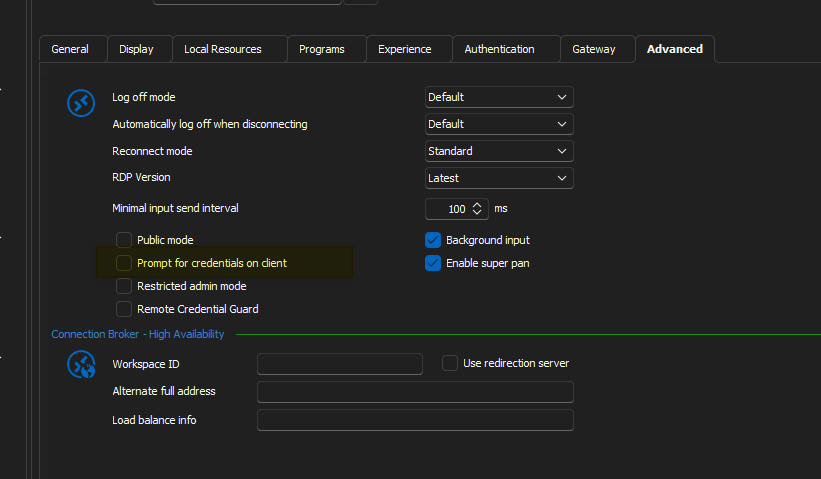
What does it do exactly? I've tried looking it up in the documentations, but I found nothing.
2nd question, what are the possible options for dealing with this - "The Server’s Authentication Policy Doesn’t Allow Connection with Saved Credentials"? You can find more about this from this link here, just search the exact sentence in my quote:
https://woshub.com/fix-saved-rdp-credentials-windows/
As this is server side policy and I don't have permissions to modify the registry or group policy or whatever, I need a solution that works from the client side. I know there are a few different ways of entering a credential. You can either connect to the VM and you enter the creds at the lockscreen. This is pretty common for entering Azure AD logins on the host. Alternatively, you can provide the credentials beforehand by using a linked vault or whatever. Problem is, none of the options I've tried works.
Lastly, how do you clear the search history? I'm referring to the search bar at the bottom left.
RDP sessions: Windows key on the remote computer enabled by default
In my previous comment, I specifically mentioned this:
And no, I don't want to save every .RDP file as a new RDP entry in RDM. I know you can save the entry and then configure the properties in the RDP entry, but this is not what I want, as I don't necessarily want to save every single .RDP file that I download from Azure as a new RDP entry in RDM.
I manage 1000+ VMs in Azure for our customers and sometimes need to connect to them. I'll click Connect (in Azure), it'll download a .rdp file for the VM and I'll open that file with RDM. I DON'T want to save those VMs as RDP entries in RDM, because of multiple reasons. One of the reason is that a lot of the VMs don't use static IP, which means it's pointless to save them as RDP entries. The 2nd reason is I don't like the idea of having 1000 customer VMs stored in my RDM. I already have 500 entries in there and the more stuff I add, the more laggy RDM becomes. There are other reasons too but that's off topic now.
RDP sessions: Windows key on the remote computer enabled by default
What if you have a .RDP file that you download from e.g. Azure? Every time I click on the .RDP file, I'll have to manually select the button to send windows key to remote computer.
My default.rdp setting is already set to send key to remote computer and my default RDP session in RDM is set to use that as well.
And no, I don't want to save every .RDP file as a new RDP entry in RDM. I know you can save the entry and then configure the properties in the RDP entry, but this is not what I want, as I don't necessarily want to save every single .RDP file that I download from Azure as a new RDP entry in RDM.
RDM freeze and not able to close
It seems like that has fixed the issue, however this also blocks a lot of useful informational messages, such as the message that says you don't have RDP permissions when you RDP to a server that you haven't been granted access to. These messages are definitely useful. Is there another solution that we can try? Or is it possible to disable the RDP warning just for a specific session, instead of for the entire RDP type?
RDM freeze and not able to close
Hi Jeff,
Yes, I am indeed leaving RDM opened with embedded RDP sessions. However, there's nothing behind the RDM window. I connect to a server via RDP, use it just fine, then leave my PC on for extended periods of time and I come back to it not able to click anywhere in RDM. I can't click the navigation tree, can't click the status bar or the ribbon menu, nothing.
I think what the issue could be is that I'm often connected to a VPN (in order to access client's servers via RDP). The VPN connection gets dropped due to a timeout policy and when that happens, my RDP session gets dropped as well. When that happens, I'll get a message from RDM about how it cannot connect to the server anymore, etc. But I can't click on that message or close that message.
RDM freeze and not able to close
I leave RDM open for long periods of time, in fact I rarely ever close it. In the last few updates, I've noticed that RDM wouldn't respond to any of my clicks, like it is frozen. However, there isn't a "Not Responding" message or anything like that. The window still looks like it's active, but you can't click into anything anywhere. If you right click on the taskbar icon and close, it wouldn't close. The only way to kill it is from task manager.
Any ideas what the issue is? I haven't updated my Windows either, I specifically disabled Windows Update. Nothing has changed on my machine.
Fix the quick access shortcuts at the top bar please
I've backed up that file restored it before, but it didn't do anything.
I'm using the latest build, but have been having this issue intermittently since multiple versions ago. I'm using the full standalone version, not portable. Installed to default directory. I don't have any addons/extensions installed and my settings are pretty vanilla, on a new PC.
Fix the quick access shortcuts at the top bar please
After almost every RDM update, my shortcuts in the quick access bar at the top of the window will disappear and I'd always have to select "Reset Layout" and configure my shortcuts from scratch again. Can this be fixed permanently, as it is very annoying for our users and if this can't be fixed, maybe create an option to export and import the settings?
Ghost keyboard entries in RDP session
Hi, it has been a while since your last update. Just wondering has there been any progress on this?