
niborjusdv
keyboard stops working
Hello,
Thank you for your patience while our team looked into the issue you reported.
I'm happy to let you know that the latest version of Remote Desktop Manager (2026.3.17.0) includes a fix for this problem. You can download it from our website here:
https://devolutions.net/remote-desktop-manager/download/
Once you have installed the update, could you please test it in your environment and confirm that everything now works as expected? If the issue persists or if you notice anything unusual related to the same original problem, just reply to this message with a few details, and we will be glad to look into it further.
Thank you for your collaboration.
Best regards,
@Maxim Robert
Thank you. That does seem to have fixed the issue.
keyboard stops working
I updated to the latest version of Remote Desktop Manager and now I have been getting a weird situation where the keyboard stops working on the remote Windows server. I try to type and nothing happens. Then, if I mess around with it, like close the window and reconnect, it seems to start working. Considering I've had 2 or 3 other usability bugs recently with Remote Desktop Manager and it looks like a major user interface change occurred, I'm suspecting it.
@niborjusdv
Actually, it looks like the Alt key is hung on every time I switch to a different window and then back.
keyboard stops working
I updated to the latest version of Remote Desktop Manager and now I have been getting a weird situation where the keyboard stops working on the remote Windows server. I try to type and nothing happens. Then, if I mess around with it, like close the window and reconnect, it seems to start working. Considering I've had 2 or 3 other usability bugs recently with Remote Desktop Manager and it looks like a major user interface change occurred, I'm suspecting it.
wrap connection fail message
Hello,
Could you take a screenshot of that window and post it here? It would help understand which connection failure message you're talking about.
Regards,
@Hubert Mireault

How to add command to session right-click context menu
Hello,
Thank you for reaching out!
I will answer your questions below:
Currently, the right-click menu on an active session tab is not customizable. The available commands you see are fixed and cannot be changed.
Yes, that is correct, the "Send Ctrl+Alt+Del" command cannot be added to the QAT either. Unfortunately, it is also not possible to reorganize the ribbon. Commands cannot be hidden, moved, or promoted out of their existing submenus.
For sending Ctrl+Alt+Del during an active RDP session, the standard Windows shortcut Ctrl+Alt+End also works in RDM and is typically the quickest method.
We hope this helps. If you have further questions, please don't hesitate to ask!
Best regards,
@Sam Moynihan
Ok, thank you. Maybe that capability used to exist, but was removed. Otherwise I'm dreaming.
And yes, I know about Ctrl+Alt+End, but that does not work because I'm already in a Remote Desktop session when using Remote Desktop Manager. So, it goes to that session. But, that's a great reason to use Remote Desktop Manager, because even if it isn't the easiest command to get to, there is no other way to send that signal.
How to add command to session right-click context menu
At one time, someone told me how to add the "Disconnect" command to the right-click context menu for a Remote Desktop session tab. But, now I can't remember how to do it. I've searched for about an hour and can't figure it out. Any help?
I would like to remove some of the other commands/menu items to make it easier to find the commands that I want to use. For example, I need to use "Send Ctrl+Alt+Del" and it can't be added to the quick access toolbar; so, I'm trying to declutter the menu where it does appear. If I could move it out of a submenu, that would also help.
wrap connection fail message
When using Remote Desktop, if the connection fails, there is a message in a box next to buttons to try again, close, etc. The box has plenty of room to show any message, but it only uses the top line and a scroll bar. It would be much more useable if it would instead just wrap the text so that we can see it.
activate connection with Enter key
Small issue. Before I updated to Remote Desktop Manager 2026.1, when I typed a server name into the search box, it would highlight the first matching entry and then I could hit enter to make it connect. Now, hitting enter does nothing and I have to use the mouse to go up and double-click on the entry to connect. Muscle-memory, quickness, and easy of use would be served by adding that capability back.
Add a Disconnect ✂️ feature next to Reconnect (not a log off, just Disconnect to cut the connection)
Thank you! I should have asked for that years ago, apparently.
Also, I didn't know options could be added and remove from the menu.
reconnect bypass lock screen
Hello,
If you configure your "reconnect mode" to "Full", it should perform the complete login process again when doing the reconnect action. You can configure this either in your entry directly, or in File > Settings > Entry types > Sessions > Remote Desktop (RDP):
Can you see if this helps in your scenario? Make sure that your RDP entries are closed before changing this setting to make sure it correctly applies.
Regards,
Thank you. That did work!
reconnect bypass lock screen
It used to be that if the Remote Desktop machine that I'm connecting to were to lock due to user inactivity, and I right-clicked the tab and selected reconnect, it would reconnect and unlock the screen. That no longer happens. Nothing appears to happen. I think it would be great to get that functionality back.
And actually, it does sort of exist. Let's say I have two connections open to two servers in Tab1 and Tab2. If the machine at Tab1 locks and I want to get back in, it will work if I select Tab2, then right-click on Tab1 in the lefthand tree pane and select reconnect. I'll see Tab1 flash in the background and when I go back to that tab, I'll be in an unlocked screen to my server. Of course, the other way is to close Tab1 and then select "open session" in the lefthand pane. So, it seems like you guys didn't mean to remove that functionality. It just got lost in some update.
connection icon continues to show as disconnected after reconnection
I found that setting. So, then in order to avoid having to figure out how to setup a data source or connect to the existing one without trashing it, I tried to use "quick connect". I tried with four machines and they all do the same thing. I connect to the machine. I disconnect the VPN. The tab goes into the disconnected state. I see that you now have options about how to display that. So, it shows the RDP icon with the word "- disconnected" on the end.
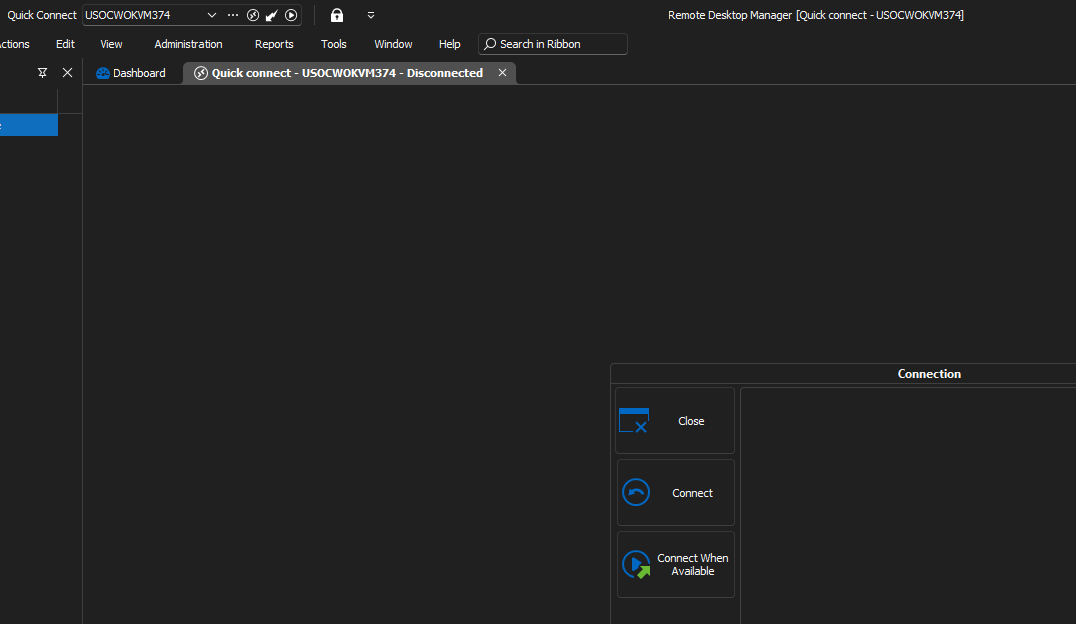
I reconnect to the VPN. I click Connect. Every time, I get a popup that says "An unexpected error has occurred. Please check the application logs for more information." and the tab goes away. So, I can't even test what happens because I can't ever reconnect. I really appreciate having this application available to me, but I am really concerned about this app. You guys seem to be adding more and more options and the application is crumbling under the weight--more and more flaky stuff happening with each update. I don't know whose fault it is, but it is happening.
connection icon continues to show as disconnected after reconnection
I can't remember where the option is to make the tab stay after disconnect. I've spent about a half hour searching. I'll have to come back to this.
connection icon continues to show as disconnected after reconnection
I recently updated to version 2023.3.31. Now it seems that there is a cosmetic problem:
the situation: I am connected to a remote RDP session. The network gets disconnected. I have this app set to retain the tab; so, the tab remains and the icon changes to the disconnected icon.
the problem: even after I reconnect the session, the icon next to the server name continues to be the disconnected icon instead of changing to the round thing with the arrows.
unable to reconnect
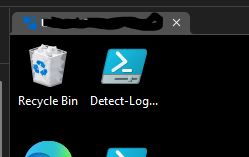
I am using Remote Desktop Manager Free. It does not have any such management tool. I think the main blame for trying to connect after a reboot lies with Windows. It appears to allow a TCP handshake (I assume), but then failure to follow through with the rest of the connection attempt as the operating system has not fully initialized yet. I guess this "Connect when available" is good just after starting a VPN connection, just not for after a reboot of the remote Windows machine. So, one would have to build a more robust connection process that keeps trying until it succeeds.
unable to reconnect
Sorry, I wasn't clear. I do have that set and it happens anyway. I just tried and this time it didn't happen. It did connect. So, there's clearly some message that comes back from the target or some state in the application that is handled with the error I mentioned or somehow causes a bypass of this setting you mention.
unable to reconnect
Remote Desktop Manager free: when I try to reconnect with Remote Desktop, it immediately pops up a message saying "Unable to reconnect". I click ok and the tab goes away. This only happens sometimes, though recently it seems like it is happening every time with one remote machine in particular.
This should probably go in the feature request section, but anyway, how about if there is an issue you let me try again and not just close the tab? And similarly, how about instead of always giving up when trying to use the connect when available, this program should keep trying. I have tried to use connect when available after rebooting a machine and it is guaranteed to start connecting before the machine is really ready and therefore, this feature of Remote Desktop Manager is useless because it will fail and won't try again.
disconnected messages get in the way
Yes, that works great! Thank you!
disconnected messages get in the way
Thank you. That was very helpful!
disconnected messages get in the way
If I am connected to say 10 machines with Remote Desktop manager and then disconnect from the VPN or for whatever reason get disconnected, this app will then pop up 10 separate dialog boxes saying that I'm disconnected and they will set the app icon orange on the task bar. I then have to go and close all 10 in the right order in order to get back into the application later and remove that alert status. This is cumbersome and gets in the way and it's annoying. It would be better to just have an error message pane at the bottom of the window list each of the error messages that I can scroll through and put an X over the icon on the tab for each machine or something like that instead of changing the name to put "disconnected" on the end. I guess that's a second issue, but that also gets in the way. If the length of the tabs changes, that could push tabs up into another row and that reduces the size of the window causing all my tabbed windows to now have scroll bars and that isn't usable. So, then I have to reconnect to everything to use it that way.
resolution of remote screen not right
Aha! That works! Thanks. Not as convenient as changing it on the fly, but it works.
resolution of remote screen not right
Nope. That won't do it either. I was able to open a machine on monitor 2 by dragging a window over to it and then opening another machine and selecting pane 1 (monitor 2). It opened as 1600x1168 on the 1280x1024 monitor. So, it just seems like two monitors of different resolutions won't work.
resolution of remote screen not right
Thanks for your reply.
The display section shows

The remote host is a blade server. It's not actually connected to any monitor and in any case, nothing is 4K.
I didn't actually have a question about how to be in full screen. I was saying that whether in full screen or windowed mode, the resolution would not match the monitor. So, I've looked at it again and it seems that the resolution is matching monitor 1, but can't be made to match monitor 2 (even though obviously it is displaying on monitor 2).
I just tried it again with "external" and dragged it over to monitor 2--it always comes up on monitor 1 first--and the resolution looks right, though the dimensions are still set to that of monitor 1. Now, I just have scroll bars because of course it doesn't fit. Selecting smart sizing at that point just squishes everything rather than change the resolution.
I think I see the problem. The issue is that the monitors have different resolutions. And, a window can not be opened on monitor 2; so, it always opens on monitor 1 and that sets the resolution which can not be changed. I tried the option "open in pane" and that asked me which pane I wanted to open it in. Only one monitor showed up as being a pane--showed monitor 1 as 0. But that implies that there is a way to open an additional pane and if I can get it to go onto monitor 2, then maybe that will work. I'm trying to figure out if that's possible now.
resolution of remote screen not right
I have a dual monitor setup with 1920x1080 and 1280x1024. I opened RDM to a remote machine on my 1280x1024 monitor and everything is really small. I looked at the display settings and it's showing 1600xsomething--way too high of a resolution. It was around 1300x1300 and then I messed with selecting smart sizing and reconnecting or something and got the even higher 1600x. So, in any case, I tried logging out of the remote session and back in, going full screen, going to a windowed screen, smart sizing... nothing is working to make the resolution match my monitor or be anything other than way too high. How can I make it go into a window or full screen and match my monitor?
local machine: Windows 10 1909
remote machine: Windows Server 2008 R2
using Remote Desktop Manager 2020.3.14.0
tab disappears when I reboot
Great! Thanks again.