resolution of remote screen not right

I have a dual monitor setup with 1920x1080 and 1280x1024. I opened RDM to a remote machine on my 1280x1024 monitor and everything is really small. I looked at the display settings and it's showing 1600xsomething--way too high of a resolution. It was around 1300x1300 and then I messed with selecting smart sizing and reconnecting or something and got the even higher 1600x. So, in any case, I tried logging out of the remote session and back in, going full screen, going to a windowed screen, smart sizing... nothing is working to make the resolution match my monitor or be anything other than way too high. How can I make it go into a window or full screen and match my monitor?
local machine: Windows 10 1909
remote machine: Windows Server 2008 R2
using Remote Desktop Manager 2020.3.14.0
All Comments (10)
Hello,
I'm wondering which configuration you're using in the "Properties" of your entry under the "Display" section, could you perhaps provide me a screenshot or let me know? Also, is your remote host using a 4K monitor?
Perhaps using the following configuration could resolve your issue, change the "Screen sizing mode" to "Smart reconnect" and the "Remote desktop size" to "Default" both options under the "Display" tab of your entry properties. Let me know if this helps,
For your question about having the session be in a window or fullscreen, I assume your entry is set in "embedded" mode correct? To have the session be in full screen you would need to use "External" mode. With the display mode set to "External", you can change the "Remote desktop size" to "Fullscreen".
Best regards,
Samuel Dery
Thanks for your reply.
The display section shows 
The remote host is a blade server. It's not actually connected to any monitor and in any case, nothing is 4K.
I didn't actually have a question about how to be in full screen. I was saying that whether in full screen or windowed mode, the resolution would not match the monitor. So, I've looked at it again and it seems that the resolution is matching monitor 1, but can't be made to match monitor 2 (even though obviously it is displaying on monitor 2).
I just tried it again with "external" and dragged it over to monitor 2--it always comes up on monitor 1 first--and the resolution looks right, though the dimensions are still set to that of monitor 1. Now, I just have scroll bars because of course it doesn't fit. Selecting smart sizing at that point just squishes everything rather than change the resolution.
I think I see the problem. The issue is that the monitors have different resolutions. And, a window can not be opened on monitor 2; so, it always opens on monitor 1 and that sets the resolution which can not be changed. I tried the option "open in pane" and that asked me which pane I wanted to open it in. Only one monitor showed up as being a pane--showed monitor 1 as 0. But that implies that there is a way to open an additional pane and if I can get it to go onto monitor 2, then maybe that will work. I'm trying to figure out if that's possible now.
Nope. That won't do it either. I was able to open a machine on monitor 2 by dragging a window over to it and then opening another machine and selecting pane 1 (monitor 2). It opened as 1600x1168 on the 1280x1024 monitor. So, it just seems like two monitors of different resolutions won't work.
Hello,
If you would like to use multiple monitors, could you try the setting below: 
Best regards,
Jeff Dagenais
Aha! That works! Thanks. Not as convenient as changing it on the fly, but it works.
Hi,
When we select "use multiple monitors for the remote session" and choose "Selected", what's the structure of the string to use ?
1;2;3 .... 1-2-3 .... 2 3 .... 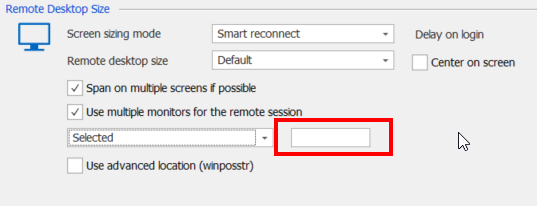
and where to find those number ? On Windows display configuration ?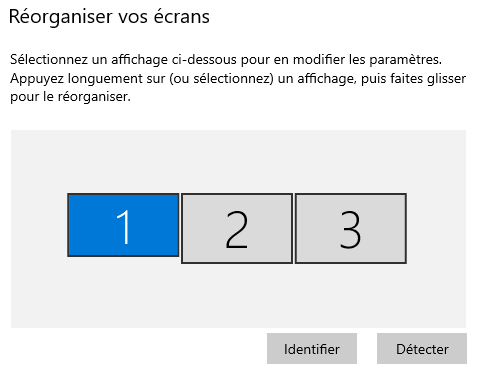
thanks !
2021-04-30 09_47_19-Paramètres.png
2021-04-30 09_43_18-Remote Desktop Manager - KinSrvFixSca01 - ByJump [TO A2I Boralex].png
Hello,
If you wish the first and second screens then you would need to input "0 1" in the select field, if you'd want to use the first, second and third monitor then you would need to add "0 1 2" hopefully this helps,
Let me know if this works for you.
Best regards,
Samuel Dery
My problem with niborjusdv problem is very similar, how do I use Embedded (tabbed) mode to solve this problem?
thanks
local machine: Windows 11 22H2
primary monitor 2560*1600
sencondary monitor 1680*1050
remote machine: Windows Server 2008 R2
not connected monitor
using Remote Desktop Manager 2022.2.11.0
Remote Desktop Manager use secondary monitor
Hello 4Reloading,
To use the option mentioned by my colleague, the session would need to be set to "External".
I'm afraid there would not be an alternative for "Embedded".
Let me know if you have further questions,
Best regards,
Samuel Dery
No more questions, thanks