
Marcel G
Version 2026.3.8 Error throwed "This application requires Microsoft .NET version 4.7"
Hi Cristian,
Thanks for the update! I've installed the new version and tested it -- the issue is indeed resolved.
Looks like we can call this one fixed, just in time for the weekend :-)
Have a great weekend!
Version 2026.3.8 Error throwed "This application requires Microsoft .NET version 4.7"
Hi Cristian,
Unfortunately, disabling-RDMTelemetry beforehand does not provide a solution; however, I do observe that these message(s) only occur when I start a Cmdlet in a data source with with Active Directory Interactive (With MFA Support) account: See below
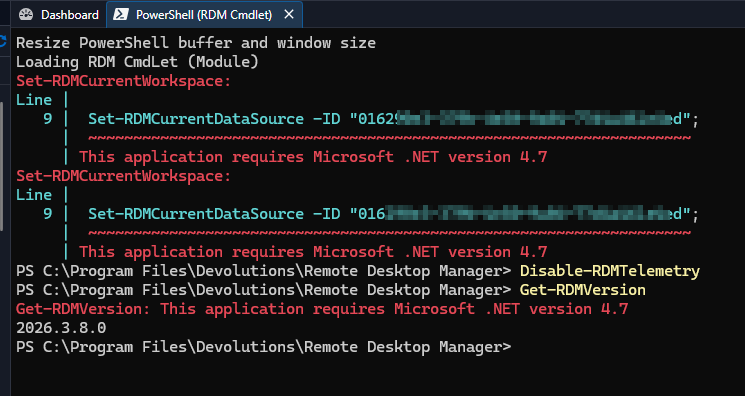
If I switch to the a data source/Workspace, with SQL Server authentication it works as expected.
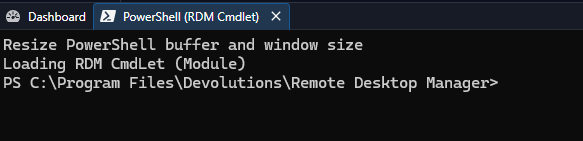
Perhaps this can provide more clues/directions regarding this problem for you?
Regards, Marcel
Version 2026.3.8 Error throwed "This application requires Microsoft .NET version 4.7"
RDM Version:
2026.3.8.0 (64-bit)
Runtime:
.NET 10.0.12
PowerShell Module:
2026.3.0
.NET Framework:
4.8.1 (Release 533509)
Get-RDMVersion returns version succesfully but also throws: "This application requires Microsoft .NET version 4.7"
Same behavior with:
- Get-RDMInstance
- Set-RDMCurrentWorkspace
- Get-RDMEntry
- Get-RDMUserGroup
- Get-RDMRole
Get-RDMDataSource works correctly.
Issue reproducible in:
- PowerShell 7.6.6
- Embedded RDM Cmdlet Console

RDM v2026.3.5: "Sort Priority" is not respected for Map entries/folders
For me it's also Fixed, problem Solved.
Thanks
RDM v2026.3.5: "Sort Priority" is not respected for Map entries/folders
I noticed an issue with the Sort Priority setting for Map entries/folders.
The custom Sort Priority configured under User Interface is not respected when sorting Map entries/folders in the navigation. When using the default sorting based on Sort Priority, I would expect the configured priorities to determine the order of these Map entries.
Main Map 1 has a Sort Priority of -10
Main Map 2 has a Sort Priority of 10
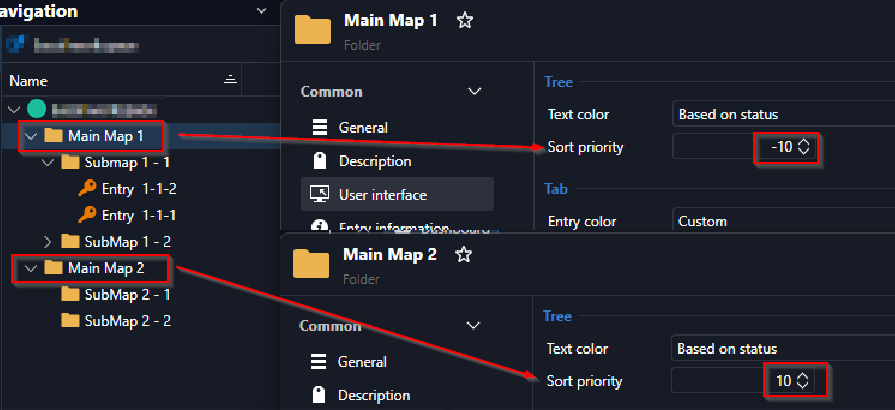
This seems to apply to all Map entries, including Main Maps and SubMaps.
Interestingly, the Sort Priority is correctly respected for other entry types. This makes it appear that the issue may specifically affect the sorting logic for Map entries/folders.
Could you please verify whether this is an bug/issue specifically affecting the sorting of Map entries/folders in the current latest version of Remote Desktop Manager?
Regards, Marcel
Active Directory Interactive (with MFA support) users can not login in 2026.3.3 after Upgrade from 2026.2.18
Thanks for the information Maxim, authentication is indeed working normally again.
Active Directory Interactive (with MFA support) users can not login in 2026.3.3 after Upgrade from 2026.2.18
Thanks for the feedback and I'll wait when additional information becomes available here.
Regards, Marcel
Active Directory Interactive (with MFA support) users can not login in 2026.3.3 after Upgrade from 2026.2.18
Hi,
We made a database copy Azure SQL database from our 2026.2.18.0 RDM version and did a fresh/new install with the Beta 2026.3.3 on a client. Setup the workspace settings to this database and logged in with de SQL admin user account.
The upgrade process was completed, the (SQL) account was able to log in, and the vault(s) were available.
If we now log in with the usual user account(s), Login mode = Active directory Interactive (with MFA support) in this 2026.3.3 Client version we get an error. Same error when testing this Workspace in the setting, see screenshot below:
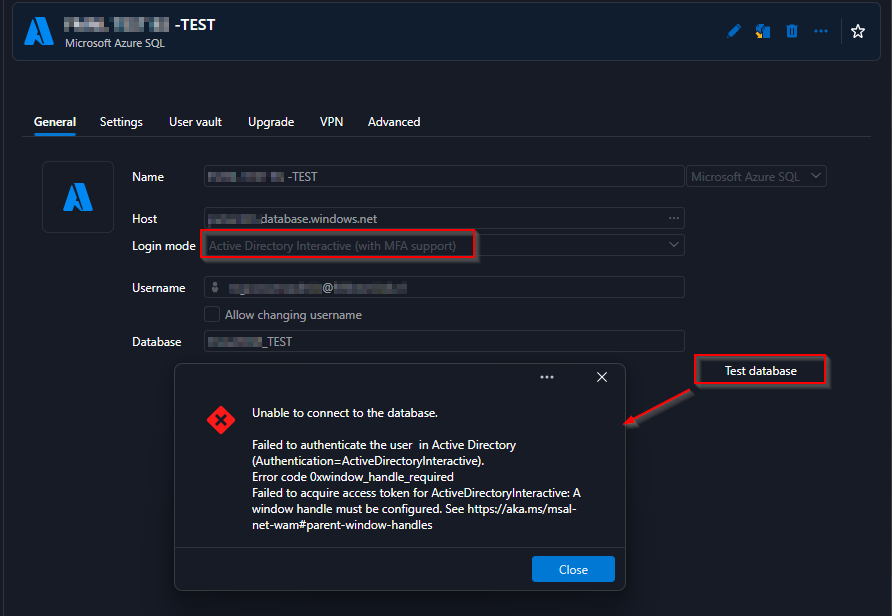
If I log in now using the same account via a current client version (2026.2.18) to this 2026.3.3 test data source, this error does not occur, and we can simply use and work with this 2026.3.3 test database.
Can you provide support with this, or is there a specific reason why we are encountering this error logging in to RDM when upgrading to this beta version for this type of account(s)?
Regards, Marcel
New user with Login mode 'Active Directory interactive (with MMFA Support)
Hi Maxim,
Tested and the issue can be closed.
Thank you for the solution and feedback.
Regards, Marcel
New user with Login mode 'Active Directory interactive (with MMFA Support)
Our version has been updated to 2026.2.7.0, and now when adding a new user, you can only choose Custom (Devolutions) or Database user?
I don't immediately see where you can now create a user, as before, which can be created via Login Microsoft (mode Active Directory Interactive (with MFA support)).
Previous accounts do appear in the list with Authentication type Microsoft.

Has anything changed in system settings or am I missing something?
Version 2026.1.23:

RDP entry import in version 2026.1.10
Hi David,
Thanks for your reply/information,
I've dug into it a bit more and see that instead of using <ClearTextPassword>, using <SafePassword>, the entry is being read correctly, including the password, in version 2026. (p.s. tags that were already in/between Connection tags) The section below in the .rdm file does include the password in the entry:
<RDP>
<KeyboardLayoutText>Standaard</KeyboardLayoutText>
<SafePassword>gn5*ti9!!1Gv!!PDrhglced=f47U*YJfa</SafePassword>
<UserName>{rdpEntry.Domain}\{rdpEntry.Username}</UserName>
</RDP>
Testing the same .rdm file importing in version 2025 then gives an RDP entry with an empty password.
Importing in version 2025.3.30

Is this intended given the 'naming' of the tag?
RDP entry import in version 2026.1.10
We've noticed that the password is missing from the import functionality of an RDP entry.
This (Daily Use) functionality worked in all previous versions.
Import > Import into vault (.rdm)
The default section/tag containing the password is for importing the .rdm file below:
and where rdpEntry.Password is filled with a clear txt/password
<RDP>
<ClearTextPassword>{rdpEntry.Password}</ClearTextPassword>
<UserName>{rdpEntry.Domain}\{rdpEntry.Username}</UserName>
</RDP>
When importing this file in version 2026.1.10, the password is not included in the entry (empty).
When I export an RDP entry from2026.1.10 in which I have manually added a password, I see that the <ClearTextPassword> tag is a secure/encrypted value?
<RDP>
<ClearTextPassword>gn5*ti9!!1Gv!!PDrhglced=f47U*YJfa</ClearTextPassword>
<SafePassword>+MhXvKUzqy1vzBCczgKx2Aw42Mxxxxxxx</SafePassword>
<UserName>bxxxn\AdminFFFFFaa0e</UserName>
</RDP>
Has anything changed in the new version that imports RDP entries, or should a different layout/addition be made in the .rdm file?
Regards, Marcel
Addition Grant Temporary Access
Hi Hubert,
Have you had time to discuss this internally yet?
I'd love to hear from you, and if you need any further information, please let me know.
Gr. Marcel
Report 'Save as CSV' option not available anymore ?
Hi Patrick,
The export is for/in Remote Desktop Manager : Reports > More Reports > Expiration > Expired Entry List.
Using then for Export file type CSV and save that setting as .rdr in the previously specified command line for execute and export report.
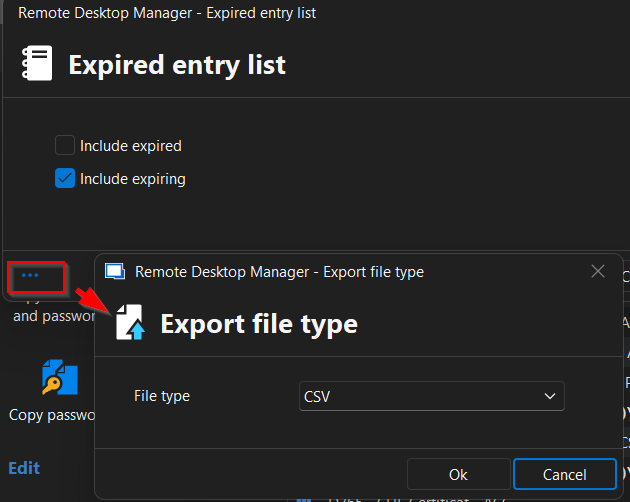
if necessary I could show this via a teams meeting/share. Just send me an invitation.
Regards, Marcel
Report 'Save as CSV' option not available anymore ?
Strange, it has always worked fine here before (we use this export file(s) for further processing)
Via debugger I see the logging below passing by, including a notification unrecognized Guid format?
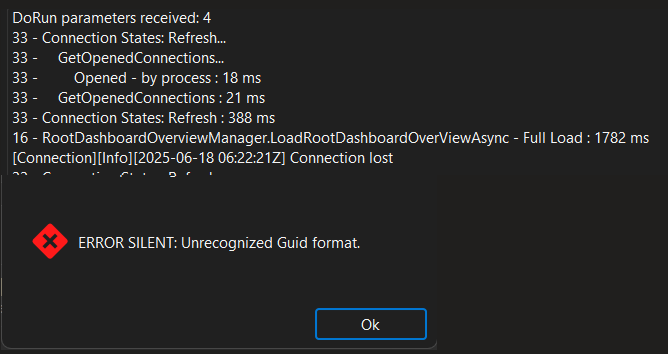
Maybe your support team can find/say something about this.
I would like to hear it, thanks
Report 'Save as CSV' option not available anymore ?
Hi Hubert,
Thanks for your feedback, but strange is that the default option, export of a report via the command line as described in the Docs page, does not generate an output file after updating to the latest version.
Repro: For example start an export of RDM report Expired Sessions via cmd line/RUN:
remotedesktopmanager.exe /DataSource:*******-****-****-8a20-29d43db262f3 /report:b30f6c4a-****-****-bc4b-3f3253b3ccbd /reportoutput:"C:\Temp\test.csv" /reportsettings:"C:\Temp\test.rdr"
Or do you see a file generated via this functionality?
Regards, Marcel
Report 'Save as CSV' option not available anymore ?
Following issues we were experiencing with various reports, I noticed that reports can no longer be exported/saved as CSV?

Export settings File type is chosen for CSV, but in pull-down menu only HTML type is possible ?
Regards, Marcel
Version = 2025.2.14.0 / Azure SQL Datasource
Powershell scrip on entry
Oops, I read under the latest release items at the bottom "Fixed winrm errors with remote tools" and from that I started a script which caused the previous message and it worked fine now, hence this response.
I now checked again and saw I executed this on a credential entry yesterday. Executing this script on a web entry does indeed still give this message.
Apologies for the confusion.
Powershell scrip on entry
Fixed in 2025.2.14 ;-)
Addition Grant Temporary Access
Hi Hubert,
The data-source we use for Remote Desktop Manager is Azure SQL and the User Groups we create manually.
Structure is that there are User Groups (e.g. Customer team A, or b, etc.) linked to different Main Folders (customers) where the underlying sub&sub folders can contain a number of other User Groups (e.g. view/access Technical consultant group, view/access Functional consultant group, etc.ect). By now having the option to make a user a temporary member of a User Group (e.g. Customer team A), the User Groups already linked to that user are then auto included for the underlying subfolders of the Customer folder.
Also there will be no need to look or think further for which specific roles should be given to the consultant when making a member of a User Group coupled to a main map/customer. The subfolder(s) and Entry access, rights are then already linked to the user via its default coupled user groups/roles.
If you have any further questions about this, please let me know.
Regards, Marcel
Addition Grant Temporary Access
Hi Hubert,
That's indeed the case/request ;-)
Grant Temporary membership for a user to a User Group.
Regards,
Marcel
Addition Grant Temporary Access
Is an additional extension/option for the functionality 'Grant Temporary Access' for entries and folders in remote desktop manager possible to select a User Group? These User Groups are often linked to multiple separate Customer folders, which allows you to directly grant the temporary access to that Customer/folders belonging to that User Group.
Regards, Marcel
Open (External) RDP or Web entry does not Close when ending external session.
This workaround unfortunately does not help me, external opening of web session there entry status remains active, even after manually closing external session via browser.
Same if an RDP session is started, closing entry or logout, Entry status remains active.
Open (External) RDP or Web entry does not Close when ending external session.
Quick check at my site.. After starting RDM and opening a random RDP session in the user vault I noticed that the entry in RDM went back to default after 20-35 seconds while the external RDP session was still open ?. Further testing and opening RDP session in Vault and closing/logging out externally RDP session, unfortunately the entry status in RDM remained as running and the close button could not be operated. Not closing, even after a long wait. Also opening web session externally same problem, when closing entry status still running and unresponsive.
Only restart RDM (Message you've opened/running sessions when exiting) set that entry's back in expected, closed/not running, state after start RDM again.
I will do a new check for multiple entries tomorrow and report back.
Open (External) RDP or Web entry does not Close when ending external session.
Hi Samuel,
Yups, closing a web session via the browser or via the close button, button and icon remain active, same with an RDP session, closing directly from the session or close button.
Concerns all Web/RDP -sessions, -entries which we start from RDM.
If necessary we can also show this via a remote session, just let me know