
figueroa.david
Right click & logoff not working after update
I just updated to 2024.1.23.0 64bit,
.Net is 8.0..2
After the update, the right click on the tab, and select Logoff does not work. I get the dialog asking me to confirm, but after I click Yes, I still do not actually get logged off.
The Reconnect function works properly.
The Force Logoff seems to cause it to renegotiate the connection, but I remain logged in.
If I click Close it does disconnect me properly.
I can still use the normal Windows logoff processes, so it's not crippling, it is just an annoyance. :-)
Thank you,
David F.
RDM Powershell button launches Windows Powershell instead of Powershell
Oh.. another little "side bug" I _literally_ just noticed.. the icon on the powershell tab is blue no matter what when it's not in focus. It should follow the color of the PS version (blue for WinPS, black for pwsh)
:-D
David F.
RDM Powershell button launches Windows Powershell instead of Powershell
That's kind of what I was thinking.. check if pwsh is installed, and if not, load powershell, but don't try to load the PS module.
And it seems like you could just check at launch time to see if pwsh is installed. It won't work for portable versions of pwsh, but to me that's on the user.. it could possibly offer a function to browse for it.
Thank you :-)
We can consider this closed.
David F.
RDM Powershell button launches Windows Powershell instead of Powershell
I had not.. I tried it and it worked like it should have. It still didn't fix my forever embedding problem, but it worked :-D
So my next obvious question - Why isn't this the default for the installation? I can understand why you wouldn't want to change user defined sessions automatically, but for the built in, I'd think it should just happen. Or you could have 2 buttons in there.. a Powershell and a Windows Powershell, and the WinPS would NOT try to load the RDM module.
Anyway, thanks again Erica :-)
David F.
RDM Powershell button launches Windows Powershell instead of Powershell
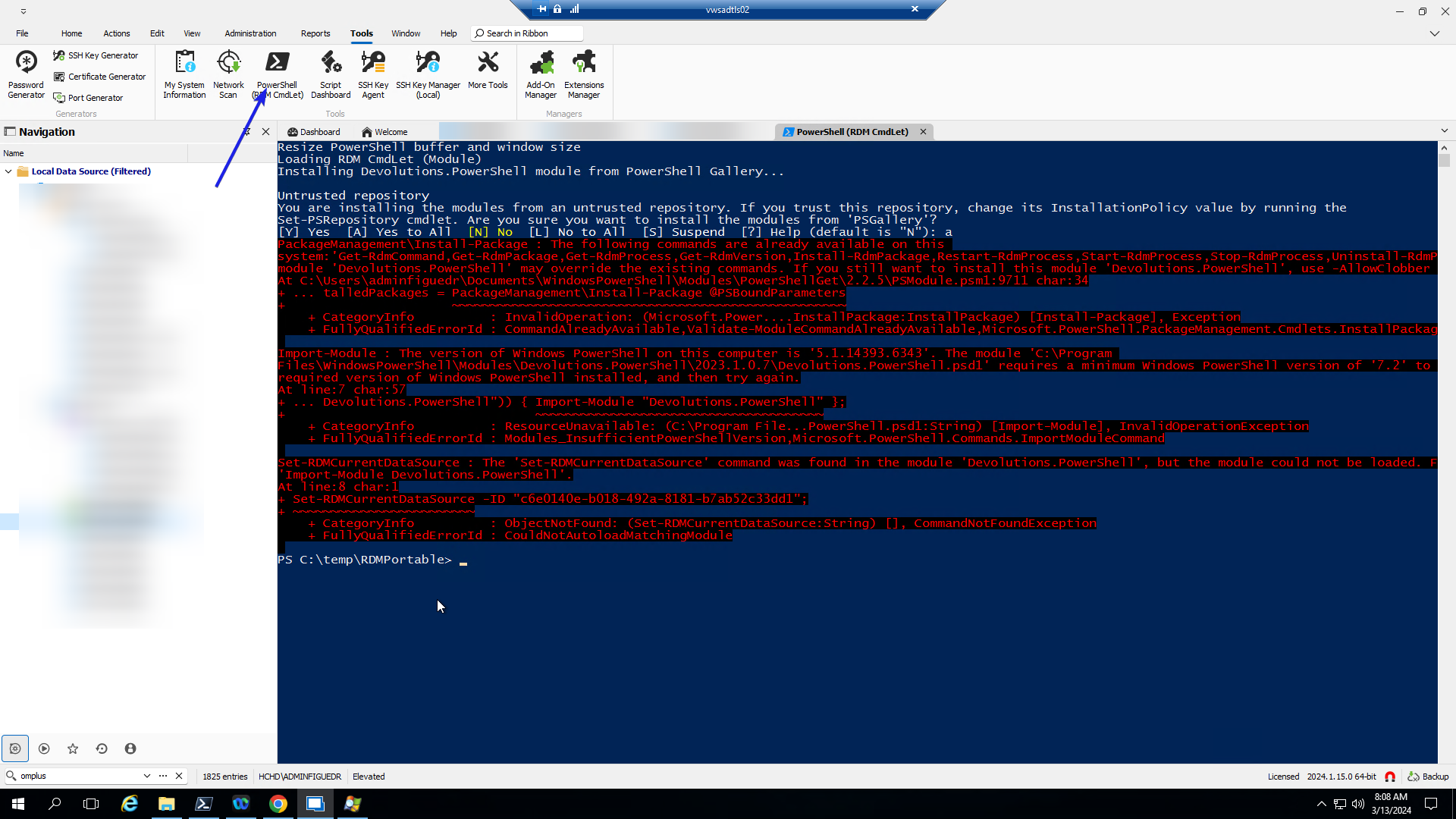
RDM Powershell button launches Windows Powershell instead of Powershell
It's the same version as my other thread, and it is the same behavior in the portable version I just downloaded to try it. 2024.1.15.0, 64bit on Server 2016. The datasource is just the local sqllite database.
And I am referring to the button the Tools ribbon Powershell (RDM Cmdlet). I'll reply again in a minute with the screenshot. (different computer).
David F.
Unable to type in the filter field in RDM
Got it downloaded and when I ran it, it automatically connected to my sqllite db and opened just fine. The filtering text box worked perfectly.
Thank you :-)
What do I need to do next?
David F.
RDM Powershell button launches Windows Powershell instead of Powershell
Even though the RDM module now requires pwsh.exe, the button still launches Windows Powershell. So, it always generates an error.
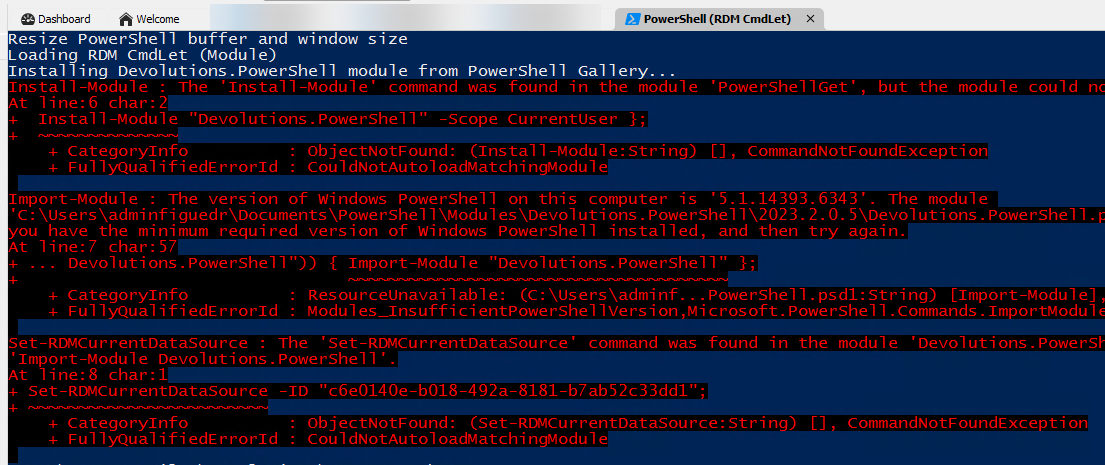
Thank you,
David F.
Unable to type in the filter field in RDM
I was having this issue previously, and I upgraded (2024.1.15.0 64-bit on Server 2016), and I'm still having this issue.
I cannot type in the filtering field. When I had this last time, I upgraded and it resolved it, but now it is not going away. I type in another spot (notepad, cmd prompt, etc.) copy and paste it, but that's obviously really inefficient.
I can type into any of the RDP/SSH/etc. sessions just fine, it's only that filtering field at the bottom left. I'm kind of stumped as to what to do here.
Thank you,
David F.
Upgrade to PS7 level module causes script to stop working properly
That worked. Thank you very much. In case anyone else is interested:
Since RDM doesn't need to be launched first, I trimmed that part out, and added a check in case it's already running.
Import-Module Devolutions.Powershell

function Set-MyRDMSessionPassword {
    [cmdletbinding()]
    param(
        [parameter(Mandatory, ParameterSetName = 'plain')]
        [string]$MyPlainPwd,

        [parameter(Mandatory, ParameterSetName = 'crypt')]
        [securestring]$MyPwd,

        [parameter(ValueFromPipelineByPropertyName)]
        [string]$UserName = $env:USERNAME,

        [parameter(ValueFromPipelineByPropertyName)]
        [string]$CredentialGroup = '_Credentials'
    )

    Begin {

        $RDMPath = (Get-ItemProperty -Path registry::HKEY_LOCAL_MACHINE\SOFTWARE\RemoteDesktopManager -Name InstallationDirectory).InstallationDirectory
        $RDMFilePath = [System.IO.Path]::Combine($RDMPath, 'RemoteDesktopManager.exe')

        $GetMyRDMPID = {
            Get-Process -ProcessName RemoteDesktopManager -IncludeUserName -ErrorAction Stop|
            Where-Object UserName -match $UserName |
            Select-Object -ExpandProperty ID
        }
    }

    Process {
        $MyRDMSessions = Get-RDMSession -GroupName $CredentialGroup | Where-Object name -match $UserName

        if ($PSCmdlet.ParameterSetName -eq 'plain') {
            $MyPwd = $MyPlainPwd | ConvertTo-SecureString -AsPlainText -Force
        }

        foreach ($Session in $MyRDMSessions) {
            try {
                Set-RDMSessionPassword -ID $Session.ID -Password $MyPwd -SetSession
                'Updated session name {0}' -f $Session.Name
            }
            catch {
                Write-Warning -Message ('Failed to update session {0}' -f $Session.Name)
            }
        }
        'Password Update attempt complete'

        try {
            & $GetMyRDMPID
            'RDM Currently launched, attempting to update the UI, but you may need to close RDM and relaunch it'
            Update-RDMUI
        }
        catch {
            Start-Process -FilePath $RDMFilePath -WorkingDirectory $RDMPath
            'RDM Launched'
        }
    }
}Upgrade to PS7 level module causes script to stop working properly
Ah.. I thought RDM had to be loaded first.. I'll adjust that and change it. Do I need the update-RDMUI in that case? (I'm assuming I don't)
I'll report back in a few minutes.
David F.
Upgrade to PS7 level module causes script to stop working properly
Well, why am I having to start RDM twice? I can script that if I have to, but it used to work the first time every time.
David F.
Upgrade to PS7 level module causes script to stop working properly
I checked it again this morning, and when I restarted RDM, the passwords did show correctly on all the entries.
David F.
Upgrade to PS7 level module causes script to stop working properly
I haven't restarted RDM and then checked.. I've always shut it down, reran the script and that launched it again.
I will try that in the morning and report back.
Thanks :-)
David F.
Upgrade to PS7 level module causes script to stop working properly
Any update?
I tried the script again (after taking out the -refresh) and that got rid of the timeout errors, but nothing was updated at all, even when I reran it.
David F.
Upgrade to PS7 level module causes script to stop working properly
64 bit RDM on Windows, and no it was not. That's what the window detection does.. it looks for the existence of an RDM window and if it doesn't find it, then it launches it.
I closed RDM waited like 3 seconds and reran the script.
David F.
Upgrade to PS7 level module causes script to stop working properly
Ok, I am debugging my script right now.
The $MyRDMSessions does catch 4 sessions as I would expect and they are named (sanitized here)
admin[user}
admin{user} (no domain}
admin{user}_fqdn
test_admin{user}
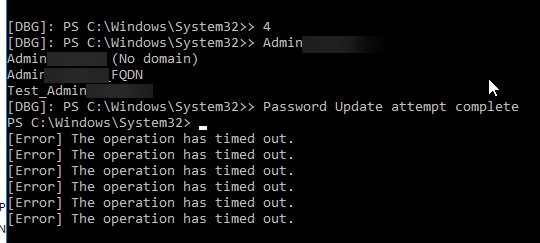
The script did the [error] messages first, and then jumped back up to write the Password Update attempt complete message from my script.
Although, this time, none of the entries had their password updated.
I cleared the breakpoints, closed RDM and reran the command from Invoke-History and it actually worked correctly this time.
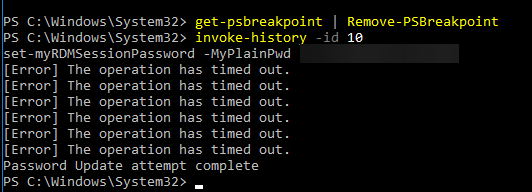
And I'm running 2023.1.23.0 64-bit.

I'll make the adjustments today about the refresh and update-rdmui.
Thanks,
David F.
Upgrade to PS7 level module causes script to stop working properly
Ok.. I'll look at it again tomorrow. I do see 4 of the timeouts, I think I may have cut it off in the screenshot process. I'll catch the session group tomorrow, and turn off the -refresh.
I'll get the version info in the morning.
Thanks!
David F.
Upgrade to PS7 level module causes script to stop working properly
I wrote this script a while ago to handle our implementation of CyberArk. When I upgraded to the new PS7 based modules, it stopped working properly. It still sort of works, but not completely. I've got 3 separate credential entries for my admin account, and the first one does not get changed.
Import-Module Devolutions.Powershell, psPAS

function Set-MyRDMSessionPassword {
    [cmdletbinding()]
    param(
        [parameter(Mandatory, ParameterSetName = 'plain')]
        [string]$MyPlainPwd,


        [parameter(Mandatory, ParameterSetName = 'crypt')]
        [securestring]$MyPwd,


        [parameter(ValueFromPipelineByPropertyName)]
        [string]$UserName = $env:USERNAME,


        [parameter(ValueFromPipelineByPropertyName)]
        [string]$CredentialGroup = '_Credentials'  #this is just my credentials group in RDM
    )


    Begin {
        if ('ProcessWindowFinder' -as [type]) {
            Write-verbose -Message '[ProcessWindowFinder] is loaded'
        }
        else {
            Write-verbose -message 'Adding [ProcessWindowFinder] accelerator'
            Add-Type -TypeDefinition @'
using System;
using System.Runtime.InteropServices;


public class ProcessWindowFinder
{
    private delegate bool WindowDelegate(IntPtr hWnd, int lParam);

    [DllImport("user32.dll", SetLastError=true)]
    private static extern uint GetWindowThreadProcessId(IntPtr hWnd, out uint processId);

    [DllImport("user32.dll")]
    private static extern bool EnumDesktopWindows(IntPtr hDesktop, WindowDelegate lpfn, IntPtr lParam);

    public static bool FindByPID(uint pid)
    {
        bool found = false;
        ProcessWindowFinder.WindowDelegate filter = delegate(IntPtr hWnd, int lParam)
        {
            if(!found)
            {
                // test whether this window belongs to the target process
                // if we haven't already found a windows belonging to it
                uint _pid;
                GetWindowThreadProcessId(hWnd, out _pid);
                if(pid == _pid)
                    found = true;
            }

            return true;
        };
        EnumDesktopWindows(IntPtr.Zero, filter, IntPtr.Zero);

        return found;
    }
}
'@
        }


        $RDMPath = (Get-ItemProperty -Path registry::HKEY_LOCAL_MACHINE\SOFTWARE\RemoteDesktopManager -Name InstallationDirectory).InstallationDirectory
        $RDMFilePath = [System.IO.Path]::Combine($RDMPath, 'RemoteDesktopManager.exe')

        $GetMyRDMPID = {
            Get-Process -ProcessName RemoteDesktopManager -IncludeUserName -ErrorAction Stop|
            Where-Object UserName -match $UserName |
            Select-Object -ExpandProperty ID
        }
    }
    Process {
        try {
            $MyRDMProcess = & $GetMyRDMPID
        }
        catch {
            Start-Process -FilePath $RDMFilePath -WorkingDirectory $RDMPath
        }

        do {
            try {
                $MyRDMProcess = & $GetMyRDMPID
                $FoundWindow = [ProcessWindowFinder]::FindByPID($MyRDMProcess)
            }
            catch {
                Start-Sleep -Milliseconds 500
            }
        } until ($FoundWindow)
        Start-Sleep -seconds 1

        $MyRDMSessions = Get-RDMSession -GroupName $CredentialGroup | Where-Object name -match $UserName

        if ($PSCmdlet.ParameterSetName -eq 'plain') {
            $MyPwd = $MyPlainPwd | ConvertTo-SecureString -AsPlainText -Force
        }

        foreach ($Session in $MyRDMSessions) {
            Set-RDMSessionPassword -ID $Session.ID -Password $MyPwd -Refresh -SetSession
        }
        Update-RDMUI
        'Password Update attempt complete'
    }

}
In the old versions of the PS Module, it worked. Now, I get these errors that show up. And as I mentioned, if I wait long enough (typically 90 seconds), the first credential for my account is not updated, but the other two are.
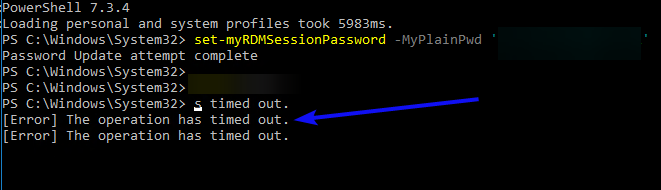
The picture points to the two that are updated with the green arrow, and the red arrow one is not updated.
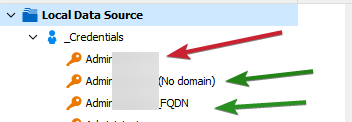
All 3 credentials start with my admin account name
Right now, I'm on the 2023.1.0.7 version of Devolutions.Powershell
Thanks!
David F.
Trying to set RDM session passwords
I didn't see anything in the help that indicated that was the case, but I can do that.
Thank you very much :-)
David F.
Trying to set RDM session passwords
RDM version: 2022.3.24.0 64-bit
I'm trying to set my credentials, and I'm trying this, and it's just not working.
Get-RDMSession -GroupName _credentials |Where-Object name -match '^thisname' | ForEach-Object { Set-RDMSessionPassword -Password $MyPwd -Session $_  -Verbose }
Update-RDMUI
The $MyPwd is a secure-string already and thisname is the account I'm trying to update.
The first two parts of the pipeline work exactly as expected, and the sessions are retrieved.
I tried it with RDM launched and not launched, and neither scenario worked.
Thank you,
David F.
Active Directory Import
Fantastic :-) Thank you, and I look forward to it.
David F.
Active Directory Import
I'd rather it just work the way it sounds :-) It finds an OU and creates a folder with the same name.
David F.
Active Directory Import
That does actually work Erica, however, it does not preserve the folder structure even when selecting the checkbox for Create folders from OU/containers.
And I am extremely glad I found this thread, because I need to do exactly this.
Thanks,
David F.
Embedded powershell tools - potential bug found with it..
I realize this ticket is really old, and it is still actually an issue (I'm on the newest version now 2021.2.27). Talking to one of the Devolutions staff on a completely unrelated chat server, I think we diagnostic the problem as an issue with the default font being used. In my PS sessions on every machine, one of the very first things I do is change my default font go to Consolas.
Can you guys test this and verify if this is correct? And obviously, if it is correct - then obviously, can we get a fix??
Thanks!
David F.