Embedded powershell tools - potential bug found with it..

I can't find my old thread on this topic, or I'd have used that rather than start a new one. I *believe* I may have discovered the source of my issue, and if I am right, maybe you guys can help me fix it.
The issue has always been: when running the Tools | Powershell (RDM Cmdlet) menu item, the embedded powershell window extends past the bottom border of the application. The only thing I have been able to do is manually import the .psd1 file and use it that way.
I did however install RDM on my home laptop to look at a few things with it, and when I ran the same powershell tool, the embedded window worked correctly. It went to the bottom, and stopped exactly as it should. I will try an attach a screenshot tonight of the working copy, but I am attaching a screenshot of the "broken" window for reference.
My working theory at this point is that the oversized powershell window/failure to embed correctly is tied to multiple monitors, while a single monitor system does not seem to experience the issue. I wish I had another system or 2 to confirm it, but I don't at this point. If you guys could confirm or deny it for me, I'd really appreciate it :-)
I did more playing around while I was working on this email, and I did find something very odd - when I moved RDM to a different monitor (different size) and relaunched the ps window, it worked fine. When I brought it back, it worked fine. When I closed it and relaunched it on the original monitor, it failed again. Resizing it a few times/dragging it back and forth seems to "fix" it?
David F.
RDM_Oversized_Powershell_Window_1.png - shows the bottom of the window on the left, and how the prompt is missing (it's actually "offscreen")
RDM_Oversized_Powershell_Window_2.png - shows the result of a get-childitem on a long directory in this window. The screen buffer just continually repeats itself until you do something *else* in the window, and then it straightens itself out.
RDM_Oversized_Powershell_Window_3.png - another instance of the issue in the #2 picture.
RDM_Oversized_Powershell_Window_4.png - shows that the scroll bar is missing on the window, which I believe is tied to the problem.
RDM_Oversized_Powershell_Window_5.png - shows the error I get on my work machine here when I first load the ps window
Here is the error text (copy & paste) just in case...
Resize PowerShell buffer and window size
Exception setting "BufferSize": "Cannot set the buffer size because the size specified is too large or too small.
Parameter name: value
Actual value was 192,4000."
At line:3 char:1
+ $Host.UI.RawUI.BufferSize = new-object System.Management.Automation.H ...
+ ~~~~~~~~~~~~~~~~~~~~~~~~~~~~~~~~~~~~~~~~~~~~~~~~~~~~~~~~~~~~~~~~~~~~~
+ CategoryInfo : NotSpecified: (:) [], SetValueInvocationException
+ FullyQualifiedErrorId : ExceptionWhenSetting
Loading RDM CmdLet (Module)
RDM_Oversized_Powershell_Window_5.png
RDM_Oversized_Powershell_Window_4.png
RDM_Oversized_Powershell_Window_3.png
RDM_Oversized_Powershell_Window_2.png
RDM_Oversized_Powershell_Window_1.png
All Comments (16)
Hello,
About the error message, could you please check in File - Options - Tools if the Resize window option is enable in the PowerShell (RDM Cmdlet) section is enabled?
And there are also other settings you can change in File - Options - Types - Other - PowerShell for the window and buffer size.
Best regards,
Érica Poirier
Yes, the Resize Window is checked.
Although, my Debug selection is also checked (out of the box install)
The Buffer size is configured the same as your screenshot.
David F.
I had the same problem on my home laptop when launching.. so that definitely disproves my working theory. Still have the issue, and I have no good way to track down why its doing it.
David F.
Hello,
A ticket has been sent to our engineering department and the ticket number is RDMW-1922. We will keep you posted on this as soon as we will found something.
Best regards,
Érica Poirier
Hello,
I have played around with the settings and when the Resize Window and the Debug options are disabled, I do not experience the issue anymore. Could you please try this and let me know if this resolve your issue?
Best regards,
Érica Poirier
It definitely seems tied to the Resize Window checkbox. I turned that off, and the problem appears to go away. When I put the checkmark back on it, the error message reappears, and the problem reappears. After the problem appears, flipping that same checkmark without restarting the window still seems to fix it.
So, at this point I'm good, but that is definitely a bug in it.. thank you!
David F.
Hello,
Thank you for your feedback and glad that disabling those options help to resolve the issue.
The ticket is still open and we will update this thread when a fix will be available.
Best regards,
Érica Poirier
I realize this ticket is really old, and it is still actually an issue (I'm on the newest version now 2021.2.27). Talking to one of the Devolutions staff on a completely unrelated chat server, I think we diagnostic the problem as an issue with the default font being used. In my PS sessions on every machine, one of the very first things I do is change my default font go to Consolas.
Can you guys test this and verify if this is correct? And obviously, if it is correct - then obviously, can we get a fix??
Thanks!
David F.
Hello,
Thank you for your feedback.
I do no longer get the issue with the latest version using the Consolas font. It's already the default font on my system for PowerShell. The bottom screen of the embedded RDM PowerShell window scrolls properly when the results of commands expend over the bottom limits. I can also see the scroll bar on the right of the embedded PowerShell.
What screen resolution do you have on the primary monitor?
What font size are you using?
Best regards,
Érica Poirier
Hello, all;
Marc-Antoine Dubois at Devolutions suggested I post on this thread following a support session earlier today.
Posting here for any other Windows environment administrators who are experiencing issues with PowerShell Remote Console entry types not working with Windows PowerShell 5.1 (which is the default included PowerShell environment in Windows since 2016 and will continue to be for the foreseeable future).
I had a support call with Devolutions earlier this morning investigating this issue, which is remarkably similar to, if not the same issue as described in this thread. When launching Powershell Remote Console entries or using any other feature which relies upon that feature, if you get the following error:
Invoke-Expression : Exception setting "BufferSize": "Cannot set the buffer size because the size specified is too large or too small.
Parameter name: value
Actual value was 192,4000."
At line:32 char:13
+             Invoke-Expression $SecureCommand
+             ~~~~~~~~~~~~~~~~~~~~~~~~~~~~~~~~
    + CategoryInfo          : NotSpecified: (:) [Invoke-Expression], SetValueInvocationException
    + FullyQualifiedErrorId : ExceptionWhenSetting,Microsoft.PowerShell.Commands.InvokeExpressionCommand
but it works normally if you just open PowerShell and run Enter-PSSession -ComputerName foo and it works just fine, it appears to be a result of the below issue.
Devolutions has deemed the default included Windows PowerShell 5.1 environment as 'deprecated' and not worth developing features for, despite it still being the default included Windows PowerShell environment, and being fully supported by Microsoft as long as the host operating system in which it was included is within its support life cycle.
If you're an administrator hoping that you'll be able to use the PowerShell Remote Console for its intended functionality without deploying PowerShell 7 in your environment, I'd spend your time on something else, since I was told there will likely not be a fix for this.
If there are any further details on resolving this or any future development to fix this broken feature, I look forward to hearing them, however it sounds like it's basically install/deploy PowerShell 7 in your environment, or don't use these features in RDM.
With that said, I do suggest to Devolutions if they're not going to support the single most widely used (and default, for that matter) PowerShell environment, that the option should be removed from the drop-down menu in the PowerShell Remote Console entry properties.
Hopefully this saves someone from spending a ton of time on this like I have. Cheers!
--
Griffeth Barker
💻 Call/Chat on Microsoft Teams
📧 Send me an email
🔗 Connect on LinkedIn
Hi Griffeth,
First, I would like to apologize for the confusion: PowerShell Remote Console entries are supposed to handle both Windows PowerShell 5.1 and PowerShell 7 properly. In fact, I suspect the problem you encountered should affect both versions of PowerShell equally, and it has to do with the terminal buffer size command we inject on PowerShell startup. For some reason, you seem to be hitting a limit on your system, where the default values are considered out of range.
You can change the buffer size in the Remote Desktop Manager options under "Types -> Sessions -> PowerShell":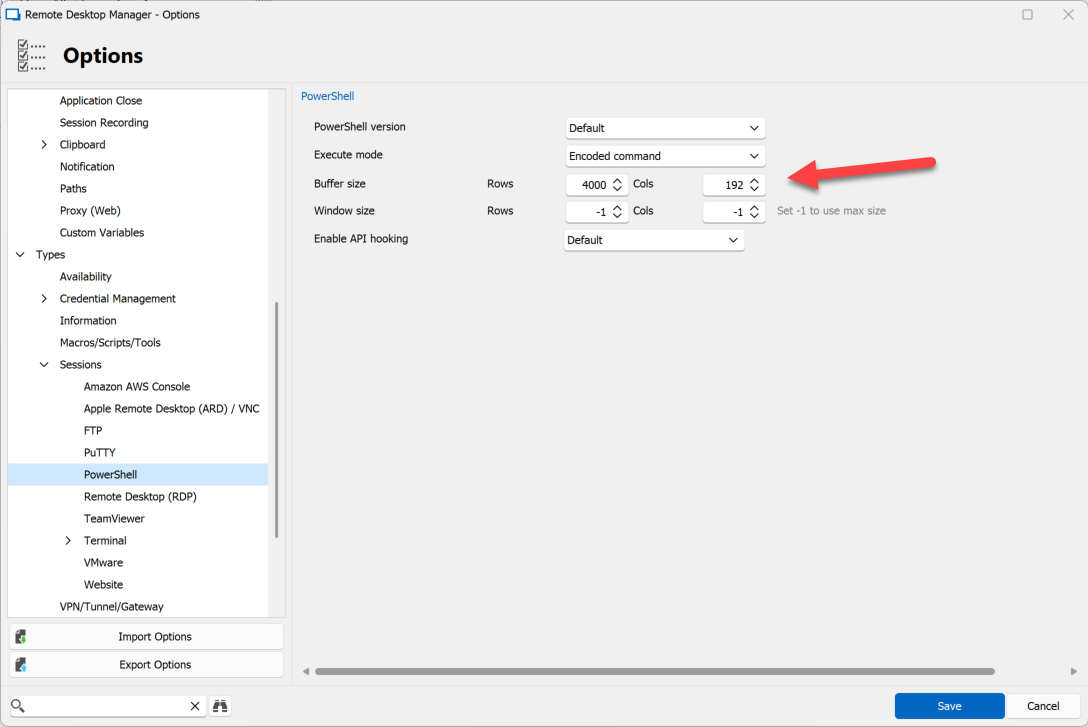
The offending command causing the exception in your case is this:
$Host.UI.RawUI.BufferSize = New-Object System.Management.Automation.Host.Size 192,4000
You can query the current default values (usually very small) in a regular PowerShell terminal this way:
$Host.UI.RawUI.BufferSize

Width Height
----- ------
  160     32
Now the minimum acceptable buffer size value should be determined by GetSystemMetrics(SM_CXMIN) + GetSystemMetrics(SM_CYMIN) on Windows, something we could call as an improvement to avoid setting a buffer size that would trigger an exception. Can you run the following code snippet such that we would have an idea what those values are on your system?
Add-Type -TypeDefinition @"
    using System.Runtime.InteropServices;

    public class User32 {
        [DllImport("user32.dll")]
        public static extern int GetSystemMetrics(int nIndex);
    }
"@

$cxmin = [User32]::GetSystemMetrics(28) # SM_CXMIN
$cymin = [User32]::GetSystemMetrics(29) # SM_CYMIN
Write-Host "SM_CXMIN: $cxmin SM_CYMIN: $cymin"
Best regards,
Marc-André Moreau
9c2e8327-0004-4db1-b6fe-bf9af1e73df7.png
Hi, Marc-André,
The output of $Host.UI.RawUI.BufferSize on my system is as follows:
Width Height
----- ------
  120     30
The output of your provided code snippet is as follows:
SM_CXMIN: 136 SM_CYMIN: 39
Thank you,
--
Griffeth Barker
💻 Call/Chat on Microsoft Teams
📧 Send me an email
🔗 Connect on LinkedIn
Hi,
I did some experimentation on my side, and suspected that the GetSystemMetrics calls alone were not sufficient to determine the true minimum values that would trigger the exception, so I went ahead and asked the question to my contact at Microsoft responsible for the console host.
There are *two* minimums, as briefly mentioned in the docs for SetConsoleScreenBufferSize, the API called by $Host.UI.RawUI.BufferSize in PowerShell. The GetSystemMetrics values apply in addition to the current viewport size or window size, which is exposed in PowerShell through $Host.UI.RawUI.WindowSize. By shrinking the viewport first, we can set the BufferSize, as long as it is within the range of SM_CXMIN, SM_CYMIN given by GetSystemMetrics. Here's a demonstration: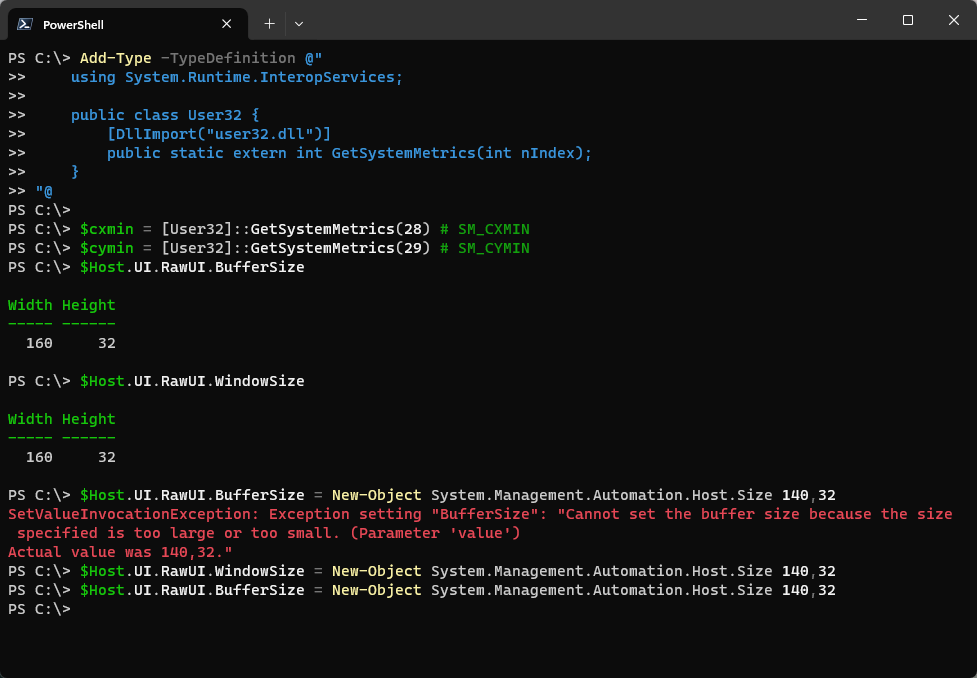
With this in mind, we have finally gathered enough insight on how to predict values that should work automatically. For today, since we don't have the code to shrink the viewport first, you just need to edit your default buffer size in the RDM options as shown in my previous post to a value that should be within range.
Use $Host.UI.RawUI.WindowSize to determine your viewport size (minimum) and then try using changing $Host.UI.RawUI.BufferSize = New-Object System.Management.Automation.Host.Size 192,4000 in a terminal until you get a value that works, and update your RDM options buffer size accordingly.
Best regards,
Marc-André Moreau
d8209b5c-ebd9-4842-9c23-3ef9d99abcb3.png
Would I just ensure that both $Host.UI.RawUI.WindowSize and $Host.UI.RawUI.BufferSize are at least SM_CXMIN, SM_CYMIN?
I did the following: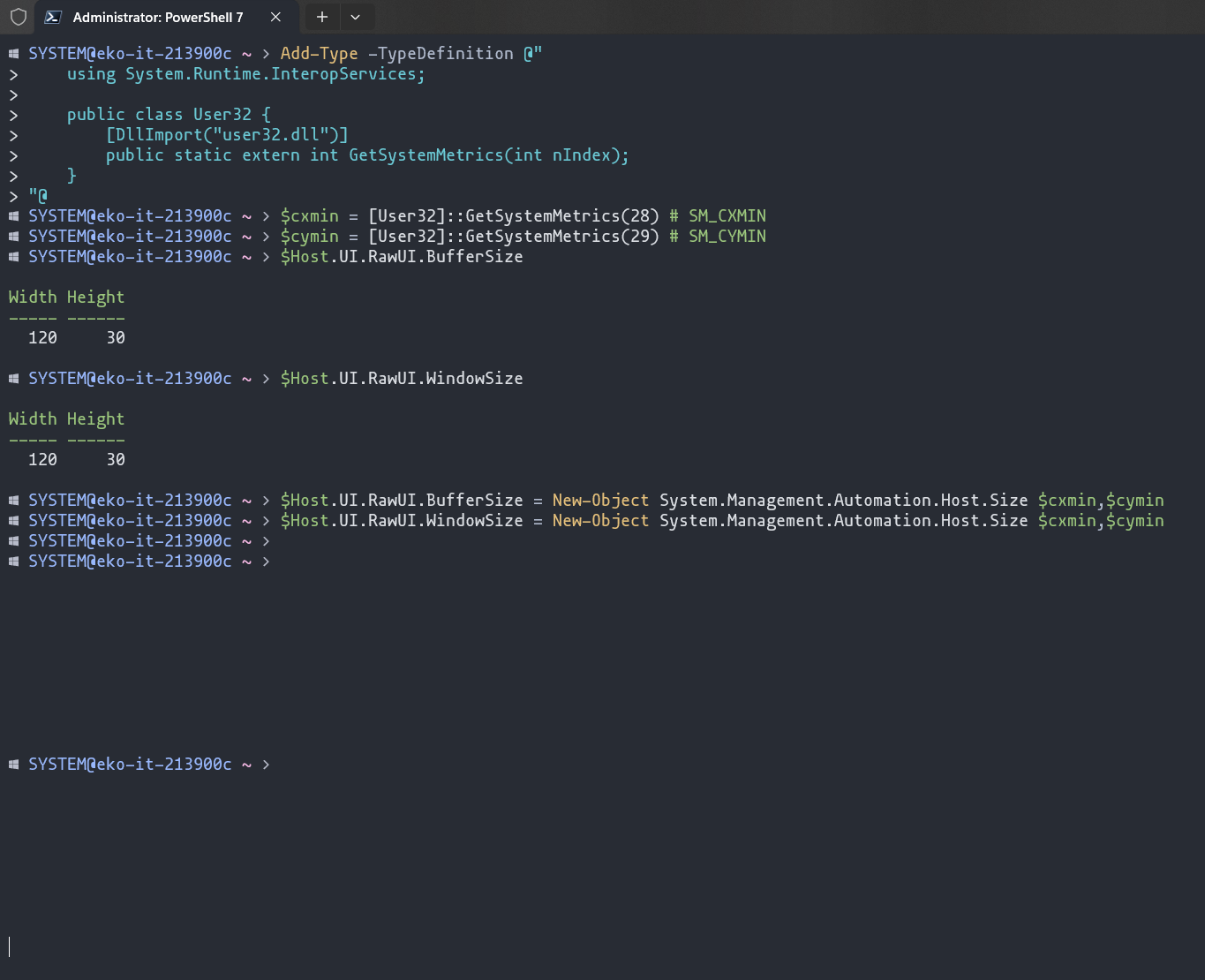
and now my cursor does not line up with the shell prompt, though the size of the window did change. Restarting Windows Terminal results in the changes being lost.
Please forgive me if I am not understanding.
Thank you,
--
Griffeth Barker
💻 Call/Chat on Microsoft Teams
📧 Send me an email
🔗 Connect on LinkedIn
244db3c8-f092-41cb-920b-9cfee1c76cfb.png
Hi,
Windows Terminal may actually behave differently for this - Remote Desktop Manager forces the old console host by default by calling conhost.exe directly, resizing + reparenting it. You don't need the exact minimum value for the buffer size, just a value that works. It's always been a bit tricky, just edit those settings until you find a combination that finally works on your machine, and don't bother about the whole explanation on how we might find a way to (finally) get that part right automatically: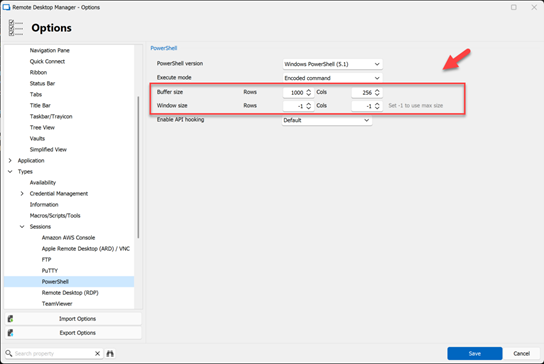
The original console host was never really meant to be embedded into other programs like Remote Desktop Manager, so what we're doing is a bit of best-effort thing. If we don't resize before reparenting, then the console host window won't have the right dimension within RDM. To properly compare with what we launch in RDM, use "conhost.exe powershell.exe" to launch PowerShell inside the classic console host, this will prevent Windows Terminal from become the console host (now enabled by default in Windows 11).
As for Windows Terminal, the one that shipped by Microsoft cannot be reparented like the old console host, so we've had to make our own Windows Terminal distribution with patches to allow launching it with a parent window, avoiding the need for reparenting after it's launched. Off the top of my head I don't remember if we've backported the option to use Windows Terminal in 2023.2 for PowerShell Remote Console entries, but it's definitely there in 2023.3, I suggest you give it a try: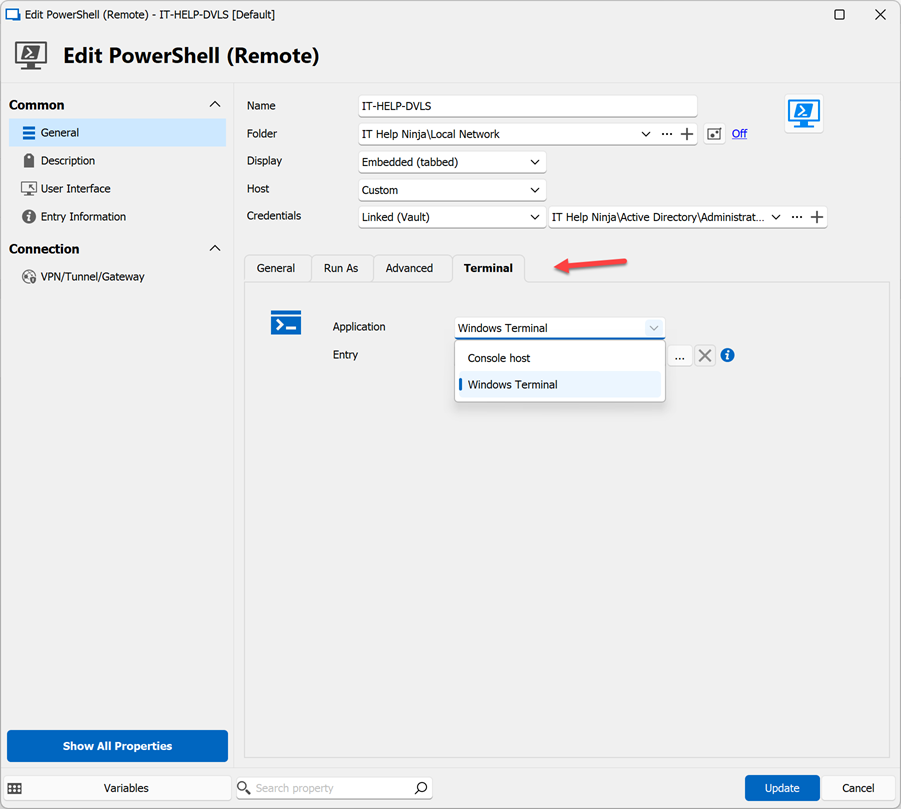
Best regards,
Marc-André Moreau
6bbf9308-b6f1-4f68-8fca-f9a537daa04d.png
16fadfaa-2e4a-4b9e-9b3b-d67741239dc7.png
Alright. If I find myself with some free time outside of work may I will tinker with that. that's many thousands of possible combinations of values for those two fields, which is an inconceivable amount of shots in the dark so to speak. And if I don't find the time I suppose we'll just have to continue to do our PowerShell administration outside of RDM, unfortunately.
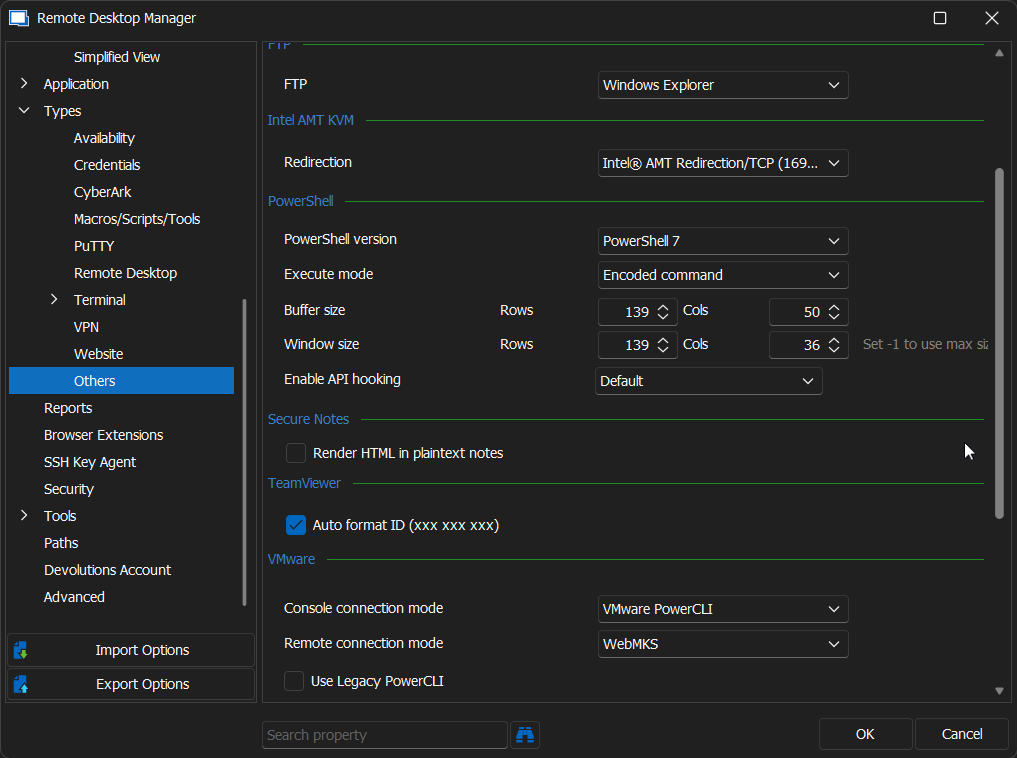
I've made two random changes which seem to allow the PowerShell Remote Console to work.
- Setting the Buffer size Rows and Cols, as well as the Window size Rows and Cols in Options > Types > Others > PowerShell to the values we discovered earlier using your code snippet.
2. Unchecking the Resize window check box in the session entry's Properties > General > Advanced.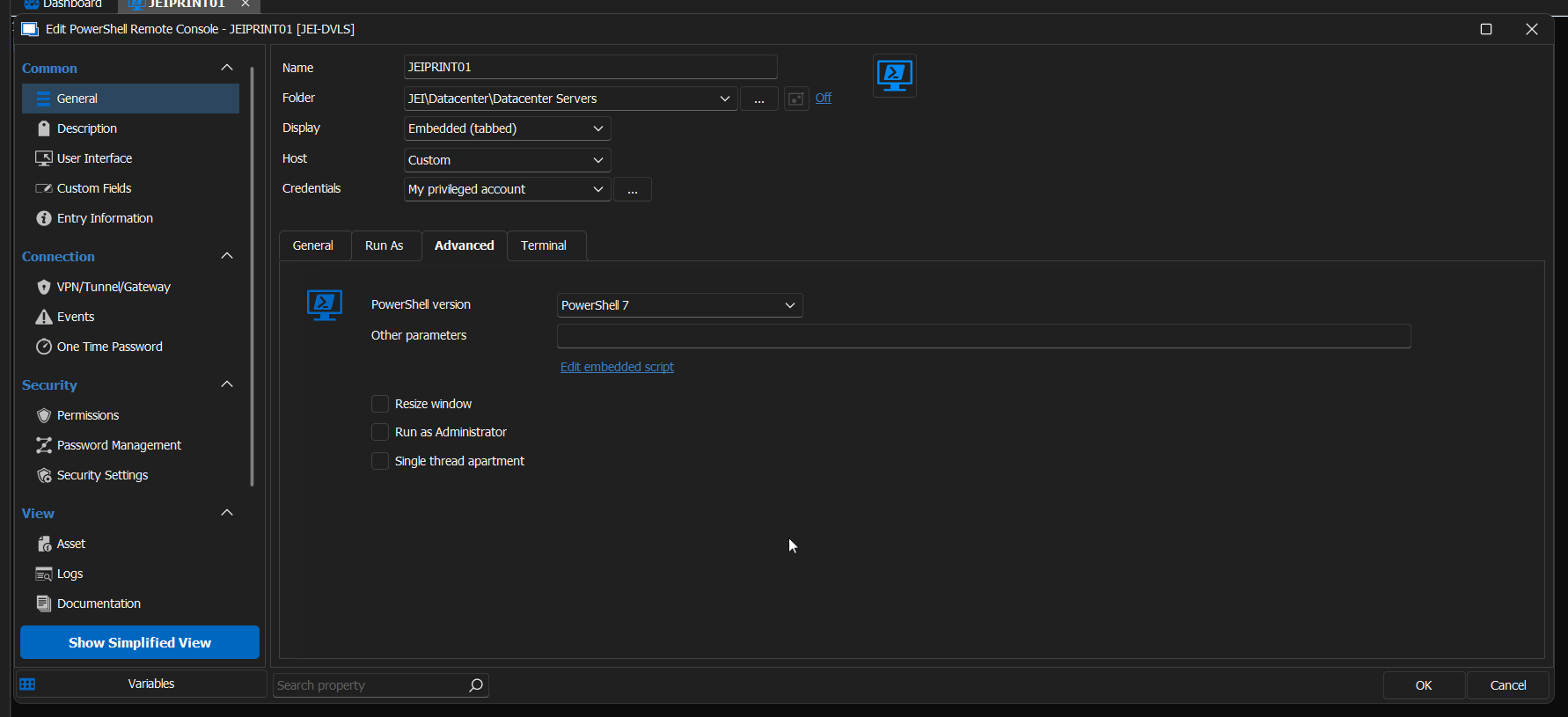
These two changes in conjunction are somehow allowing it to work, albeit with a weird string of number characters:
I've confirmed this resolved it for me both in PowerShell 7.3.9 as well as Windows PowerShell 5.1 as well, which is the default environment shipped in Windows. It also appears to work regardless of whether your have Console Host or Windows Terminal selected in the session entry's Properties > General > Terminal tab.
If I find the time, I'll write an internal KB for our team on this and potentially push it to my blog a well in case anyone else encounters this issue.
I appreciate your quick responses today and willingness to assist!
--
Griffeth Barker
💻 Call/Chat on Microsoft Teams
📧 Send me an email
🔗 Connect on LinkedIn
9a5fa7e8-25ea-4a0f-930e-c288dddfe950.png
3e84455d-7a21-4fca-a859-10a61bd4556e.png
979f7e98-e5d6-444d-b336-9deb8997d393.png