
jtapp
All RDP sessions open with scroll bars.
I'm happy to let you know that the latest version of Remote Desktop Manager (2026.3.17.0) includes a fix for this problem. You can download it from our website here:
https://devolutions.net/remote-desktop-manager/download/
Once you have installed the update, could you please test it in your environment and confirm that everything now works as expected? If the issue persists or if you notice anything unusual related to the same original problem, just reply to this message with a few details, and we will be glad to look into it further.
@Maxim Robert- I updated to 2026.3.17.0 - and the problem is at least partially fixed, but a bug remains! I would be very curious to have others here try the following, as I assume they'll have the same issue I'm having even in this new build:
The very first session you connect to for RDP, is fine! Scroll bars are gone, works as expected. And indeed, any time you open a single RDP session, one at a time, it works great and as expected! Including if you're already connected to a session or even several sessions. Each individual new session you add, works great!
However, if you open multiple sessions at the same time - only the first session in that batch that connects, works ok. All other sessions that you open in this batch will be impacted by the bug again and have the scroll bars. Like before, turning off/on smart sizing for that specific session fixes it for each session impacted by this. But every time I've connected to two or more sessions at the same time - only the first session to connect, works properly. I've tried it with 2, 3, 4, 5 etc sessions opened at the same time, and each time, it's only the first session to connect that works as expected. I've verified by changing the order that it isn't the actual serves or RDP connection that is the problem - it's specifically the order in which they connect. Whatever session you select first in the batch, works as expected, and all others, don't. Reproduced it multiple times switching the order around and the problem always stays with ordering.
To me this means that you've found a workaround that works properly when connecting to a single session at a time, and you just need to apply that same fix, to the subsequent sessions when opening multiple at the same time, and then I think this will finally be fully fixed and back to how it used to be before build .12 that seemingly broke all this.
Pressing Enter in Navigation to launch the last previously selected RDP session - now frequently Pins Navigation instead of launching RDP session
Hi @Alexis Geller Peiro et al.,
It seems like this is fixed in 2026.3.16.0! I can no longer reproduce this on the new version! Although you didn't note a specific fix for this issue in this build or this thread, I believe it may have been the fix for this issue that also solved my issue: https://forum.devolutions.net/topics/56758/navigation-window-focus#246570
Either way I believe you you can close this as fixed now. Ty!
All RDP sessions open with scroll bars.
I'm happy to let you know that the latest version of Remote Desktop Manager (2026.3.16.0) includes a fix for this problem. You can download it from our website here:
https://devolutions.net/remote-desktop-manager/download/
Once you have installed the update, could you please test it in your environment and confirm that everything now works as expected? If the issue persists or if you notice anything unusual related to the same original problem, just reply to this message with a few details, and we will be glad to look into it further.
Hello @Maxim Robert - I updated to v2026.3.16.0:
Unfortunately, this bug is still occurring! From my perspective, nothing has changed. As soon as I opened up my first RDP session, the scroll bars were there, just as they have been since this bug was introduced in 2026.3.12.0 as you can see here:
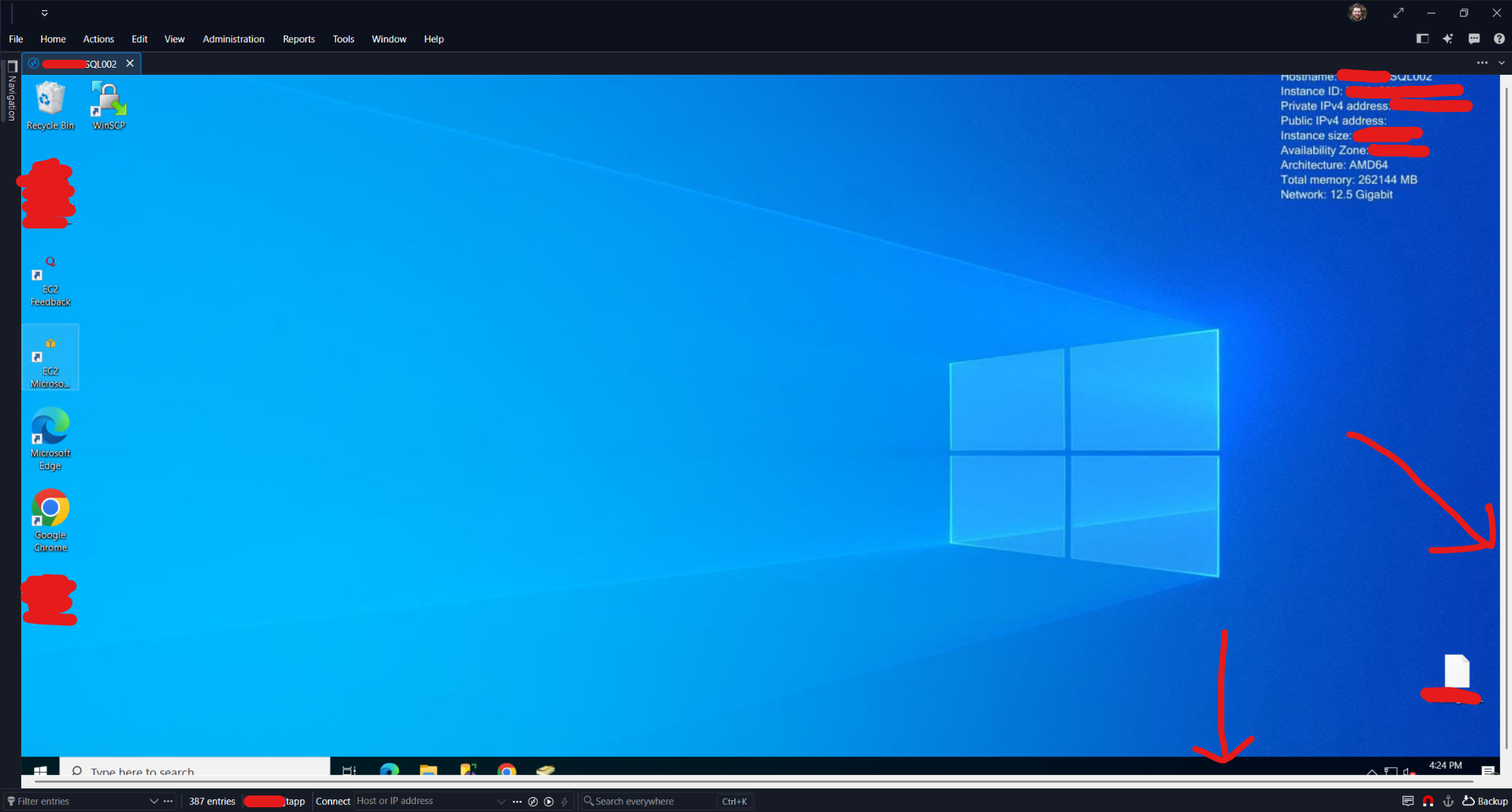
Closed / reopened RDM, tried a different RDP, and it's happening on every session still... Doesn't look like this was fixed.
Like the last build, I can confirm that if I enable Smart Sizing here:
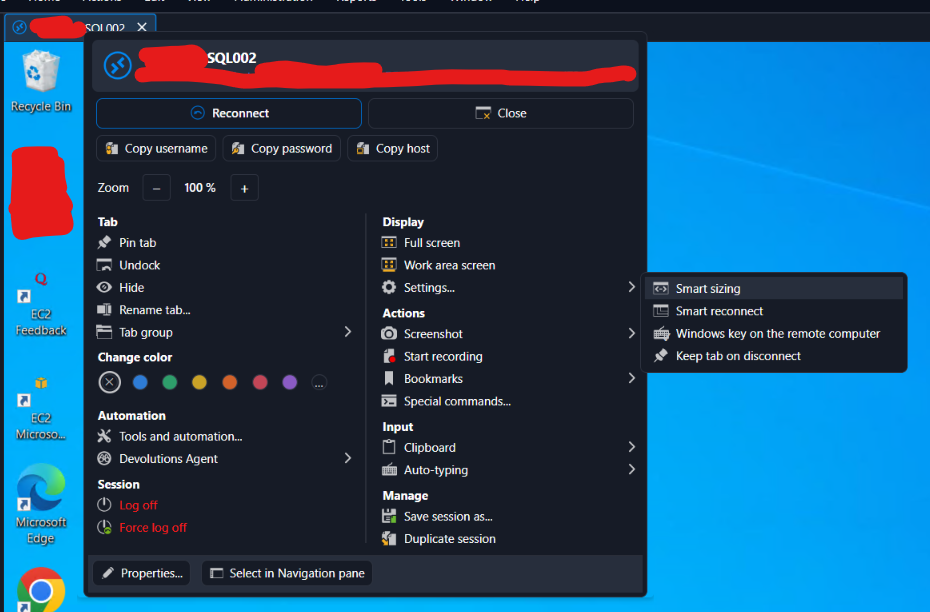
Then the scroll bars will disappear. Turning Smart Sizing back OFF - the scroll bars are still gone. So like before, it seems that this is only an issue when the session first opens.
Each new RDP session I connect to has this issue until I enable Smart Sizing as a workaround. So from my perspective, this issue remains the same as it was in 2026.3.15.0 prior.
Looking forward to a fix! This bug is an annoyance on every RDP session we open with RDM, which is the only thing we use RDM for... LMK if you need more info from me?
All RDP sessions open with scroll bars.
@jtapp Could you clarify about smart scaling? Are you talking about the smart sizing parameter under "screen sizing mode" in RDM or something else?
@Alexis Beauparlant
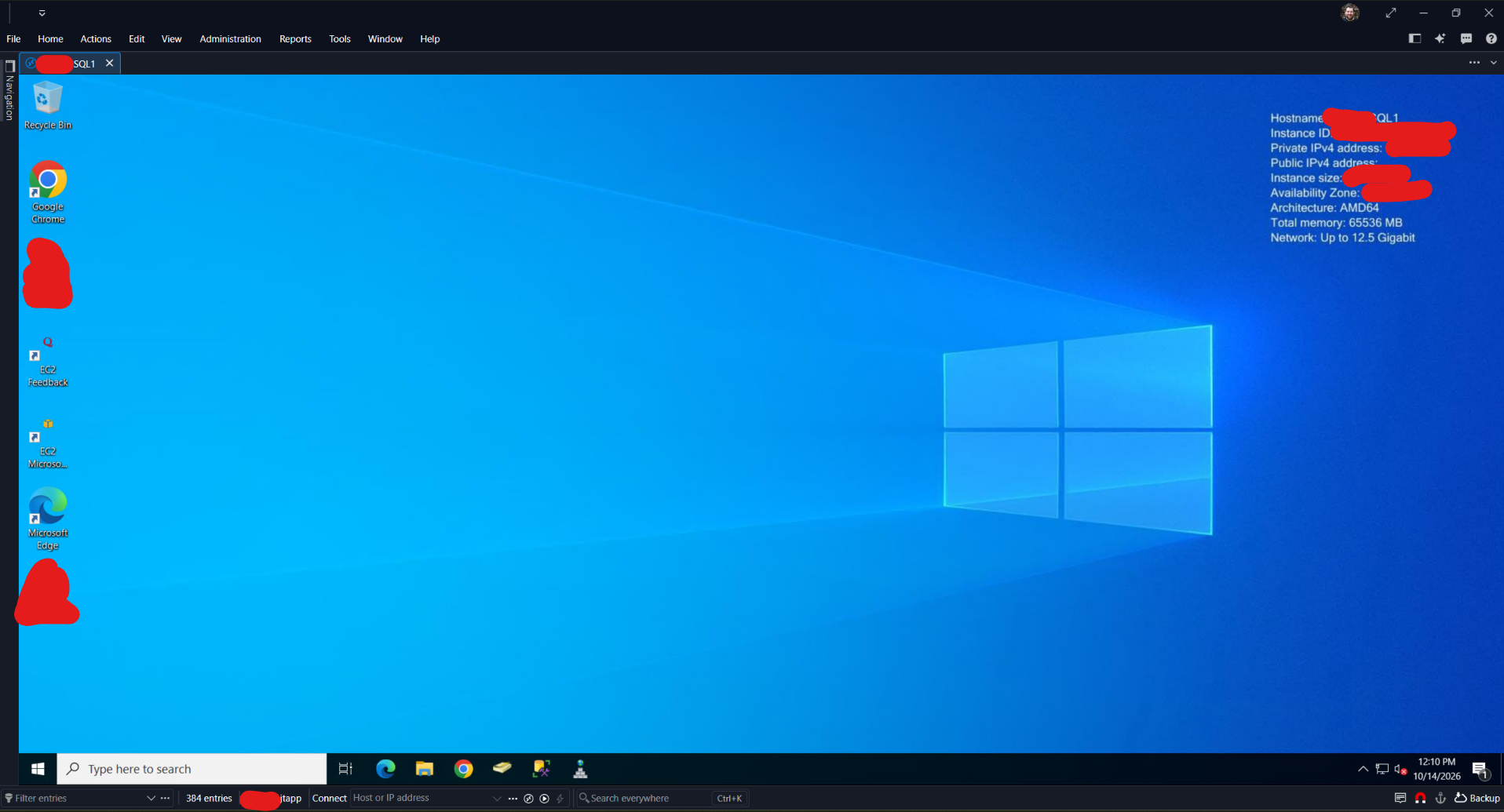
Sorry, I should have said "Smart sizing". I'm talking specifically about right clicking the tab for the session, and toggling on the option for "Smart Sizing" that I'm showing in the below screenshot:
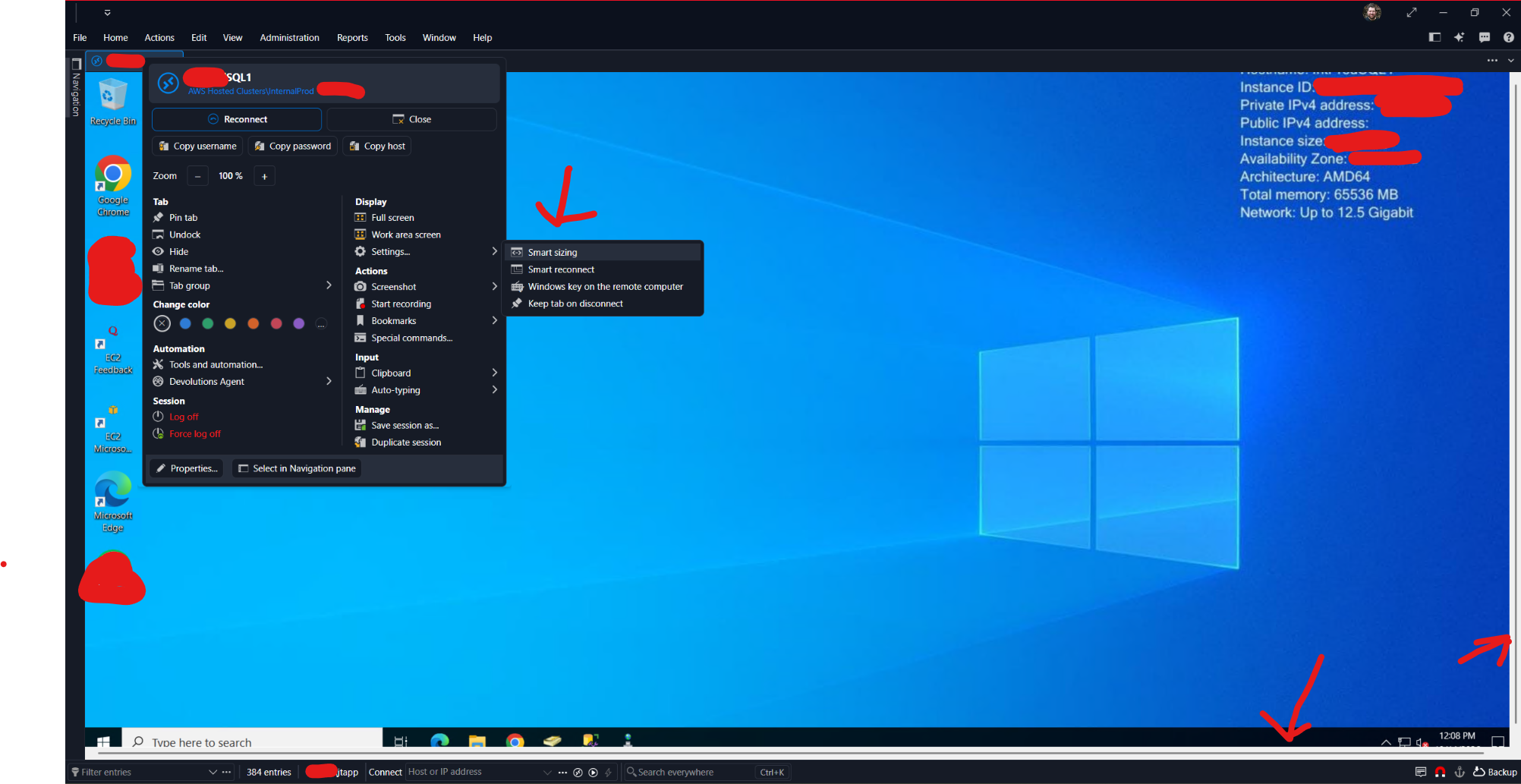
The moment I toggle that on, the scrollbars disappear.
And even if I turn Smart sizing back OFF - the scroll bars STAY gone for that specific session, just like doing a Restore Down and Maximize would previously in build .12 to workaround this as well. So this is what I'm doing now on every session I connect too...
Once you check Smart sizing (or uncheck it) the scrollbars go away. This is that same exact session as above, after doing so:
All RDP sessions open with scroll bars.
Version 2026.3.13.0 should fix the Smart reconnect issue, where the session reconnected at about 80% of the window.
A related Dynamic resolution fix is planned for version 2026.3.14.0, and we will confirm whether it covers your case.
In the meantime, your resize trick is the best way to clear the scroll bars.
Unfortunately, 2026.3.13.0 made the problem worse. Doing a restore down + maximize, no longer fixes the window for me, the scroll bars now remain. :-(
To help the developers, could you answer these questions?
Does the entry use the Microsoft RDP client or FreeRDP?
Do the scroll bars appear only when no other session tab is open, or also when tabs are already open?
What display scaling does Windows use on that monitor (100%, 125%, 150%)?
I only use Microsoft RDP with RDM.
The scroll bars appear whether it is the only open session or not. All new sessions open with scrollbars now; and they persist in the new .13 build as the workaround no longer fixes this like it did in .12 as described.
This monitor is at 100%, default scaling, that is to say, it is not scaled. It's a pretty simple 1920x1080 external monitor connected to my laptop that I use RDM on. No scaling. No HDR.
Toggling Smart Scaling on temporarily fixes it for each session, and it stays fixed after turning Smart Scaling back off too so at least I have a new workaround now!
Smart scaling isn't changing anything here other than acting as a workaround, since, the resolution the connection opens at is already 1:1 for the requested display area while docked. So there is nothing to scale or resize, it simply gets rid of the scroll bars from this bug when I turn it on. Looks the same when I turn it off.
All RDP sessions open with scroll bars.
I came here to essentially report the same issue in the new .12 build, though how I'm seeing it manifest and how I work around it are different:
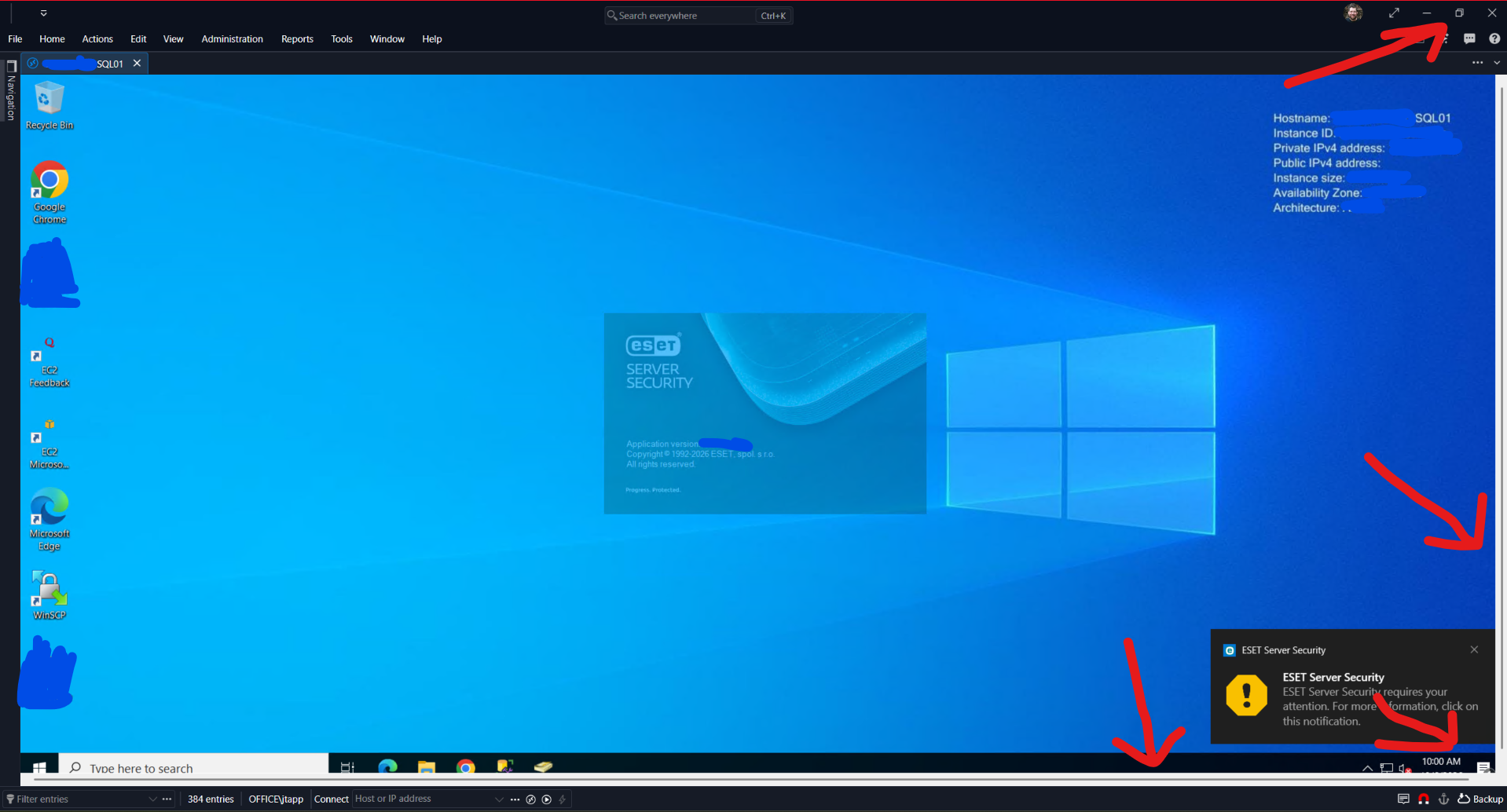
I have my RDP sessions open docked, but fullscreen as tabs within the RDM window itself. Every time I open a new session, the window has scroll bars like my screenshot below shows. To get rid of them, I simply "Restore Down" the RDM window, and then "Maximize" it again. As soon as the window maximizes again, the scrollbar disappears. But I have to do this every time I connect to a new RDP session, which is all we use RDM for is for RDP.
Red arrows added for emphasis on what's mentioned above:
Just retested this in the new .13 build released today - 2026.3.13.0 64-bit and unfortunately, it is not fixed in this build.
Pressing Enter in Navigation to launch the last previously selected RDP session - now frequently Pins Navigation instead of launching RDP session
Just retested this in the new .13 build released today - `2026.3.13.0 64-bit` and unfortunately, it is not fixed in this build.
Also worth noting another reason I keep running into this is when you've previously connected to multiple RDP / servers - when pressing enter, it used to reconnect you to all of them if you still had multiple selected. This too is impacted. Double clicking on a single entry when multiple are selected only opens the one that you double clicked, not all of them. This is another reason I just got used to pressing ENTER to establish connection so if multiple entries were selected you connect to all of them at once.
How to hide the “Search Everywhere” bar in Remote Desktop Manager 2026.3?
I also cannot find this setting in the new build .13? ty in advance for noting where it is.
Navigation window focus
This might be the same root problem as the nav bar enter behavior issue I posted here:
Pinned Navigation doesn't stay pinned
This might be the same root problem as the nav bar enter behavior issue I posted here:
Pressing Enter in Navigation to launch the last previously selected RDP session - now frequently Pins Navigation instead of launching RDP session
Version: 2026.3.12.0 64-bit on Windows 11
Reasoning: I'm the type of person that tries to use my keyboard more than mouse whenever possible. All I use RDM for is RDP, and have for many years, so this is largely a big annoyance because of years of trained muscle memory...
Backstory: Frequently, I'm often reconnecting to the last RDP session that I last connected too. When opening the Navigation sidebar, the last RDP session you connected too, remains highlighted. I keep my Navigation bar unpinned at all times and collapsed, for more screen real estate when I launch an RDP session docked in the main RDM window, which is almost how I always use RDM.
Usage: So, for many years now, if I wanted to simply reconnect to the last session I had previously connected too, I would simply click the Navigation bar to show it, then press ENTER on my keyboard, so that it would simply initiate the connection to that same server since it remained selected in the list still.
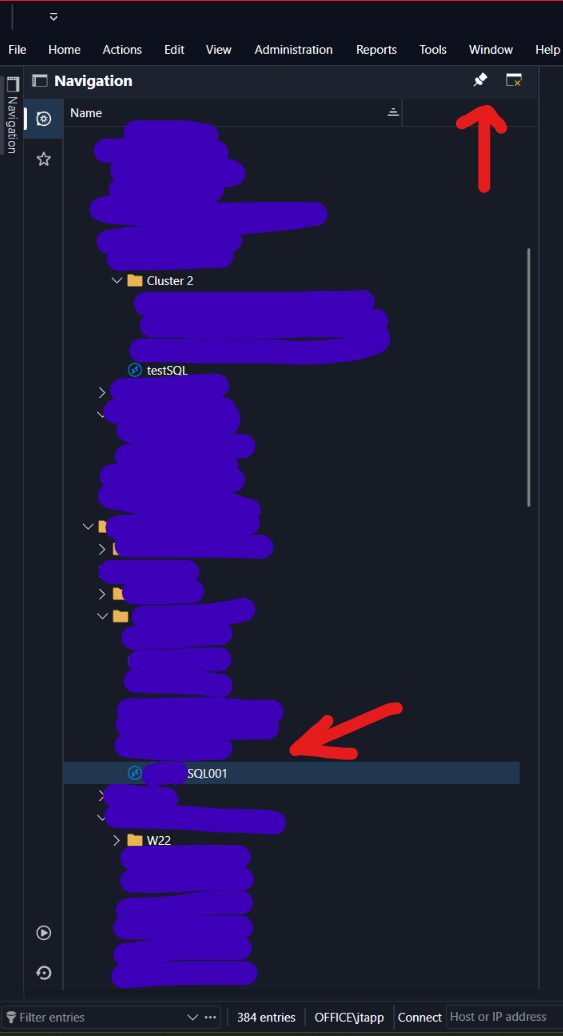
Problem: Sometime in the last few builds - something has changed in this regard. Now, sometimes when I'd open the Navigation bar, and press ENTER - instead of it connecting to the last session that is still shown as selected - it instead, Pins the Navigation Bar! When this happens the "Pin" icon changes to indicate it's now pinned; and my session is not launched. If I press ENTER again - it now launches the requested session as expected; except now that since the Navigation bar is now Pinned - this causes the session to open in a partial window with the navigation bar space removed from it. This makes it so that I have to disconnect, unpin the Navigation bar, and then re-connect so that it connects at the expected size.
Workaround: If I simply double click on the server name in the list, rather than pressing ENTER, I avoid this behavior. But, I'm frequently not remembering to do this per Reasoning above, leading to a frustration I'm running into daily now since this bug was introduced...
Screenshot: Trying to show what I'm meaning below. As shown I've got a server name already selected. But often times (I can't figure out why this happens sometimes and not others?!), upon pressing ENTER, instead of it launching that session, it instead, interacts with the Pin icon I'm pointing to instead, causing the Navigation bar to Pin.
All RDP sessions open with scroll bars.
I came here to essentially report the same issue in the new .12 build, though how I'm seeing it manifest and how I work around it are different:
I have my RDP sessions open docked, but fullscreen as tabs within the RDM window itself. Every time I open a new session, the window has scroll bars like my screenshot below shows. To get rid of them, I simply "Restore Down" the RDM window, and then "Maximize" it again. As soon as the window maximizes again, the scrollbar disappears. But I have to do this every time I connect to a new RDP session, which is all we use RDM for is for RDP.
Red arrows added for emphasis on what's mentioned above:
In latest version - can no longer drag/drop tabs to reorder them once connected
To help with the investigation, could you tell us if this matches what you see?
Does reordering work at first after you start Remote Desktop Manager, then stop working after a while?
Or can you not move tabs at all, right from the start?
Does closing all tabs and restarting Remote Desktop Manager make it work again for a while?
@Alexis Beauparlant
I hadn't noticed this until you mentioned it, as I tend to open RDM and then just leave it running for days until my PC needs restarting. But yes, it does seem like it works when is first opened, and stops working later after regular usage.
No, it does seem to work from a fresh open.
Yes, closing and restarting RDM seems to make it work for a while, EXCEPT
I now also noticed that if I close RDM while I have sessions open, so that the next time I open RDM it asks if I want to re-connect to my previous sessions, that this ALSO doesn't work after, despite it being a new launch of RDM. It seems something in the session itself is what's breaking, since reconnecting to a previous session like this also seems to exhibit this same behavior. Only opening new sessions from a new launch, seems to work consistently, before it breaks after usage.
It doesn't seem like it takes much usage before it breaks. I had this stop working on me after connecting to only 3 servers and only after having it running for like an hour. Which is why I thought it was broken fundamentally.
HTH!
In latest version - can no longer drag/drop tabs to reorder them once connected
Normally in RDM you can drag/drop the tabs for the various servers you are connected too while connected to them, to reorder them. As of "2026.3.10.0" that no longer seems to work. Sometimes it acts like it's going to let you, but when you let go after dragging, it just goes back to where it was. The tabs aren't pinned. I've used RDM daily for many years now, this is the first time I've run into this. Windows 11. No available updates for Windows or RDM.