
klausondrich
No server connection possible from jumphost with RDM 2026.3.5
I confirm that 2026.3.8 is working again. This issue is fixed in this version.
Thank you!
No server connection possible from jumphost with RDM 2026.3.5
Hi,
So, rushing for 2026.3.5 wasn't the best idea. 😉 I am very much looking forward to 2026.3.6.
Going back to 2026.2.19 on our jump host helped to reach our servers from there again.
Thanks for your support!
No server connection possible from jumphost with RDM 2026.3.5
Hello,
It seems that the new 2026.3.X branch broke numerous things, like:
RDM [2026.3.4.0] - RDP Remote Desktop size set to auto open the RDP in a mini frame
2026.3.5.0 : Navigation resize broken
Those affect me as well.
But the most severe is:
I am using RDM 2026.3.5 to connect from my notebook to a jump host (Windows Server 2019, also running 2026.3.5). I cannot connect to any RDP server from this jump host anymore since I upgraded RDM on the jump host from 2026.2.19 to 2026.3.5.
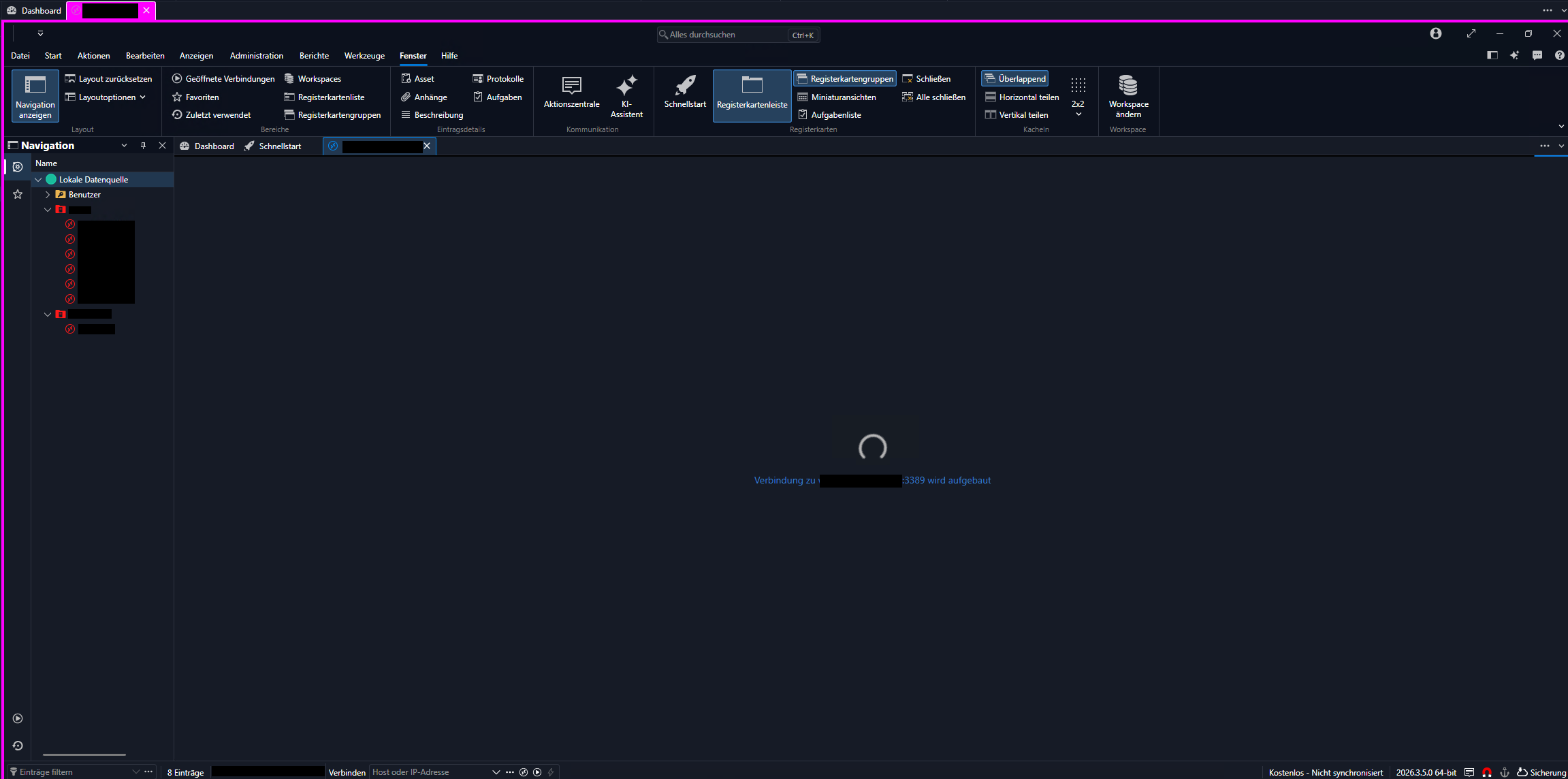
It doesn't matter if I double-click an RDP server connection from the "Navigation" pane or if I use quick connect. It tries to connect forever (see screenshot).
All connections are working fine from our jump host when I am connecting via mstsc.exe.
The Connections.log file in my profile folder shows:
[16.09.2026 08:48:28] Verbinden - 'Servername' (RDP (Microsoft Remote Desktop))
After I try to connect while the screenshot from above is shown
After closing this unestablished connection, another line is logged:
[16.09.2026 08:48:47] Getrennt - 'Servername' (RDP (Microsoft Remote Desktop))
Not more, and no hint of what's wrong.
After documenting this and reporting this issue here, I will have to downgrade to 2026.2.19 to get RDM working again.
Update: Uninstalling 2026.3.5 and re-installing 2026.2.19 worked: All connections are working again with 2026.2.19.
Latest KeePass plugin not compatible with current KeePass version 2.57
I tried it once but it didn't work. Probably because we don't have admin permissions on our devices. Then, RDM is not allowed to install the plugin in KeePass' plugins directory.
So I did it manually when receiving the local admin password (temporary only).
It would be good if RDM and KeePass did not require admin permissions, but both install to C:\Program Files which is under control of UAC.
Latest KeePass plugin not compatible with current KeePass version 2.57
Hi Philippe,
Thank you for this hint. I just renamed "DevolutionsKeepassPlugin.dll" to "DevolutionsKeePassPlugin.dll" and everything was fine again.
And yes, I just extracted the new plugin files over the existing ones without deleting the existing ones.
Latest KeePass plugin not compatible with current KeePass version 2.57
Hi,
after updating RDM to 2024.3.12.0 it told me that the KeePass-Plugin was outdated. I updated the files by extracting the "Devolutions.KeePassPlugin.2024.7.31.zip" file from C:\Program Files\Devolutions\Remote Desktop Manager\Applications to C:\Program Files\KeePass Password Safe 2\Plugins.
Now, KeePass 2.57 is displaying this error message when starting:
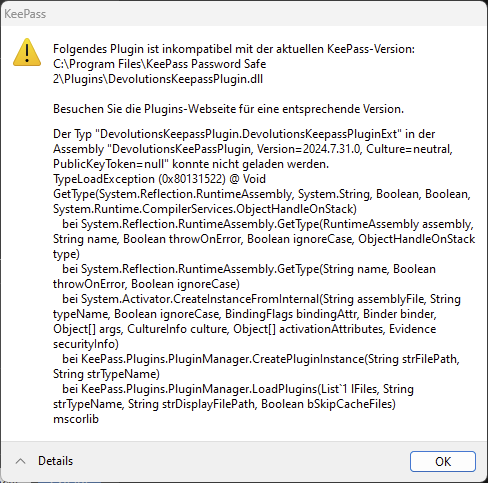
I already had a look into https://docs.devolutions.net/rdm/kb/rdm-windows/troubleshooting-articles/keepass/
The files mentioned in solution 2 are not existing in the KeePass plugins directory.
KeePass is working normally, KeePass-integration in RDM is not working. RDM tries to access it forever.
Any ideas, what's wrong?
Klaus
RDM GUI is not reacting after updating to 2023.1.10.0
2023.1.13.0 was released to fix this bug.
Release notes tell us: "Fixed an issue with Keepass plugin - must be updated with the packaged version"
No more instructions, so:
You will find the updated plugin "Devolutions.KeePassPlugin.2023.3.16.5.zip" in C:\Program Files\Devolutions\Remote Desktop Manager\Applications after updating to latest version 2023.1.13.0.
Be sure to close RDM and KeePass before next step:
You will have to extract the archive to your "KeePass Password Safe 2\Plugins" directory (not the install directory "KeePass Password Safe 2\" anymore!). I copied all files from the archive there and I deleted the two previous plugin files from mentioned install directory.
Start KeePass and RDM and it will work again. Thank you for fixing.
RDM GUI is not reacting after updating to 2023.1.10.0
Thank you for your investigation and the escalation.
RDM GUI is not reacting after updating to 2023.1.10.0
It seems that is has something to do with KeePass integration. All of my connections use KeePass credentials.
If I create an RDP connection that prompts for Windows credentials, it's the one and only connection that is working.
If I single-click or double-click on any other connection in the Navigation pane, the GUI becomes unusable.
Latest KeePass version 2.53.1 was installed with previous RDM version and is still installed. KeePass plugin files were and are existing in KeePass installation directory. Nevertheless, I downloaded Devolutions KeePass plugin from here again and copied the files to KeePass installation directory after deleting the existing ones. It did not help (they are the same version as before).
RDM GUI is not reacting after updating to 2023.1.10.0
Hi,
I just updated RDM from version 2022.3.35.0 to 2023.1.10.0 (both x64 using a local data source). Now the app is unusable.
The GUI does not react anymore after clicking in the Navigation pane. I cannot connect to a server, the menu does not react, nothing.
When I hover over "Customize" on the right side, it turns to grey and displays rdm://CustomizeDashboardLayout in the lower pane, but nothing happens when I click on Customize.
At the same time, things looked good at the beginning. I moved the navigation separator to the right to display the whole server names again, but this was the one and only interaction that succeeded.
If I want to close it I have to do that via Windows start menu. I restarted RDM a couple of times already and rebooted my device. I already uninstalled and reinstalled 2023.1.10.0. No chance.
However, If I do not click in the Navigation pane, but just click in the menu e.g., the app is behaving normally.
I've never seen that before. My colleague does not suffer from this problem (he does not use KeePass integration – see below).
Any ideas?
Kind regards,
Klaus