
Frederick Simard
Audio on Windows RDP connection crashes RDM
Hello,
A fix is currently being rolled out. If it's not available to you yet, it should be available very soon.
Best Regards,
Frederick Simard
Audio on Windows RDP connection crashes RDM
Hello,
There is no need to send us the logs, as we were able to reproduce the issue. We are currently investigating the cause and working on a solution.
Best Regards,
Frederick Simard
Audio on Windows RDP connection crashes RDM
Hello,
Thank you for reporting this issue. We will investigate it and get back to you as soon as possible.
In the meantime, could you please send us the Application logs and RDP logs to help us investigate the issue?
Application logs: Open the main menu in RDM (the hamburger menu), then tap the Help button in the bottom-right corner of the screen. From there, navigate to Application logs > View logs, select a compatible application to open the logs, and share them with us.
RDP logs: You can find the RDP logs option just below the Application logs. However, you must first ensure that RDP logging is enabled for your session. To do so, open the RDP session, tap the three vertical dots on the toolbar, and select Session settings. Scroll down and make sure Enable logging is turned on. Once enabled, reproduce the issue, then return to the Help and Support page to retrieve and share the RDP logs with us.
Best regards,
Frederick Simard
Physical keyboard and mouse capture has not way to disable.
Hello,
The shortcut to toggle it on and off should be Ctrl+Alt+Shift+Z.
Best regards,
Frederick Simard
Two feature requests for Touch Mode
Hello,
We have implemented the fix and are currently in the testing phase.
You are correct, the behavior you mentioned should work with the fix, with no additional work required.
My apologies for the confusion in my earlier post. We aim to release the fix within the next two weeks.
Best Regards,
Frederick Simard
Physical keyboard and mouse capture has not way to disable.
Hello,
Thank you for reporting this. We will create a feature request to add a keyboard shortcut that allows you to disable this feature. We will get back to you as soon as possible.
Best regards,
Frederick Simard
Two feature requests for Touch Mode
Hello,
We previously had another user requesting similar behavior that would allow them to easily scroll between two separate application windows, so we initially grouped your request with theirs.
However, after re-reading your request, I realized that your use case is different: you are referring to scrolling different areas within the same application window in the RDP session.
In that scenario, this should be feasible. Since the application window already has focus, we should be able to send the new cursor position before sending the scroll input. This would allow the scroll to be directed to the specific area of the application that the cursor is positioned over.
The limitation applies when trying to scroll a different application window that does not currently have focus. In that case, we would first need to give that window focus before sending the scroll input. With the way input is handled over RDP, this would require us to send a click to that window first.
Automatically sending a click before scrolling could cause unwanted interactions. For example, the click could activate a button, link, or other control underneath the cursor when the intention was only to scroll. It could also interfere with normal scrolling behavior in the currently focused window.
There is one downside to sending the cursor position as part of the scrolling behavior. Currently, you can initiate the scroll gesture from anywhere on the Android screen, even outside the remote application window. With this change, the scroll gesture would need to start within the remote application window so that we can determine the correct cursor position and send the scroll input to the appropriate area. In other words, initiating a scroll from outside the window would no longer work as it does today.
Since your use case involves scrolling different areas within the same application window, we don't have the focus issue described above, so the behavior you requested should be possible with this tradeoff.
Best Regards,
Frederick Simard
Error "0x80090308" with 2026.3.0.21 but 2026.2.3.2 is ok
Hello,
Could you try enabling/disabling Network Level Authentication (NLA) and let us know if that solves your issue ? You can do so by going to the RDP entry settings > Authentication, then checking or unchecking Enable Network Level Authentication (NLA).
Best Regards,
Frederick Simard
Two feature requests for Touch Mode
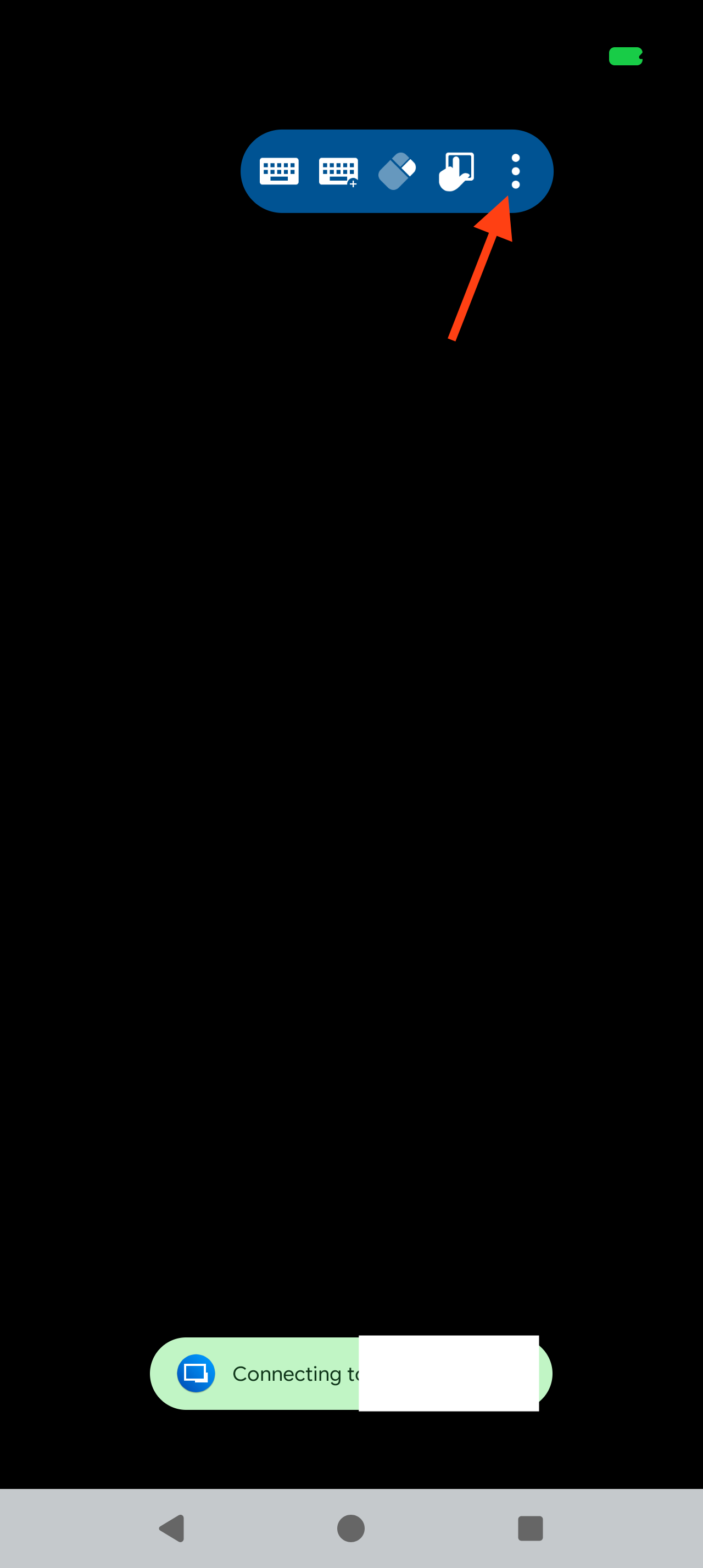
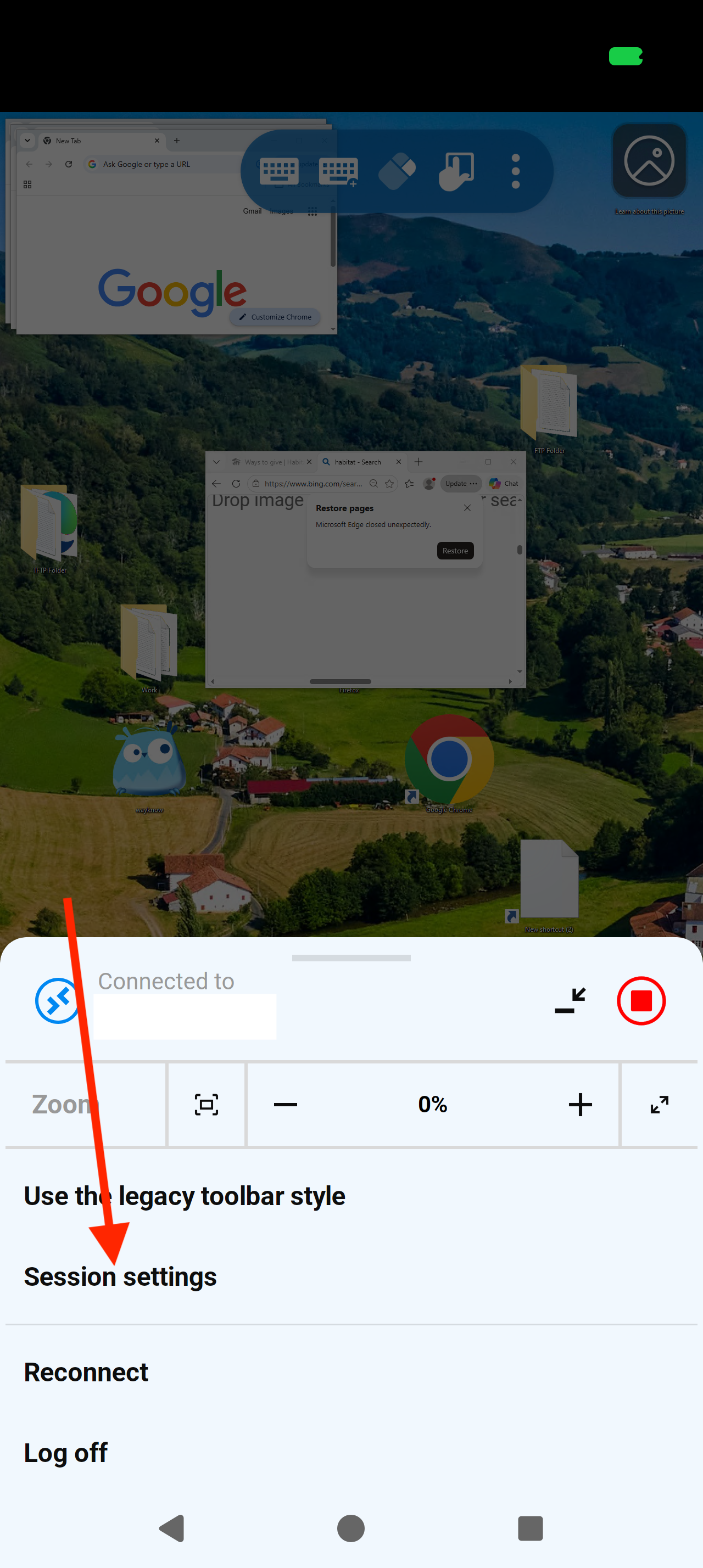
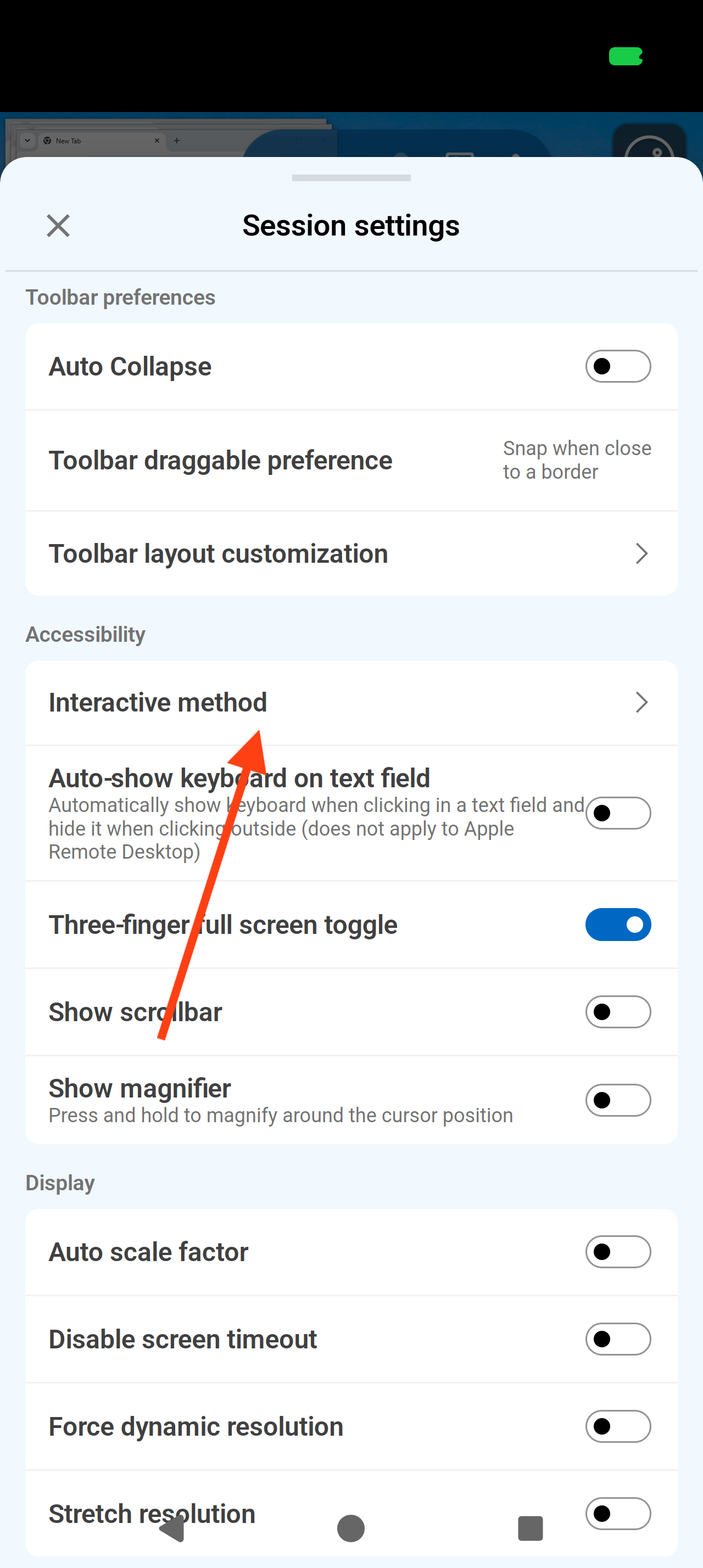
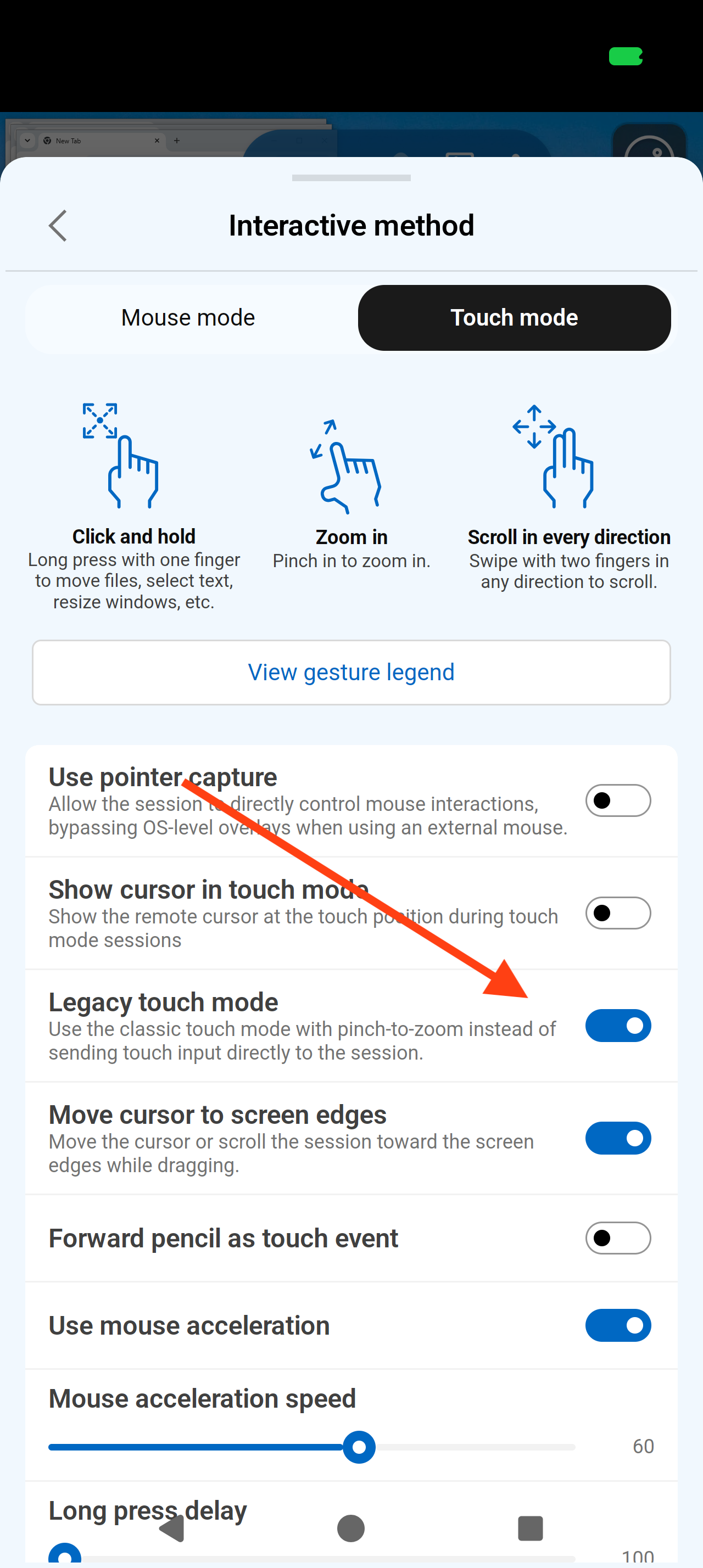
I've attached screenshots to show you where to disable it.
Best Regards,
Frederick Simard
Two feature requests for Touch Mode
Hello,
For scrolling, you can enable the new touch mode by tapping the three vertical dots on the toolbar, then going to Session Settings > Interactive Method and disabling Legacy Touch Mode. Once you've done this, reconnect to your remote session. Please note that this feature is currently experimental.
Here's a quick guide explaining how the new touch mode works compared to the legacy touch mode:
When you pinch with your fingers to zoom in or out, the zoom is no longer performed on the client side. Instead, the gesture is sent to the remote session, similar to using a Windows laptop with a touchscreen.
If you want to zoom locally instead, look at the bottom-right corner of the screen. You'll see a button with an arrow pointing to the left. Tapping it will open a small "map" of the remote session. To zoom locally, place one finger on the map and another finger anywhere else on the screen, then perform a pinch gesture.
You can navigate around the zoomed-in view by dragging your finger across the map. In the top-left corner of the map, you'll find a small handle that you can use to move the map anywhere on the screen so that it doesn't obstruct your content.
You can also drag the map toward any edge of the screen to collapse it back into an arrow button and position it wherever you prefer.
As for your first point (When zoomed in on the screen, double-tapping and dragging a file (or any object) doesn't scroll the screen as the object is moved near the edges.), this functionality should be available in our upcoming release. It will work in both touch modes (legacy and non-legacy).
Best Regards,
Frederick Simard
foreign language buffering
Hello,
Thank you for reporting this issue. Could you please provide us with a little more detail? Are you experiencing this issue in the application in general, or specifically when using an RDP, VNC, SSH, or another type of remote session?
Would you mind sharing a video highlighting the issue? This would help us reproduce the problem and investigate a fix.
Best regards,
Frederick Simard
Using TAB on Visual studio 2022 remotely using Android version of RDM
Thanks,
I will let you know. As a programmer would be interested to hear why it was going wrong ... strange fault
@Wilx
I provided some details on what was causing the issue in my previous post, in case you missed it.
Landscape mode and touch mode not working as default on Remote Desktop Manager Mobile
Hello,
We have investigated the issue and, as I mentioned earlier, the options you have combined should do exactly what you want. However, they are currently not working as expected, which is why you are not seeing the desired behavior at the moment. We have identified a solution, and the fix should hopefully be released within the next two weeks.
Best Regards,
Frederick Simard
Landscape mode and touch mode not working as default on Remote Desktop Manager Mobile
Hello,
Enabling "Always open the session in landscape mode" should automatically switch the session to landscape mode, and enabling "Use touchpad mode by default" should indeed set the touch mode to touchpad mode instead of mouse mode.
There might be an issue with these settings. We will investigate and get back to you as soon as possible.
Best regards,
Frederick Simard
RDP mouse mode drag a window
Hello,
Thank you for reporting this. This was actually a feature request that we implemented, and while we think it’s a nice addition, we can certainly add an option to disable this behavior. We’ll create a ticket for that.
Best Regards,
Frederick Simard
Using TAB on Visual studio 2022 remotely using Android version of RDM
Hello,
We are currently testing a fix for the Tab key not working correctly in Visual Studio. If testing goes as expected, we are aiming to release it around the second or third week of September.
Regarding your other question, I cannot comment on how the Windows App handles keyboard input, but the behavior you described involves a relatively uncommon input-handling scenario.
Here is what happens with a chord shortcut such as Ctrl+E, C:
During a remote session, keystrokes can be sent to the remote computer in one of two ways:
As a physical key event (a scan code or virtual key), which identifies the specific key that was pressed.
As a Unicode character, which represents the resulting character but does not identify the physical key that produced it.
When you hold a modifier such as Ctrl, the keystroke must be sent as a physical key event. Therefore, Ctrl+E is sent using physical key events. However, after you release Ctrl and press C by itself, the C is sent as a Unicode character.
Visual Studio’s chord shortcuts, such as Ctrl+E, C, expect the second part of the shortcut to arrive as a physical key event. Because the standalone C arrives as a Unicode character, with no corresponding physical key information, Visual Studio does not recognize it as the second part of the chord, and nothing happens. Pressing Ctrl+C causes the C to be sent as a physical key event again, providing the key information Visual Studio is expecting and allowing the shortcut to execute.
Unfortunately, there is no reliable way for the application to know that a standalone C should be sent as a physical key event because it is intended to complete a Visual Studio chord. The only general solution would be to send every keystroke as a physical key event, which is how keyboard input was handled in earlier versions of the application.
However, that approach has an important drawback: the keyboard layout on the remote computer may differ from the layout used by the local Android keyboard. For example, if the remote computer uses a French AZERTY layout while the Android device uses a QWERTY layout, pressing Q locally could produce A remotely. This also caused several other inconsistencies. Although it was possible to configure the local keyboard layout for an RDP entry, some scenarios remained unreliable. Sending Unicode characters resolves these layout-related issues because the character entered on the Android device is the same character received by the remote computer, regardless of the remote keyboard layout.
I have performed some tests and confirmed that forcing physical key events allows these chord shortcuts to work correctly in Visual Studio. If this would be useful, we could consider reintroducing an option to force keystrokes to be sent as virtual keys while retaining our modern input-handling implementation. However, enabling it could cause the keyboard-layout and input inconsistencies described above.
Best Regards,
Frederick Simard
Using TAB on Visual studio 2022 remotely using Android version of RDM
Hello,
We were able to reproduce the issue and are currently working on a solution.
Best Regards,
Frederick Simard
Is there a way to have a button that zooms in while I hold it down and zooms out when I release it?
Hello,
Thank you for the clarification.
We will create a ticket to track this request. However, please note that we do not currently have an established timeline for its implementation.
Best regards,
Frederick Simard
Is there a way to have a button that zooms in while I hold it down and zooms out when I release it?
Hello,
Just to clarify, you would like to have buttons directly on the toolbar that allow you to zoom in and zoom out. Is that correct? There are a few alternatives you can use to achieve something similar, although they do not provide dedicated buttons directly on the toolbar:
Open the menu by tapping the three vertical dots on the toolbar. There, you will find plus (+) and minus (-) buttons that allow you to zoom in and out.
You can also pinch in and out on the screen with your fingers to quickly adjust the zoom level.
If you find that everything on the screen is too small, you can also try adjusting the scaling factor to make the entire remote session larger and better suited to your device. This option is available when using an RDP session.
To change it, go to Application Settings > Sessions > RDP, then adjust the Scale Factor to a percentage that feels comfortable for you. You can also try enabling Auto Scale Factor to see if that better suits your needs.
Please note that you will need to restart the remote session for changes to these settings to take effect.
Best regards,
Frederick Simard
Using TAB on Visual studio 2022 remotely using Android version of RDM
Hello,
Thank you for reporting this issue. We will investigate and get back to you as soon as possible.
Best Regards,
Frederick Simard
Connection dialog problem...
Hello,
I'm glad to hear that it worked!
After validating the configuration, it turns out that Software GDI was not related to the issue. The actual fix was disabling the Persistent Bitmap Caching option.
If you encounter any other issues in the future, you can also try enabling the Optimize for XRDP option, which is available below the Host field.
Best Regards,
Frederick Simard
Connection dialog problem...
Hello,
Thank you for reporting this issue.
We are currently investigating it, and we found the following thread, which appears to closely match the behavior you're experiencing: https://github.com/FreeRDP/FreeRDP/issues/3863
According to that discussion, enabling SoftwareGDI appears to resolve the issue. At the moment, however, RDM does not expose an option to enable this setting.
We'll be running some tests today to determine whether we can add support for this option in RDM.
In the meantime, you could also try disabling "Persistent Bitmap Caching", as it may help. You can find this option in the RDP entry settings. Click "Show all properties", then go to the "Experience" tab and uncheck "Persistent Bitmap Caching".
Best Regards,
Frederick Simard
Copy not working in SSH terminal sessions (iPad app) — Paste still works
Hello,
We weren't able to reproduce the issue.
We tried the following:
Using a finger: Long-pressing the text we wanted to copy brings up the selection bubble, and we're able to copy the text without any issues.
Using a trackpad: Long-pressing also brings up the selection bubble, allowing us to copy and paste successfully. (Full mouse support has been implemented for improved text selection on Android, but not on iOS yet. We already have a ticket to add this functionality.)
Using a physical keyboard: Cmd + C and Cmd + V work as expected, provided that the text was previously selected using either a finger or the trackpad.
Using the on-screen keyboard: The Copy and Paste buttons in the toolbar above the keyboard also work correctly.
Would you mind sharing a short video or a few screenshots of the issue? We may be missing a step needed to reproduce it.
Best regards,
Frederick Simard
IOS 27 with Magic Keyboard mouse docked.
Hello,
A fix for this issue has now been released.
Best regards,
Frederick Simard
IOS 27 with Magic Keyboard mouse docked.
Hello,
We were able to reproduce the issue and believe we have identified the root cause. However, it's difficult to determine at this point whether this is intended behavior in Apple's latest beta or if it will change in a future beta release.
The issue appears to occur only when the iPad is in Windowed Apps mode, as we were unable to reproduce it when the iPad is set to Full Screen Apps.
As a temporary workaround, you can switch to Full Screen Apps mode if you need to use the keyboard without encountering the crash.
Regardless, we are currently testing a solution that makes the crashing code path more robust, so it will continue to work even if Apple changes the behavior again in future beta releases. We will keep you updated as soon as a fix is available.
Best Regards,
Frederick Simard