
cpresco44
Embedded RDP scaling issues on Windows 10
@David
If i set the resolution for the session to default then the RDP session fills the RDM window. If I set the RDP session resolution back to 1280x1024 then the scaling issue reoccurs the same as the screen shot.
I have also updated to 11.0.19.0 and that has not resolved the scaling issue.
@Colin
What is the GPU in the system you're having the issue with?
I'm seeing the issue on an MSi GS60 laptop with intel HD 4600 and Nvidia Geforce GTX 860M GPUs.
Embedded RDP scaling issues on Windows 10
I have seen the same results with other actions which cause the embedded RDP session to refresh in the RDM window.
Embedded RDP scaling issues on Windows 10
I usually have the status bar disabled but I have found that if I enable the status bar then disable the status bar then the embedded RDP session will correctly resize within the RDM window.
Embedded RDP scaling issues on Windows 10
I have attached a copy of the session with the password removed.
Hi,
Could you one of export your RDP session without the credential? I will verify your settings.
Embedded RDP scaling issues on Windows 10
I have upgraded my laptop from Windows 8.1 to Windows 10 Home. After the 8.1 to 10 upgrade I performed a clean install of Windows 10 Home.
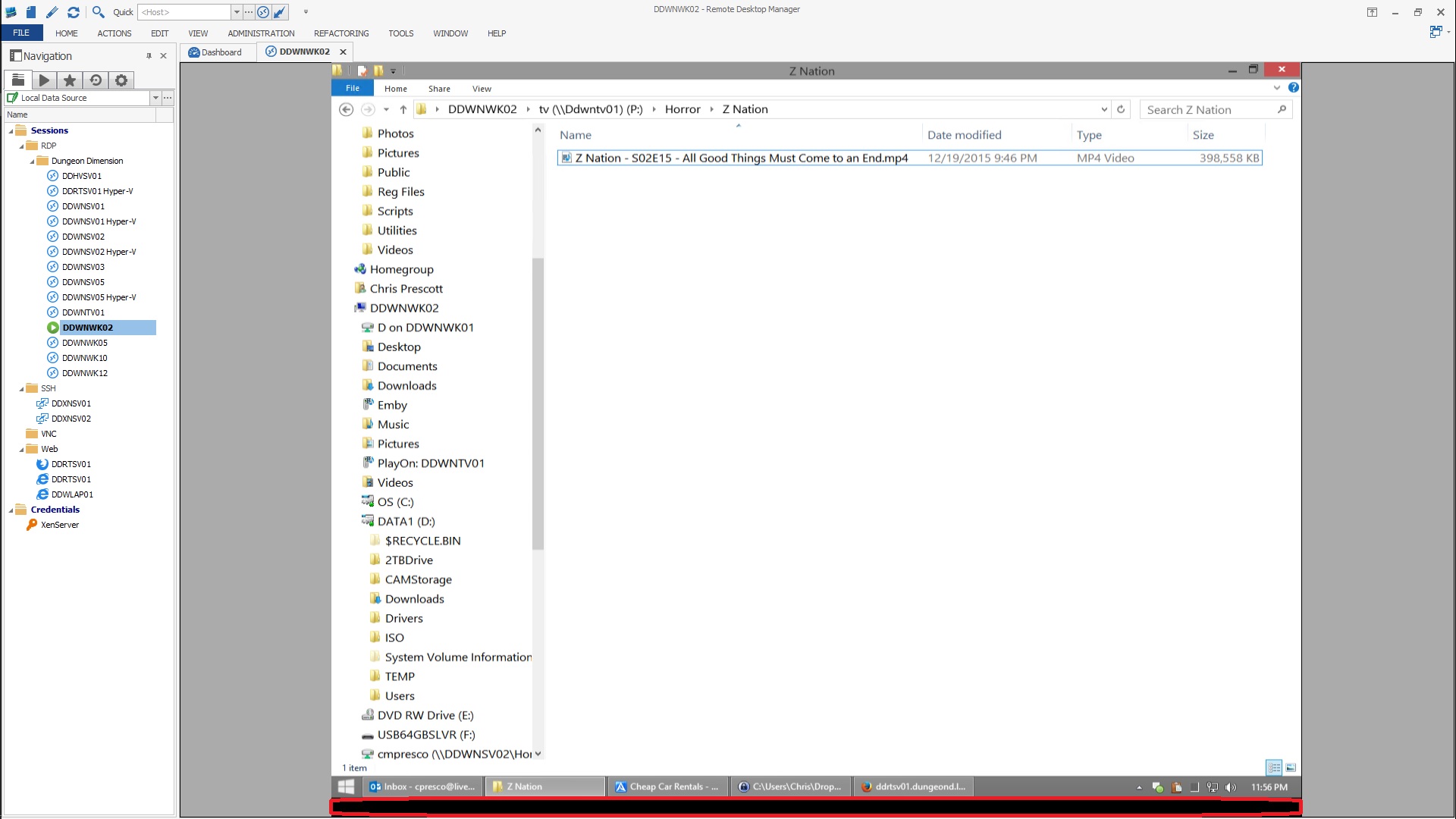
After the clean install of Windows 10 I installed RDM 11.0.18.0 Enterprise and found that embedded RDP sessions set to "Fit RDP window (smart sizing)" would no longer fit the 1280x1024 RDP session embedded in the RDM window on my 1920x1080 desktop. There is a blank section at the bottom of the embedded RDP session and that blank section must be clicked on to change to programs that are listed on the Task Bar.
I searched the forum before posting this and found information about RDP session issues on http://help.remotedesktopmanager.com/troubleshooting_rdp.htm which helped with my initial scaling issues (the embedded RDP session not only had the blank section at the bottom but was also improperly stretched within the RDM window). I have set my desktop scaling to 100% instead of 125% which has resolved the improperly stretched issue but it has not fixed the blank section at the bottom of the embedded RDP session.
The workstation I am connecting to is Windows 8.1 Enterprise.
I have attached a screen shot of the issue with the blank section outlined in red.
Chrome Remote Desktop
Hi Mark,
I appreciate the update. I will check it out.
Thanks,
Chris Prescott
Hello,
Chrome Remote Desktop is now available in version 11.0.16.0 of RDM.
Please take note that this is an experimental connection.
You can download it here; http://remotedesktopmanager.com/Home/Download
If there is anything else we can help you with, please let us know.
Best regards,
Chrome Remote Desktop
Hi Olivier,
Ah, bummer again.
The update is appreciated though.
Thanks,
Chris Prescott
Hi,
Unfortunately, they don't have any plan to implement Chrome Remote Desktop in the browser engine.
http://www.essentialobjects.com/forum/postst8904_EOWebBrowser-Chrome-Remote-Desktop.aspx
Best regards,
Chrome Remote Desktop
Hi David,
It would be very cool if they do or will in the future.
The update and replies are appreciated.
Thanks,
Chris Prescott
Hi,
We use a third party to embed Chrome and I don't know if they will support this. We will try to contact them for sure.
Chrome Remote Desktop
Hi David,
Bummer.
I had tried to paste chrome-extension://(this section edited out)/main.html and chrome://apps/ in to the embedded Chrome browser and they error out.
Is this something that might be implemented in the future?
Thanks,
Chris Prescott
Hi,
We haven't found a way for now to drive the Chrome Remote Desktop
Chrome Remote Desktop
Hi David,
Is there any update on this?
Thanks,
Chris Prescott
Chrome Remote Desktop
Hi David,
I don't know the details but I know it would mean programically calling Chrome and/or the Chrome Remote Desktop addin.
My guess is it would be similar to how LogMeIn was launched and captured as an embedded tab.
I started looking at Chrome Remote Desktop because LogMeIn has terminated their free offering.
Thanks,
Chris Prescott
Chrome Remote Desktop
Please add the ability to create Chrome Remote Desktop sessions.
RDP and Hard Drives
Hi,
Could you try this updated zip file?
[url=http://remotedesktopmanager.com/download/Devolutions.RemoteDesktopManager.Bin.8.0.0.0.zip
http://remotedesktopmanager.com/download/Devolutions.RemoteDesktopManager.Bin.8.0.0.0.zip[/quote[/url]]
Hi David,
The specific drive mapping in an Embedded mode RDP session appears to be resolved with this version.
I have tried this version on 3 different installations and now all 3 installations are mapping the specific drive with the RDP session set to Embedded mode.
I also reconfigured the RDP session for External mode with this new version and was still able to get the specific drive mapped.
Thanks,
Chris
RDP and Hard Drives
Hi,
Could you confirm that there is an issue with the embedded mode? here I am not able to reproduce it.
But I found an issue in the external mode and I'm working on it.
Regards
Hi Andre,
Yes I see this issue with Embedded mode but not with External mode.
I've seen this on the single Enterprise licensed installation I have and on the Free license installations.
Thanks,
Chris
RDP and Hard Drives
Great! I'm glad that it now works
Hi David,
I believe this issue has returned. I'm running the new 8.0.0.0 release. This was working in the pre-beta 7.x versions with the session set to Embedded mode.
If I select a specific drive under Disk Drives in Local devices and resources it doesn't show up in the RDP session.
If I check Disk Drives which subsequently put a check next to all drives then all of those drives show up in the RDP session.
The session is configured for Embedded mode.
If I reconfigure the session for External mode the specific drive selected shows up in the RDP session.
Thanks,
Chris
LogMeIn.com has Disabled Shortcuts
Does it work with my workaround?
Hi David,
I was able to configure a LogMeIn session that uses the LogMeIn portal option with the link for the specific system for a specific account ID.
The issue I've run in to is that if I try to use a different session with a different account ID, Remote Desktop Manager displays the computer list from previous session.
What I had been doing before this as a work a round was to configure a web site session for a specific account which auto logs in and displays the system list. Then I would select a system session in Remote Desktop Manager for that account.
To start another session for a system associated with a different account I would have to first click the Logout button on the web session of the first account.
Can an auto log out once the connection is completed be added to this LogMeIn portal method?
Thanks,
Chris