
HickBoy
Push credentials from repository to ScreenConnect API to log on to client machine
Hello,
This is still on our todo list but there have been other priorities. We'll try and work on this when we have more time. Thank you for your interest :)
Regards,
Hi Hubert,
I would like to keep this thread alive as I am rolling out ScreenConnect to 1000+ computers and this feature would help immensely :)
Right click -> Logoff fails.
Confirming that I also see the words "ashutdown" (yes, with the 'a' in front of shutdown) when I try to use the Logoff button or the right-click logoff feature from an RDP session. I am using 11.6.2.0 and this issue only started with 11.6.2.0. Previous to 11.6.2 I did not have any logoff issues with RDP.
The steps above:
uncheck the Disable run dialog check in File -> Options -> Types -> RDP.
Also resolved the issue for me.
Identify Process-ID after disconnect when using Teradici PCoIP software client with Amazon Workspace
Any updates to this? Beta/Alpha version I could test?
Identify Process-ID after disconnect when using Teradici PCoIP software client with Amazon Workspace
Would it be possible to kill the launched pcoip_client.exe process id (PID) upon disconnect?
Something similar to this idea with a checkbox to kill the process upon disconnect: http://help.remotedesktopmanager.com/index.html?file_options_sessiontype_sc.htm
I cannot figure out how to issue a kill command via the built-in variables for a (PID) on the "After Disconnect" event.
Identify Process-ID after disconnect when using Teradici PCoIP software client with Amazon Workspace
Sorry for the tardy reply to your post about the prototype add-on. I can tell you that the released version does an excellent job of connecting me to the Teradici gateway. Thank you as this add-on does exactly what I need without having to create the custom command line launcher.
Identify Process-ID after disconnect when using Teradici PCoIP software client with Amazon Workspace
All:
If you know of a better way for me to accomplish the below, please offer any opinions or if this program can be added to the list of supported options, even better!
I have a third party program that I have running in Remote Desktop Manager called the Teradici PCoIP Software Client (http://www.teradici.com/product-finder/client-downloads)
I had to use the command line feature of RDM to get the program to work. My command line is as follows:
"C:\Program Files (x86)\Teradici\PCoIP Client\bin\pcoip_client.exe" --desktop "Amazon WorkSpace" -m --headless -s 0 -b "$HOST$" -u "$USERNAME$" -p "$PASSWORD$" -d "$DOMAIN$"
The only change I had to make in RDM was under the security tab to allow passwords in variables.
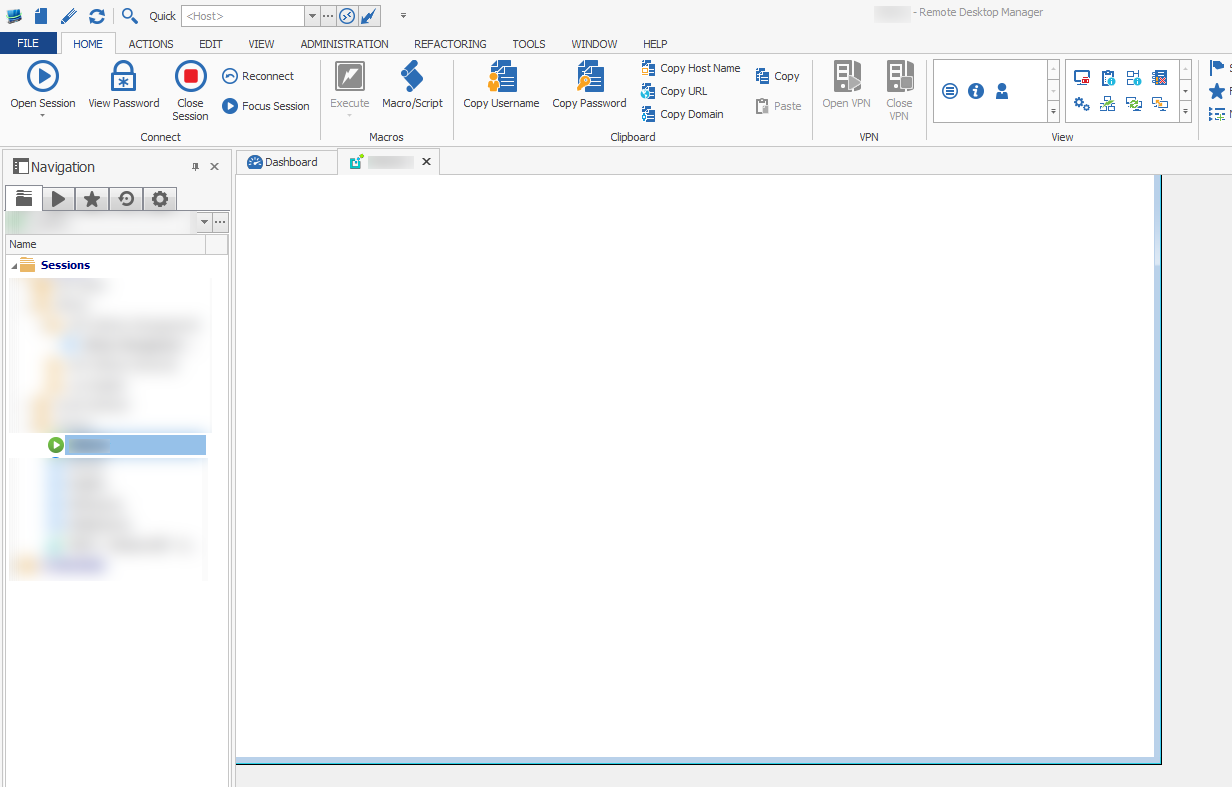
Once I connect, my program appears in a window outside of RDM (I don't think there's any way to actually keep it tabbed) and it works fine while I am using it. There's a blank tabbed window in RDM showing the program is running.
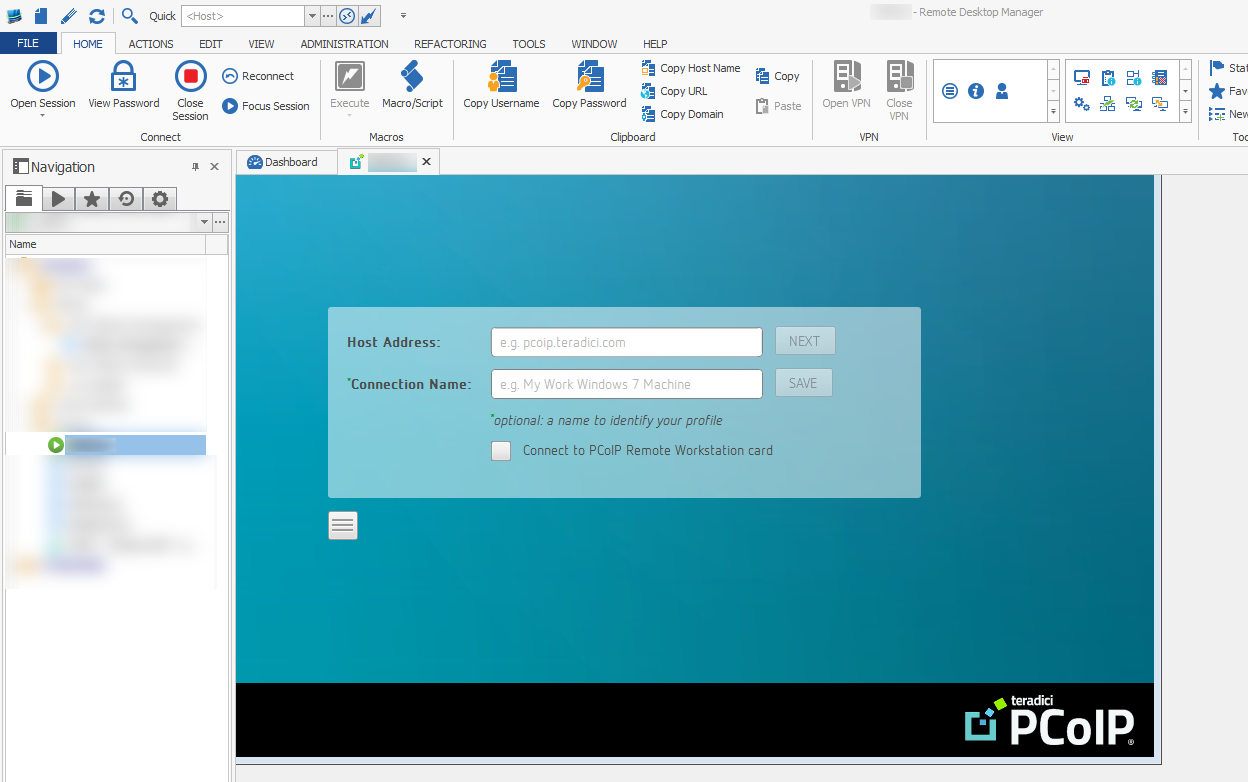
My problem with the scenario is that once I disconnect, the blank tabbed window switches to showing a pop-up from the program in the tabbed interface until I physically close it by clicking the X. There does not appear to be a way for me to kill the process once the program disconnects.
If RDM could identify the launched process ID and kill it after the session is over then all problems would be solved. I noticed that if I open two sessions, they both have the same process name of pcoip_client.exe
Is this possible?
NOTE: The Close Session button does a better job of disconnecting me without the pop-up inside the tabbed window. Instead it appears outside above the actual session window.
Screenshot of PCoIP program running:
Screenshot of PCoIP program still running in RDM after shutting it down or disconnecting from within the program:
How to import 800+ RDP files
That will work perfectly! Thank you very much!
How to import 800+ RDP files
Hi,
You can use the import menu to import multiple rdp file. It's located in the menu File->Import->Import Session (.VNC, .RDP, .RDM).
You can select multiple files at the same time. If your password are saved in the Windows Credential Vault (default), they will still be used by RDM.
Thank you David I see that I can do that but the original problem remains.
When I do import them I have to click OK for each individual item (all 800+). Also if I cancel the import anywhere in the middle, I have to click cancel for all of the remaining items. I would like to do a silent import without any prompts.
How to import 800+ RDP files
I have 800+ .RDP files that I have saved over time. I would like to bulk import this data into Remote Desktop Manager without having to stop at each import to verify the settings. Is this possible?
To take things a step further, I would love if RDM could also import the saved usernames/passwords for the RDP files as well, but I would settle for a silent import... :)