
callidus2000
Support OpenAI /v1/responses API and configurable model-specific parameters (e.g. reasoning_effort)
When using newer OpenAI models in PowerShell Universal, the current implementation appears to be limited to the legacy /v1/chat/completions endpoint.
This creates compatibility issues with newer reasoning-capable models such as gpt-6.1-sol. These models have different API requirements and may require the newer /v1/responses endpoint for function/tool calling scenarios.
For example, when using tools/functions with gpt-6.1-sol, OpenAI returns:
HTTP 400 (invalid_request_error)

Function tools with reasoning_effort are not supported for gpt-6.1-sol in /v1/chat/completions.
To use function tools, use /v1/responses or set reasoning_effort to 'none'.
At the moment there appears to be no way in PowerShell Universal to:
Select the OpenAI API endpoint (/v1/chat/completions vs /v1/responses).
Configure model-specific parameters such as:
reasoning_effort
reasoning settings in general
future model-specific options introduced by OpenAI.
As a result, users are unable to use newer OpenAI models with tool/function calling even though the models themselves support the required functionality through the Responses API.
Requested Enhancements
Feature 1: Responses API Support
Add support for OpenAI's /v1/responses endpoint and allow selecting the API type in the provider configuration.
Example:
New-PSUAIProvider -ApiType Responsesor
New-PSUAIProvider -EndpointType ResponsesFeature 2: Custom Model Parameters
Allow arbitrary model parameters to be passed through to OpenAI.
Example:
New-PSUAIAgent `
    -Model "gpt-6.1-sol" `
    -ModelParameter @{
        reasoning_effort = "none"
    }
or a similar mechanism on the provider level.
Benefit
This would allow PowerShell Universal users to adopt newer OpenAI models immediately and avoid compatibility issues caused by hard-coded assumptions around the Chat Completions API and fixed model parameters.
[any version] Adding administrator is to your identity disables all other roles
Hi @Christian Robert,
sorry to ask, but I'm confused. If the feature request is for PowerShell Universal, are you referring to the cmdlet or the GUI permission settings?
Since you are talking about a "checkbox", I assume you mean the GUI.
What is the desired behavior? Should adding the Administrator role remove all other roles, or should it be additive?
In the GUI, I don't see a problem because I can view all roles and decide which ones to assign.
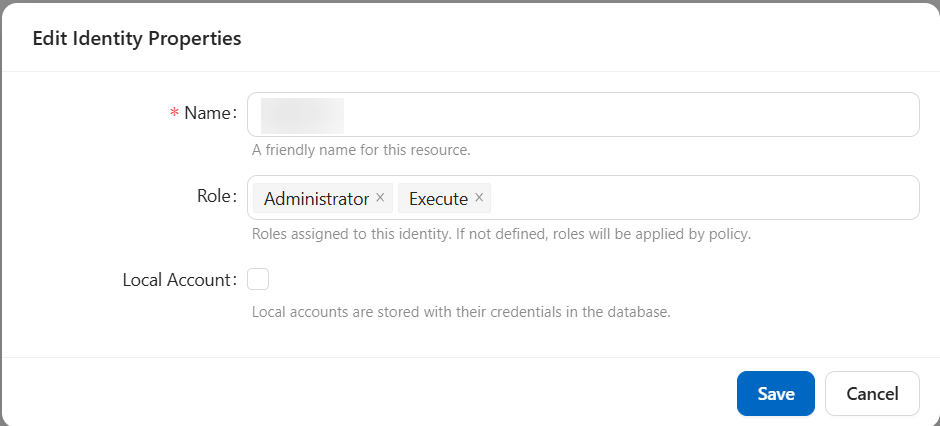
The available cmdlets are more problematic. Unless I'm missing something, permission assignment is done via Set-PSUIdentity, and this cmdlet only accepts a single role:
$identity = Get-PSUIdentity -Name 'testuser'
$roleAdmin = Get-PSURole -Name 'Administrator'

Set-PSUIdentity -Identity $identity -Role $roleOperator
f I want to assign both roles in code, I would need nested roles:
New-PSURole -Name 'AdminOperator' -Roles @(
    'Administrator'
    'Operator'
)

# Der Identity zuweisen
$identity = Get-PSUIdentity -Name 'testuser'
$role = Get-PSURole -Name 'AdminOperator'

Set-PSUIdentity -Identity $identity -Role $role
This is very inconvenient. I would have expected either an Add-PSURoleAssignment / Remove-PSURoleAssignment pair or for Set-PSUIdentity to accept an array of roles.
-Sascha Spiekermann
Ability to subscribe to PSU release notifications
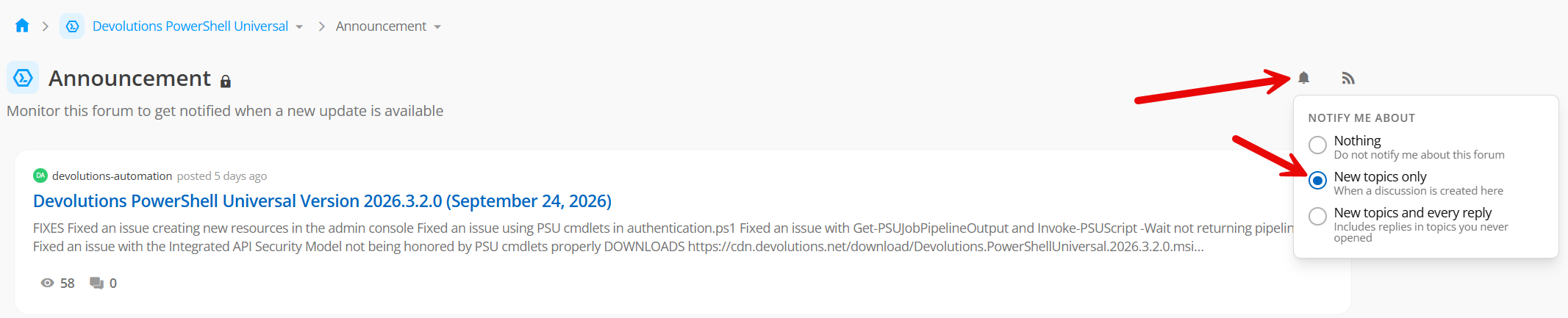
Or simply enable notifications for the announcement forum. As the "new" Outlook does not support RSS this is my current solution.
Job comments
Great Idea. If implementation is considered it might go well along Enable Search and Filtering on Job Notes in PowerShell Universal - Devolutions Forum
-Sascha
Cross-Server AI Tool and MCP Integration for AI Agents
Enable AI Agents to Access AI Tools and MCP Servers Across Multiple PowerShell Universal Instances
Currently, AI Agents in PowerShell Universal can only use AI Tools that are available on their local PSU instance. This limitation makes it difficult to build AI-driven workflows that span multiple specialized PSU environments.
I would like to request support for cross-server AI Tool discovery and execution, preferably by allowing AI Agents to consume MCP (Model Context Protocol) servers from other PowerShell Universal instances.
Proposed Solution
Allow administrators to register remote MCP servers and/or remote AI Tool providers from other PSU instances and expose them to local AI Agents as if they were native tools.
Possible implementation options:
Register one or more remote MCP servers per PSU instance.
Allow AI Agents to access tools published by trusted remote MCP servers.
Support authentication, authorization, and tool scoping for remote resources.
Provide the option to selectively expose AI Tools across PSU environments.
Example Use Case
We operate two dedicated PowerShell Universal environments:
FW-PSU: Firewall management and firewall-related automation
SM-PSU: Service management and service request processing
A typical workflow involves service requests for new firewall rules.
Today, the process looks like this:
An AI Agent runs on SM-PSU.
The agent uses a local AI Tool to extract IP addresses and FQDNs from the service request.
The agent invokes another local AI Tool that calls a custom API exposed by FW-PSU.
That API determines the corresponding firewall objects and returns the results.
The agent then uses another local AI Tool to generate comments or enrich the service request.
This requires additional custom API endpoints solely to bridge the gap between the two PSU environments.
Expected Benefit
If MCP servers from multiple PSU instances could be connected and made available to AI Agents, the agent on SM-PSU could directly use firewall-related tools hosted on FW-PSU.
Benefits include:
Reduced integration complexity
Elimination of custom API bridge endpoints
Better separation of responsibilities between PSU instances
Improved reuse of existing AI Tools
Faster implementation of cross-domain AI workflows
More scalable architecture for organizations operating multiple PSU environments
Example
Instead of:
SM Agent → Local Tool → Custom FW API → FW Logic → Local Tool
The workflow could become:
SM Agent → Remote FW MCP Tool → Result
This would provide a cleaner and more maintainable architecture while leveraging the existing MCP ecosystem and AI Tool framework within PowerShell Universal.
Business Value
Organizations often deploy multiple PowerShell Universal instances that are responsible for different operational domains such as Service Management, Identity Management, Firewall Management, Cloud Operations, or Infrastructure Automation. Enabling AI Agents to consume remote MCP servers and AI Tools would significantly improve interoperability between these environments and reduce the need for custom integration layers.
Documentation enhancement: Required access token permissions
The documentation for PSU management cmdlets should state the exact permission required by the access token.
For example, Get-PSUPublishedFolder fails with a token assigned to the built-in Reader role but succeeds with an Administrator token. Neither the cmdlet documentation nor the Published Folders documentation identifies the required permission.
Please document:
The exact permission required for each management cmdlet, e.g. Get-PSUPublishedFolder.
A least-privilege token example for each cmdlet.
This would allow administrators to create purpose-specific service tokens instead of granting the Administrator role.
Configurable MCP Server Connection Name in VS Code
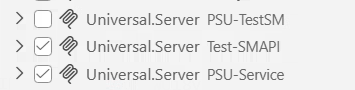
This looks as desired, thanks you.
Availibility of "AvailableInBranch" parameter for each configuration command
Hi,
the AvailableInBranch param is great for staging concepts by using git. But it should be available in more commands, e.g. I'm missing it for my authentication.ps1 for adapting the SAML2 config to the different params for production and test.
As an alternitive/addition you could provide a global variable in the configuration context which contains the branch. This would allow something like
if ('PRODUCTION' -eq $PSUGITBRANCH) {
    Set-PSUAuthenticationMethod -Type "Saml2" -EntityId "prod" ......
}
elseif ('INTEGRATION' -eq $PSUGITBRANCH) {
    Set-PSUAuthenticationMethod -Type "Saml2" -EntityId "integration" ......
}
I'd prefer the "AvailableInBranch" param and the visibility of all branches (another FR) in the gui.
-Sascha
Configure Windows Service Recovery Actions by Default
The PowerShell Universal Windows service is installed without Windows Service Recovery Actions configured. If the service terminates unexpectedly, it may remain stopped until an administrator intervenes, even though the service startup type is set to Automatic.
This was observed after planned Windows Update restarts. The PowerShell Universal service was stopped as part of the operating system shutdown and later reported by the Service Control Manager as having terminated unexpectedly. Because no recovery actions were configured, Windows did not attempt to start the service again.
This could be prevented if the installer (for example" configures the following recovery actions by default when installing PowerShell Universal on Windows:
First failure: restart the service after 60 seconds
Second failure: restart the service after 60 seconds
Subsequent failures: no action
Reset the failure count after 24 hours
Enable recovery actions for non-crash failures (FailureActionsOnNonCrashFailures = true)
During an upgrade, an existing customer-defined recovery configuration must be preserved. If no recovery actions are configured, the installer should apply the default configuration above.
Expected benefit
This improves service availability after unexpected process termination and planned maintenance restarts, reducing the need for manual recovery.
AI Tools (MCP)
+1 from me.
I was actually considering opening a feature request for a very similar use case.
Being able to expose PSU Endpoints directly as AI Tools would be extremely useful. I have several lightweight endpoints that return data within milliseconds. Executing a script for every tool invocation introduces unnecessary overhead compared to calling an endpoint directly.
This would make PSU a much more efficient MCP/AI integration platform and enable fast, read-only data lookups without the startup cost of script execution.
Display Branch Scoped Resources in disabled Branches as Read Only Objects
Summary
When using Git synchronization with separate branches for test and production environments, branch scoped resources that exist only in another branch are completely hidden from the UI. This prevents administrators from preparing or modifying those resources before promotion.
I would like to request an enhancement so that branch scoped resources remain visible in all branches while respecting their execution scope.
Current Setup
Our environment uses PowerShell Universal Git synchronization with two separate instances:
Test server → connected to the test branch
Production server → connected to the main branch
Changes are made only on the test system. Promotion to production is performed through a Git pull request from test to main.
The production instance is configured with OneWay synchronization, ensuring that changes can only be made in the test environment.
PowerShell Universal already allows assigning resources to specific branches so that they are only active in the intended branch.
Problem
Assume a Schedule is assigned exclusively to the main branch.
Because this resource does not belong to the test branch, it is completely absent from the Test UI.
As a result:
The Schedule cannot be reviewed in the Test environment.
Future changes cannot be prepared before promotion.
Administrators must switch to the Production system to understand the current configuration.
The Git based promotion workflow becomes inconsistent because some resources can only be managed in one environment.
Proposed Enhancement
Introduce a read only branch visibility mode for branch scoped resources.
Behavior:
Resources assigned to another branch should still be displayed in the UI.
Such resources should be visually marked, for example:
Greyed out
Lock icon
"Available in branch: main" indicator
Resources should remain editable so that changes can be prepared and committed in the current branch.
Runtime behavior must continue to respect branch assignment.
For a Schedule this would mean:
The Schedule is visible in the test branch.
The Schedule does not execute in the test environment.
The associated script is not started in the test environment.
Administrators can still modify the Schedule configuration and submit the change through the existing Git workflow.
Benefits
Improved visibility across environments.
Better support for Git based promotion workflows.
Reduced need to switch between environments.
Easier maintenance of production only resources.
Consistent user experience across all resource types.
Enable Search and Filtering on Job Notes in PowerShell Universal
Description
When starting a script using Invoke-PSUScript, it is possible to provide additional context via the -Notes parameter. These notes are displayed in the Job Overview and are very useful for tracking the origin and purpose of a job execution.
However, the current Job Overview does not allow searching or filtering based on the contents of the Notes field.
Use Case
We frequently use PowerShell Universal as an execution backend for external systems. An external application invokes the PowerShell Universal API, which then starts a long-running script as a background job.
In these scenarios, we often pass an external reference ID, ticket number, request ID, or correlation ID through the -Notes parameter.
The information is visible in the job details, but it cannot be used to locate jobs later through the search functionality in the Jobs view.
Problem
As the number of jobs grows, it becomes difficult to find a specific job that belongs to a particular external request or transaction.
Users must manually browse through jobs or implement alternative tracking mechanisms outside of PowerShell Universal.
Proposed Enhancement
Extend the Jobs search and filtering functionality to include the Notes field.
Configurable MCP Server Connection Name in VS Code
Problem
When adding a PSU MCP server in VS Code, the connection can be configured either by manually adding /api/v1/mcp to the mcp.json configuration or by using the extension's server connection feature, which automatically appends the endpoint.
In both cases, the resulting MCP server connection is automatically named Universal.Server. As a consequence, multiple PSU MCP server connections appear with the same name, making it impossible to distinguish between them in the VS Code UI.
Expected Behavior
The displayed MCP server name should be configurable or automatically derived from the target server information.
Possible approaches:
Allow specifying a custom display name in the mcp.json configuration.
Use the server hostname as the default connection name.
Fall back to the current Universal.Server name only when no custom name or hostname is available.
Current Behavior
All PSU MCP server connections are displayed as Universal.Server, regardless of the configured endpoint or host.
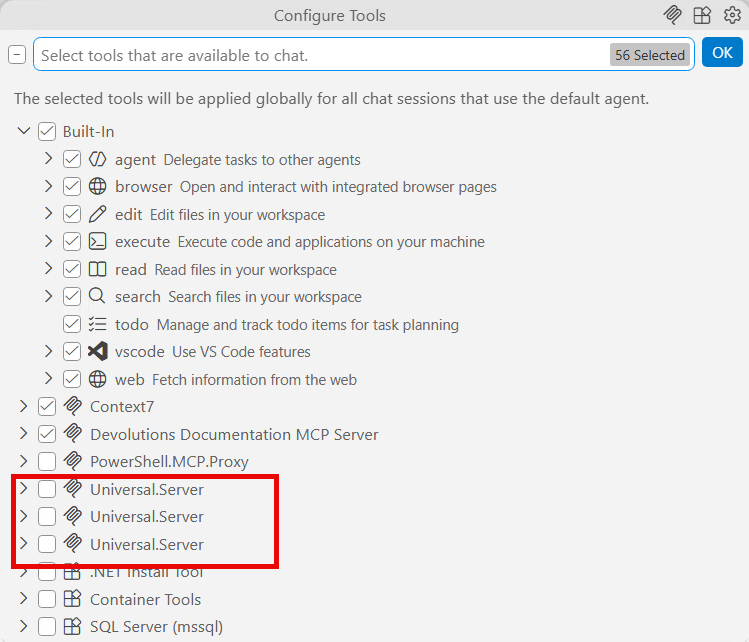
Impact
Users managing multiple PSU MCP server instances cannot easily identify which connection belongs to which environment (e.g. Development, Test, Production) or host, increasing the risk of connecting to the wrong server.
Benefits
Easier management of multiple MCP server connections
Better usability and visibility within VS Code
Reduced risk of connecting to the wrong environment
Consistent behavior with other tools that support custom connection names
Support HTTP Proxy for AI Endpoints
Our PSU servers are located in an internal production network without internet access. It would be nice for the AI features if we could use our http proxy server to access the OpenAI compatible endpoint within our Azure environment. I've set the proxy under Settings/General/Plattform, the AI couldn't talk to Azure (and if this would be the right way: A NOPROXY option would be needed as many internal API services are not reachable by the proxy).
Terminals and clipboard
Product: PowerShell Universal
Version: 5.5.2
MS Edge Browser/Win11
Is there a way to “insert from clipboard” in a PSU terminal?
External monitoring (with CheckMK?)
Hi,
the new admin dashboard gives a lot of info about the state/health of the server. But my company uses CheckMK as a central monitoring solution which does not have support for PSU out-of-the-box.
Has anybody succeeded in combining both tools?
Product: PowerShell Universal
Version: 5.0.15External Watchdog
Finished the first release of my WatchDog PowerShell Module. The mailing part has been dropped from the requirements as our regular monitoring solution does this perfectly. And I did not want to rely on additional prerequisites.
External Watchdog
I’ve come to the conclusion that there seems to be no quick solution for this. For Linux etc. I’d take a look at Monit, but it’s not available on Windows. I’ll propose the creation of a generic solution for our next sprint.
PowerShell module
Allows the definition of a Watch-Instance, consisting ofTitle
Script-Block to perform the health check
Intervall for the checks
Script-Block for the action to perform if the health check fails
Mail properties
Install the Watch-Instance as a scheduled taskStarts every 5min
One instance per watcher
Perform the health check
If this fails, perform the repair-action
Optionally send mails to inform about the problem
External Watchdog
Nice idea, but the servers are in an internal production network and therefor not reachable (by design) from Azure.
External Watchdog
Has anybody created an external watchdog service or is using a prebuilt one?
One of two PSU installations stops responding regularly, no hint in the logs. As it’s from minor importance I currently restart the windows service manually if I register it. But this may become a problem for my vacational planning
My idea was to implement a small powershell script which checks the alive API and performs the service restart if needed. But I’d prefer to use something which already exists…
Product: PowerShell Universal
Version: 4.2.3External authentication for redirected app
I think that the service management tool already uses SAML2 for authenticating, I’ll check this out. Thanks for the direction hint.
Landing Page URL Redirect | V4.1
I had the same ‘scope’ problem, additionally clicks on the created div did not trigger the redirect. Therefor I’ve modified the original a bit more, thats how it looks for me now:
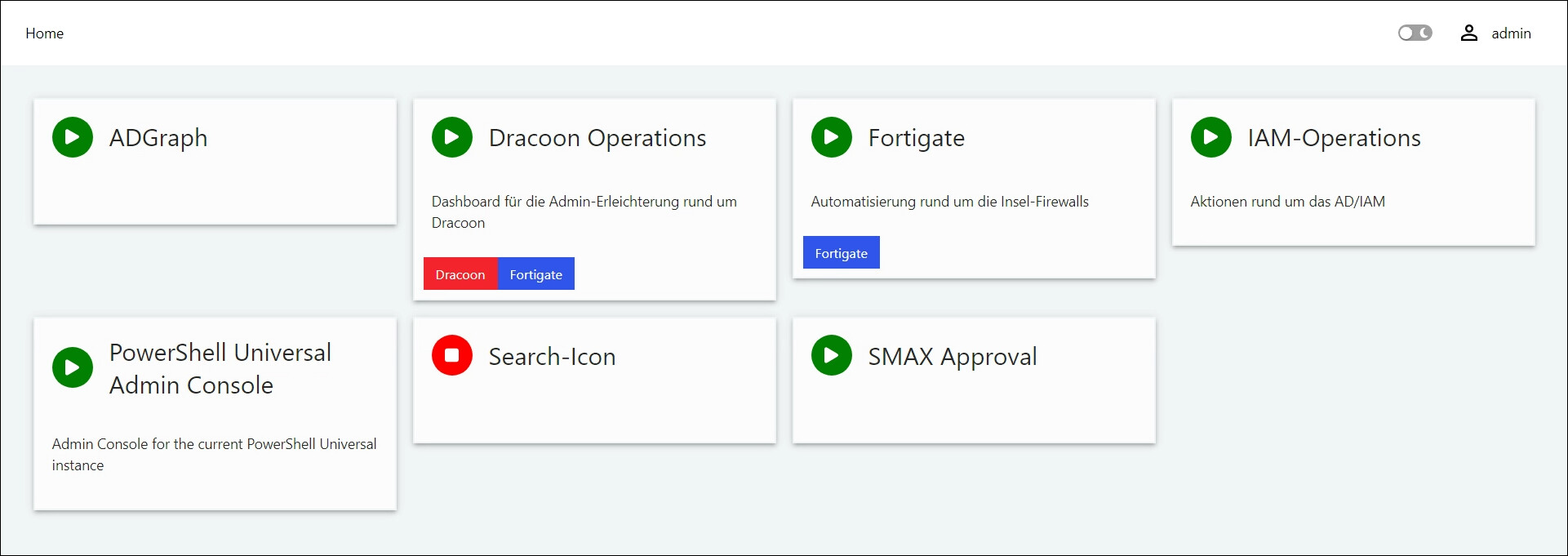
Changes to original (as I remember )
The cards are created manuallyHeader and footer can be handled differently
An Icon-Avatar shows if the app is running at allSometimes after a server restart one app stays in “Starting”, or apps with known critical bugs get stopped by the admin
Hidden and unwanted dashboards get filtered (code line 14) but
The admin console gets added manually to the list of auto detected dashboards (Lines 4-12)
As
ForEach-Objecthas as scoping problem (root cause of this thread) I’ve changed to simpleForEachloops.
Heres the full code:
New-UDDashboard -Title 'Home' -Content {
    New-UDLayout -Columns 4 -Content {
        $myDashBoards = Get-PSUDashboard -Integrated #| Sort-Object Name
        $myDashBoards += [PSCustomObject]@{
            Name          = "PowerShell Universal Admin Console"
            Description   = "Admin Console for the current PowerShell Universal instance"
            Role          = @('Administrator')
            baseURL       = "/admin"
            Hidden        = $false
            Authenticated = $true
            Status        = "Started"
        }

        $myDashBoards = $myDashBoards | Sort-Object Name | Where-Object { ($_.Name -notin @('Landing Page', 'Samples') -and (-not $_.Hidden)) -and ($_.baseURL -notin @('/apps/docs')) }
        $myDashBoards | Format-Table name, baseURL, Role -Wrap | out-string | write-host
        foreach ($dashBoard in $myDashBoards ) {
            $Content = {
                New-UDElement -Tag 'div' -Content {
                    switch ($Dashboard.Status) {
                        'Started' {
                            $avatar = New-UDAvatar -Content { New-UDIcon -Icon "play" -Style @{color = "white"; backgroundColor = "green" } } -Sx @{backgroundColor = "green" }
                        }
                        Default {
                            $avatar = New-UDAvatar -Content { New-UDIcon -Icon "stop" -Style @{color = "white"; backgroundColor = "red" } } -Sx @{backgroundColor = "red" }
                        }
                    }

                    $Header = New-UDCardHeader -Avatar $avatar -Title $Dashboard.Name # -SubHeader "#$($Session:RequestID), $($entity."related.RegisteredForLocation.DisplayLabel")";
                    $Body = New-UDCardBody -Content {
                        New-UDStack -Direction column -Spacing 2 -Content {
                            New-UDTypography $Dashboard.Description
                        }
                    }
                    $Footer = New-UDCardFooter -Content {
                        New-UDStack -Direction row -Content {
                            $Dashboard.Tag | ForEach-Object {
                                if ($_ -eq $null) { return }
                                New-UDChip -Label $_ -Style @{
                                    borderRadius    = "0px"
                                    backgroundColor = $_.Color
                                    color           = "white"
                                }
                            }
                        }
                    }

                    New-UDCard -Header $Header -Body $Body -Footer $Footer -Sx @{
                        border = '2px solid #f0f2f5'
                    }
                } -Attributes @{
                    style   = @{
                        cursor = "pointer"
                    }
                    onClick = {
                        Invoke-UDRedirect -Native $Dashboard.BaseUrl
                    }
                }
            }

            if ($Dashboard.Authenticated -and $Dashboard.Role) {
                Protect-UDSection -Role $Dashboard.Role -Content $Content
            }
            else {
                & $Content
            }

        }
    }
} -HeaderContent {
    if (-not $User) {
        New-UDButton -Text 'Login' -OnClick {
            Invoke-UDRedirect -Native '/login'
        }
    }
}External authentication for redirected app
Product: PowerShell Universal
Version: 4.1.7
We are using a web based service management solution. Is it possible to create a browser redirection to an authenticated app/dashboard with an authentication token? As when the users clicks on continue in our existing app it will redirect him to the app and the user is already authenticated as “The Mighty Service Manager”?
Customizing the login page with a Dashboard
Product: PowerShell Universal
Version: 4.1.7
In the documentation there is a topic called “Customizing the login page with a Dashboard”, with the final hint “You will then need to implement the login features manually.”
How? Could you provide a small example?
As I’m using a multiple ActiveDirectory authentication.ps1 I need some complexity/space for user information, a dashboard/app would be ideal.
PowerShell Universal - 4.1.0
Added -OnSelectionChanged to New-UDDataGrid
How can the selected row(s) be addressed? $EventData did only contain my first column in my tryout…