
Yohan Prod'homme
Where are defined entries default settings?
Hello,
With the SSH session entries, we have the well-known PuTTY issue regarding numeric keypad not working in some applications such as nano, unless you disable the "keypad keyboard mode" in the "Terminal" tab of the entry's settings:
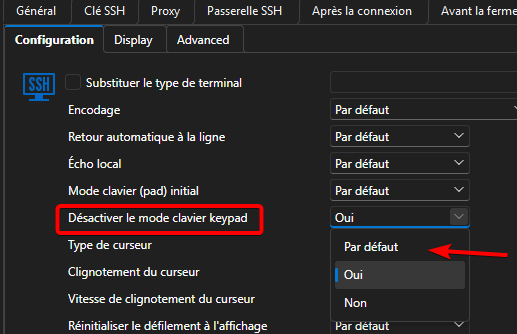
We regularly have this issue with new entries (as it default to a "Default" option which seems to imply "No"), and with the quick connect toolbar.
My question is: can we change the default value for this option? I believe the "Default" option is actually inheriting the settings from somewhere, but I cannot find where.
We are on a licensed RDM 2026.2 with a shared MSSQL Server database.
Some keys not working inside SSH sessions
Hello,
To loop back on this thread, we updated to RDM 2026.2 last week, and this fixed the issue.
Some keys not working inside SSH sessions
Hello,
My coworkers are using the same keyboard layout.
In my case the issue started about a week ago, there have been no RDM updates nor Windows Update (latest Windows Update was a .NET update installed on 15/04, and RDM still worked as expected afterwards).
I still have the same issue after resetting RDM (by renaming the directory as documented, and reimporting the .rdd file)
Some keys not working inside SSH sessions
Hello,
I've a weird "bug" on RDM since a week or so. I've put "bug" between quotes because coworkers who use the exact same version and data source as me don't have the issue.
When in an SSH session, some keys are not working, namely "a", "r", "g". When I type them, they aren't inputted inside the console. All other keys work as expected.
If type my command in an external text editor and copy&paste it inside the SSH session, it works without issue.
It happens in all SSH sessions. Only SSH sessions (RDP sessions works well).
I'm pulling my hair trying to understand what could cause this issue. I've not found any settings that may explains this.
Anyone know what may be happening?
I'm on RDM 2025.3.32.0 (update to 2026.1 is planned but a bit complicated because we need to coordinate everyone to update at the same time due to the database schema update).
I run Windows 11 25H2, my keyboard is a french AZERTY layout.
Unbale to Load or Edit App Pages in PowerShell Universal
Ok, that was it.
I already tried it before posting, and despite restarting the app it didn’t work.
Looks like Universal required a full restart, because when I restarted it today, the page was working without doing any other modification.
Not sure what happened, I can’t repro this “bug” when adding then removing -Content from New-UDApp.
Unbale to Load or Edit App Pages in PowerShell Universal
No this doesn’t work. I have the same issue.
Pages created in the Pages tab aren’t accessible, even if they have the AutoInclude switch.
# Main app
New-UDApp -Content { 'Hello, world!' }

# Page
New-UDPage -Url "test" -Name "test" -Content {
    'Hello, world!'
} -AutoInclude
(this is the auto-generated code when you create a new app and app’s page)
http://localhost:5000/test/Home shows “Hello world!”
http://localhost:5000/test/test shows “Page Not Found”
I need to includes them directly in the main file (New-UDApp -Pages @(…)) for them the work.
Surely I’m missing something, but I don’t know what.
Unable to login with Devolutions account
Hello,
For information, this issue still happens with the version 2026.1.5.
Unable to login with Devolutions account
Product: PowerShell Universal
Version: 2026.1.4
Hello,
I’m currently evaluating Powershell Universal, and would like to test some of the licensed features.
There is the developer license, accessible when logging in with a Devolutions account, which should cover this use case, however, when I click on “Login with Devolutions Account”, I get redirected to this error page: https://login.devolutions.com/op/error?title=error.LUCID1000.title&message=error.LUCID1000.message
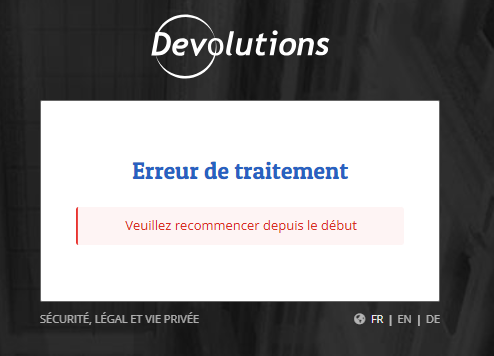
Translation:
Processing error
Please retry from the beginning
This is a new installation. I had this error when trying to login from the initial setup screen a few days ago, so I started with a local installation, and I still have it if I try to login with Devolutions on the existing instance.
Of course, I tried the basics like using private window and another browser (Chrome vs Edge) to rule out any cookie issues.
This is a Windows portable (ZIP) installation, and I access PSU from http://localhost:5000/
Is this a know issue?
[SOLVED] BitWarden OTP - "Remind this device" not working
Hello,
A quick follow up in case someone with this issue come across this topic.
Almost at the same time that your response, a PR to add support for API keys was merged in Vaultwarden and landed in 1.24.0 which was released on January 30.
I've tested it with RDM 2022.2, and it works as expected! :)
Regards,
Yohan Prod'homme
[SOLVED] BitWarden OTP - "Remind this device" not working
Thank you for your response !
This is indeed a VaultWarden instance. It looks a bit weird that there is a difference on how the "2FA's remind me" feature is handled considering that official BitWarden clients don't have any issue with it. But I understand you don't officially support VaultWarden.
Thanks for the tip about API keys. I'll keep this around in case they support it in the future.
Regards,
[SOLVED] BitWarden OTP - "Remind this device" not working
Hi,
We are using the BitWarden integration in RDM with a self-hosted instance of BitWarden.
When using an OTP-enabled account, the following prompt is displayed:

However, the "Remind this device" option doesn't word as intended: When checked, it will works for the next logon (the 2FA is bypassed as intended), but the prompt will be displayed again for the 3rd logon.
In other words, I have to enter the OTP code every 2 logons.
This issue has already been reported by someone else there: https://forum.devolutions.net/topics/36444/bitwarden-with-2fa#156726, but I don't know if a solution was found or if a fix is planned.
Do you know if there is any way to fix this issue?
Regards,