
(user deleted)
Does RDM have an Azure session similar to the 'Amazon AWS Dashboard' session?
I'm looking for a way to manage RDP sessions to Azure VM's similar to how RDM manager connections to AWS VM's but I'm just not seeing it.
Does RDM have such a feature, and if so, could you point me in the right direction?
Thanks!
Jamie
Is it possible to change user Name for RDM Enterprise Cloud accounts?
Is it possible to change User Name for Remote Desktop Manager Enterprise Cloud accounts?
Create credential entry using the powershell module
Érica,
Thanks so much for the help. I had just located this example in the repository when you replied.
https://forum.devolutions.net/topics/28473/use-powershell-to-set-custom-roles-on-view-and-edit
That got me the result I was looking for and your reply here provides a welcome, concise example.
Take care and stay safe.
Jamie
Create credential entry using the powershell module
Perhaps I could better explain my goal: I need to give my users access to read the Username and Password stored in the Credential Entry when they need it.
Would that be better accomplished by settings like this? (as opposed to setting the Permissions drop down to Everyone)
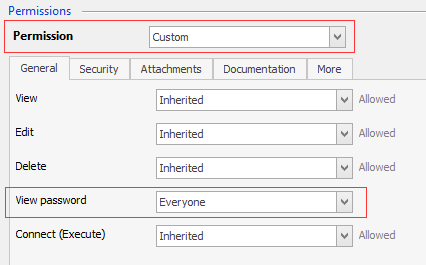
How would I obtain these settings via script?
I want to go through the existing Credential Entries in my database and update them so non-admin users can get access to the user and pass in the credential entry.
Thanks.
Jamie
Create credential entry using the powershell module
Érica,
If I add the Security.ViewOverride lines at the end of my script, my new Credential no longer has a Username or Password saved. I've tried placing it earlier in the script and the User and Pass are set but the 'Everyone' value just isn't set in Permissions. It still says 'Inherited'. Where in the above working script would you add those two lines?
Jamie
Create credential entry using the powershell module
Finally hammered out a working example of just creating a new Credential Entry and populating the Username and Password values. It's not quite as straightforward as made out above... and even the interactive PowerShell help isn't all that helpful... here's what I ended up doing:
$mysession = New-RDMSession -Name "TESTCREDENTIAL" -Type Credential -Group "Utilities" -SetSession
$ID = [GUID]($mysession.ID)

Update-RDMUI

Set-RDMSessionUsername -ID $ID -Refresh -UserName "TESTUSER"

$mySecureString = ConvertTo-SecureString "PASSWORD" -Force -AsPlainText
Set-RDMSessionPassword -ID $ID -Refresh -Password $mySecureString
Now how the heck to I change the 'Permissions' on the session so that it's equal to the 'Everyone' setting from the UI?
Everyone, stay safe.
Jamie
Create credential entry using the powershell module
Érica,
I hope you're well and staying safe during these trying times.
I'm attempting to identify all of the Credential Entry sessions in my database, then I want to set their permissions to 'Everyone'. Using the UI it's this setting:
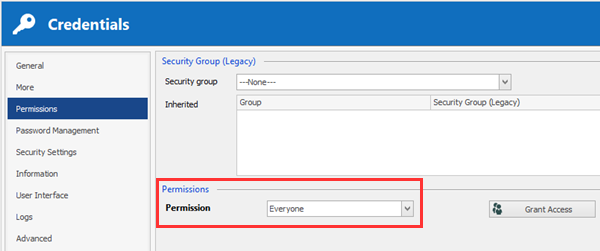
I started with some of the examples in the above post. I wanted to create a 'Test Credential' but I cannot seem to set the Username or the Password on the newly created credential?
$mysession = New-RDMSession -Name TestCredential -Type Credential -Group Utilities -SetSession

Set-RDMSessionUsername -Session $mysession -UserName TESTUSER -Refresh

$mypassword = ConvertTo-SecureString "TESTPASSWORD" -Force -AsPlainText

Set-RDMSessionPassword -Session $mysession -Password $mypassword -Refresh
The New-RDMSession named 'TestCredential' appears in Remote Desktop Manager, however setting the user and pass both fail.
C:\> Set-RDMSessionUsername -Session $mysession -UserName TESTUSER -Refresh
Set-RDMSessionUsername : Parameter set cannot be resolved using the specified named parameters.
At line:1 char:1
+ Set-RDMSessionUsername -Session $mysession -UserName TESTUSER -Refres ...
+ ~~~~~~~~~~~~~~~~~~~~~~~~~~~~~~~~~~~~~~~~~~~~~~~~~~~~~~~~~~~~~~~~~~~~~
    + CategoryInfo          : InvalidArgument: (:) [Set-RDMSessionUsername], ParameterBindingException
    + FullyQualifiedErrorId : AmbiguousParameterSet,RemoteDesktopManager.PowerShellModule.SetRDMSessionUsernameCommand
and
C:\> $mypassword = ConvertTo-SecureString "TESTPASSWORD" -Force -AsPlainText
Set-RDMSessionPassword -Session $mysession -Password $mypassword -Refresh
Set-RDMSessionPassword : Parameter set cannot be resolved using the specified named parameters.
At line:2 char:1
+ Set-RDMSessionPassword -Session $mysession -Password $mypassword -Ref ...
+ ~~~~~~~~~~~~~~~~~~~~~~~~~~~~~~~~~~~~~~~~~~~~~~~~~~~~~~~~~~~~~~~~~~~~~
    + CategoryInfo          : InvalidArgument: (:) [Set-RDMSessionPassword], ParameterBindingException
    + FullyQualifiedErrorId : AmbiguousParameterSet,RemoteDesktopManager.PowerShellModule.SetRDMSessionPasswordCommand
I'm using Remote Desktop Manager Enterprise Edition Version 2020.1.19.0 64-bit.
If we can get the setting of the User / Pass worked out, how would I go through ALL the credential entries and set the Permissions to Everyone?
Take care.
Jamie
Documents stored in database not opening
David,
I can confirm that 2020.1.17.0 64-bit seems to resolve the issue. All of our documents stored in the database will now open in RDM.
Thanks!
Jamie
Documents stored in database not opening
Running 2020.1.16.0 64-bit
Documents stored in the database will no longer open. I can download them to my machine to get to them, but they won't open directly from RDM.
Tested 2020.1.14.0 64-bit with the same results.
A machine that still has 2019.2.14.0 does not exhibit the problem and can open the same documents within RDM.
The docs are.PDF, .DOCX, .TXT, etc.
license is only valid for older version of application
Mystery solved... Yes we received an updated license... but no one was told about it. It just got filed away for safe keeping. :spock:
Existing installations / accounts had the new license applied, but when we were trying to create a new install (using the old license) we got the message.
Thanks.
Jamie
license is only valid for older version of application
No, we have been just downloading the latest installer from the Devolutions site.
https://remotedesktopmanager.com/home/download
We have not looked into the custom installer option.
Thanks.
Jamie
license is only valid for older version of application
OK... after an uninstall and re-install... now it appears to be working. RDM has updated and it is reporting that it's good through 5/1/2020 as the other existing installs are.
Not sure what's going on there... but it seems resolved on the one machine. We have another machine to build so we'll see what happens.
license is only valid for older version of application
I'm currently running Remote Desktop Manager 2019.2.22 64-bit Enterprise Edition.
It says free upgrade until 5/1/2020.
We're trying to install RDM to a new machine using the same Enterprise credentials but we're getting:
Sorry, your license is only valid for an older version of the application. Your software maintenance period is expired.
1. How is it that we have numerous installs all with the same credentials that are still running and say they are valid through 5/1/2020?
2. If we had to install an older version... how do we know what the last supported version is for the license?
Thanks.
Jamie
Cannot convert 'System.Object[]' to the type 'System.Guid' required by parameter 'ID'
Alex,
Type-Casting of the ID worked just fine. I'll keep both of your suggestions in mind.
Thanks for the assistance!
Jamie
Cannot convert 'System.Object[]' to the type 'System.Guid' required by parameter 'ID'
version 14.0.5.0 64-bit
I've got a script that starts an AWS instance and then updates the RDM Session with the new Host IP address and starts the remote desktop session.
The script was working fine but after the recent update the script fails.
When the script calls:
# Get the RDM session object and apply the retrieved IP as the Host
$session = Get-RDMSession -Name $RDMSessionName
# Update the RDM Host value with the Current IP
Set-RDMSessionProperty -ID $session.ID -Property 'Host' -Value $PublicIpAddress
I'm getting the error:
Set-RDMSessionProperty : Cannot convert 'System.Object[]' to the type 'System.Guid' required by parameter 'ID'. Specified method is not supported.
Should I be obtaining the session ID differently?
'Always ask password' checkbox on Session configurations
Thanks for the clarification. Even better that it's exactly how I expected it SHOULD work... I was just confused by my experience with the feature. I will investigate further the possibility of something in my Credential Manager, but for now, I know how this should be set.
Thanks James!
'Always ask password' checkbox on Session configurations
OK, I can see where that could be the case. Although, I've checked my Windows Credential Manager and I cannot find an entry that is associated to this session entry.
Regardless of my current example, if I want to prevent my users from being asked for the password, we should make sure that the 'Always ask password' remains unchecked. Correct?
Jamie
'Always ask password' checkbox on Session configurations
I'm a little confused as to what this is supposed to be doing?
Consider an RDP Session:
If I configure the RDP session to use a stored credential entry, then the Always ask password is disabled. This makes sense to me.
However, if my RDP session is setup with a Username and Password specified on the General tab and the Always ask password checkbox is checked, I can still open the session and connect without being asked for the password. The only thing I notice is that I can't edit the password.
If I uncheck the Always ask password checkbox the session behavior is unchanged, but now I can edit the password.
What is the use case for the Always ask password checkbox?
Thanks.
Jamie
Using PowerShell to update RDP Session Host IP
Wow... I just discovered the Amazon AWS Console session type. That might be very helpful. Guess I better investigate further...
Using PowerShell to update RDP Session Host IP
My script calls:
Open-RDMSession -ID $session.ID -ForceExternal
the script completes and the RDP session opens in an external window.
Even if I set Allow Multiple Instances, and the same working script instead calls:
Open-RDMSession -ID $session.ID
then the RDP session never materializes, tabbed or otherwise.
Must be something with my overall script. If I manually run the values through using PowerShell ISE I am getting the RDP Session to open in a Remote Desktop Manager Tab... and that's even without Allow Multiple Instances checked.
The external window isn't a particular problem for us... so I'll leave it for now because everything else is working. We're starting an AWS EC2 instance, getting the fresh IP address, updating the RDM Session and then initiating the RDP connection to the EC2 box.
As always, thanks for your help.
Jamie
Using PowerShell to update RDP Session Host IP
Hello Érica,
I've been re-visiting this idea... since the Before Connect event doesn't seem to be waiting for the script to complete before it attempts to connect the session I've been using the script to just update the IP. The user then has to manually click on the Open Session button. This is working fairly reliably, but if you keep RDM open for an extended period of time it seems the UI fails to update. A restart takes care of it.
Since the script is running and updating the RDM session with the current IP address I thought why don't we just start the required RDM session at the end of the script? I've got something like:
$session = Get-RDMSession -Name 'MySessionNameHere'
Open-RDMSession -ID $session.ID
...but that isn't opening the session. $session.ID does have the GUID ID string.
I also tried passing the GUID itself without success:
Open-RDMSession -ID MyGUIDHere
... but THIS works opening the session externally:
Open-RDMSession -ID $session.ID -ForceExternal
Jamie
Using PowerShell to update RDP Session Host IP
Érica, Thanks for the update.
We will also be closed on Tuesday, Sept. 3rd so I hope you can enjoy the extra day off.
Oops... that's Monday September 3rd.
I could not edit the post :-?
Using PowerShell to update RDP Session Host IP
Érica, Thanks for the update.
Yes, when I tried using the Before Connect Event it was configured similar to your example. I agree... it seems that it doesn't wait for the script to complete before attempting the connection. I even tried setting the 'Wait for application to exit' checkbox on the Advanced tab for the Script entry. That didn't help.
Last night running the script from the context menu was working... I tested it 3 or 4 times! Today I'm seeing things like this:
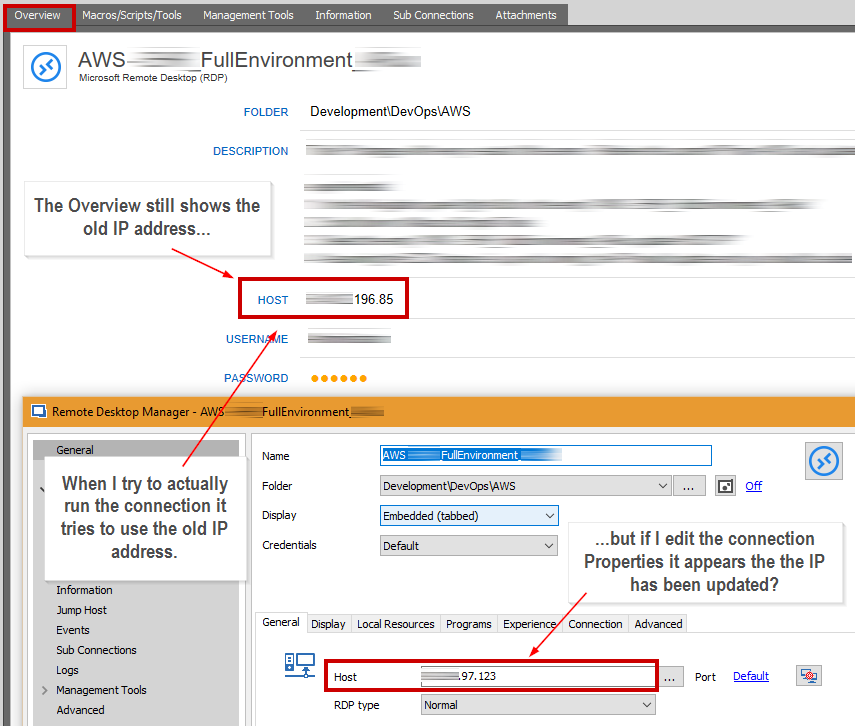
The script has been run, the Overview tab still shows the old IP. If I edit the properties the Host there has been updated, however, if I try to run the connection it still tries to use the old IP address. It seems that something along the line isn't getting fully refreshed.
We will also be closed on Tuesday, Sept. 3rd so I hope you can enjoy the extra day off.
:)
Using PowerShell to update RDP Session Host IP
I tried running the script from PowerShell ISE 64 and I also tried creating a Macro/Script/Tool entry of Script Type PowerShell (Local). The entry is saved with the Embedded Script option.
I've executed the Script by hand from the RDM client and also tried it set as a Before Connect Event on the RDP Session. The results in each case were similar. The script appears to complete without error. But if I execute the RDP Session it tries to connect to the old IP address. If I then manually refresh the RDM desktop... the IP is updated and the RDP session will work as expected.
I think I just got it to work.
If I right-click on my RDP session entry in the Navigation panel, scroll down to Macros.Scripts/Tools and select my PowerShell script from there, the script executes and I see the RDM interface update. The HOST IP address is updated with no further action required!
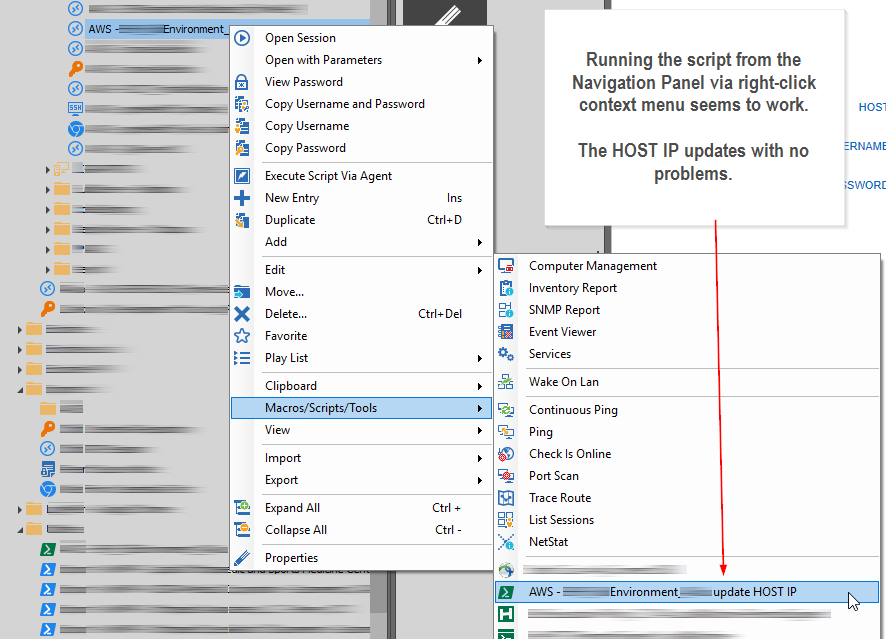
If I execute the script from the Macros/Scripts/Tools tab in the main window, the session doesn't update properly.
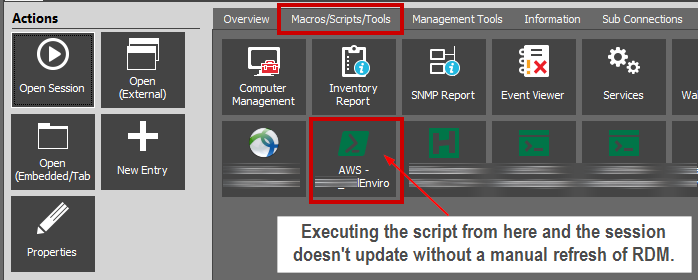
If the script executes as a Before Connect Event on the RDP Session the session doesn't update properly.
Using PowerShell to update RDP Session Host IP
Hi Erica,
We're running Remote Desktop Manager Enterprise Edition version 13.6.7.0 64-bit using a Devolutions Cloud online database.
Jamie