Create credential entry using the powershell module

Hi,
I've been fiddling some time now with the PowerShell module and basically what I am trying to do is create a new RDMSession of type credential by providing simply a username and a password and perhaps a description.
Unfortunately, I cannot find anything about this in the documentation on the PowerShell scripts, so I've come to the forums for help.
Currently, I am simply stuck because the module feels very unintuitive:
After using:
New-RDMSession -name testing -type Credential -Group test
I receive a whole list of properties that I'm unsure about which need setting and exactly how these can be set, the credential does not show up in RDM after adding it using the above statement, probably because the information provided in the creation is insufficient, however I would expect some type of parameters for each required property to show up in the ISE or PowerShell window.
I understand for existing credential entries that I've manually created the requirement might be a System.Security.SecureString, but I'm not even getting to this point.
The reason I'm attempting the above is that at some point I might want to use PowerShell to generate random passwords and put them in appropriate folders.
Can someone point me in the right direction, also confirming this can or can't be done?
Any help would be greatly appreciated.
All Comments (8)
Hello,
Yes you can use RDM PowerShell cmdlets to generate random passwords.
The reason why you get a list of all properties of the PSConnection object is because it is not assigned in a variable. So, by default, PowerShell will display all properties of that object. You can find more information about variables in the following Microsoft online documentation https://technet.microsoft.com/en-us/library/2007.03.powershell.aspx
So, you need to first create the object and assign it in a variable like the following line.$mysession = New-RDMSession -Name TestCredential -Type Credential -Group TestFolder -SetSession
But before creating the Credential entry in folder TestFolder, you must create it first. The SetSession switch will save the new entry in your data source.$mysession = New-RDMSession -Name TestFolder -Type Folder -SetSession
Finally, to set the username and password in the new Credential entry, you can use the Set-RDMSessionUsername and Set-RDMSessionPasswords RDM cmdlets. For the password, you need to convert it in a SecureString format.Set-RDMSessionUsername -Session $mysession -UserName MyUserName -Refresh$mypwd = ConvertTo-SecureString "MyPassword" -Force -AsPlainTextSet-RDMSessionPassword -Session $mysession -Password $mypwd -Refresh
I hope these explanations will give you enough information to achieve your goal.
Best regards,
Érica Poirier
Érica,
I hope you're well and staying safe during these trying times.
I'm attempting to identify all of the Credential Entry sessions in my database, then I want to set their permissions to 'Everyone'. Using the UI it's this setting: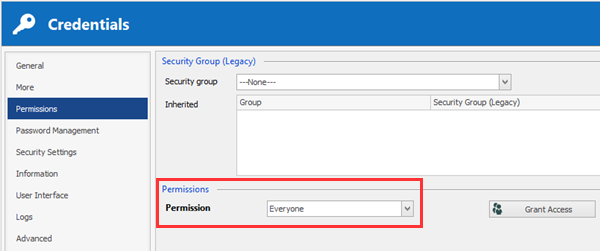
I started with some of the examples in the above post. I wanted to create a 'Test Credential' but I cannot seem to set the Username or the Password on the newly created credential?
$mysession = New-RDMSession -Name TestCredential -Type Credential -Group Utilities -SetSession

Set-RDMSessionUsername -Session $mysession -UserName TESTUSER -Refresh

$mypassword = ConvertTo-SecureString "TESTPASSWORD" -Force -AsPlainText

Set-RDMSessionPassword -Session $mysession -Password $mypassword -Refresh
The New-RDMSession named 'TestCredential' appears in Remote Desktop Manager, however setting the user and pass both fail.
C:\> Set-RDMSessionUsername -Session $mysession -UserName TESTUSER -Refresh
Set-RDMSessionUsername : Parameter set cannot be resolved using the specified named parameters.
At line:1 char:1
+ Set-RDMSessionUsername -Session $mysession -UserName TESTUSER -Refres ...
+ ~~~~~~~~~~~~~~~~~~~~~~~~~~~~~~~~~~~~~~~~~~~~~~~~~~~~~~~~~~~~~~~~~~~~~
    + CategoryInfo          : InvalidArgument: (:) [Set-RDMSessionUsername], ParameterBindingException
    + FullyQualifiedErrorId : AmbiguousParameterSet,RemoteDesktopManager.PowerShellModule.SetRDMSessionUsernameCommand
and
C:\> $mypassword = ConvertTo-SecureString "TESTPASSWORD" -Force -AsPlainText
Set-RDMSessionPassword -Session $mysession -Password $mypassword -Refresh
Set-RDMSessionPassword : Parameter set cannot be resolved using the specified named parameters.
At line:2 char:1
+ Set-RDMSessionPassword -Session $mysession -Password $mypassword -Ref ...
+ ~~~~~~~~~~~~~~~~~~~~~~~~~~~~~~~~~~~~~~~~~~~~~~~~~~~~~~~~~~~~~~~~~~~~~
    + CategoryInfo          : InvalidArgument: (:) [Set-RDMSessionPassword], ParameterBindingException
    + FullyQualifiedErrorId : AmbiguousParameterSet,RemoteDesktopManager.PowerShellModule.SetRDMSessionPasswordCommand
I'm using Remote Desktop Manager Enterprise Edition Version 2020.1.19.0 64-bit.
If we can get the setting of the User / Pass worked out, how would I go through ALL the credential entries and set the Permissions to Everyone?
Take care.
Jamie
Remote Desktop Manager - Permissions - Everyone.png
Finally hammered out a working example of just creating a new Credential Entry and populating the Username and Password values. It's not quite as straightforward as made out above... and even the interactive PowerShell help isn't all that helpful... here's what I ended up doing:
$mysession = New-RDMSession -Name "TESTCREDENTIAL" -Type Credential -Group "Utilities" -SetSession
$ID = [GUID]($mysession.ID)

Update-RDMUI

Set-RDMSessionUsername -ID $ID -Refresh -UserName "TESTUSER"

$mySecureString = ConvertTo-SecureString "PASSWORD" -Force -AsPlainText
Set-RDMSessionPassword -ID $ID -Refresh -Password $mySecureString
Now how the heck to I change the 'Permissions' on the session so that it's equal to the 'Everyone' setting from the UI?
Everyone, stay safe.
Jamie
Hello,
Thank you for your feedback and glad that you have found how to create a credential entry.
About searching all credential entries in your data source, you can get them using the following command.
$sessions = Get-RDMSession | where {$_.ConnectionType -eq "Credential"}
For setting permissions on entries to Everyone, you can set the RoleOverride property to Everyone like the following.
$mySession.Security.RoleOverride = "Everyone"
Set-RDMSession $mySession -Refresh
Best regards,
Érica Poirier
Érica,
If I add the Security.ViewOverride lines at the end of my script, my new Credential no longer has a Username or Password saved. I've tried placing it earlier in the script and the User and Pass are set but the 'Everyone' value just isn't set in Permissions. It still says 'Inherited'. Where in the above working script would you add those two lines?
Jamie
Perhaps I could better explain my goal: I need to give my users access to read the Username and Password stored in the Credential Entry when they need it.
Would that be better accomplished by settings like this? (as opposed to setting the Permissions drop down to Everyone)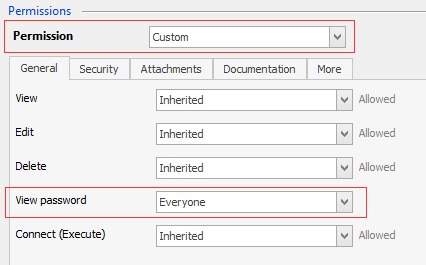 How would I obtain these settings via script?
I want to go through the existing Credential Entries in my database and update them so non-admin users can get access to the user and pass in the credential entry.
Thanks.
Jamie
Remote Desktop Manager - Permissions - Custom.png
Hello,
Oh I see that I made a mistake in my previous post. It's the RoleOverride property that should be set to Everyone for what you have asked previously. I have updated my post!
It's indeed a better solution to set the View Password permission to Everyone than setting the Everyone permission on all permissions.
Here is what you should do in PowerShell to set the View Password permission to Everyone. As well, you will have to set the View permission to Everyone.
$mySession.RoleOverride = "Custom"
$mySession.Security.ViewOverride = "Everyone"

# Create an empty array
$innerPermissions = @()

# Create a ConnectionPermission object
$permission = New-Object Devolutions.RemoteDesktopManager.Business.ConnectionPermission
$permission.Right = "ViewPassword"
$permission.Override = "Everyone"

# Add the ConectionPermission object in the array
$innerPermissions += $permission

# Set the Permissions property with the array of ConnectionPermissions
$mySession.Security.Permissions = $innerPermissions

Set-RDMSession $mySession -Refresh
Let me know if that helps to achieve your goal!
I will also move this thread in the PowerShell Repository forum section.
Best regards,
Érica Poirier
Érica,
Thanks so much for the help. I had just located this example in the repository when you replied.
https://forum.devolutions.net/topics/28473/use-powershell-to-set-custom-roles-on-view-and-edit
That got me the result I was looking for and your reply here provides a welcome, concise example.
Take care and stay safe.
Jamie