
MKrupa
Multiple Authentications per Day
Hello Tommy,
I haven't looked into those activity logs, but as far as I can see, there are no authentication logs listed. The only place where I'm able to see these logins is in the DVLS login attempts.
Yesterday, I had to reauthenticate three times. I would say it mostly happens when the RDM client has been idle, and it occurs on all clients, although not with the same frequency.
The DVLS is accessing Azure directly.
Multiple Authentications per Day
Hello Forum,
we use RDM with a self-hosted Devolutions Server as our data source and authenticate with Microsoft Azure. The validity period of our token is set to 10 hours in the Devolutions Server, but since a few updates, RDM has been requiring multiple authentications per day. The 2FA window pops up randomly and requests re-authentication. Sometimes, especially in the built-in browser, the new window doesn’t respond, so we have to close RDM via Task Manager. I can’t find any logs about this in RDM, nor any useful information in the Devolutions Server.
We would really appreciate your help.
RDM: 2026.2.12.0
DVLS: 2026.2.9.0
Marco
Daily multifactor authentication
Hello,
Thank you for reaching out!
My name is William and I'm here to assist you in any way I can.
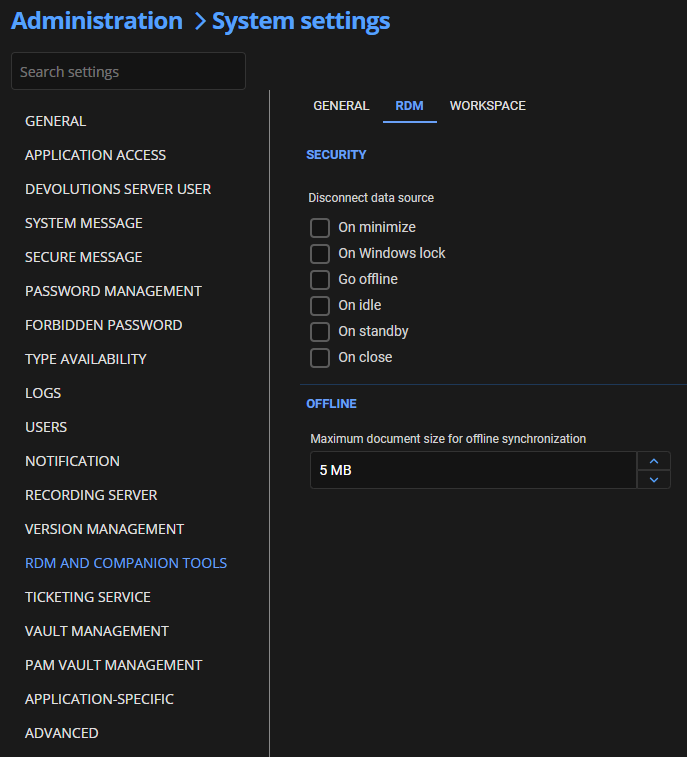
I would recommend configuring the disconnection of RDM on close or on Windows lock. You can find this setting under Administration > System Settings > RDM and Companion tools > RDM.
This will force RDM to disconnect from DVLS and force the user to reauthenticate.
Best regards,
@William Alphonso
Hi William,
thank you for your reply. Is this the only way to implement this? How long is the default token lifetime in RDM? Wouldn't it be great if RDM would use the already implemented setting with the token expiration as well?
Daily multifactor authentication
Hello all,
unfortunately I am not sure if this is the right topic here in the Devolutions Server, as it also concerns the Remote Desktop Manager.
I would like to have the data source (Devolutions Server) verified daily via 2FA. I have set the token lifetime to 10 hours, as a working day is allowed to last a maximum of 10 hours. The whole thing seems to work fine for me, but not for my colleague. He does not have to re-authenticate every day. The setting “Automatic logout of inactive...” is set to 0. I have already read in other posts that this token lifetime setting only works for logins to the web interface and the workspace add-on. I log in to Workspace Addon and RDM every day, but my colleague only logs in to RDM. Under the Connected Users in the Reports section, I can see that my colleague has a Created date of 18.07.25 and I have a Created date of 23.07.25, which confirms the situation.
I would ask you to solve this as we have many passwords stored in RDM and it is an important security feature for us to authenticate daily.
Thank You
Marco
Unable to connect to RDMDataSource via Application Identity
Hi Maxime,
sorry for the late response. I had actually already found a workaround on Friday and thought I had posted it in the forum. Seems like I got distracted.
In my message from last week I would have written something about the RDMOverride, but this is no longer necessary after version 2025.2.2. In addition, I had to set up the Devolutions Server again today and can therefore only test with a clean system. I can therefore tell you that it now works for me with the following code:
$dsname = "DVLS.PowerShell"
$ds = Get-RDMDataSource -Name $dsname

if ([string]::IsNullOrEmpty($ds))
{
  $dsname = "DVLS-PowerShell"
  $dsurl = "https://ServerURL"
  $appkey = "appkey"
  $appsecret = "appsecret"

  $ds = New-RDMDataSource -DVLS -Name $dsname -Server $dsurl -ScriptingTenantID $appkey -ScriptingApplicationPassword $appsecret -SetDatasource -WarningAction SilentlyContinue
  Set-RDMDataSource $ds
}

Set-RDMCurrentDataSource $ds

$exportFileName = "C:\Path.csv"

Set-RDMCurrentRepository [SSID]
Update-RDMUI
$RDMsessions = Get-RDMSession | Where-Object {$_.ConnectionType -ne "Group"}  | Select-Object -Property Name, ID, ConnectionType, Group, HostFull

foreach ($session in $RDMsessions){
    $session | Add-Member -MemberType NoteProperty "Username" -Value (Get-RDMSessionUserName -ID $session.id)
    $session | Add-Member -MemberType NoteProperty "Password" -Value (get-RDMSessionPassword -ID $session.id -AsPlainText)
    $session | Export-Csv -Path $exportFileName -Append -NoTypeInformation
}

icacls $exportFileName /inheritance:r > $null
icacls $exportFileName /remove:g *S-1-1-0 > $null
icacls $exportFileName /remove:g "Benutzer" > $null

icacls $exportFileName /grant:r "Administratoren:(F)" > $nullUnable to connect to RDMDataSource via Application Identity
Hello Marco,
To create an override configuration, run the following commands once in PowerShell:
$override = Get-RDMPowerShellOverride
$override.OptionFilePath = "PathToCfg" # e.g., C:\my\path\override\RemoteDesktopManager.cfg
Set-RDMPowerShellOverride
You only need to run this once to set the override. After running it, simply restart PowerShell.
The .cfg file will be created on first execution. Once it's in place, you can create the data source as described in the documentation I linked in my previous reply.
Let me know if this resolves the issue. If not, I’ll be happy to investigate further.
Best regards,
Maxime
@Maxime Bernier
Still: Invalid username or password, please verify your credentials.
Unable to connect to RDMDataSource via Application Identity
@Maxime Bernier
The browser window that appeared after calling up the code is no longer there. Now, however, the following is reported after Get and Set RDMDataSource: Invalid username or password, please check your credentials. I have created a new application identity and checked everything twice, in my opinion everything should be correct here. Also the settings under Administration -> System Settings -> Application Access (if this is for the application identities at all) are unchanged and everything is checked.
Unable to connect to RDMDataSource via Application Identity
Hello Marco,
Regarding the first issue: it looks like you're creating the data source, but not actually connecting to it. You need to explicitly set it using:
Set-RDMCurrentDataSource -DataSource $ds
Also note that your script currently creates a new data source on each run. For reference, please see the following documentation that shows how to properly connect using Remote Desktop Manager cmdlets: https://docs.devolutions.net/powershell/dvls-powershell/powershell-connectivity/#method-1-using-remote-desktop-manager-cmdlets
As for the web prompt: it's likely the default data source being loaded automatically. The New-RDMDataSource call triggers that behavior. I’ll look into changing this so that no data source is loaded by default when creating a new one. In the meantime, you can either change the default data source, or use an override configuration (portable mode). You can find more details here: https://docs.devolutions.net/powershell/rdm-powershell/rdm-powershell-core-module/#use-an-override-configuration-portable
Let me know if you need more help.
Best regards,
Maxime
Hello @Maxime Bernier,
could you give me an example adapted to my use case? Unfortunately, I'm not really sure how to use the override configuration or how to include it in my code.
Unable to connect to RDMDataSource via Application Identity
Hi everyone,
I am currently working on using PowerShell to automatically export all passwords stored in my vault to a .csv file. This is to be done via a scheduled task on my DVLS server.
The server has the latest versions of DVLS Console, Server, RDM and Devolutions.PowerShell installed - so everything is up to date.
My aim is to carry out authentication via an appkey and an appsecret, as no user interaction is planned. However, executing the following code opens a browser window for interactive login - which is not desired in my scenario.
The application identity used has the required access rights both via DVLS groups and directly to the vault. If I log in via the open browser window, access works for a short time, but only as long as the Powershell session is active. The next time I run the script, the login window appears again.
Code:
Import-Module Devolutions.PowerShell
$dsname = "dvls"
$dsurl = "https://[DVLS-URL]"
$appkey = "XXXXXX"
$appsecret = "XXXXXXX"
$ds = New-RDMDataSource -DVLS -Name $dsname -Server $dsurl -ScriptingTenantID $appkey -ScriptingApplicationPassword $appsecret -SetDatasource -WarningAction SilentlyContinue
Set-RDMDataSource $ds
#Location of the CSV file you want to export the RDM sessions to
$exportFileName = "C:\Temp\EXPORTS\RDMCredentialsData_$(get-date -f yyyy-MM-dd).csv"
Set-RDMCurrentRepository [Vault-ID]
Update-RDMUI
#Get all the sessions in the current vault
$RDMsessions = Get-RDMSession | Where-Object {$_.ConnectionType -ne "Group"} | Select-Object -Property Name, ID, ConnectionType, Group, HostFull
#Iterate in every session
foreach ($session in $RDMsessions){
#Add the username field
$session | Add-Member -MemberType NoteProperty "Username" -Value (Get-RDMSessionUserName -ID $session.id)
#Add the password field as clear text to the session
$session | Add-Member -MemberType NoteProperty "Password" -Value (get-RDMSessionPassword -ID $session.id -AsPlainText)
#Export the session to a CSV file to the path configured earlier.
$session | Export-Csv -Path $exportFileName -Append -NoTypeInformation
}
Thank you in advance for any help.
Marco