
Maciej
Copy Username and Password" button not working after update to 2026.3.5.0
@Maciej
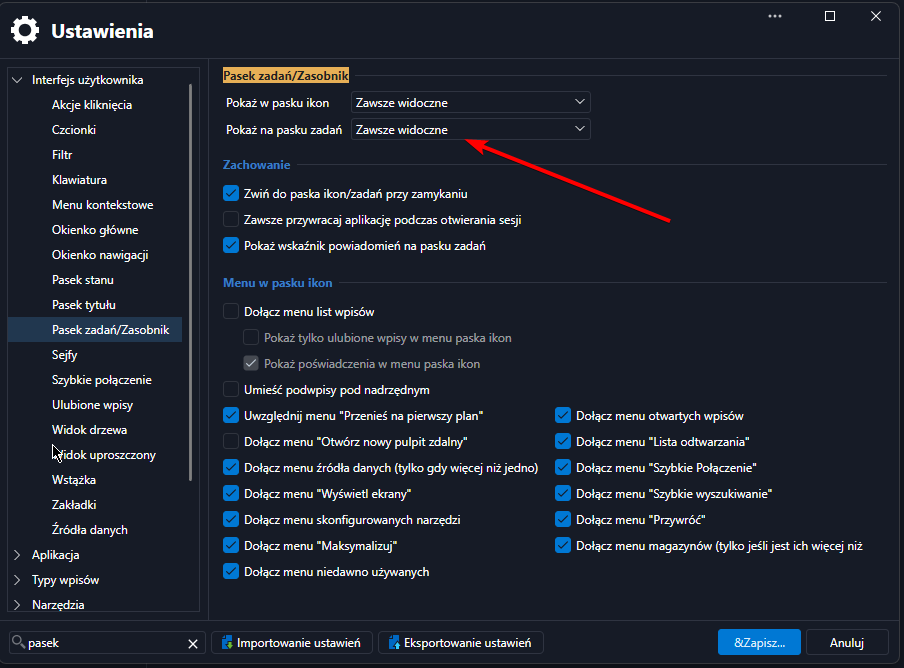
Thank you for sticking with this, and for all the testing you did along the way. Your last finding, that it only breaks with “Show in taskbar” set to minimize to the tray, was the key. With it we reproduced the problem here and found the root cause.
Each time RDM comes back from the tray, it ends up handling the clipboard request twice. The username is pasted, and the password is skipped right away. That’s also why it worked again after a reboot, until the next time RDM was minimized to the tray, and why the RDP sessions showed the same behavior.
We’re working on a fix now. Until it ships, you can avoid the problem by setting “Show in taskbar” to “Always visible” and restarting RDM.
Thanks again for your patience and the excellent repro steps.
@Stéfane Lavergne
In my day-to-day work, I deal with these kinds of software issues, so I have to be quite persistent.
Usually, the main obstacle is time...
You're welcome :)
Copy Username and Password" button not working after update to 2026.3.5.0
@Maciej I’ve started looking at the information in your two other posts. I’m juggling six things at the same time, so it might take a little while. I’ll try to get back to you before the end of the day, as I don’t work on Fridays.
One quick thing I can already say: yes, RDP will be an issue. The clipboard has to be handed off to the other machine through the RDP protocol, and the paste then happens on that machine without us being notified. Could you try the “Clipboard - Next value” shortcut (Ctrl+Alt+Shift+V by default; if you changed it earlier, use your own) to see whether you can then paste the password in the RDP session too? If that doesn’t work, for now your only option with RDP is to copy each value individually until we figure out whether we can get around this limitation.
@Stéfane Lavergne
No problem; I had some free time today, so I decided to look into the issue. I’ll just wait and see how things develop.
Regarding RDP, I’ve noticed that it seems to depend on the protocol version and, interestingly, on the specific application into which the username and password are being pasted.
For example, I tried pasting into Notepad during an RDP remote session, and it didn’t work. However, a moment ago, I successfully pasted the credentials into a prompt for an SMB share—surprisingly, it worked just fine. It seems, then, that there really is no way to intercept this.
As for the keyboard shortcut used to cycle to the next clipboard entry, I haven’t been able to get it to work properly at all... I mentioned this earlier—changing the shortcuts, setting them globally, etc.—nothing helps. :)
Copy Username and Password" button not working after update to 2026.3.5.0
Of course it`s working on "local app" using notepad++ - so simple.
But copy username & passsword not working good in embeded rdp session.... only repeatly paste username - maybe similar problem...
Copy Username and Password" button not working after update to 2026.3.5.0
New information on the subject...
I have completely ruled out an issue with the focus of the login field (though that doesn't necessarily mean there isn't a problem there—please pass this on to the dev team anyway).
The issue occurs when the "minimize to tray" option is enabled; I disabled it, and now everything works correctly.
Attached are two videos demonstrating the behavior with "minimize to tray" enabled and disabled.
Interesting :)
Copy Username and Password" button not working after update to 2026.3.5.0
@Stéfane Lavergne
Ohhh one more hint:
"Problem with focus on prompt password appeared on new GUI after migration RDM to new look".
I am not sure whether having multiple monitors has any impact on the issue the user is experiencing with copying the username and password.
Copy Username and Password" button not working after update to 2026.3.5.0
Hi @Stéfane Lavergne
This issue keeps bothering me, as I am the type of person who persistently pursues a goal :)
Today, after extensive testing, I managed to consistently reproduce the problem.
I created a dedicated vault for testing purposes.
Attached is a video demonstrating the issue, along with a description of the steps taken.
I use two monitors, but in "duplicate mode"—meaning the laptop is "closed," and I work exclusively on the large external monitor.
I am using version RDM 2026.3.16.0 (64-bit).
I would appreciate your support.
Best Regards
Copy Username and Password" button not working after update to 2026.3.5.0
Hi Maciej,
Thanks for the logs.
It shows something we rarely see. Usually when the paste doesn’t work, another application (a clipboard manager, a remote session syncing the clipboard, a security tool) reads the value before you get to paste, and the log shows it. In your log it is the opposite: nothing asked for the clipboard at all. RDM put the values on the clipboard each time (four copies in your log), and your screenshot of the notification confirms that part worked too. But every paste request should add a line starting with “Clipboard - Render”, and there are none. The “Clipboard - Clear” at the end also tells me the last copy was still unread when the clear delay ran out.
Clipboard - Render - Requester : 2692046 - Format : 13
Clipboard - Requester : 2692046 - Process Id : 28112 - Name : notepad++
Clipboard - Set - Format : 13
Clipboard - Render - Allowlisted - Requester : 2692046
Could you try three more things?
Do the same steps but in Notepad++ use then menu Edit > PasteThis takes the CTRL+V key combo out of the loop to isolate the issue
Run the script below in a normal (non-administrator) PowerShell window and post its output together with the Clipboard diagnostic log (Help > Clipboard diagnostic > Debug). It checks whether another application has taken Ctrl+V as a global shortcut, shows which application owns the clipboard right after the copy, and reads the clipboard once from PowerShell. It never displays the value.
Save as Check-Clipboard.ps1 and run with:
powershell -ExecutionPolicy Bypass -File .\Check-Clipboard.ps1
Output should look something like:
PS C:\Users\slavergne\Downloads> powershell -ExecutionPolicy Bypass -File .\Check-Clipboard.ps1
1. Global hotkeys on the paste shortcuts
Ctrl+V : free
Shift+Insert : free
Ctrl+Insert : free
2. In Remote Desktop Manager, open Help > Clipboard diagnostic > Debug,
then click "Copy username and password" on an entry.
Press Enter here once that is done:
Clipboard owner : RemoteDesktopManager (PID 78360)
Clipboard held open by: (none)
3. Reading the clipboard from PowerShell (this uses up the first value, the username)
Returned 6 characters (value not shown).
PS C:\Users\slavergne\Downloads>
While we investigate further and a a last resort, reboot the system and run the same test again.At this point, nothing makes sense anymore, so this might actually work.
Best regards,
@Stéfane Lavergne
Could you try three more things?
Yes. Thank you for quick response :)
TEST 1 - before reboot
====================
Do the same steps but in Notepad++ use then menu Edit > Paste
This takes the CTRL+V key combo out of the loop to isolate the issue
Steps:
1. Right Click mouse on entry > from context menu click "copy username and password"
2. On opened Notepad++ > Edit > Paste - username pasted ok
3. On opened Notepad++ > Edit > Paste - no option Paste - clipboard empty
Test 2 - before reboot
====================
Run the script below in a normal (non-administrator) PowerShell window and post its output together with the Clipboard diagnostic log (Help > Clipboard diagnostic > Debug). It checks whether another application has taken Ctrl+V as a global shortcut, shows which application owns the clipboard right after the copy, and reads the clipboard once from PowerShell. It never displays the value.
Save as Check-Clipboard.ps1 and run with:
powershell -ExecutionPolicy Bypass -File .\Check-Clipboard.ps1
Output should look something like:
RESULTS from PS before reboot:
====================
PS D:\!\RDM> powershell -ExecutionPolicy Bypass -File .\Check-Clipboard.ps1
1. Global hotkeys on the paste shortcuts
Ctrl+V : free
Shift+Insert : free
Ctrl+Insert : free
2. In Remote Desktop Manager, open Help > Clipboard diagnostic > Debug,
then click "Copy username and password" on an entry.
Press Enter here once that is done:
Clipboard owner : RemoteDesktopManager (PID 21940)
Clipboard held open by: (none)
3. Reading the clipboard from PowerShell (this uses up the first value, the username)
Returned 8 characters (value not shown).
PS D:\!\RDM>
RESULTS for Help > Clipboard diagnostic > Debug - before rebbot
====================
Clipboard - Copy
Clipboard - Paste Once - Count : 2
Clipboard - Empty
Clipboard - Promise - Format : 49964
Clipboard - Promise - Format : 49915
Clipboard - Promise - Format : 49935
Clipboard - Promise - Format : 49934
Clipboard - Promise - Format : 49951
Clipboard - Promise - Format : 13
Clipboard - Render - Requester : 3475740 - Format : 13
Clipboard - Requester : 3475740 - Process Id : 31104 - Name : powershell
Clipboard - Set - Format : 13
Clipboard - Render - Allowlisted - Requester : 3475740
Clipboard - Render - Requester : 3475740 - Format : 13
Clipboard - Render - Allow listed - Requester : 3475740
Clipboard - Requester : 3475740 - Process Id : 31104 - Name : powershell
Clipboard - Set - Format : 13
Clipboard - Render - Requester : 3475740 - Format : 13
Clipboard - Render - Allow listed - Requester : 3475740
Clipboard - Requester : 3475740 - Process Id : 31104 - Name : powershell
Clipboard - Set - Format : 13
Clipboard - Render - Requester : 3475740 - Format : 13
Clipboard - Render - Allow listed - Requester : 3475740
Clipboard - Requester : 3475740 - Process Id : 31104 - Name : powershell
Clipboard - Set - Format : 13
Clipboard - Render - Requester : 3475740 - Format : 13
Clipboard - Render - Allow listed - Requester : 3475740
Clipboard - Requester : 3475740 - Process Id : 31104 - Name : powershell
Clipboard - Set - Format : 13
Clipboard - Render - Requester : 3475740 - Format : 13
Clipboard - Render - Allow listed - Requester : 3475740
Clipboard - Requester : 3475740 - Process Id : 31104 - Name : powershell
Clipboard - Set - Format : 13
Clipboard - Render - Requester : 3475740 - Format : 13
Clipboard - Render - Allow listed - Requester : 3475740
Clipboard - Requester : 3475740 - Process Id : 31104 - Name : powershell
Clipboard - Set - Format : 13
Clipboard - Render - Requester : 3475740 - Format : 13
Clipboard - Render - Allow listed - Requester : 3475740
Clipboard - Requester : 3475740 - Process Id : 31104 - Name : powershell
Clipboard - Set - Format : 13
Clipboard - Render - Requester : 3475740 - Format : 13
Clipboard - Render - Allow listed - Requester : 3475740
Clipboard - Requester : 3475740 - Process Id : 31104 - Name : powershell
Clipboard - Set - Format : 13
Clipboard - Render - Requester : 3475740 - Format : 13
Clipboard - Render - Allow listed - Requester : 3475740
Clipboard - Requester : 3475740 - Process Id : 31104 - Name : powershell
Clipboard - Set - Format : 13
Clipboard - Render - Requester : 3475740 - Format : 13
Clipboard - Render - Allow listed - Requester : 3475740
Clipboard - Requester : 3475740 - Process Id : 31104 - Name : powershell
Clipboard - Set - Format : 13
Clipboard - Render - Requester : 3475740 - Format : 13
Clipboard - Render - Allow listed - Requester : 3475740
Clipboard - Requester : 3475740 - Process Id : 31104 - Name : powershell
Clipboard - Set - Format : 13
Clipboard - Render - Requester : 3475740 - Format : 13
Clipboard - Render - Allow listed - Requester : 3475740
Clipboard - Requester : 3475740 - Process Id : 31104 - Name : powershell
Clipboard - Set - Format : 13
Clipboard - Render - Requester : 3475740 - Format : 13
Clipboard - Render - Allow listed - Requester : 3475740
Clipboard - Requester : 3475740 - Process Id : 31104 - Name : powershell
Clipboard - Set - Format : 13
Clipboard - Render - Requester : 3475740 - Format : 13
Clipboard - Render - Allow listed - Requester : 3475740
Clipboard - Requester : 3475740 - Process Id : 31104 - Name : powershell
Clipboard - Set - Format : 13
Clipboard - Render - Requester : 3475740 - Format : 13
Clipboard - Render - Allow listed - Requester : 3475740
Clipboard - Requester : 3475740 - Process Id : 31104 - Name : powershell
Clipboard - Set - Format : 13
Clipboard - Render - Requester : 3475740 - Format : 13
Clipboard - Render - Allow listed - Requester : 3475740
Clipboard - Requester : 3475740 - Process Id : 31104 - Name : powershell
Clipboard - Set - Format : 13
Clipboard - Render - Requester : 3475740 - Format : 13
Clipboard - Render - Allow listed - Requester : 3475740
Clipboard - Requester : 3475740 - Process Id : 31104 - Name : powershell
Clipboard - Set - Format : 13
Clipboard - Next Clipboard Data
Clipboard - Empty
Clipboard - Promise - Format : 49964
Clipboard - Promise - Format : 49915
Clipboard - Promise - Format : 49935
Clipboard - Promise - Format : 49934
Clipboard - Promise - Format : 49951
Clipboard - Promise - Format : 13
Clipboard - Done!
Clipboard - Empty
TEST 1 - after reboot
====================
Do the same steps but in Notepad++ use then menu Edit > Paste
This takes the CTRL+V key combo out of the loop to isolate the issue
Steps:
1. Right Click mouse on entry > from context menu click "copy username and password"
2. On opened Notepad++ > Edit > Paste - username pasted ok
3. On opened Notepad++ > Edit > Paste - password pasted ok
Test 2 - after reboot
====================
Run the script below in a normal (non-administrator) PowerShell window and post its output together with the Clipboard diagnostic log (Help > Clipboard diagnostic > Debug). It checks whether another application has taken Ctrl+V as a global shortcut, shows which application owns the clipboard right after the copy, and reads the clipboard once from PowerShell. It never displays the value.
Save as Check-Clipboard.ps1 and run with:
powershell -ExecutionPolicy Bypass -File .\Check-Clipboard.ps1
Output should look something like:
RESULTS from PS after reboot:
====================
PS D:\!\RDM> powershell -ExecutionPolicy Bypass -File .\Check-Clipboard.ps1
1. Global hotkeys on the paste shortcuts
Ctrl+V : free
Shift+Insert : free
Ctrl+Insert : free
2. In Remote Desktop Manager, open Help > Clipboard diagnostic > Debug,
then click "Copy username and password" on an entry.
Press Enter here once that is done:
Clipboard owner : RemoteDesktopManager (PID 21660)
Clipboard held open by: (none)
3. Reading the clipboard from PowerShell (this uses up the first value, the username)
Returned 8 characters (value not shown).
PS D:\!\RDM>
RESULTS for Help > Clipboard diagnostic > Debug - after rebbot
====================
Clipboard - Copy
Clipboard - Paste Once - Count : 2
Clipboard - Empty
Clipboard - Promise - Format : 49892
Clipboard - Promise - Format : 49891
Clipboard - Promise - Format : 49893
Clipboard - Promise - Format : 49895
Clipboard - Promise - Format : 49894
Clipboard - Promise - Format : 13
Clipboard - Render - Requester : 394814 - Format : 13
Clipboard - Requester : 394814 - Process Id : 22580 - Name : powershell
Clipboard - Set - Format : 13
Clipboard - Render - Allowlisted - Requester : 394814
Clipboard - Next Clipboard Data
Clipboard - Empty
Clipboard - Promise - Format : 49892
Clipboard - Promise - Format : 49891
Clipboard - Promise - Format : 49893
Clipboard - Promise - Format : 49895
Clipboard - Promise - Format : 49894
Clipboard - Promise - Format : 13
===============================================
==== AND ITS WORKING AFTER REBOOT! But... ==
===============================================
I have no idea (I’ve tested various scenarios) why the "copy username and password" option stops working after a while.
An interesting issue occurs during an RDP session (where only the clipboard is enabled among the local RDP resources): when I select "copy username and password" and attempt to paste it into an "embedded RDP session," it repeatedly pastes only the username (the clipboard doesn't switch to the password, nor is it cleared), and there is no option to paste the password.
The behavior when using "copy username and password" is inconsistent and unstable:
- Pasting the password into an RDP session never works—it either pastes only the username (repeatedly) or nothing at all (the clipboard appears empty).
- At one point, after closing an RDP session and copying the credentials again, I found that pasting into Notepad++ also resulted in only the username being pasted (repeatedly)—just as it did within the RDP session—but I have been unable to reproduce this or achieve any consistent behavior.
I tested everything using version 2026.3.16.0 (64-bit). I am aware that a newer version exists, but I’m not sure if I should update at this moment.
Copy Username and Password" button not working after update to 2026.3.5.0
@Stéfane Lavergne
Copy username and password
Paste to notepad++ not working.- only paste username...
Clipboard - Copy
Clipboard - Paste Once - Count : 2
Clipboard - Empty
Clipboard - Promise - Format : 49964
Clipboard - Promise - Format : 49915
Clipboard - Promise - Format : 49935
Clipboard - Promise - Format : 49934
Clipboard - Promise - Format : 49951
Clipboard - Promise - Format : 13
Clipboard - CopyMethod : PasteOnce
Clipboard - Paste Once - Count : 1
Clipboard - Empty
Clipboard - Promise - Format : 49964
Clipboard - Promise - Format : 49915
Clipboard - Promise - Format : 49935
Clipboard - Promise - Format : 49934
Clipboard - Promise - Format : 49951
Clipboard - Promise - Format : 13
Clipboard - CopyMethod : PasteOnce
Clipboard - Paste Once - Count : 1
Clipboard - Empty
Clipboard - Promise - Format : 49964
Clipboard - Promise - Format : 49915
Clipboard - Promise - Format : 49935
Clipboard - Promise - Format : 49934
Clipboard - Promise - Format : 49951
Clipboard - Promise - Format : 13
Clipboard - Copy
Clipboard - Paste Once - Count : 2
Clipboard - Empty
Clipboard - Promise - Format : 49964
Clipboard - Promise - Format : 49915
Clipboard - Promise - Format : 49935
Clipboard - Promise - Format : 49934
Clipboard - Promise - Format : 49951
Clipboard - Promise - Format : 13
Clipboard - Clear
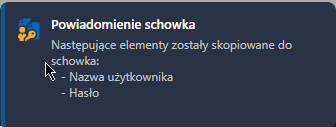
Maciej
Copy Username and Password" button not working after update to 2026.3.5.0
Sorry nothing worked.
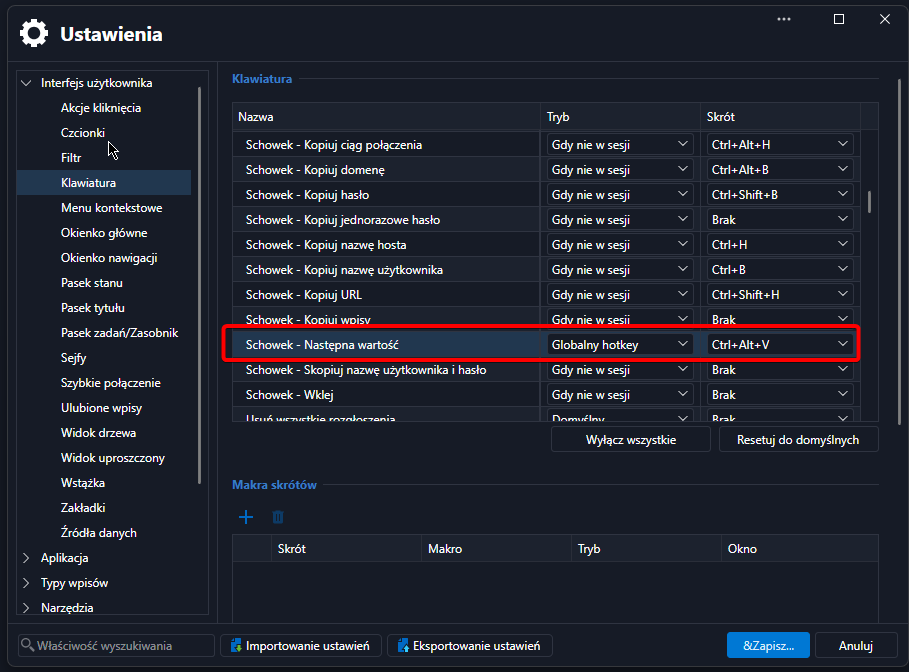
I changed the shorcut to another one, "use global" and "no in session" > restart app after change... no work :(
I pasted to the RDM,. RDP, notepad++ - no working.
Copy Username and Password" button not working after update to 2026.3.5.0
I have this but its not working :(
Copy Username and Password" button not working after update to 2026.3.5.0
Hi,
Option CTRL+ALT+V is good for my but its not working.- not happened after press this shortcut
"Note: CTRL+ALT+V is configurable if you want to change it."
Where is this configuration?
Thanks
Copy Username and Password" button not working after update to 2026.3.5.0
Hi,
I think I’ve managed to identify a reproducible pattern for this bug.
When logging into an RDP session (a fresh login, not resuming an existing connection), using the "copy username and password" feature results in only the username being copied; subsequent paste attempts continue to paste the username rather than the password.
However, if I perform the "copy username and password" action a second time, it then correctly pastes the username followed by the password.
If I disconnect from an RDP session (using "disconnect" rather than "log off") and then reconnect, the feature works without any issues.
I have observed this same behavior both when using the RDP client integrated into DevRemConn and when using the standard Windows RDP client independently.
I also encounter similar copying issues during SSH sessions.
Unfortunately, I cannot easily provide a video demonstrating the issue, but please let me know if one is required—I can try to prepare a "sanitized" version.
Best regards,
Copy Username and Password" button not working after update to 2026.3.5.0
Yes, you're right. Pasting into Notepad works, but when I try pasting into an RDP session, only the username gets pasted.
However, I suspect this might be due to an external problem - such as a security filter, VPN, EDR solution, or perhaps specific settings, for instance, those related to the RDP protocol in my case.
Copy Username and Password" button not working after update to 2026.3.5.0
Hi,
I’ve updated to version v2026.3.15.0 and it’s working fine. I tested it by copying the username and password and pasting them twice into Notepad.
Everything is fine.
Best regards
Copy Username and Password" button not working after update to 2026.3.5.0
Hi,
The problem has returned for me as well after the update to version v2026.3.13.0
Best Regards
Copy Username and Password" button not working after update to 2026.3.5.0
Hi,
I am install version 2026.3.10.0 and its work like a charm :)
Best Regards
Copy Username and Password" button not working after update to 2026.3.5.0
Hello,
I'm having the same problem.
RDM 2026.3.9.0 64-bit (JIT), Windows 10.0.26200, .NET 10.0.12. “Copy Username and Password” pastes the username on the first paste, but the clipboard is empty before the password can be pasted. The same happens from the context menu.
Copy Username and Copy Password work separately.
The combined action worked for me in 2026.2.x
Best Regards
Hanging at startup after today's update (2024.2.14.0).
I can confirm that 2024.2.16.0 fixed this issue for me, even with 'Disable multi-thread loading' unchecked.
Best Regards
Hanging at startup after today's update (2024.2.14.0).
After added this option it`s working good on version 2024.2.15.0 after upgrade.
Good job.
This option maybe repair on future release ?
Best Regards
Hanging at startup after today's update (2024.2.14.0).
Please let me know in which version this problem will be solved - of course, when a fix will be released.
Thank You
Best regards
Hanging at startup after today's update (2024.2.14.0).
Hello,
I have te same problem on version 2024.2.14.0 and 2024.2.15.0.
Uninstall, install version 2024.2.13.0 and working now good...
Please fix this.
Thank You