
Jesse.Peden
Can't connect VSCode to Powershell Universal: no "configure" option under settings
I’m not sure what issue(s) you all seem to have but, as I stated already in the comments abovve, you don’t do anything in PSU itself aside from generating the App Token to use with the VS Code extension to give it access to the PSU server. The article you seem to be referencing (https://docs.powershelluniversal.com/development/visual-studio-code-extension) is either wrong or maybe outdated, but there is no Configuration section under the Settings area in the admin UI as of 5.5.4, so you can go to Security->Tokens->Create Application Token to generate a token to enter into the VS Code extension.
The rest of the setup is done in the extension, and you either define the PSU URL (the FQDN) via powerShellUniversa.url if you only have a single PSU instance to connect to, or define an array via powerShellUniversal.connections to connect to multiple PSU servers by editing the settings.json file directly.
I haven’t seen any articles about how to configure the extension (because it’s literally just a token and an FQDN, and you’re done).
All you really need are the following lines:
Single instance:
    "powerShellUniversal.appToken": "<APP TOKEN>",
    "powerShellUniversal.url": "https://<PSU FQDN>",
    "powerShellUniversal.samplesDirectory": "<PATH>",
Multiple instances:
    "powerShellUniversal.appToken": "<APP TOKEN>",
    "powerShellUniversal.samplesDirectory": "<PATH>",
    "powerShellUniversal.connections": [
    {
        "name": "<PSU 1 Friendly Name",
        "url": "http://<PSU 1 FQDN>",
        "appToken": "<APP TOKEN>"
    },
    {
        "name": "<PSU 2 Friendly Name",
        "url": "http://<PSU 2 FQDN>",
        "appToken": "<APP TOKEN>"
    }
]Error: Status(StatusCode="Internal", Detail="Bad gRPC response. HTTP status code: 400")
Odd. I use Strict mode, for the record.
Error: Status(StatusCode="Internal", Detail="Bad gRPC response. HTTP status code: 400")
The app token you’re referencing with the Connect-PSUServer cmdlet can’t be in a secret variable, as you can’t look up the value of the secret variable until you’ve connected to the PSU server.
That’s why I was saying that you need to store the token in a non-secret (standard) variable or enter it directly into the script (which will cause the PSU script analyzer to complain, but it still works).
Agent/EventHub issues
SkipCertificateCheck was needed in my setup as the command I’m sending through the agent is telling it to reach out to a website that uses a self-signed cert. SkipCertificateCheck was not for the PSU-to-agent communication itself.
The way that I’m using Event Hubs is slightly different than what you’re doing, which is that I want the output from the agent once it’s finished with doing its task so that other parts of the script can take that output and do further tasks. What you’re doing is sending it a command without expecting the output back on the PSU server.
I would try going back to using an App Token instead of UseDefaultCredentials to see if it makes a difference.
Agent/EventHub issues
I haven’t ever watched a video about setting up an Event Hub, but here is some pieces of my own setup so you can see what’s different.
Rather than sending Invoke-PSUCommand (which is an alias for Send-PSUEvent, for the record), I’m selecting whichever Event Hub agent is actively connected, which also verifies that there actually is at least 1 agent actively connected.
In the script on the PSU server that uses the Event Hub agent I have:
$EHConnection = @(Get-PSUEventHubConnection -AppToken $PSUInternalToken -Hub $PSUEventHubName -Active)
  if ($EHConnection.count -lt 1) {
    Write-Error "There are no active agents for the $($PSUEventHubName) event hub."
    return
  }
  else {
    $WebRequest = Send-PSUEvent -AppToken $PSUInternalToken -Hub $PSUEventHubName -ConnectionID $EHConnection.ConnectionID -Command "Invoke-WebRequest" -Parameters @{
      "SkipCertificateCheck" = $true
      "Uri" = "https://<redacted>"
    }
And, in my agent.json file I have:
{
    "Connections": [
        {
            "Url": "<PSU FQDN>",
            "Hub": "<Event Hub Name>",
            "AppToken": "<App Token>",
	    "ScriptPath": "script.ps1"
        }
    ]
}
Aside from the video you linked, there’s also written documentation at Event Hubs | PowerShell Universal which may help you some more.
How do you get the version of an installed Agent?
PSU shows the agent version in a column since 5.5.0, when it was requested via a GitHub feature request entry (Return remove agent version in the Get-PSUEventHubConnection command · Issue #4553 · ironmansoftware/powershell-universal · GitHub).
What version of PSU are you using? Also, your agent version may be pre-5.5.0 as well, which would still cause the version not to show in the PSU admin UI.
As for getting the info programatically, you can’t do it from the agent side, but from the PSU side you can run Get-PSUEventHubConnection -AppToken <APP TOKEN> -Hub <HUB-NAME> -Active and it’ll output something like:
Id               : 82
UserName         : <redacted>
RemoteIpAddress  : ::ffff:172.17.2.201
RemoteComputer   : <redacted>
EventHub         : <redacted>
Computer         : <redacted>
Connected        : 6/4/2025 2:08:33 PM
Disconnected     :
ConnectionId     : xNTtzJTmzZn9shlKEcgW7g
RemoteUserName   : <redacted>
RemoteDomainName : <redacted>
Version : 5.5.4Error: Status(StatusCode="Internal", Detail="Bad gRPC response. HTTP status code: 400")
That’s because scheduled jobs and scripts executed from within an endpoint (API) don’t run in user context, so they aren’t authenticated and can’t access the secrets. You need to create an app token for an identity that has admin access to PSU (or at least has access to the secrets you need to reference below), and then add the following to the top of your script (before any lines that attempt to access secrets) being called in your scheduled task:
$AppToken = <redacted>
Connect-PSUServer -AppToken $AppToken -ComputerName 'https://<redacted>'
Or, if you prefer not to have your app token and FQDN defined within the script directly, you could create a non-secret (standard) variable in PSU that contains the app token and another that contains the PSU FQDN, and then you could do:
Connect-PSUServer -AppToken $PSUInternalToken -ComputerName $PSUFQDNSecret Variables not working when called as a script parameter
You can’t (at least, that I’m aware of) use a PSCredential for app tokens since you only have a hash (the token) and not a username/password. You can store your token as a Secret variable instead, but you’d need to execute your script in a user context under an identity that’s got access to read the Secrets entries in order to do that.
I would suggest providing the token in your query in a literal string rather than trying to reference it dynamically as a parameter, personally, similar to how you’d do it in any other public API query.
For example, create an app token that’s tied to an identity with access to run whatever it is in PSU that needs to be accessed, then add that token as a passed parameter to your PSU endpoint (API) or whatever it is you’re running.
If you were using CURL, you could have something like:
curl --location --request POST 'https://<PSU-FQDN>/<PSU-Endpoint>?Domain=<domain>&IPAddress=<IPAddress>&Token=<Token>' \
--header 'Authorization: Basic <Base64 Hash of PSU identity to authenticate to the API with>' \
--data ''Azure - Small subpage to view claims
Oh. I understand what you need now. Sorry. I didn’t know this was for troubleshooting purposes from a user perspective as opposed to an admin.
Azure - Small subpage to view claims
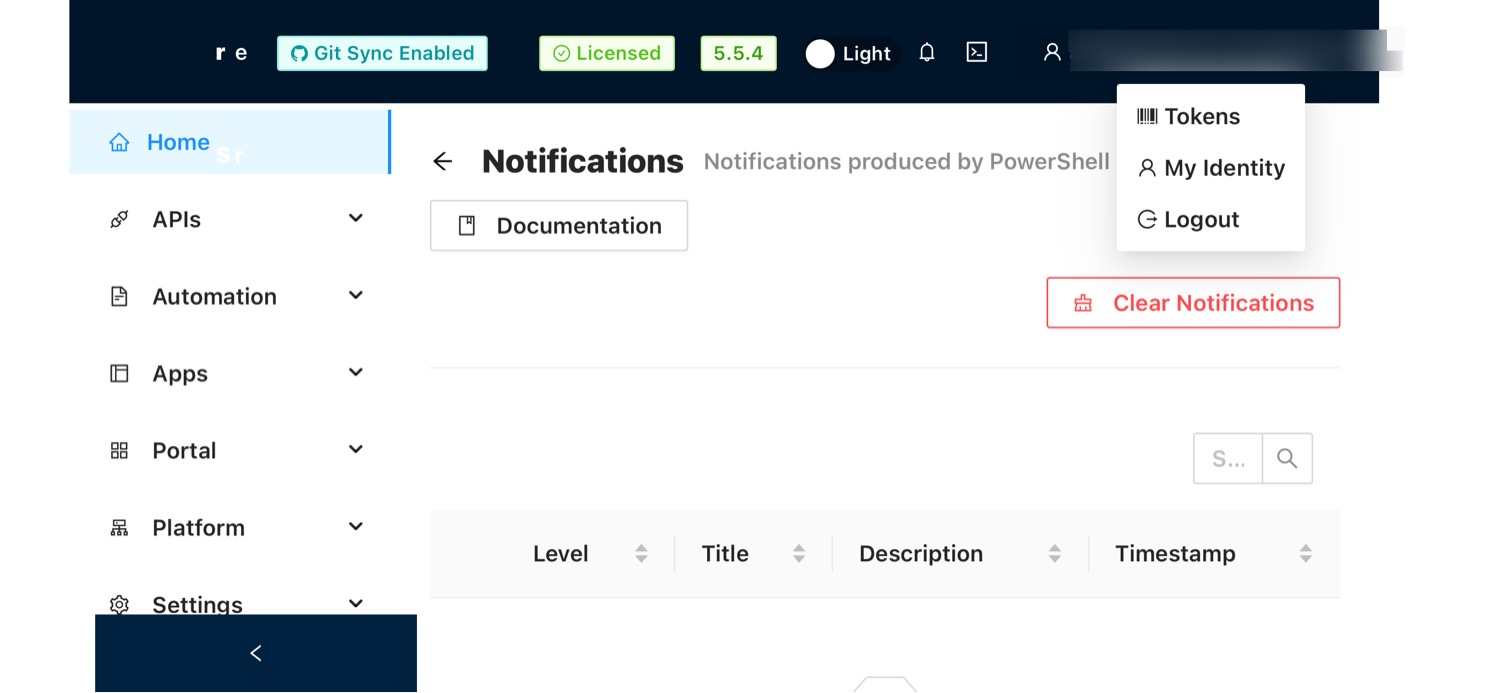
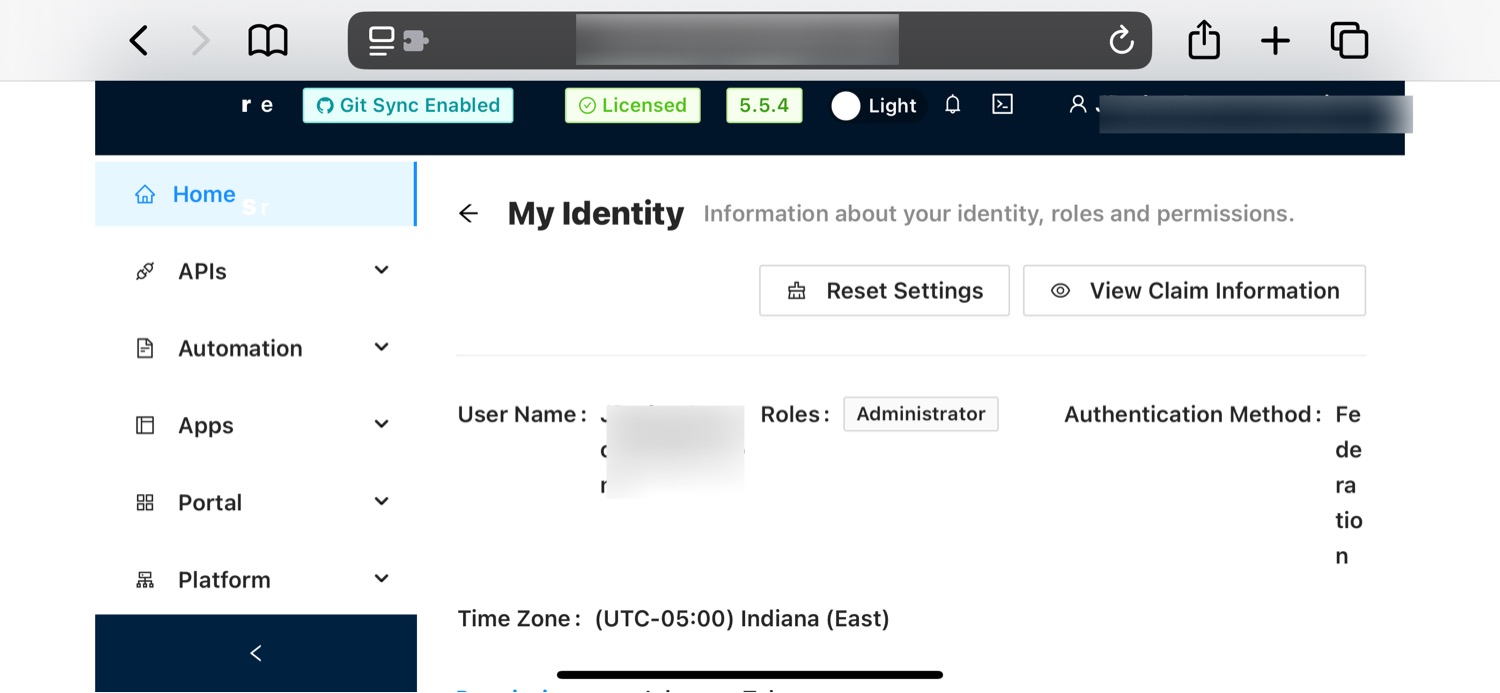
Here’s some screenshots from my setup. You don’t see these under your name if you click on it?
Azure - Small subpage to view claims
Which version of PSU are you running? All current releases show My Identity.
Appsettings.json Options Documentation
Wow. Glad it got figured out.
Appsettings.json Options Documentation
I wouldn’t expect any of those to cause issues unless that URL value is not correct (like it’s maybe missing a port number, or has a typo).
Are you using a publicly signed cert with your PSU setup(s), or are you using self-signed/internally-signed certs?
Appsettings.json Options Documentation
There are major changes between 4.x and 5.x regarding how PSU talks to itself internally. Have you viewed Module | PowerShell Universal to see if all of these changes to things such as the Security Model, URL, etc. have been accounted for in your customized appsettings.json file?
Appsettings.json Options Documentation
Can you describe your setup? What kind of host is PSU running on? Are you using the MSI installer, are you hosting PSU in IIS, etc.? Also, you said this happened after an upgrade. What did you upgrade from?
Appsettings.json Options Documentation
I’d say they’re mostly complete. There’s another section at Hosting | PowerShell Universal with some more settings that would be needed from initially standing up PSU. What kind of issue(s) are you having?
PowerShell Universal - 5.5.4
That’s true. Thanks.
Solved: After migrating from v4 to v5, secrets wipe on service restart
Seems like a bug. Maybe file an issue on the GitHub repo about it. You should be able to use any of the options listed to store secrets.
PowerShell Universal - 5.5.4
I’m not sure if I’ve asked this before or if anyone else has but, would it be possible to include GitHub issue numbers in release notes so we have context around each item? I know the product isn’t open-sourced and we have no way to see the actual code change(s), but at least context of what the complaint was that led to something being changed may be helpful to see.
Azure - Small subpage to view claims
Maybe I’m missing something, but you can already view your claims by hovering over your username in the top-right corner of the PSU admin UI, clicking “My Identity”, and then clicking the “View Claim Information” button.
SAML Redirect Issue
If you go to https://<PSU-SERVER-FQDN>/login you will see a login page that has buttons to select which external method to use (or to use a local account).
To answer your question about direct paths to specify a method, you can use the following:
https://<PSU-SERVER-FQDN>/api/v1/signin/{method} where the method is whichever you choose.
I don’t have OIDC configured to know what it shows up as (as far as what the method’s name would be), but I can say that SAML2 shows up as “Federated”.
You can use https://<PSU-SERVER-FQDN>/swagger to then use the API /api/v1/authmethod with a token for an identity with each method to see what the returned value is and then go from there.
Can't connect VSCode to Powershell Universal: no "configure" option under settings
You don’t do anything in PSU itself other than generate an app token for the identity you want to link to VS Code.
In VS Code, if you open the settings, you can filter by @ext:ironmansoftware.powershell-universal to enter your PSU identity app token and the FQDN to PSU.
Cannot create Integer variables
I agree. I was just asking if it worked that way as well, since that can be done through the web UI as another workaround until the issue is fixed. I didn’t know if you were saying that you executed the cmdlet outside of PSU (like from your workstation or through VS Code), to create the variable(s), hence why I asked about editing the variables.ps1 file directly.
If you haven’t created an issue on the GitHub repo yet, I’d recommend doing so.
Cannot create Integer variables
Have you tried editing the variables.ps1 file directly to add your variable to see if that works?
Git sync with token doesn't work with custom database encryption key
Right. I understand the scenario. Here’s what I would do, then. I’d remove all Git sync settings in PSU while the default encryption key is still set, stop the PSU service, remote into the PSU server, set the key you want to use in appsettings.json, open the database using something like DB Browser, go to the GitSettings table, remove the “old” entry. Start the PSU service back up, set the Git settings, and see what happens.