
nikriaz
RDP window is minimized to nowhere
Hi Samuel,
I'm not sure what you mean and honestly your screenshot is hardly understandable but actually I posted a video to R&D and the bug was confirmed.
I restore hidden sessions by double "Full Screen" call (single call does not help, you have to do it specifically twice).
Add RDP connection progress indicator
Hi,
No, I don't have such progress indicator! Please refer to the video file "Forum-44590.mp4" that I uploaded in regard to another bug. I have simply nothing. Connection time depends on a network and whether RD Gateway is used or not but generally is in 3-7 seconds range.
But anyway, I'm more talking about original original mstsc status messages (at the bottom of small connection window) that are shown during connection rather simple spinner. These messages are not only informative but actually sometimes help troubleshoot connection. Would be great to have them in RDM too.
RDP window is minimized to nowhere
Hi,
I believe I have current version 2025.1.25.0 64-bit
I use local data source. In both XML and SQLite the behavior is the same.
I uploaded a video file.
Many thanks for your support.
Nik.
Add RDP connection progress indicator
I'm sure I'not a first one but anyway:
Please add progress indicator to the RDP connection!
At least as a native RDP does.
RDP window is minimized to nowhere
Hi,
In smart sizing, in such flow:
full screen -> windowed (docked) -> full screen -> minimized
RDP window is minimized to nowhere. There is no way to restore it but into full screen using context menu. You can't view it docked and "focused" anymore.
How to properly use "Full Screen/Docked" switching?
Hi,
Thanks but isn't is a bug?
In smart sizing, in such flow:
full screen -> windowed (docked) -> full screen -> minimized
RDP window is minimized to nowhere. There is no way to restore it but into full screen using context menu. You can't view it docked and "focused" anymore.
How to properly use "Full Screen/Docked" switching?
I can't grasp how to use windows management in RDM. Can you please kindly advise? I can't get a concept.
Troubles I experience:
Start connection at full screen
Can minimize and restore. Each connection minimized into separate taskbar icon as standard RDP -> good
As soon as click on "windowed" button, connection gets docked into RDM tab -> good
Switch back to fullscreen by context menu -> fullscreen
However, if I minimize at this point -> mess starts. Connection disappears completely. It's not anymore on the trackbar nor in the tab while still active -> difficult to restore
If try get back to fullscreen by context menu -> can get there but now it's managed not by standard RDP nose but by RDP nose and then it's very difficult to switching between connections because it's always visually disappearing.
Is anyway to keep just normal, usual, default Windows switching logic? Minimize into taskbar, "windowed" into RDM tab or just regular window as by RDP default, maximize into fullscreen and avoid any extra controls?
NLA error when use Smart Card to connect through RD Gateway
Hi, I found an issue.
First, here is more details:
If machine in the domain network, RD Gateway worked
When machine is in the foreign network, I got this NLA error.
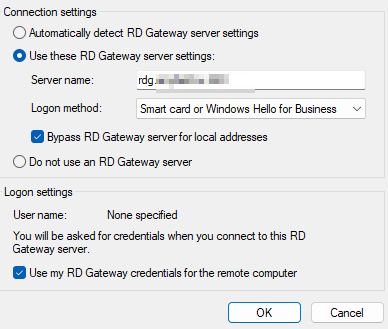
This settings solved the problem:
 - S1M1 (Administrator).png)
Even though I didn't setup my RD Gateway to be specifically a KDC proxy, it seems it is by default (Windows Server 2016) and it works.
NLA error when use Smart Card to connect through RD Gateway
I cannot connect to RD server through RD Gateway using the same smart card. The error is:
The remote computer that you are trying to connect to requires Network Level Authentication (NLA), but your Windows domain controller cannot be contacted to perform NLA. You can try connecting to the remote computer using your username and password instead.
Standard Windows Remote Connection works for this configuration (see screenshot of working config)
RDM works with Smart Card for the host and password for RD Gateway
I think I tried all combinations of checkboxes in RDM - no luck. Any ideas?
].png)
 - S1M1 (Administrator).png)