
larsbjerringjensen
Upgrade from 2023.2.11 to 2023.3.13 failed with access denied
I made a clone of the server to be able to troubleshoot. I tried all your suggestions, changes rights, excluded processes and folders from the Antivirus. I think I finally found the solution. Going to update the production server during the weekend.
Is seems that if the Scheduler server was started once, you can forget all about updating. Even stopping the service did not help.
The solution was :
Set scheduler service to "manual".
Reboot the server.
Start the upgrade job.
Change Scheduler server back to "Auto"
Upgrade from 2023.2.11 to 2023.3.13 failed with access denied
I tried to reboot the server and made sure I was the only one logged in. I alto tried to exclude the C:\inetpub\wwwroot\dvls folder from Defender. Still god the same error.
I also checked the Resource Monitor/Disk Activity. Nothing seem to be reading the Devolutions.dll.
Just to check my Access and if the file was locked I tried to rename the Devolutions.dll. That worked fine. So I'm not sure the error is caused by someone using the file.
Anything else I can try?
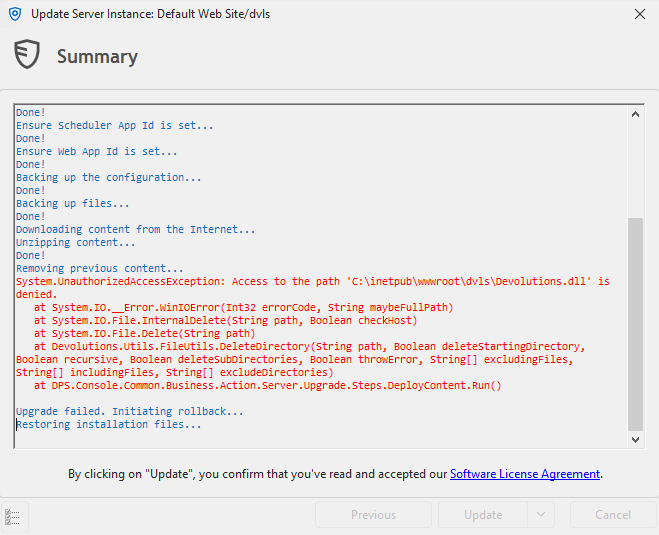
Upgrade from 2023.2.11 to 2023.3.13 failed with access denied
Hi
I'm upgrade Devolutions server from 2023.2.11 to 2023.3.13. I get the following error saying "Access to the path 'C:\inetpub\wwwroot\dvls\Devolutions.dll' is denied."
I'm logged in to the windows server with and Admin account. I started the upgrade from the Console on the server. Everything is installed on a single server running Windows 2022 (21H2).
Is the upgrade script running in the context of my user or the service account for the IIS ? My account seems to be able to access the Devolutions.dll file.
Any idea what could be the problem?
Error from log:
2024-01-27T00:40:09 INFO: [UI - server upgrade - Default Web Site/dvls] Downloading content from the Internet...
2024-01-27T00:40:34 INFO: [UI - server upgrade - Default Web Site/dvls] Unzipping content...
2024-01-27T00:40:41 INFO: [UI - server upgrade - Default Web Site/dvls] Done!
2024-01-27T00:40:41 INFO: [UI - server upgrade - Default Web Site/dvls] Removing previous content...
2024-01-27T00:40:41 ERROR: [UI - server upgrade - Default Web Site/dvls] System.UnauthorizedAccessException: Access to the path 'C:\inetpub\wwwroot\dvls\Devolutions.dll' is denied.
at System.IO.__Error.WinIOError(Int32 errorCode, String maybeFullPath)
at System.IO.File.InternalDelete(String path, Boolean checkHost)
at System.IO.File.Delete(String path)
at Devolutions.Utils.FileUtils.DeleteDirectory(String path, Boolean deleteStartingDirectory, Boolean recursive, Boolean deleteSubDirectories, Boolean throwError, String[] excludingFiles, String[] includingFiles, String[] excludeDirectories)
at DPS.Console.Common.Business.Action.Server.Upgrade.Steps.DeployContent.Run()
2024-01-27T00:40:41 INFO: [UI - server upgrade - Default Web Site/dvls]
2024-01-27T00:40:41 INFO: [UI - server upgrade - Default Web Site/dvls] Upgrade failed. Initiating rollback...
Limit access for the powershell module to a few client computers?
Thank you Sébastien, That's exactly what I need !
We are still on version 2023.2, that why I did not see the option :-)
Limit access for the powershell module to a few client computers?
Hi,
Is it possible to limit which computers can connect using the powershell module using an Application ID and secret?
I want to make sure that someone copying the script to another computer is not able to gain access.
I would normally think this could be done using the firewall on the server. But as far as I can tell all traffic from the Powershell module is also https, so that would also stop normal clients.
OTP-Entry for M365 MFA Accounts - The application and account may not contain the ':' character.
Thanks. Please remind the dev Team, that we are paying customers and this was something that worked in previous versions.
OTP-Entry for M365 MFA Accounts - The application and account may not contain the ':' character.
Any updates on this issue. We just upgraded from a older 2021.x.x to 2023.2.8.0 and found the same issue.
Documentation Tab - available offline?
Ok, sorry then I have misunderstood the offline Documentation options.
Thanks for clarifying.
Documentation Tab - available offline?
Hi
I'm trying to have the "Documentation" Tab available when a user is in offline mode.
Server version = 2021.2.14.0
Database version = 733
Client version = 2021.2.29.0
On the top level of my tree I have set (Security Settings / Offline / Synchronize documents to to offline = Yes)
I can see the client is showing "downloading documents" for a few seconds in the status bar.
But when I switch to offline mode the "Documentation Tab" is removed.
I also tried the "ignore max file size" option, but that did not change anything
Is something missing in my the configuration, or is the "Synchronize documents to to offline" option not what I think it is ?
Hope someone can point me in the right direction. Thanks.