
Jasper Kimmel
Powershell 7 support
Thanks the screenshot. That made things clearly!
Powershell 7 support
I'm wondering how to handle this message:
WARNING: This is the last major release supporting PowerShell 5.1. Starting with 2023.1, our PowerShell module will only support PS7.
Start session from RDM Powershell Module
Hi Richard,
No worries. I've been under the weather for a few days, so you'd better call it excellent timing.
I'm looking forward to your update.
Start session from RDM Powershell Module
Hi,
I want to run a specific session from the RDM Powershell Module. At first I get a specific session by running this:
$RDMSession=Get-RDMSession | Where-Object {$_.name -like "*NLAPT02*"}To verify that the $RDMSession variable is the correct RDM Session I run this command:
$RDMSession | FT ID,Name,ConnectionType,Status

ID                                   Name     ConnectionType Status
--                                   ----     -------------- ------
71047dab-7965-494f-9633-f1767ee73fbd NLAPT02  RDPConfigured
Now I'd like to open the session and I suspected that this should do the trick:
PS Microsoft.PowerShell.Core\FileSystem::\\domain.local\dfs\Portable Apps\Remote Desktop Manager> Open-RDMSession -id $RDMSession.ID
PS Microsoft.PowerShell.Core\FileSystem::\\domain.local\dfs\Portable Apps\Remote Desktop Manager>
But it doesn't. I get no response back and instead the cursor returns to a new blank line in Powershell. There is also no RDP session started.
These are the results when I do some further checking:
PS Microsoft.PowerShell.Core\FileSystem::\\domain.local\dfs\Portable Apps\Remote Desktop Manager> Get-RDMOpenedSession
PS Microsoft.PowerShell.Core\FileSystem::\\domain.local\dfs\Portable Apps\Remote Desktop Manager>
I am able to open the session in RDM GUI and while this session is still active I executed the following in PS:
PS Microsoft.PowerShell.Core\FileSystem::\\domain.local\dfs\Portable Apps\Remote Desktop Manager> Get-RDMOpenedSession
PS Microsoft.PowerShell.Core\FileSystem::\\domain.local\dfs\Portable Apps\Remote Desktop Manager>
PS Microsoft.PowerShell.Core\FileSystem::\\domain.local\dfs\Portable Apps\Remote Desktop Manager> Close-RDMSession -id $RDMSession.ID

Waarschuwing
Wil je echt de sessie 'NLAPT02' sluiten?
[Y] Yes  [A] Yes to All  [N] No  [L] No to All  [S] Suspend  [?] Help (default is "Y"): y
PS Microsoft.PowerShell.Core\FileSystem::\\domain.local\dfs\Portable Apps\Remote Desktop Manager>
At the end the session is still active.
Error Silent when opening all kinds of sessions
That worked. Thanks Richard
Error Silent when opening all kinds of sessions
I'm on version 2022.1.25.0 by the way,
Error Silent when opening all kinds of sessions
An Error Silent occurs when I open any kind of session (mostly HTTPS or RDP).
This is the report of opening a RDP session:
[5/05/2022 19:00:29 - 2022.1.25.0 - 64-bit] Error Silent: System.NullReferenceException: Object reference not set to an instance of an object.
at Devolutions.RemoteDesktopManager.Frames.Embedded.FreEmbeddedRDP.c35d0fea98d9b06d35e6ad34681fe1c51(Connection c6aea3d31dfb3fea36c5f53f7fe93584c)
[5/05/2022 19:00:32 - 2022.1.25.0 - 64-bit] Error Silent: System.Runtime.InteropServices.COMException (0x80070032): De aanvraag wordt niet ondersteund. (Exception from HRESULT: 0x80070032)
at MSTSCLib.IMsRdpExtendedSettings.set_Property(String bstrPropertyName, Object& pValue)
at Devolutions.RemoteDesktopManager.Frames.Embedded.FreEmbeddedRDP.SetExtendedProperty(String propertyName, UInt32 value)
Portable version gives "Import-Module : The specified module 'RemoteDesktopManager' was not loaded because no valid module file was found in any module directory"
Any progress @Jonathan
Hi Jasper,
I was wondering what version of the PowerShell module you were using.
You can easily find out with the following command
Get-RDMInstance
Regards
Portable version gives "Import-Module : The specified module 'RemoteDesktopManager' was not loaded because no valid module file was found in any module directory"
Hi,
I'm on 2021.2.0.29 while RDM itself is 2021.2.23.0.
Regards.
Jasper
Portable version gives "Import-Module : The specified module 'RemoteDesktopManager' was not loaded because no valid module file was found in any module directory"
Hi Richard,
I did some further analysis and eventually the non-portable version had the same behavior. This is what I analyzed.
I installed the non-portable version and pointed to the same SQL datasource as the portable version. The non-portable version didn't have the same behavior at this point.
I noticed you mentioned local AppData in your previous post. This triggered my because there is a difference between the two versions though.
Our portable version has an override.cfg file which redirects RDM to the folder %AppData%\Devolutions\RemoteDesktopManager\config while the non-portable version is still pointing to its default folder %LocalAppData%\Devolutions\RemoteDesktopManager\config.
I also noticed that in the parent user folder of the non-portable version (%LocalAppData%\Devolutions\RemoteDesktopManager) a lot of other files and folders are present, including the config folder. Those are not present in the overridden config folder of the portable version.
So I decided to create an override.cfg file for the non-portable version which redirects RDM to a new folder %LocalAppData%\Devolutions\Test\RemoteDesktopManager\config. When there is an override in place the non-portable version is having the same behavior.
In reproduced both situations while running PSTools Process Monitor. I was not able to find any cause yet. Maybe you can. I will send you a DM with a link to download the results and an export of the used configuration of both situations. Hopefully all this info supports you to complete the root cause analysis.
Regards,
Jasper
Portable version gives "Import-Module : The specified module 'RemoteDesktopManager' was not loaded because no valid module file was found in any module directory"
Hi Richard,
Below two screens in one shot which says it all.

Reconnecting every time I launch this, is not a hassle. It would be if Powershell events wouldn't work either.
Portable version gives "Import-Module : The specified module 'RemoteDesktopManager' was not loaded because no valid module file was found in any module directory"
Hi Richard,
There is a slight difference but I'm sure that this is not the issue. Your screenshot shows exactly the same difference


Portable version gives "Import-Module : The specified module 'RemoteDesktopManager' was not loaded because no valid module file was found in any module directory"
Hi Richard,
The portable version is working fine and the SQL data source is available. Also when I use Powershell code as an event of an entry the $RDM variable is returning all info of that certain entry.
It is only necessary to go through the New-RDMDataSource process when I launch the PowerShell (RDM CmdLet) or launch Powershell.exe itself.
It is fine by me if this is default behavior.
Portable version gives "Import-Module : The specified module 'RemoteDesktopManager' was not loaded because no valid module file was found in any module directory"
Hi Rchard,
Thanks for your reply. I followed your instructions and that worked. Every time I close and reopen RDM Portable the issue described in my first message returns and I need to follow your instructions again.
Is this default behaviour?
Ask user to logoff or just close RDP session
Hi Guys,
Just to let you know, I achieved my goal with advanced powershell scripting. I used invoke-command and also needed to convert the $RDM.Username & password into a PSCredential object.
Eventually I ended up by using the method mentioned by Paul07. Thanks for that suggestion, @Paul07
Portable version gives "Import-Module : The specified module 'RemoteDesktopManager' was not loaded because no valid module file was found in any module directory"
Hi Richard,
I followed the KB article. I also followed the Get-RDMPowerShellOverride part. When I launch the PowerShell (RDM CmdLet) from the ribbon the errors are gone. But now there is the warning "Data source not found" instead.
I'm only using one data source which is on a MS SQL Server. This is what I see now:
Resize PowerShell buffer and window size
Loading RDM CmdLet (Module)
WARNING: Data source not found                                                                                                                                                                  PS C:\> Get-RDMPowerShellOverride                                                                                                                                                                                                                                                                                                                                                               OptionFilePath                                                                                    RemoteDesktopManagerExecutablePath                                                            --------------                                                                                    ----------------------------------
C:\Users\jkimmel\AppData\Roaming\Devolutions\RemoteDesktopManager\config\RemoteDesktopManager.cfg \\xxxxxx.xxx\dfs\Portable Apps\Remote Desktop Manager\RemoteDesktopManager64.exe


PS C:\> $Ret=Get-RDMPowerShellOverride
PS C:\> $ret.OptionFilePath
C:\Users\jkimmel\AppData\Roaming\Devolutions\RemoteDesktopManager\config\RemoteDesktopManager.cfg
PS C:\> test-path $ret.OptionFilePath
True
PS C:\> Get-RDMDataSource


ID          : 95472043-6413-429a-ae7a-05141e9334b5
IsConnected : True
IsOffline   : False
Name        : Local Data Source
Type : SQLiteAsk user to logoff or just close RDP session
Hi Guys,
Thank you both for your response. I will post this as a feature request.
For the meantime another question which maybe make this possible. Can the RDM agent somehow help me with this?
Portable version gives "Import-Module : The specified module 'RemoteDesktopManager' was not loaded because no valid module file was found in any module directory"
We are using the portable version of RDM 2021.2.20.0. This version is placed on a shared folder of our fileserver. Config is stored in the user profile of each user. When I launch the PowerShell (RDM CmdLet) I get the error that the module could not be imported.

Have I missed something during "installation" of the Portable version of RDM?
Ask user to logoff or just close RDP session
At our IT Department we use RDM Enterprise v2021.2.20.0. I'm looking for a way to logoff the RDP session on the host when the user closes the session. I know RDM can handle this by changing the option "Automatically log off when disconnecting". This would work except for the fact that sometimes users just want to close the RDP session and reconnect later in time.
So basically I'm lookin for a way ask the user to keep the session active. My idea was to create an "on disconnect" powershell event that will show a popup message with an OK and a Cancel button. When the user hits OK or the script timed out on waiting for user input, the session will be logged off. If the user hits Cancel the session will close and not logged off.
This is my powershell code:
$Message="Your remote session will automatically logoff after 5 seconds. Hit cancel to close and keep Remote session active."
$Title = "Automatic Remote Session Logoff"

$sh = New-Object -ComObject "Wscript.Shell"
$intButton = $sh.Popup($Message,5,$Title,1+64)

if ($intButton -lt 2) {
    ## LOGOFF RDP SESSION ##
}
I'm struggling with the part ## LOGOFF RDP SESSION ##. I was hoping that the Powershell Module of RDM could achieve this but I couldn't find how. Hopefully you can give me some hints on how to achieve this. With or without the Powershell event.
Move is disabled
Thanks Erica. Have a nice weekend.
Move is disabled
Hi Érica,
Thanks for that last suggestion. That is definitely the case. My account is set to Read Only but when I change it to User the Move option is enabled.
What is the best user type to use in our case? Besides this question is there any need to set a user with the user type Administrator even when we are using a User Group to make the members an Administrator?
Best regards,
Jasper Kimmel
Move is disabled
Hi guys,
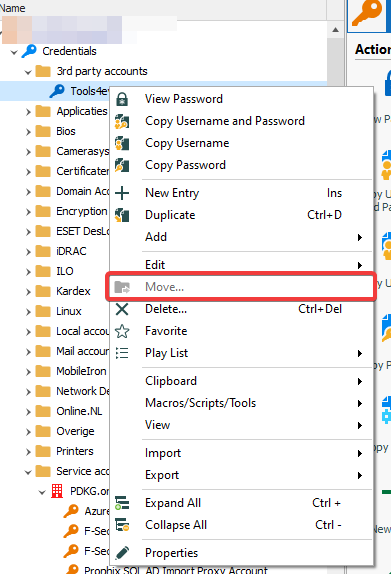
I'm having an issue with RDM 2021.1.44.0. The move option is disabled in the context menu of items and I'm not sure why. I've been changing things regarding rights which could have triggered it. But I can't find the exact setting.
These are the general settings of the user group Administrator:
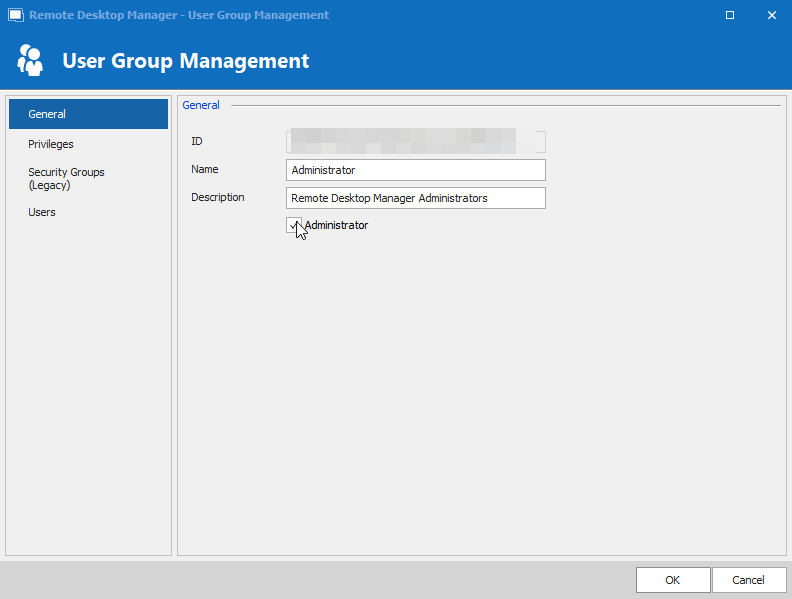
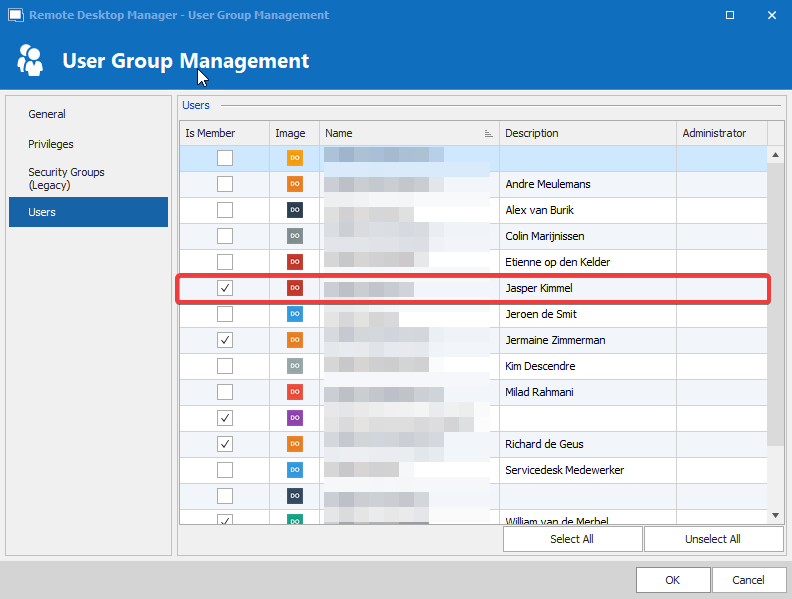
As you can see, I'm a member of this group:
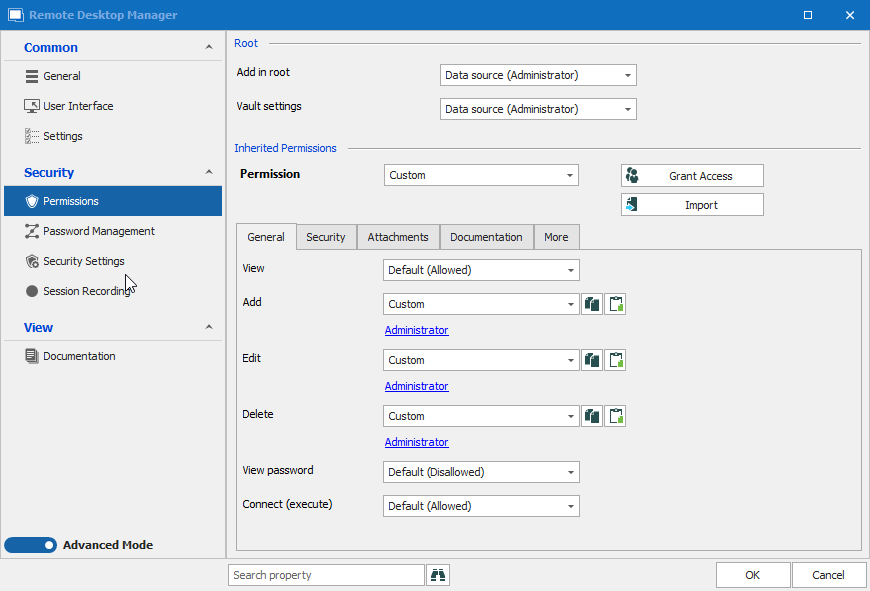
This shows the permissions set on the root of the tree:
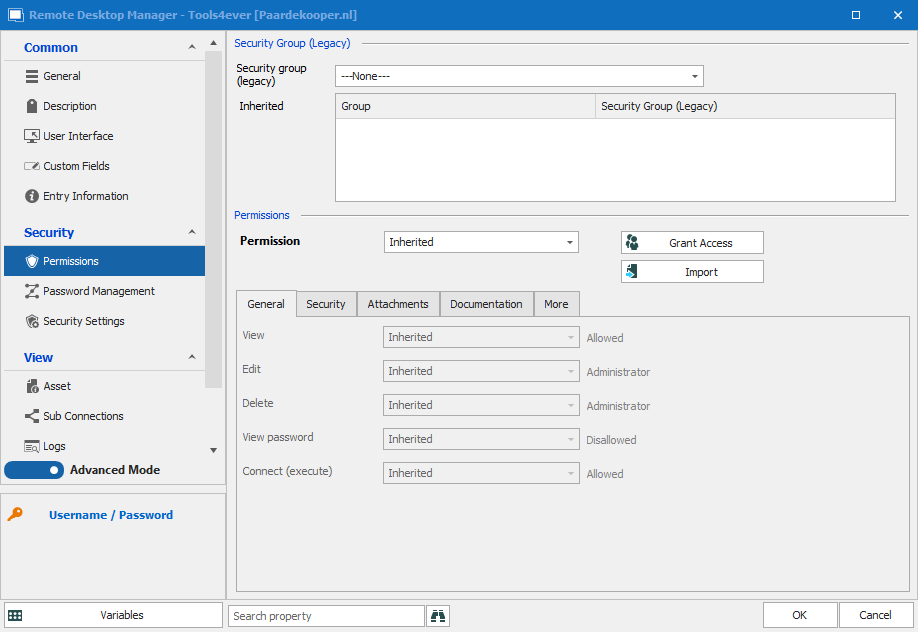
This shows the permissions set on one of the entries:
This shows the issue itself:
Powershell event not working as expected
Hello Richard,
Thank you, that fixed the issue.
I have tried to search for documentation on the $RDM object but couldn't find it. Do you know if there is any documentation and where to read/download it?
Regards,
Jasper Kimmel
Powershell event not working as expected
I have this session:

I have a before open event script with this powershell code:
$Path=$RDM.Connection.CommandLine
If (-not(Test-Path -Path "$Path" -PathType Leaf)) {
   $sh = New-Object -ComObject "Wscript.Shell"
   $intButton = $sh.Popup("$($Path) does not exist. Aborting session.",10,"Error: Application not installed",0+16)
   $RDM.Cancel = $True
}
When I start the session the popup comes up and the $RDM session is canceled. So I added some logging lines to the script:
$Path=$RDM.Connection.CommandLine

$Workdir=$RDM.Connection.CommandLineWorkingDirectory
Write-Host "Commandline = $($Path)" *>c:\temp\rdm.txt
Write-Host "------------------------------------------------------------------------------" *>>c:\temp\rdm.txt
Write-Host "WorkingDirectory = $($Workdir)" *>>c:\temp\rdm.txt
Write-Host "------------------------------------------------------------------------------" *>>c:\temp\rdm.txt
dir $Workdir *>>c:\temp\rdm.txt
Write-Host "------------------------------------------------------------------------------" *>>c:\temp\rdm.txt
dir "C:\Program Files\Immidio\Flex Profiles" *>>c:\temp\rdm.txt
Write-Host "------------------------------------------------------------------------------" *>>c:\temp\rdm.txt


If (-not(Test-Path -Path "$Path" -PathType Leaf)) {
   $sh = New-Object -ComObject "Wscript.Shell"
   $intButton = $sh.Popup("$($Path) does not exist. Aborting session.",10,"Error: Application not installed",0+16)
   $RDM.Cancel = $True
}
After I started the session I opened the RDM.TXT file to see what was logged and this is its content:
Commandline = "C:\Program Files\Immidio\Flex Profiles\Flex+ Management Console.exe"
------------------------------------------------------------------------------
WorkingDirectory = "C:\Program Files\Immidio\Flex Profiles"
------------------------------------------------------------------------------
dir : Cannot find drive. A drive with the name '"C' does not exist.
At line:9 char:1
+ dir $Workdir *>>c:\temp\rdm.txt
+ ~~~~~~~~~~~~~~~~~~~~~~~~~~~~~~~
    + CategoryInfo          : ObjectNotFound: ("C:String) [Get-ChildItem], DriveNotFoundException
    + FullyQualifiedErrorId : DriveNotFound,Microsoft.PowerShell.Commands.GetChildItemCommand

------------------------------------------------------------------------------


    Directory: C:\Program Files\Immidio\Flex Profiles


Mode                LastWriteTime         Length Name
----                -------------         ------ ----
d-----        3/24/2021   3:58 PM                de
d-----        3/24/2021   3:58 PM                Drivers
d-----        3/24/2021   3:58 PM                ja
d-----        3/24/2021   3:58 PM                nl
-a----        9/18/2020   3:04 AM         234176 ActiproSoftware.Shared.Net20.dll
-a----        9/18/2020   3:04 AM        1065472 ActiproSoftware.SyntaxEditor.Net20.dll
-a----        9/18/2020   3:04 AM         168640 ActiproSoftware.WinUICore.Net20.dll
-a----        9/18/2020   3:04 AM         525656 ComponentFactory.Krypton.Navigator.dll
-a----        9/18/2020   3:04 AM        1041752 ComponentFactory.Krypton.Ribbon.dll
-a----        9/18/2020   3:04 AM        2184536 ComponentFactory.Krypton.Toolkit.dll
-a----        9/18/2020   3:08 AM        2232536 Flex+ Management Console.exe
-a----        9/18/2020   3:04 AM            270 Flex+ Management Console.exe.config
-a----        9/18/2020   4:08 AM          38104 Flex+ Resources.dll
-a----        9/18/2020   4:08 AM         378072 Flex+ Self-Support.exe
-a----        9/18/2020   4:04 AM            270 Flex+ Self-Support.exe.config
-a----        9/18/2020   3:04 AM          33482 FlexBinarySettings.bin
-a----        9/18/2020   4:08 AM        1930456 FlexEngine.dll
-a----        9/18/2020   4:08 AM         871984 FlexEngine.exe
-a----        9/18/2020   4:08 AM         490200 FlexHook32.dll
-a----        9/18/2020   4:08 AM         618712 FlexHook64.dll
-a----        9/18/2020   4:04 AM          10216 FlexHookDriver64.cat
-a----        9/18/2020   4:04 AM           1302 FlexHookDriver64.inf
-a----        9/18/2020   4:04 AM         159672 FlexHookDriver64.sys
-a----        9/18/2020   4:09 AM         286768 FlexMigrate.exe
-a----        9/18/2020   4:08 AM        1056472 FlexService.exe
-a----        9/18/2020   4:09 AM         184536 UEMResult.exe
-a----        9/18/2020   4:04 AM            267 UEMResult.exe.config


------------------------------------------------------------------------------
When I change the script line:
$Path=$RDM.Connection.CommandLine to $Path="C:\Program Files\Immidio\Flex Profiles\Flex+ Management Console.exe" all is working fine.
Why does the $RDM.Connection.Commandline and $RDM.Connection.CommandLineWorkingDirectory values fail?
SSH Shell authentication not working with Linked vault credentials
"Interactive Authentication in terminal" is set to Default.
Tested it also with the other values. No had the same result as Default. Yes resulted in almost the same except that the password was requested in the SSH CLI Session itself and not by RDM in a popup window.
I'm prevented from logging on even when I manually type the password when requested.
Can this have something to do with encoding?