Sync all vaults in offline mode
0 vote

Hi!
Currently, the offline cache only updates when the vault is opened. When a vault has never been opened or the cache has expired, it is not available offline. It would be useful to have all vaults available and up-to-date (from the last data source connection) regardless of when/if you have used them before.
Erica showed me this option "Prompt refresh all vaults on startup" in RDM System Settings → Application Specific → Cache/Offline. (Why is this not available in DVLS Web?)
That is a valid workaround, but it seems a little bit janky 🙂
It opens two prompts (one should be enough) and then you need to wait and watch while it switches through all vaults one by one.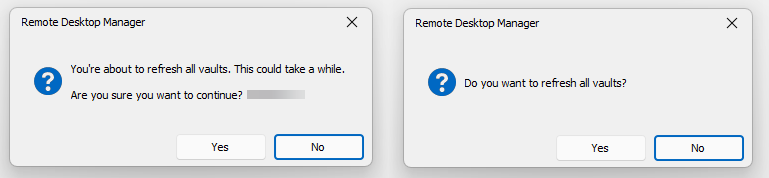
I'd much prefer the synchronization happening in the background automatically.
Thank you!
Best regards,
Daniel
51275728-f0a2-43ea-8e5b-848ed6665152.png
All Comments (25)
Hi Daniel,
The current "refresh all vaults" is a workaround (read hack) that we put together until we can get true vault refresh done in the background. As to why you get two prompts baffles me, I will investigate.
I believe we are at the point where background refresh is actually implementable with all the changes we've made over the last few releases. The feature request is already in our backlog, I will push to get included in a future sprint. The current sprint ends next week (release on the 31st, in theory) and the next sprint is already set so it will have to wait, at a minimum, until the one after that. FYI we are currently running 3 sprints per year (might be 4 soon).
Best regards,
Stéfane Lavergne
Alright, Thank you!
Hi!
Instead of the server side "Prompt refresh all vaults on startup" option, is there a function in RDM to manually trigger that?
The prompt on every start of RDM is a workaround, but it might be too much. If there was a "Refresh all vaults" button in the RDM menu, that could be useful too. Then users could do it themselves without any server side configuration.
Thanks,
Daniel
Hi Daniel,
Yes there is, it's not intuitive but will work.
SHIFT + refresh icon
or
CTRL + SHIFT + refresh icon
Both will refresh all vaults (with a warning before it starts)
The difference between SHIFT & SHIFT + CTRL is that the CTRL version does a force refresh. That is, it clears the client cache and fetches all data from the data source (slower).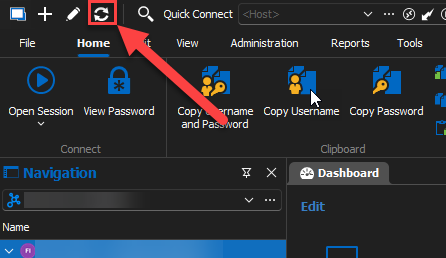
Stéfane Lavergne
11d4e50b-5a69-4ac5-b784-1033d8c26af1.png
That works too! Thank you!
Hi!
Just wanted to let you know if you shift-click the refresh button next to the Vault selection, it doesn't refresh all vaults. Only the refresh button in the file menu works for us now. (The quick access buttons keep disappearing for many users. I think it's because of a bug with offline mode. I haven't been able to reproduced that yet, it just happens from time to time.)
Since we split our big "Customers" vault into separate vaults for each customer, offline mode is often problematic, and the "sync all vaults" is a workaround we'd like to solve. I think if we can't find a better solution, we might need to put everything back into one vault again, but I'd like to avoid that if possible.
If you have any more ideas let me know!
Thanks!
Daniel
Are you talking about this refresh button (red arrow)?
Refresh (green arrows) should work. If the top icon is not available, Window > Reset Layout should bring it back.
FYI, we still have a plan to add all vault background refresh soon, the ticket is moving along. It looks like a trivial task but unfortunately is/was not. The preliminary task list for the v2024.2 release has it scheduled, so unless things changes we should have this completed within the next few months. (ETA June 2024)
Best regards,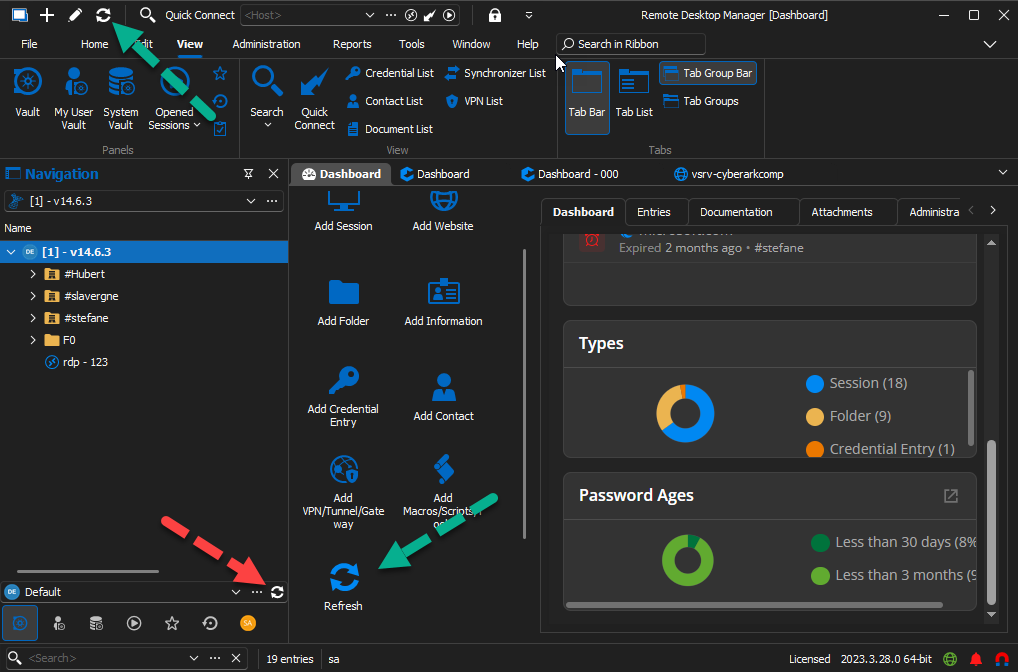
Stéfane Lavergne
0d5c1977-97c1-40e3-9bce-37231e30e30d.png
Thank you! Looking forward to that feature :)
Are you talking about this refresh button (red arrow)?
Yes, that one refreshes only the current vault, even with Shift-Click. The one on top is the one which goes missing.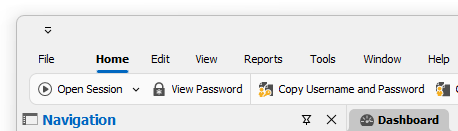
8469d44b-500e-4d57-9455-2f8d66f1e327.png
Hello,
Good news, with our release of RDM 2024.3, the background vault sync feature is now available.
You must first enable this by going in your System Settings and allowing synchronization in the background: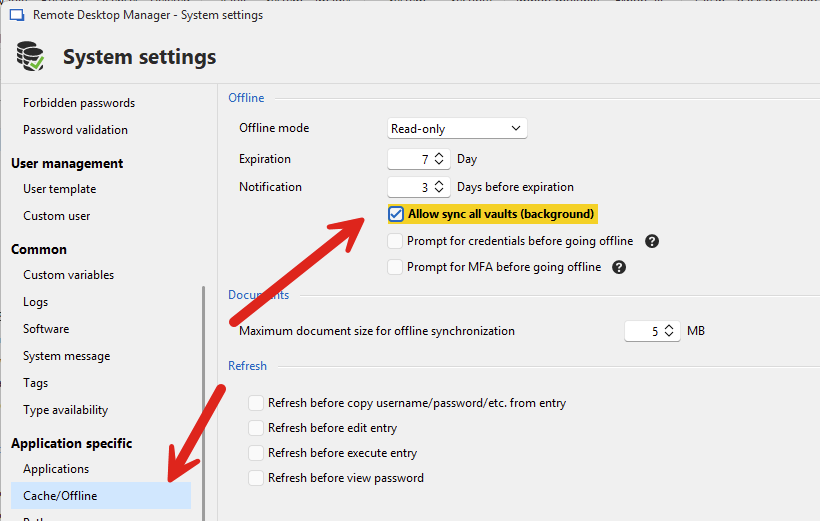
Afterwards, you will see a button in the status bar that you can click to begin the synchronization of all your vault.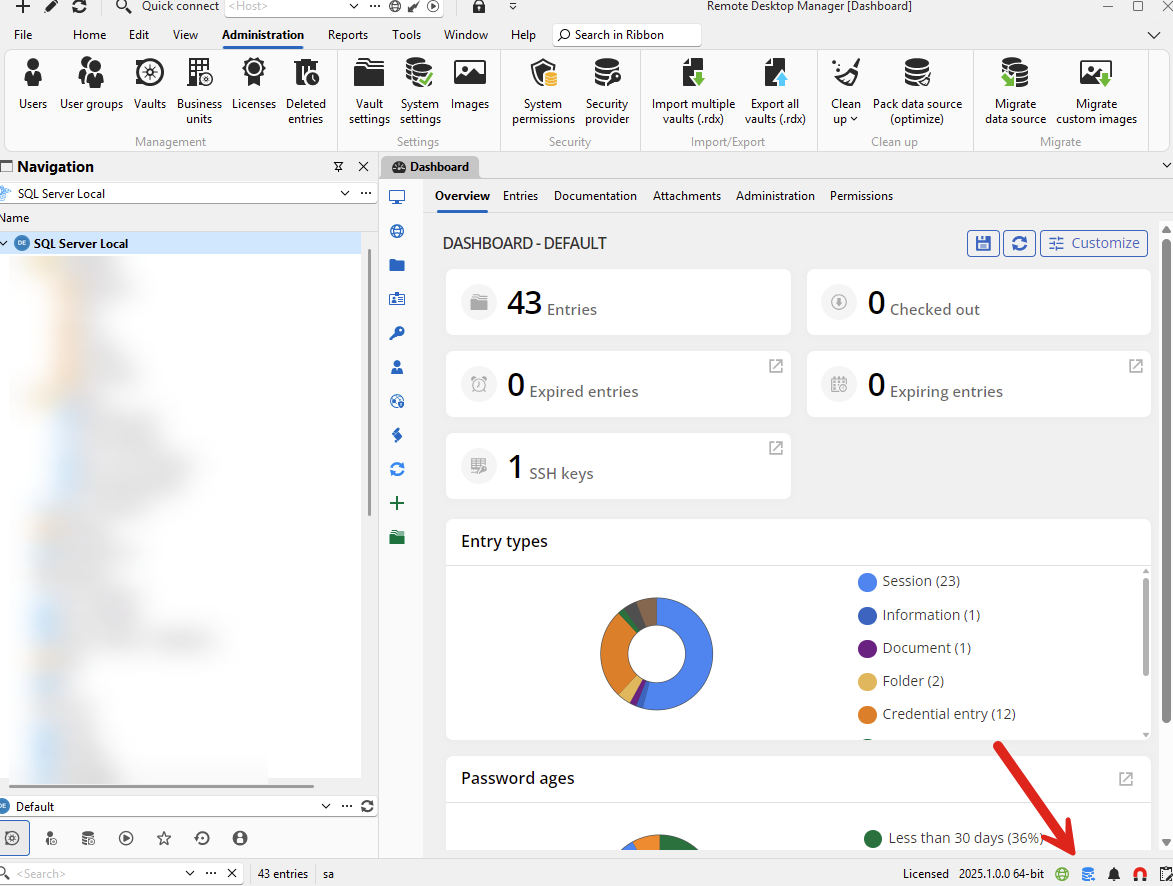
You can also configure when this synchronization is triggered by editing your datasource in File > Datasources, then 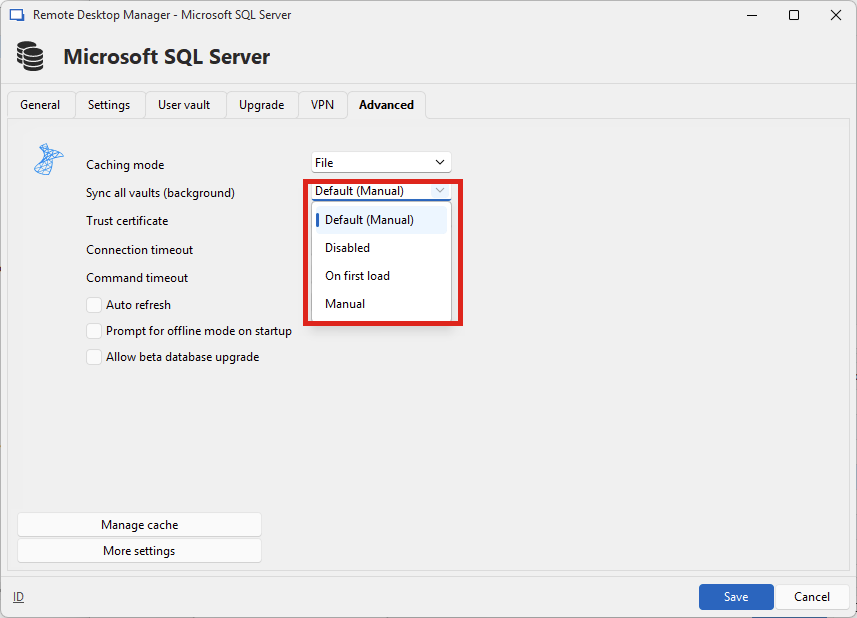
I hope this helps improve your workflow with our products.
Regards,
Hubert Mireault
152e84a7-52e8-44d7-8378-ded537aee2ca.png
315083dc-e2da-4949-b9d2-055d8c62bd26.png
4bfb604b-5abc-4fa4-ac6c-145546b8fd80.png
Hi Hubert!
Thanks for letting me know!
Hi Devolutions
Am I missing something here?
Can't seem to find any system settings, to force all vaults sync, when using latest RDM (DVLS datasource) with latest DVLS
How can I force all vaults sync in the background? (and does the datasource settings need to have a specific setting also?)
(Also, I'm not sure what the setting "Enable synchronization by non-administrators" in DVLS -> Administration -> System Settings -> "Application Specific" is suppose to Enable/Disable - There is no explaination in your documentation regarding this setting)
Thanks :-)
Good news, with our release of RDM 2024.3, the background vault sync feature is now available.
You must first enable this by going in your System Settings and allowing synchronization in the background:
You must activate it first, please follow the steps outline here (they also apply to the DVLS data source). They must be performed with RDM, not via the DVLS website.
https://forum.devolutions.net/topics/40469/sync-all-vaults-in-offline-mode#198596
The first part can be forced via GPO:
https://docs.devolutions.net/rdm/kb/how-to-articles/group-policies/#allow-sync-all-vaults-in-background
0 = Not configured
1 = Allowed
2 = Not allowed
Let me know if you have other questions.
Best regards,
Stéfane Lavergne
But I don't have "System Settings" in RDM, it looks like system settings are only available in RDM, when using SQL server as data source, which the screenshot in post 198596 looks to be, not when using onprem DVLS server as data source.
You must activate it first, please follow the steps outline here (they also apply to the DVLS data source). They must be performed with RDM, not via the DVLS website.
https://forum.devolutions.net/topics/40469/sync-all-vaults-in-offline-mode#198596
The first part can be forced via GPO:
https://docs.devolutions.net/rdm/kb/how-to-articles/group-policies/#allow-sync-all-vaults-in-background
0 = Not configured
1 = Allowed
2 = Not allowed
Let me know if you have other questions.
Best regards,
Are you admin? Admin is required to access Administration > System settings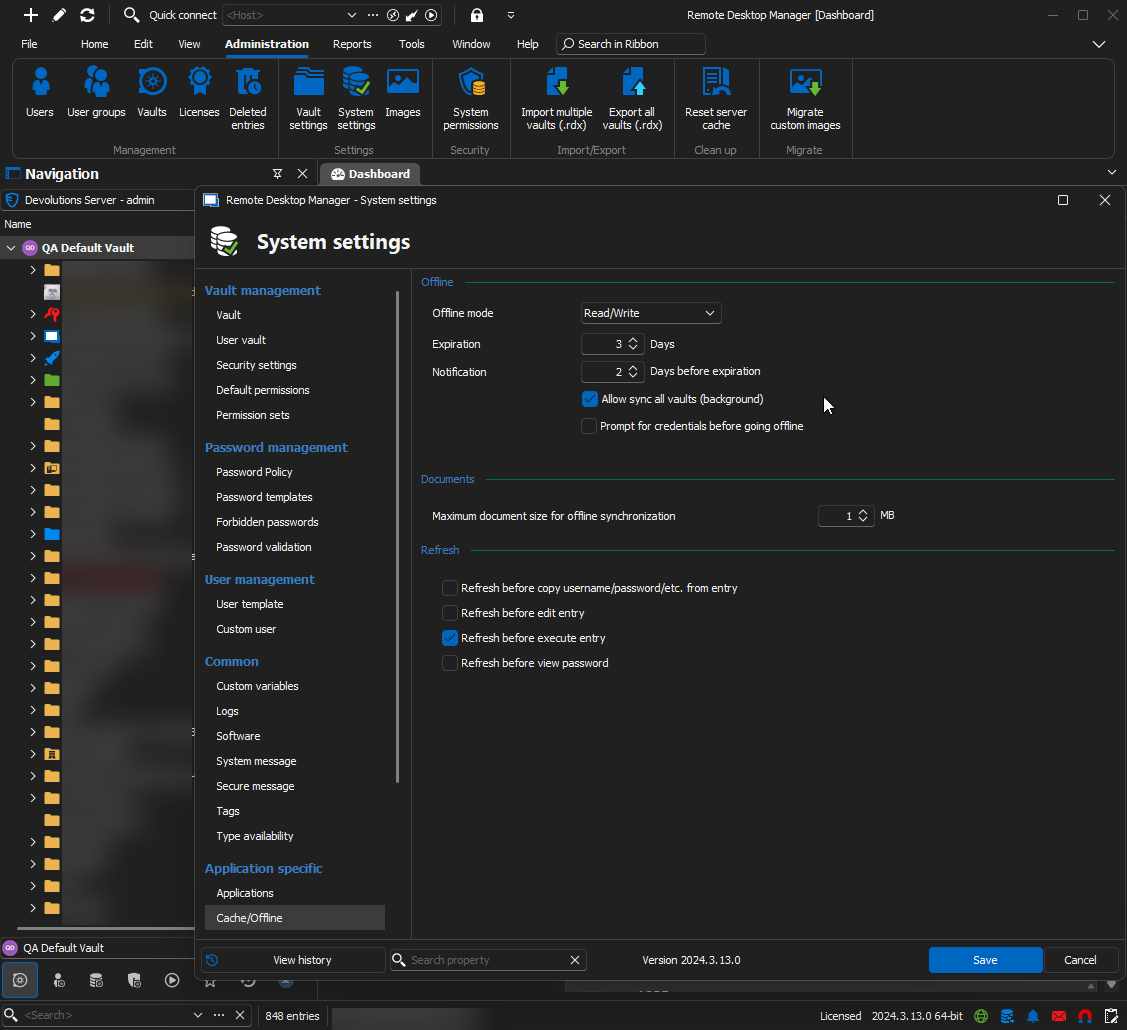
Stéfane Lavergne
7bba19b3-594d-452a-abd2-df04351119a5.png
I see, now I see it, when accessing as admin.
But I was conviced all DVLS related settings were available and only available using Administration on DVLS Web, and thought it had been like that ever since the DVLS.Console app would forward me to DVLS Web, when clicking any of the settings in the Administration tab inside DVLS.Console (which also includes a "System settings" button)
How many special settings need to be set using "System settings" as Admin in RDM?
Are you admin? Admin is required to access Administration > System settings
Very good question.
My first guess would be that settings which only affect RDM are configured via RDM, while settings that only affect the web are configured via DVLS (web), and settings that affect both are configured in both.
The truth as to why/where the settings reside would most likely depend on which team (RDM or DVLS) initiated the feature/change. Chances are, if it's the RDM team, the setting hasn't made it into the web UI (yet), and vice versa. I will discuss with the DVLS team to see how we can improve this in the future.
Best regards,
Stéfane Lavergne
Before letting this topic go, I would like to know if I need to send new data source settings to our users, or if the "Default" setting is fine for "Sync all vaults" under Advanced, after enabling the "Allow sync all vaults" in the System Settings?
During my own testting, I am not sure it makes a difference between "Default (Manual)" and "On first load", but I must admit I don't really understand how "On first load" is supposed to work, it is not explained here https://docs.devolutions.net/rdm/kb/how-to-articles/synchronize-vaults-background/#configuration
The wording does not indicate much about auto background syncing the vaults, what are the triggers for vaults auto background sync, is it time or user/system events in RDM?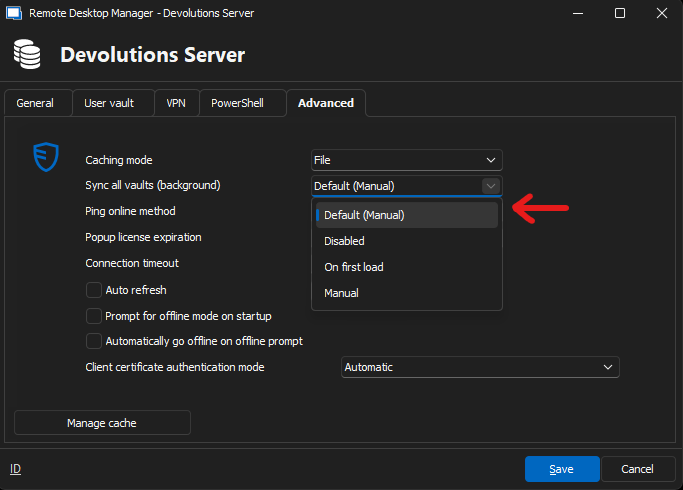
6e645112-4a07-4736-a742-9ece7185dd07.png
@Michael L
Once you've enabled the Allow sync all vaults setting in System Settings, the default sync method is set to Manual. This means that users need to periodically click the vault sync icon located at the bottom right of the screen to manually initiate synchronization.
The On first load option while allowing manual sync also adds the benefit of an automatically vault sync when the data source is first opened. Start RDM, connect to the data source, vault sync will initiate.
At this time, we've chosen not to implement a timed or event-based trigger (other than on first load) for vault sync. This decision is based on the potential cost in terms of time, bandwidth,
and processing resources required for frequent synchronizations.
However, we are considering adding an option for a refresh that occurs once every 24 hours.
I'll ask the documentation team to update the how-to guide to include clearer definitions of these sync options.
Best regards,
Stéfane Lavergne
The On first load option while allowing manual sync also adds the benefit of an automatically vault sync when the data source is first opened. Start RDM, connect to the data source, vault sync will initiate.
At this time, we've chosen not to implement a timed or event-based trigger (other than on first load) for vault sync. This decision is based on the potential cost in terms of time, bandwidth,
and processing resources required for frequent synchronizations.
However, we are considering adding an option for a refresh that occurs once every 24 hours.
I'll ask the documentation team to update the how-to guide to include clearer definitions of these sync options.
Hi Stéfane
is there a possibility to set the sync option to "on first load" for all users as the default?
or could i change this in the RemoteDesktopManager.cfg in the %localAppdata%?
I haven't found a possibility to set this for all our users, yet.
Best Regards,
Tobias
Hi Tobias,
Good question. Every time we add features, we usually ask ourselves how admins will manage this across the organization, often adding GPO overrides that allow for easy management. Unfortunately, in this case, we did no such thing, my bad. There is a GPO for System Setting > Allow sync all vaults (background), but not for the sync mode.
That being said, I believe you could use a PowerShell script to change the setting across the organization. I will need to ask the PS team to assist me if you want help with this—sadly, I'm no PowerShell expert.
I will also create a feature request to make this easier.
Best regards,
https://docs.devolutions.net/rdm/kb/how-to-articles/synchronize-vaults-background/#enabling-background-vault-synchronization
Stéfane Lavergne
Hi Stéfane,
Thanks for Your reply.
I allready checked the ADMX Files for Configuration options on this and also enrolled the background vault synchronization via Intune configuration GPO.
But i'd like to set the Sync Options across all our users to "on first load".
I would be happy if you could ask the PS-Team to help on this, we are already using a lot of PowerShell to create every entry in RDM. If it would be possible to change the Sync settings via PowerShell it would be ideal.
I will check the PowerShell Module myself for an option to change this setting.
Best regards,
Tobias
This should do the trick.
Make sure RDM is closed when you run this as closing RDM could cause the change to be reverted.
$dsName = "somename"
$ds = Get-RDMDataSource -Name $dsName
Set-RDMDatasourceProperty -DataSource $ds -Property VaultSyncMode -Value ([Devolutions.RemoteDesktopManager.VaultSyncMode]::FirstLoad)
Set-RDMDatasource -DataSource $ds
Stéfane Lavergne
This should do the trick.
Make sure RDM is closed when you run this as closing RDM could cause the change to be reverted.
$dsName = "somename"
$ds = Get-RDMDataSource -Name $dsName
Set-RDMDatasourceProperty -DataSource $ds -Property VaultSyncMode -Value ([Devolutions.RemoteDesktopManager.VaultSyncMode]::FirstLoad)
Set-RDMDatasource -DataSource $ds
Does this have to be configured on every client or the DB-Server?
Every client unfortunately.
Stéfane Lavergne
Every client unfortunately.
Thats truely unfortunate, we then have to wait until the feature is available and have to do it manaualy for the users who need it.