
reinleen
Better feedback when not able to authenticate
I have spent the better part of 2 days troubleshooting an issue where I could not retrieve users or vaults on a server while these queries worked on another one. Eventually I found out the Application Identity I used had IP restrictions implemented.
When running the following to authenticate I got the following response (I used the -AsLegacyResponse to get more feedback during testing).
PS> New-DSSession -BaseUri $Uri -Credential $Credential -AsApplication -AsLegacyResponse

DetailedErrorMessage ErrorMessage IsSuccess                Result
-------------------- ------------ ---------                ------
                                       True               Success
Though in fact I was not authenticated due to the IP restriction. Performing a follow-up query thus yielded the following result.
PS> Get-DSVault -All -AsLegacyResponse

DetailedErrorMessage ErrorMessage IsSuccess                Result
-------------------- ------------ ---------                ------
                                      False WebApiRedirectToLogin
After finally finding the solution for my issue, I noticed I actually got a faint hint about not being authenticated when using verbose logging.
Without IP restrictions in place the following will happen.
PS> New-DSSession -BaseUri $Uri -Credential $Credential -AsApplication -Verbose -AsLegacyResponse

VERBOSE: [New-DSSession] Beginning...
VERBOSE: [New-DSSession] Server version: 2025.3.5.0
VERBOSE: [New-DSSession] Authenticating as <redacted>
VERBOSE: [New-DSSession] Login as an application
VERBOSE: [New-DSSession] End
With IP restrictions the following will.
PS> New-DSSession -BaseUri $Uri -Credential $Credential -AsApplication -Verbose -AsLegacyResponse

VERBOSE: [New-DSSession] Beginning...
VERBOSE: [New-DSSession] Server version: 2025.3.5.0
VERBOSE: [New-DSSession] Authenticating as <redacted>

VERBOSE: [New-DSSession] End
As you can see there is an empty line in the second response, which is the only indication authentication actually failed.
While troubleshooting I have also checked $global:DSSessionToken as well to see if I was authenticated. This variable has been filled even when failing to authenticate.
Could you add better feedback about failing the authentication? There is no need to hint towards IP restrictions as to now give attackers a clue. But at least let me know authentication has failed, since now I have been looking into the DSSessionToken not being passed onto subsequent requests.
Also please don't fill the DSSessionToken if there is no session.
PowerShell - Get-DSEntry does not returne on invalid GUID
Thanks for the clarification. Then it must be me with the Ctrl + C.
Still glad you will be looking into a more graceful return since Ctrl + C won't be a very useful solution to implement in a non-interactive script.
PowerShell - Get-DSEntry does not returne on invalid GUID
Ctrl + C works in pwsh indeed, but not in an IDE like VS Code (might also just be my configuration, but I don't have this issue with other cmdlets).
PowerShell - Get-DSEntry does not returne on invalid GUID
When I run the command Get-DSEntry -All without passing the VaultID parameter I am asked for the VaultID as expected.
If I pass an empty string, or any other text which isn't a guid I keep getting prompted for the VaultID. I would expect the cmdlet to throw me an error and not keep asking indefinitely. Now I only have 2 options to get out of this loop:
Closing the terminal
Generate a GUID using the New-Guid cmdlet and passing this random GUID.
If I use the second option (passing the random GUID) I get an error not related to cmdlet, namely: Get-DSFolders: Unexpected exception
PowerShell - Cannot set permissions on Application Identity
Hello reinleen,
Thank you for reaching out to the Devolutions support team.
Retrieving the ID of an application identity proved to be more challenging than I thought.
By reverse engineering, you can get it.
Set permissions on a folder to this application identity.
Then run this in PowerShell:
$vault = Get-DSVault -VaultID "<VaultID>"
$folder = Get-DSFolders -VaultID $vault.ID -IncludeSubFolders
$folder = Get-DSFolders -VaultID $vault.ID -IncludeSubFolders | Where-Object {$_.Name -eq "<FolderID>"}
Get-DSEntriesPermissions -EntryID $folder.ID The application identity ID should be listed under the 'Principals' result.
Simply add this ID to your Script.
Best regards,
@Patrick Ouimet
I went ahead and got it working with the following code. It seems the User entity has a Display member that shows my original $applicationID. This member actually appears to be an object from which the real ID can be retrieved.
# Extract the real ID Of the Application Identity
# Get all permissions set on the target vault
$allEntries = Get-DSEntriesPermissions -VaultID $targetVault.ID
# Select only the principals set on the root
$principals = $allEntries | Where-Object { $_.Entry -eq "[Root]" } | Select-Object -ExpandProperty "Principals"
# Principals contains a comma seperated string.
# Loop through the principals, if the principal is a user, check if the Display (not the real ID) equal to the Application Identity ID
foreach ($principal in ($principals -split ",").Trim()) {
    if (($user = (Get-DSUser -UserID $principal)).Result -eq "Success") {
        if ($user.Data.Display -eq $applicationID) {
            $realApplicationId = $principal
            break
        }
    }
}
The above code will work, but requires quite a few of unneccesary steps. Could you raise a feature request to either:
Accept the Application ID when setting permissions
Giving us a cmdlet to easily retrieve the real Application ID of the Application Identity?
PowerShell - Cannot set permissions on Application Identity
Hello reinleen,
Thank you for reaching out to the Devolutions support team.
Retrieving the ID of an application identity proved to be more challenging than I thought.
By reverse engineering, you can get it.
Set permissions on a folder to this application identity.
Then run this in PowerShell:
$vault = Get-DSVault -VaultID "<VaultID>"
$folder = Get-DSFolders -VaultID $vault.ID -IncludeSubFolders
$folder = Get-DSFolders -VaultID $vault.ID -IncludeSubFolders | Where-Object {$_.Name -eq "<FolderID>"}
Get-DSEntriesPermissions -EntryID $folder.ID The application identity ID should be listed under the 'Principals' result.
Simply add this ID to your Script.
Best regards,
@Patrick Ouimet
Thank you for your answer, but this does not quite solve my issue.
I already know the GUID of the Application Identity (I store this in $applicationID way at the start of the function I shared). The issue is that I cannot use this GUID to set permissions on a Folder.
I have tried your method to see if the GUID was different from the one I had stored, but this was not the case.
PowerShell - Cannot set permissions on Application Identity
When I create a folder within a vault, I want to set the permissions to that folder using the Devolutions.PowerShell module version 2025.3.1. Though when I try to assign the permissions this works as intended for Users and User Groups, but not for Application Identities.
The following code can be used to reproduce my situation. Please note that Get-SecureEnvironmentHash is a private function which retrieves hashed secrets. We can assume these work as intended since the folder can be created and permissions can be set.
function New-DevolutionsFolder {
    [CmdletBinding()]
    param (
        [Parameter(Mandatory = $true)]
        [string]$Uri,

        [Parameter(Mandatory = $false)]
        [string]$Vault = "Test",

        [Parameter(Mandatory = $false)]
        [string]$Folder = "TestFolder",

        [Parameter(Mandatory = $false)]
        [string]$UserGroup = "test_group"
    )

    begin {
        Import-Module -Name "Devolutions.PowerShell"

        try {
            # Create credentials
            $applicationSecret        = Get-SecureEnvironmentHash -Name "DevolutionsTestSecret" | ConvertTo-SecureString -AsPlainText -Force
            $applicationID            = Get-SecureEnvironmentHash -Name "DevolutionsTestID"
            [pscredential]$Credential = New-Object System.Management.Automation.PSCredential ($applicationID, $applicationSecret)

            # Connect
            New-DSSession -BaseUri $Uri -Credential $Credential -AsApplication
        } catch {
            throw "Could not connect to '$Uri'"
        }
    }

    process {
        # Generate permissions
        $roleID = Get-DSRole -All |
            Where-Object { $_.name -eq $UserGroup } |
            Select-Object -ExpandProperty "Id" |
            Select-Object -ExpandProperty "Guid"

        $permissions = @(
            # View
            [RemoteDesktopManager.PowerShellModule.Private.models.ConnectionPermission]@{
                IsEmpty  = $false
                Override = [RemoteDesktopManager.PowerShellModule.Private.enums.SecurityRoleOverride]::Custom
                Right    = [RemoteDesktopManager.PowerShellModule.Private.enums.SecurityRoleRight]::View
                Roles    = @($roleID, $applicationID)
            }
        )

        # Get the vault
        $targetVault = Get-DSVault -All | Where-Object { $_.Name -eq $Vault }

        # Create the folder
        $createdFolder = New-DSFolder -Name $Folder -VaultID $targetVault.ID

        # Set permissions
        Set-DSEntityPermissions -EntityId $createdFolder.id -Permissions $permissions
    }

    end {
        # Close the session
        Close-DSSession
    }
}
The below screenshot shows the Folder has been created and permissions have been set for the User Group, but not for the Application Identity, which effectively locks me out of this folder for further actions like adding entries.
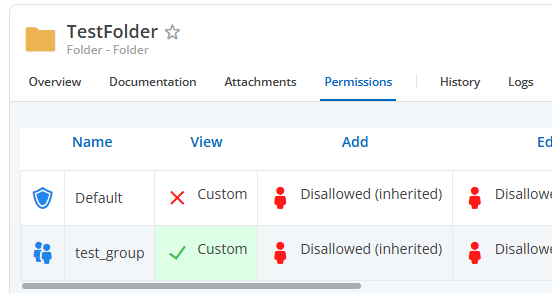
If I create an instance of RemoteDesktopManager.PowerShellModule.Private.models.ConnectionPermission I cannot see any other methods than the 4 I already use, so I believe adding the Application Identity ID into the Roles should be the way to go.
What am I doing wrong here?
Exclude special characters in Application Secret
Hello reinleen,
Thank you for reaching out to the Devolutions support team.
Unfortunately, this is not possible at the moement to exclude a character in the secret or the key.
I will transfer this ticket to the appropriate thread as a feature request.
Could you tell me which data source type you are using?
Also, in PowerShell, the single quote will also refer to a string, and double quotes support variables in that string.
Best regards,
@Patrick Ouimet
I will be consuming the keys as a string (which I will store as a hash using the functions I created for this: PowerShell/Security at main · TheBrickAdmin/PowerShell · GitHub).
Exclude special characters in Application Secret
When creating an Application Identity, the Application Secret is automatically generated. This secret contains a lot of special characters which make it hard for PowerShell use the string. These consist of at least the following characters:
Dollar-sign
Backtick
Single quote
Double quote
How can I prevent these special characters from being used to generate an Application Secret?