PowerShell - Cannot set permissions on Application Identity
1 vote

When I create a folder within a vault, I want to set the permissions to that folder using the Devolutions.PowerShell module version 2025.3.1. Though when I try to assign the permissions this works as intended for Users and User Groups, but not for Application Identities.
The following code can be used to reproduce my situation. Please note that Get-SecureEnvironmentHash is a private function which retrieves hashed secrets. We can assume these work as intended since the folder can be created and permissions can be set.
function New-DevolutionsFolder {
    [CmdletBinding()]
    param (
        [Parameter(Mandatory = $true)]
        [string]$Uri,

        [Parameter(Mandatory = $false)]
        [string]$Vault = "Test",

        [Parameter(Mandatory = $false)]
        [string]$Folder = "TestFolder",

        [Parameter(Mandatory = $false)]
        [string]$UserGroup = "test_group"
    )

    begin {
        Import-Module -Name "Devolutions.PowerShell"

        try {
            # Create credentials
            $applicationSecret        = Get-SecureEnvironmentHash -Name "DevolutionsTestSecret" | ConvertTo-SecureString -AsPlainText -Force
            $applicationID            = Get-SecureEnvironmentHash -Name "DevolutionsTestID"
            [pscredential]$Credential = New-Object System.Management.Automation.PSCredential ($applicationID, $applicationSecret)

            # Connect
            New-DSSession -BaseUri $Uri -Credential $Credential -AsApplication
        } catch {
            throw "Could not connect to '$Uri'"
        }
    }

    process {
        # Generate permissions
        $roleID = Get-DSRole -All |
            Where-Object { $_.name -eq $UserGroup } |
            Select-Object -ExpandProperty "Id" |
            Select-Object -ExpandProperty "Guid"

        $permissions = @(
            # View
            [RemoteDesktopManager.PowerShellModule.Private.models.ConnectionPermission]@{
                IsEmpty  = $false
                Override = [RemoteDesktopManager.PowerShellModule.Private.enums.SecurityRoleOverride]::Custom
                Right    = [RemoteDesktopManager.PowerShellModule.Private.enums.SecurityRoleRight]::View
                Roles    = @($roleID, $applicationID)
            }
        )

        # Get the vault
        $targetVault = Get-DSVault -All | Where-Object { $_.Name -eq $Vault }

        # Create the folder
        $createdFolder = New-DSFolder -Name $Folder -VaultID $targetVault.ID

        # Set permissions
        Set-DSEntityPermissions -EntityId $createdFolder.id -Permissions $permissions
    }

    end {
        # Close the session
        Close-DSSession
    }
}
The below screenshot shows the Folder has been created and permissions have been set for the User Group, but not for the Application Identity, which effectively locks me out of this folder for further actions like adding entries.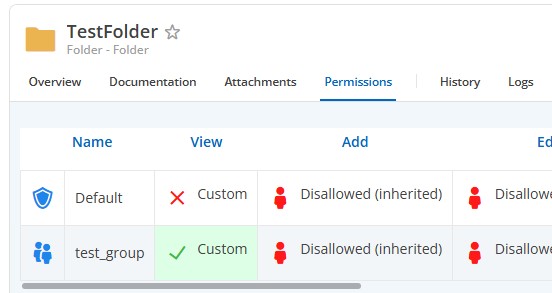
If I create an instance of RemoteDesktopManager.PowerShellModule.Private.models.ConnectionPermission I cannot see any other methods than the 4 I already use, so I believe adding the Application Identity ID into the Roles should be the way to go.
What am I doing wrong here?
afbeelding.png
All Comments (5)
Hello reinleen,
Thank you for reaching out to the Devolutions support team.
Retrieving the ID of an application identity proved to be more challenging than I thought.
By reverse engineering, you can get it.
Set permissions on a folder to this application identity.
Then run this in PowerShell:
$vault = Get-DSVault -VaultID "<VaultID>"
$folder = Get-DSFolders -VaultID $vault.ID -IncludeSubFolders
$folder = Get-DSFolders -VaultID $vault.ID -IncludeSubFolders | Where-Object {$_.Name -eq "<FolderID>"}
Get-DSEntriesPermissions -EntryID $folder.ID
The application identity ID should be listed under the 'Principals' result.
Simply add this ID to your Script.
Best regards,
Patrick Ouimet
Hello reinleen,
Thank you for reaching out to the Devolutions support team.
Retrieving the ID of an application identity proved to be more challenging than I thought.
By reverse engineering, you can get it.
Set permissions on a folder to this application identity.
Then run this in PowerShell:
$vault = Get-DSVault -VaultID "<VaultID>"
$folder = Get-DSFolders -VaultID $vault.ID -IncludeSubFolders
$folder = Get-DSFolders -VaultID $vault.ID -IncludeSubFolders | Where-Object {$_.Name -eq "<FolderID>"}
Get-DSEntriesPermissions -EntryID $folder.ID The application identity ID should be listed under the 'Principals' result.
Simply add this ID to your Script.
Best regards,
@Patrick Ouimet
Thank you for your answer, but this does not quite solve my issue.
I already know the GUID of the Application Identity (I store this in $applicationID way at the start of the function I shared). The issue is that I cannot use this GUID to set permissions on a Folder.
I have tried your method to see if the GUID was different from the one I had stored, but this was not the case.
Hello reinleen,
Thank you for reaching out to the Devolutions support team.
Retrieving the ID of an application identity proved to be more challenging than I thought.
By reverse engineering, you can get it.
Set permissions on a folder to this application identity.
Then run this in PowerShell:
$vault = Get-DSVault -VaultID "<VaultID>"
$folder = Get-DSFolders -VaultID $vault.ID -IncludeSubFolders
$folder = Get-DSFolders -VaultID $vault.ID -IncludeSubFolders | Where-Object {$_.Name -eq "<FolderID>"}
Get-DSEntriesPermissions -EntryID $folder.ID The application identity ID should be listed under the 'Principals' result.
Simply add this ID to your Script.
Best regards,
@Patrick Ouimet
I went ahead and got it working with the following code. It seems the User entity has a Display member that shows my original $applicationID. This member actually appears to be an object from which the real ID can be retrieved.
# Extract the real ID Of the Application Identity
# Get all permissions set on the target vault
$allEntries = Get-DSEntriesPermissions -VaultID $targetVault.ID
# Select only the principals set on the root
$principals = $allEntries | Where-Object { $_.Entry -eq "[Root]" } | Select-Object -ExpandProperty "Principals"
# Principals contains a comma seperated string.
# Loop through the principals, if the principal is a user, check if the Display (not the real ID) equal to the Application Identity ID
foreach ($principal in ($principals -split ",").Trim()) {
    if (($user = (Get-DSUser -UserID $principal)).Result -eq "Success") {
        if ($user.Data.Display -eq $applicationID) {
            $realApplicationId = $principal
            break
        }
    }
}
The above code will work, but requires quite a few of unneccesary steps. Could you raise a feature request to either:
- Accept the Application ID when setting permissions
- Giving us a cmdlet to easily retrieve the real Application ID of the Application Identity?
Hello @reinleen,
We've opened a ticket to enable usage of an application ID when setting permissions. We'll keep you updated.
Best regards,
Christian
Hello,
Get-DSApplicationIdentity has been added to retrieve the list of application identities directly in the version 2026.1.4 of the Devolutions.PowerShell module.
Please reach out if you have any questions or need anything else.
Best regards,
Maxime