
sekr
Problems using Edit Local Specific Settings on Credential Entries after upgrade
I just checked, Allow local specific settings was ticket on, in our data source settings.
Bu still when I right click on a Credential entry where I already have information entered with the previous version, I get following view:
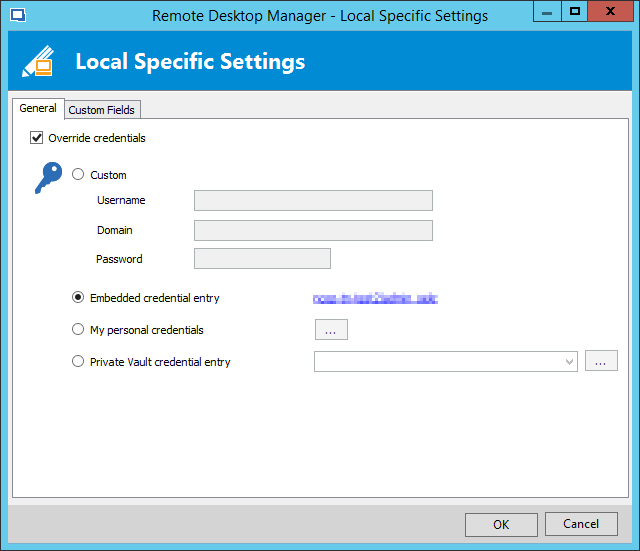
I click on the link with my username under "Embedded credential entry", and then I get the view as was used to have.
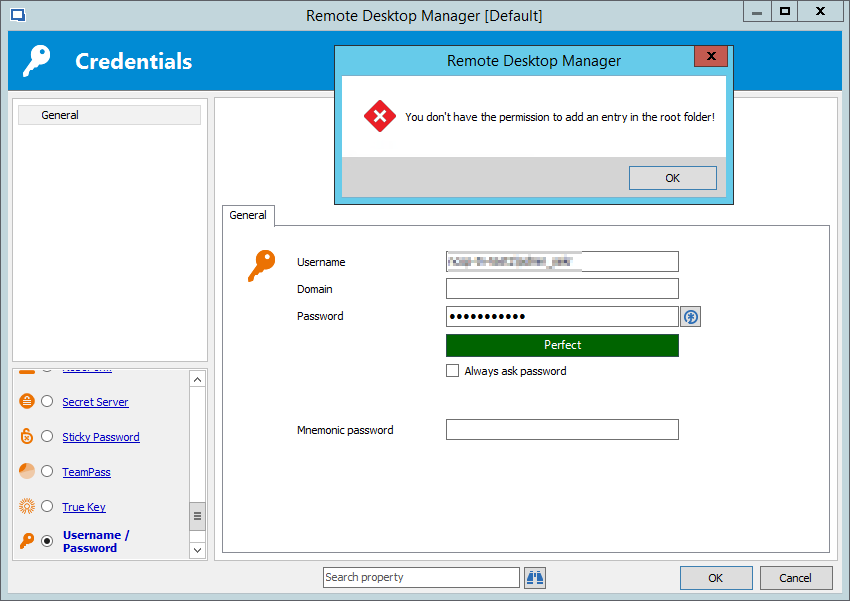
In there when I try to update my password and click on OK, I get following:
Problems using Edit Local Specific Settings on Credential Entries after upgrade
Also before, when clicking on a credential entries "Local Specific Settings" we had the normal override options, but now it's a different view, where if the user had his credentials before the upgrade, "Embedded credential entry" was selected with a link.
And it's when clicking that link, and they try to update their password, they get the mentioned error message.
Is there any way to get the old behavior back?
Problems using Edit Local Specific Settings on Credential Entries after upgrade
Hello,
After upgrading from 11.7.6.0 to 13.6.7.0 we started getting following error when trying to do a User Specific Settings edit on a credential entry:
You don't have the permission to add an entry in the root folder!
We use SQL database as source, and our users only have ready permissions as we don't want them to update any entries in there.
We have a script that builds all connection entries and corresponding credential entries that are added to that connection entry.
In the old version it worked fine, where users would select edit > Local Specific Settings and enter their credentials, and those would be stored in their profile.
But in the new version we get the above mentioned error.
What permission do I have to change so that they can enter their own credentials with "Local Specific Settings"?
Licens prompt after upgrade
We use user profile disks for all users which are mounted to the session host they are connecting to, and they have full permissions to everything in their user profile.
I found a file called RemoteDesktopManager.cfg in the installation folder with the old serial number, does it have the same behavior like default.cfg?
Licens prompt after upgrade
No, I can't find a default.cfg in the installation path (C:\Program Files (x86)\Devolutions\Remote Desktop Manager).
Licens prompt after upgrade
Hello,
We run Remote Desktop Manager Enterprise in our RDS farm (RDS session hosts), and have a SQL database as source that all our users use.
We just upgraded from version 11.7.6.0 to 13.6.7.0. Our users started getting prompts when starting Remote Desktop Manager with either that they need to enter a license or that their licens has expired.
We have added our serial number which we renewed a month ago in the database, and when our users click cancel to the prompt, they get further and it says that it's licensed in the about page.
But next day when they start the program again, they get the same prompt.
How can we solve so our users stop getting the licens prompt when starting Remote Desktop Manger in our RDS farm?
Get license expiration date
Hello,
We wish to create an automatic alert when our licens is about to expire for Remote Desktop Manager and generate a ticket in our service desk sytem.
We run with a Microsoft SQL data source where I have entered the serial number.
So my question is, is there any way to acquire the expiration date of once license preferably via powershell?
Large SQL data source
It worked, thanks!
Large SQL data source
Hello,
We are running Remote Desktop Manager installed on Remote Desktop services solution where users start if as an RemoteApp.
As a datasource we use a Microsoft SQL server, where we have made an powershell script that exports all of our servers from our CMDB into the SQL database via the remote desktop manager cmdlets. This script runs every 2 hours.
The problem is that after a while the database has gotten very large, and the table ConenctionHistory specifically is quite large. (the table is 3,6 GB. out of 4,2 GB. total size of the database)
What is the recommended way to purge this table? Can I just do it directly in the database without breaking anything?
I see that there are some clean options under the Administration tab in the Remote desktop manager to clean up history, but it's very important that we don't delete anything in the table ConnectionLog which we use as audit history, and automated way to do is required.