Passwords are missing after upgrading RDM from 2024.3.16.0

Hello,
I am using Remote Desktop Manager 2024.3.16.0 (64-bit) on Windows with a local SQLite data source.
When I use the older version, all my connections, usernames, and passwords are available and work correctly. After upgrading to a newer version, the connections are displayed, but the usernames and passwords are missing or empty. If I return to version 2024.3.16.0, everything comes back immediately.
The local data source contains a file named Connections. The RDM configuration folder also contains the following files:
RemoteDesktopManager.cfg
RemoteDesktopManager.stv
RemoteDesktopManager.stb
RemoteDesktopManager.enc
RemoteDesktopManager.enb
RemoteDesktopManager.bak
I tried exporting the settings and importing them into the newer version. The connections were imported, but the credentials were not. I also tried Export vault (.rdm), but initially the passwords were not included. During the tests, some entries were duplicated, so I stopped making changes and restored the older version.
I would like to know:
1. Which exact files and encryption keys are required to migrate the credentials from the old version to the new version?
2. Is the local SQLite database encrypted with a master key or with a key tied to the Windows user profile?
3. Should I use File > Export > Export vault (.rdm) with Include credentials enabled?
4. Is it possible to migrate this local SQLite workspace to Devolutions Cloud while preserving the usernames and passwords?
5. What is the safest way to remove the duplicated entries without affecting the original database?
Please let me know which diagnostic information is safe to provide. I do not want to upload the SQLite database or any file containing credentials publicly.
Thank you.
All Comments (21)
The issue seems to affect only the sensitive fields. The newer version can read the SQLite connections, but it cannot display or decrypt the usernames and passwords. When I roll back to RDM 2024.3.16.0, all credentials immediately become available again. Could this be related to the DPAPI-protected .stv/.stb/.enc/.enb files or to a regression in the newer version?
My goal is to upgrade Remote Desktop Manager while keeping everything that is currently saved: all connections, usernames, passwords, credentials, settings, and other entry properties. I do not want to recreate the credentials manually one by one.
The old version, RDM 2024.3.16.0 (64-bit), displays and uses all my saved logins and passwords correctly. However, after upgrading to the newer version, the connections are visible but the usernames and passwords are missing. When I return to version 2024.3.16.0, all credentials become available again.
I need the correct and safe procedure to upgrade RDM without losing or hiding any saved credentials. Please explain which data source, configuration files, encryption files, DPAPI settings, or master key must be migrated so that the new version can read all existing logins and passwords.
Hello,
Before we investigate the cause further, could you please try the following as a workaround?
On your working 2024.3.16.0 installation:
1. Go to File → Export → Export Vault (.rdm).
2. Enable Include credentials. This option is disabled by default, which is likely why the passwords were not included in your previous export.
3. Set a master key to protect the export, then save the `.rdm` file outside the RDM configuration folder.
Then, on the newer version:
4. Go to **File → Import → Import Vault (.rdm)**.
5. Select the exported file and enter the master key when prompted.
This should transfer your connections, usernames, and passwords intact. Please let us know if this works.
Regarding your other questions:
**Master key vs. Windows profile key:**
For a standard local SQLite installation with no application password configured, sensitive data is protected using the local key stored in the `.enc` file. This key can also be protected using DPAPI and tied to your Windows user or machine. This is different from the separate "master key" concept used in Devolutions Server or Hub-style deployments.
**Migrating the SQLite workspace to Devolutions Cloud:**
Yes, migrating a local SQLite data source to Devolutions Cloud is generally a supported migration path.
**Removing duplicate entries:**
I recommend doing this only on a **copy of the data source**, rather than on the original. The duplicates created during your import test do not indicate data loss; they are simply entries that were imported more than once.
Once the credential issue has been resolved, you can batch-select and delete the duplicate entries from the copy. After verifying that all entries and credentials are present and working correctly, you can use that cleaned-up copy as your new working data source.
Best regards,
Carl Marien
Hello,
Before we investigate the cause further, could you please try the following as a workaround?
On your working 2024.3.16.0 installation:
1. Go to File → Export → Export Vault (.rdm).
2. Enable Include credentials. This option is disabled by default, which is likely why the passwords were not included in your previous export.
3. Set a master key to protect the export, then save the `.rdm` file outside the RDM configuration folder.
Then, on the newer version:
4. Go to **File → Import → Import Vault (.rdm)**.
5. Select the exported file and enter the master key when prompted.
This should transfer your connections, usernames, and passwords intact. Please let us know if this works.
Regarding your other questions:
**Master key vs. Windows profile key:**
For a standard local SQLite installation with no application password configured, sensitive data is protected using the local key stored in the `.enc` file. This key can also be protected using DPAPI and tied to your Windows user or machine. This is different from the separate "master key" concept used in Devolutions Server or Hub-style deployments.
**Migrating the SQLite workspace to Devolutions Cloud:**
Yes, migrating a local SQLite data source to Devolutions Cloud is generally a supported migration path.
**Removing duplicate entries:**
I recommend doing this only on a **copy of the data source**, rather than on the original. The duplicates created during your import test do not indicate data loss; they are simply entries that were imported more than once.
Once the credential issue has been resolved, you can batch-select and delete the duplicate entries from the copy. After verifying that all entries and credentials are present and working correctly, you can use that cleaned-up copy as your new working data source.
Best regards,
@Carl Marien
Hello,
I followed the procedure you provided:
1. I used the working RDM 2024.3.16.0 installation.
2. I went to File → Export → Export Vault (.rdm).
3. I enabled Include credentials.
4. I protected the export with a master key and saved the .rdm file outside the RDM configuration folder.
5. I imported the file into a new empty workspace in the newer RDM version and entered the master key when prompted.
However, the passwords were still not preserved. The connections and other entry information were imported, but the usernames and passwords were missing in the newer version. When I return to RDM 2024.3.16.0, all the saved credentials are available and work correctly again.
Therefore, the issue is specifically that the credentials are not being transferred, even when Include credentials is enabled. My goal is to upgrade RDM while preserving all existing connections, usernames, passwords, and other saved information, without having to recreate the credentials manually.
Could you please advise what additional setting, key, credential source, or encryption file is required for the passwords to be transferred correctly?
Best regards,
Hello,
Thank you for testing the export and import procedure and for providing the results.
Since the issue is preventing you from upgrading Remote Desktop Manager while preserving your credentials, I would like to schedule a support session with you so we can investigate this directly in your environment.
During the session, we can review your current configuration, reproduce the behavior between RDM 2024.3.16.0 and the newer version, and determine why the credentials are not being transferred or decrypted correctly.
I will send you a link by email to join the support session.
Best regards,
Carl Marien
Hello,
Thank you for testing the export and import procedure and for providing the results.
Since the issue is preventing you from upgrading Remote Desktop Manager while preserving your credentials, I would like to schedule a support session with you so we can investigate this directly in your environment.
During the session, we can review your current configuration, reproduce the behavior between RDM 2024.3.16.0 and the newer version, and determine why the credentials are not being transferred or decrypted correctly.
I will send you a link by email to join the support session.
Best regards,
@Carl Marien
I need to correct my previous explanation.
I do not have access to the username and password through the connection properties, even in the older RDM 2024.3.16.0 version. The credentials are not displayed there, and the password history is also empty.
However, the older version is still able to use the saved credentials automatically when I open the connection. The key icon on the top toolbar also retrieves/uses the credentials correctly in the older version.
In the newer version, the connections are present, but it cannot retrieve or use the saved usernames and passwords. The same .rdm backup file imports the credentials correctly when I install the older version on another computer, but the newer version does not.
Therefore, the credentials are present in the backup and can be used by the older version, but they cannot be viewed or retrieved by the newer version. Could you please investigate this as a compatibility or credential decryption issue in the newer version?
Hello,
Based on your latest clarification, the credentials must be stored or referenced somewhere, since RDM 2024.3.16.0 is still able to retrieve and use them automatically even though they are not visible directly in the connection properties.
This makes me suspect that the credentials may be coming from another location, such as a user-specific or local-specific setting/credential source that is not being carried over through the normal import/export process.
At this point, rather than making further changes to your working environment, I think the best approach is to proceed with the support session. This will allow us to review the configuration directly and determine exactly where the credentials are being retrieved from in the older version and why the newer version is not resolving them the same way.
Best regards,
Carl Marien
Hello,
Based on your latest clarification, the credentials must be stored or referenced somewhere, since RDM 2024.3.16.0 is still able to retrieve and use them automatically even though they are not visible directly in the connection properties.
This makes me suspect that the credentials may be coming from another location, such as a user-specific or local-specific setting/credential source that is not being carried over through the normal import/export process.
At this point, rather than making further changes to your working environment, I think the best approach is to proceed with the support session. This will allow us to review the configuration directly and determine exactly where the credentials are being retrieved from in the older version and why the newer version is not resolving them the same way.
Best regards,
@Carl Marien
I make this videos https://uploadnow.io/f/Xhxh3pz for you see
Hello,
After reviewing the two videos you provided, it seems that my original assumption was correct. The credentials do not appear to be stored directly in the entry. Instead, they are most likely coming from a user-specific or local-specific setting or credential source. This also matches what we suspected based on your previous description.
That being said, these credentials should normally continue to work when updating Remote Desktop Manager on the same environment.
However, if you export the entries and import them into another installation or workspace, it is expected that credentials stored in a user-specific or local-specific setting will not be included with the exported entry, since they are not actually stored within the entry itself.
This would explain why the connections are exported correctly while the credentials do not follow them.
Best regards,
Carl Marien
Hello,
After reviewing the two videos you provided, it seems that my original assumption was correct. The credentials do not appear to be stored directly in the entry. Instead, they are most likely coming from a user-specific or local-specific setting or credential source. This also matches what we suspected based on your previous description.
That being said, these credentials should normally continue to work when updating Remote Desktop Manager on the same environment.
However, if you export the entries and import them into another installation or workspace, it is expected that credentials stored in a user-specific or local-specific setting will not be included with the exported entry, since they are not actually stored within the entry itself.
This would explain why the connections are exported correctly while the credentials do not follow them.
Best regards,
@Carl Marien
Right, so how would one go about resolving this? Or is there no way to do it?
Hello,
Thank you for confirming. I will consult our development team to determine whether these user-specific or local-specific credentials can be migrated to the newer version and what the recommended procedure would be.
I will follow up with you as soon as I have more information.
Best regards,
Carl Marien
Hello,
As a diagnostic step, could you please try updating Remote Desktop Manager progressively instead of upgrading directly from version 2024.3.16.0 to the latest release?
After backing up your current configuration and data source, please install the next major version, test whether the saved credentials can still be retrieved, and then repeat the process one version at a time.
Previous versions are available here: Remote Desktop Manager previous versions
Please perform these updates in the same environment, without exporting and importing the entries. Let us know the exact first version in which the credentials stop working. This will help us identify where the behavior changed and provide useful information for our investigation.
Best regards,
Carl Marien
Hello,
As a diagnostic step, could you please try updating Remote Desktop Manager progressively instead of upgrading directly from version 2024.3.16.0 to the latest release?
After backing up your current configuration and data source, please install the next major version, test whether the saved credentials can still be retrieved, and then repeat the process one version at a time.
Previous versions are available here: Remote Desktop Manager previous versions
Please perform these updates in the same environment, without exporting and importing the entries. Let us know the exact first version in which the credentials stop working. This will help us identify where the behavior changed and provide useful information for our investigation.
Best regards,
@Carl Marien
Hello,
We performed the progressive version testing as requested.
The last version that preserves all saved credentials and data correctly is Remote Desktop Manager v2024.3.31.003 (2025).
Starting with the versions above v2024.3.31.003, the saved credentials/data are lost and can no longer be retrieved correctly.
Therefore, the first version where the issue occurs is the version immediately following v2024.3.31.003.
Best regards,
André
Hello André,
Thank you for performing the progressive version testing and providing the results.
I have opened an investigation with our QA team so they can look further into why the saved credentials can no longer be retrieved after upgrading beyond RDM v2024.3.31.003.
We will follow up with you as soon as we have more information from the investigation.
Best regards,
Carl Marien
Hello André,
Thank you for performing the progressive version testing and providing the results.
I have opened an investigation with our QA team so they can look further into why the saved credentials can no longer be retrieved after upgrading beyond RDM v2024.3.31.003.
We will follow up with you as soon as we have more information from the investigation.
Best regards,
@Carl Marien
Hi,
Thank you for looking into this. Please let me know if the QA team needs any logs, screenshots, or further testing from my end to help with the investigation.
Best regards,
André
Hello André,
Thank you for completing the progressive upgrade tests. We have confirmed that version 2024.3.31.003 is the last version in which the affected credentials work correctly.
To continue our investigation, could you please provide the XML of one affected entry while using the working version?
- Select the affected entry in RDM.
- Copy the entry to the clipboard.
- Paste the clipboard contents into Notepad.
- Save the file as a .txt or .xml file.
- Send the file to me in a private message through the forum.
Please do not post the file publicly, as it may contain sensitive information. Also, please do not modify or remove any fields from the XML, since its internal properties may help us determine where the credentials are stored or referenced.
Please let me know once you have sent the private message.
Best regards,
Carl Marien
Hello André,
Thank you for completing the progressive upgrade tests. We have confirmed that version 2024.3.31.003 is the last version in which the affected credentials work correctly.
To continue our investigation, could you please provide the XML of one affected entry while using the working version?
- Select the affected entry in RDM.
- Copy the entry to the clipboard.
- Paste the clipboard contents into Notepad.
- Save the file as a .txt or .xml file.
- Send the file to me in a private message through the forum.
Please do not post the file publicly, as it may contain sensitive information. Also, please do not modify or remove any fields from the XML, since its internal properties may help us determine where the credentials are stored or referenced.
Please let me know once you have sent the private message.
Best regards,
@Carl Marien
"I am sending you the RDM file along with the copied clipboard data. Thank you so much for your help!"
Hello André,
Unfortunately, I’m unable to access the link and download the file. Could you please upload it again or send it through Devolutions Send and share the new link with me privately?
Best regards,
Carl Marien
Hello André,
Unfortunately, I’m unable to access the link and download the file. Could you please upload it again or send it through Devolutions Send and share the new link with me privately?
Best regards,
@Carl Marien
Sorry for the radio silence—I found the credentials after updating, but I wanted to understand why it doesn't pull them automatically when clicking the key.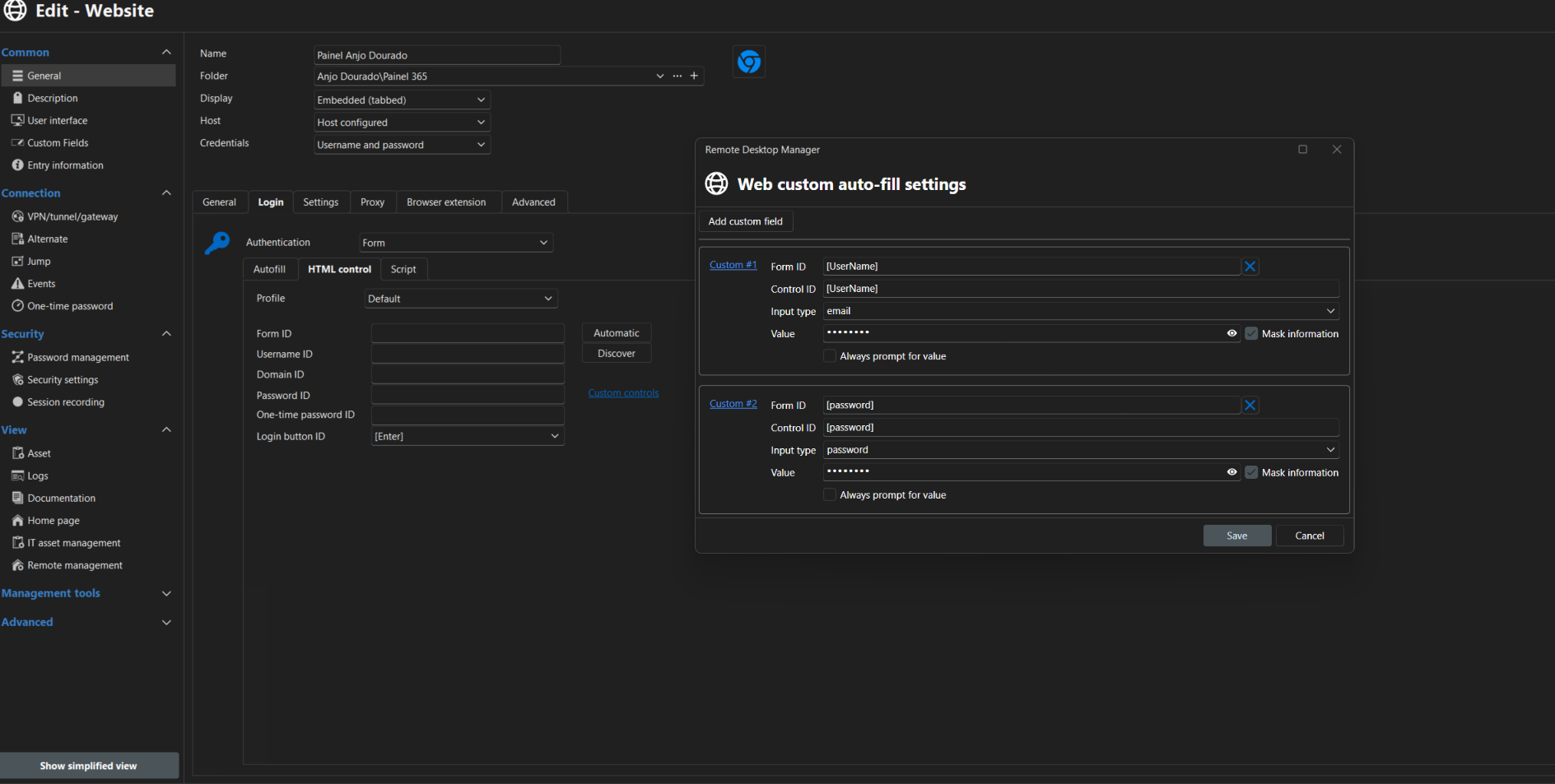
Captura de tela 2026-09-14 082942.png
Hello André,
Unfortunately, I’m unable to access the link and download the file. Could you please upload it again or send it through Devolutions Send and share the new link with me privately?
Best regards,
@Carl Marien
Sorry for the radio silence—I found the credentials after updating, but I wanted to understand why it doesn't pull them automatically when clicking the key.
@andrecorrea
Resolved.... a try the autofill mode v2 for v1 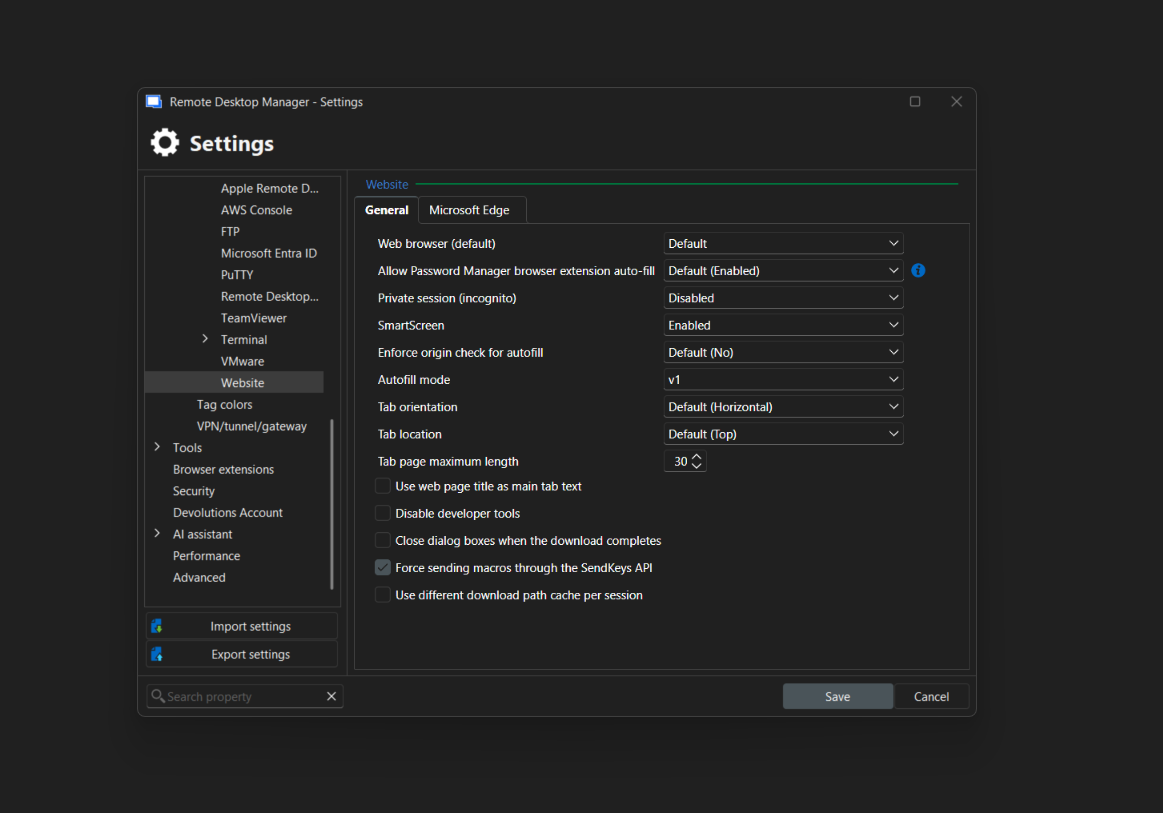
305019b3-8632-404e-bf44-0ff9267f0f0e.png
Hello André,
Thank you for the update. I’m glad to hear that switching the autofill mode from V2 to V1 resolved the issue.
May I consider this forum thread resolved and close it?
Best regards,
Carl Marien