RDM randomly crashes

Ever since the update to 2026.1.18.0 (64-bit), I can barely log in to a few servers before the program crashes and disappears. I can even just launch it and let it sit in the background, and it will be gone a little while later. Is there a log file or anything I can review to find out why?
Event Viewer Log:
Faulting application name: RemoteDesktopManager.exe, version: 2026.1.18.0, time stamp: 0x69a70000
Faulting module name: ntdll.dll, version: 10.0.26100.7653, time stamp: 0x9bef4e47
Exception code: 0xc0000409
Fault offset: 0x0000000000121106
Faulting process id: 0x4CEC
Faulting application start time: 0x1DCD059FDA7F8F5
Faulting application path: C:\Program Files\Devolutions\Remote Desktop Manager\RemoteDesktopManager.exe
Faulting module path: C:\WINDOWS\SYSTEM32\ntdll.dll
Report Id: 3dd530e4-21b3-4c74-a2d0-36ccb20bb72d
Faulting package full name:
Faulting package-relative application ID:
All Comments (7)
Hi Scott,
Could you let us know what type of data source you’re using?
We’d also like to know whether you can try the portable version and tell us if you run into the same problem there.
Here are the steps to test it:
https://docs.devolutions.net/rdm/kb/how-to-articles/portable-rdm-installation/
Also, it would be very helpful if you could send us a screenshot or the RDM application logs.
You can find the relevant steps here:
https://docs.devolutions.net/rdm/commands/help/application-logs/
https://docs.devolutions.net/rdm/kb/how-to-articles/send-application-logs/
If possible, could you also send us a video showing the behavior you described and add it here: FOR-52715
That would be a big help.
You can copy the logs and post them directly here in the forum.
Best regards,
Alexis Geller Peiro
Local SQLite data source.
The portable version seems to work ok with the connections.db, but when I import my settings, it goes back to misbehaving. The application logs appear to be blank - even with debugging on. I am able to reproducible the silent crash, once I have the settings imported. I open a few servers via RDP. Once they have all gotten to their desktops, if I proceed to try to log a server out by clicking on their start menu and signing out, or disconnect, I can only get one server logged out or disconnected before RDM disappears on me. What should I look for in my settings related to Remote Desktop that might cause RDM to crash? I am going to do more testing without importing the settings to see if it crashes, but I think we're getting close. Thanks.
Hi Scott,
Thanks, this is very helpful.
If you can, could you please export your settings and send them to us? That would let us review them on our side and see what might be causing the crash. With the exported settings, we may be able to identify which Remote Desktop setting is triggering the issue.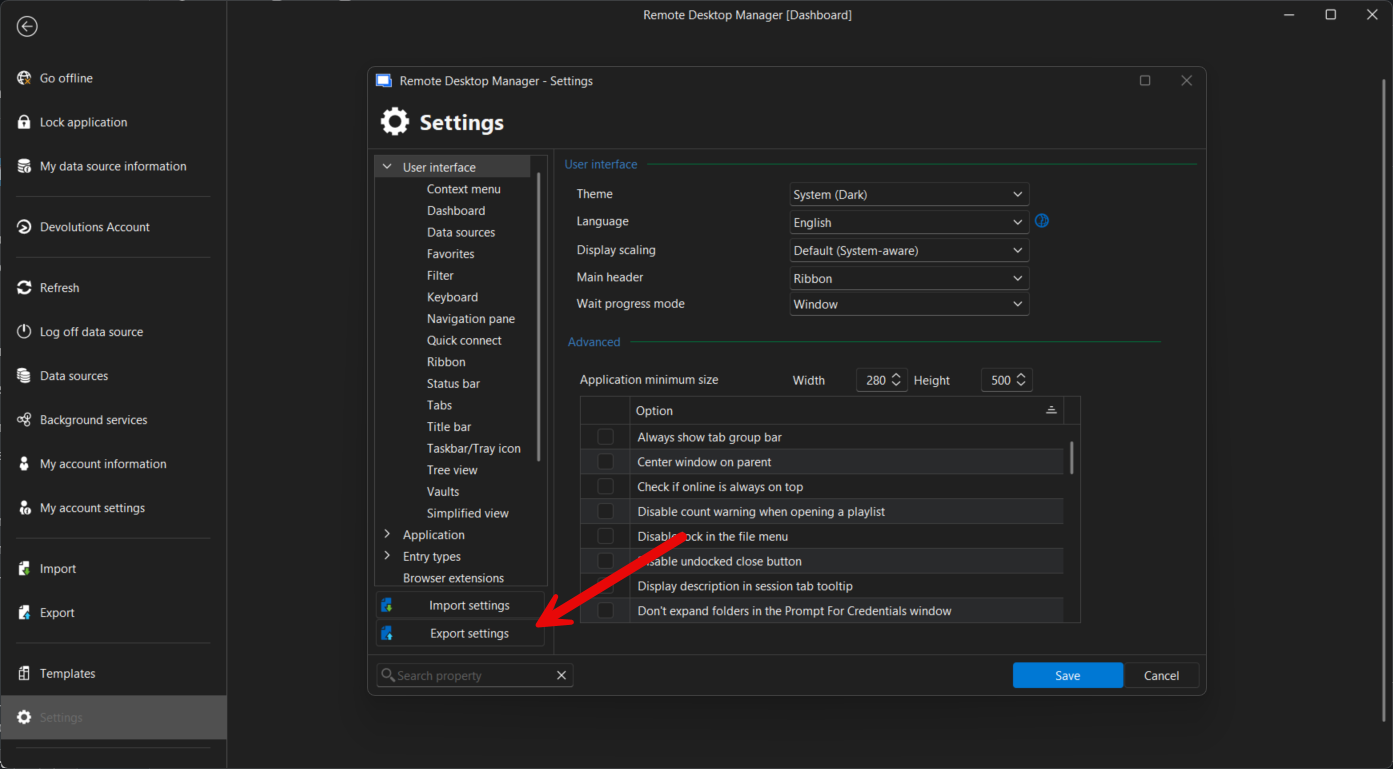
If it helps, you can upload the file directly in the same link I sent you for the video: FOR-52715
Best regards,
Alexis Geller Peiro
f1bdc06c-31f1-4adc-b52e-54acb59aaa0c.png
Done. The exported config file has been uploaded to the link.
Hi Scott,
Thank you for reaching out. We reviewed your configuration file (RemoteDesktopManager.cfg) and identified a few settings that may be contributing to the silent crashes you have been experiencing since upgrading to version 2026.1.18.0. We would like to suggest testing the following changes one at a time, in the order listed below.
Step 1 - Change Hardware Acceleration
Location: File – Settings – Performance
This is our top suspect. Your current configuration has Hardware Acceleration set to DirectX. The crash pattern in ntdll.dll when disconnecting or signing out of multiple simultaneous RDP sessions is consistent with a rendering issue at the DirectX layer. Please change it to Disabled (GDI+), save, restart RDM, and test to see if the crashes stop.
Step 2 - Set Optimize UI Performance to Default
Location: File – Settings – Performance (right below Hardware Acceleration)
If the issue persists after Step 1, please set Optimize UI Performance to Default. Aggressive UI performance settings can contribute to instability when handling multiple sessions at the same time.
Step 3 - Disable Load Plugins in Embedded Mode
Location: File – Settings – Entry Types – Sessions – Remote Desktop (RDP)
If the issue still persists, please set Load plugins in embedded mode to No. Some plugins may not be fully compatible with this version of RDM and could be introducing instability during RDP sessions.
To consistently reproduce the crash during each test, we recommend following this exact workflow:
1. Open several RDP sessions simultaneously.
2. Wait for all of them to reach the desktop.
3. Attempt to sign out or disconnect from one of them
Please test each step individually and restart RDM between changes so the results stay clean and comparable.
We look forward to your feedback.
Best regards,
Alexis Geller Peiro
Success. Going in order, step 1 and step 2 made no difference. However, in step three, after disabling "Load plugins in Embedded mode" and restarting, it stopped crashing after logging out from a server. The problem is that I use plugins when testing/troubleshooting TSPrint and TSScan from TerminalWorks. I have verified that they are at the current versions. How can I get a list of plugins that get loaded with embedded RDP? I'd like to narrow down the offending plugin if it is not a recent RDM bug causing the problem with the TS products. Additionally, I wouldn't complain if, in the process, we can also speedup the starting of the RDM program itself. After launching, it takes just over 20 seconds to get to the point where it finally loads the navigation tree. That's forever in IT time. :)
Hi Scott,
Thank you for the update! We would like to run a couple of tests to help narrow things down further.
Regarding the crashes, could you try opening your RDP sessions directly through mstsc (Windows' built-in Remote Desktop client) instead of RDM, using the same servers and with your TSPrint and TSScan plugins active? We want to see if the crashes occur there as well, or if you are able to connect and use the plugins without any issues.
Regarding the slow startup, please close RDM and relaunch it using Windows + R with the following command:
RemoteDesktopManager.exe /profiler:1 /automode /threshold:200
Once RDM has loaded, please reproduce the performance issue as you normally would. Then, open Help > Performance Profiler and send us the information displayed there.
Please let us know what you find on both fronts.
Best regards,
Alexis Geller Peiro