Overview text cut off with no horizontal scroll bar

Hello,
there is an issue with the Overview tab where text gets cut off if there is not enough screen space, including the icons on the far right, as you can see in the attached images. There is no horizontal scroll bar or the ability to scroll horizontally with mouse/touchpad gestures.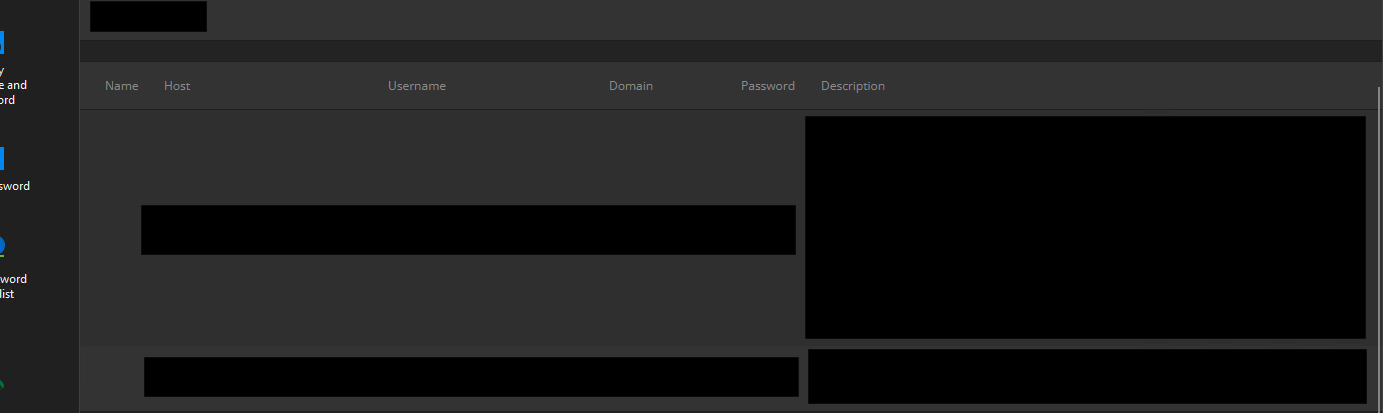
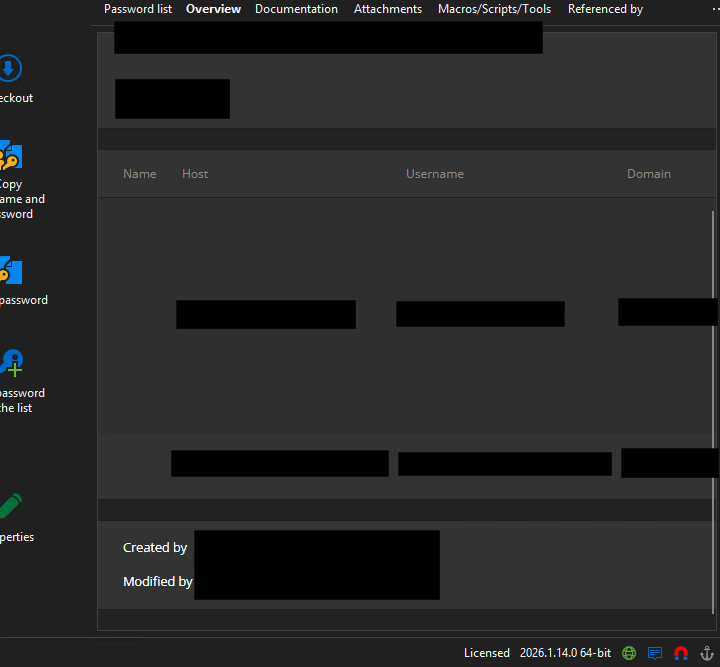
Screenshot 2026-03-17 133741_1.png
Screenshot 2026-03-17 133454_1.png
All Comments (6)
Hello,
Thanks for reporting this!
Could you provide a bit more information about your display setup so we can better understand the issue?
- Your screen resolution (e.g., 1920x1080, 2560x1440, etc.)
- Windows display scaling (e.g., 100%, 125%, 150%)
- Whether you're using multiple monitors (if so, their resolutions and scaling)
- Whether RDM is maximized, windowed, or on a specific monitor
If possible, also let us know if resizing the RDM window changes the behaviour.
Best regard.
Carl Marien
Hello @Carl Marien,
apologies for the late reply.
We use RDM in VMs, which means there are no fixed screen resolution nor scaling when connecting through RDP from multiple different machines, screen sizes and setups. But in my case, the resolution of the VM is a bit smaller than 1080p and the scaling is default on a single monitor (through RDP). RDM is maximized, however, that shouldn't matter, as the information should be visible regardless of the resolution, scaling or window size by scrolling vertically. I can see all info if I reduce the size of Navigation and/or Action panels or open the connection on a monitor with a higher resolution.
Hello,
Thank you for the additional details.
I was unable to reproduce the issue on my end. To help me investigate further, could you clarify how exactly you connect to the machine? Specifically, are you using RDM through an RDP entry?
If that is the case, please try the following:
1. Open the properties of your RDP entry.
2. Go to the Display tab.
3. Change the screen sizing mode to Dynamic Resolution.
Please let me know if this changes anything.
Best regards,
Carl Marien
Hello,
I think this screenshot might help explain what I mean. For this example, I chose to open the VM through Workstation instead of RDPing into it. Generally speaking, we have Windows VMs with RDM installed (alongside other software) which employees can RDP into to do the work they need.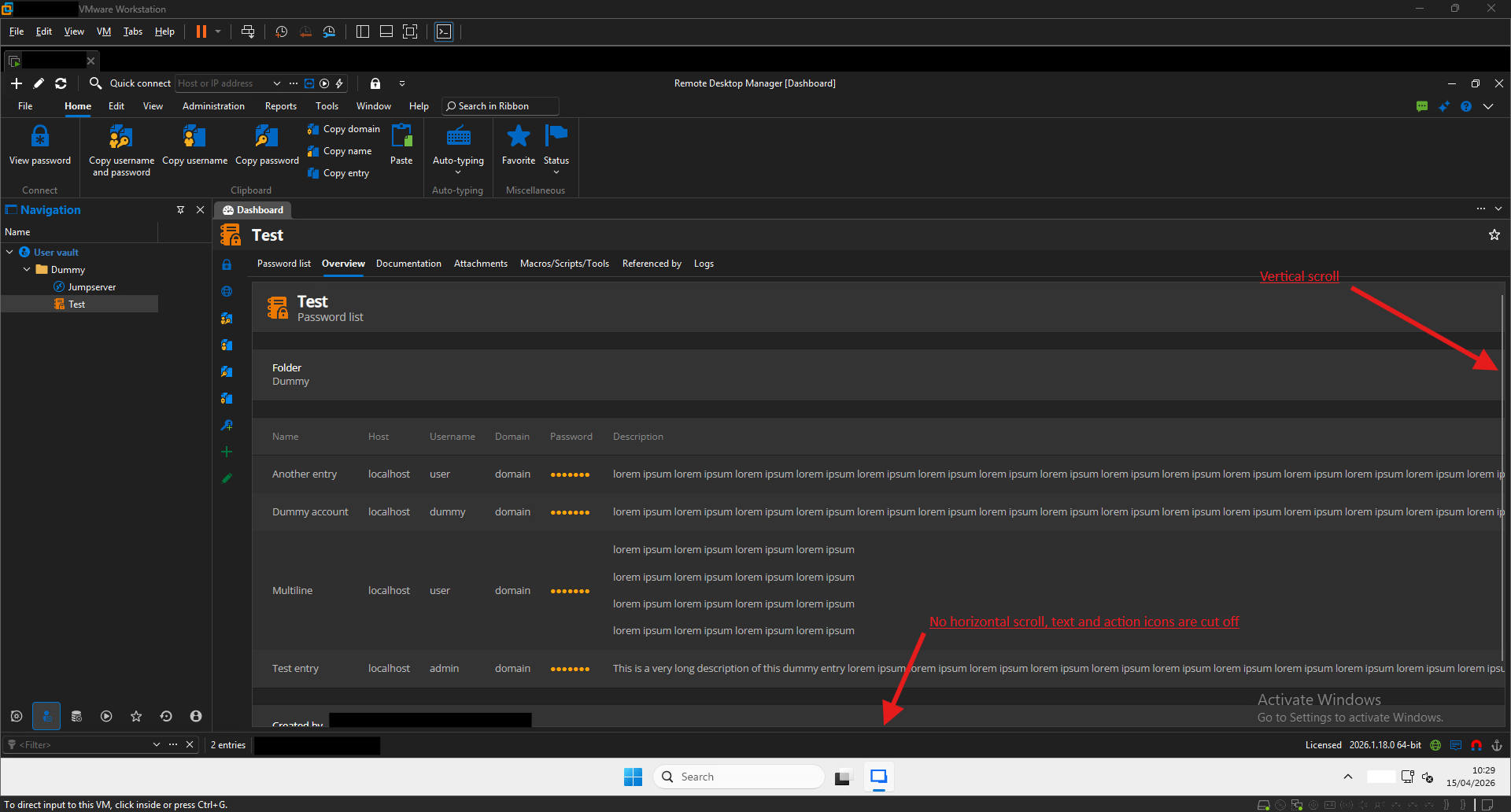
In the screenshot you can see that Password list page contains four entries, three of which have long descriptions that don't fit on screen. There is no horizontal scroll bar to scroll and read the entirey of the description. Action icons on the far right are also cut off.
Screenshot 2026-04-15 103842.png
Hello,
Thank you for the additional screenshot, it was very helpful.
I was able to reproduce the issue on my end, and it does not appear to be limited to RDM running inside a VM. I have created a bug report and submitted it to our development team for review.
We will keep you updated as the investigation progresses.
Best regards,
Carl Marien
Hello,
Thank you for being so patient!
I'm pleased to inform you that a new version of RDM (2026.1.22.0) has been released, featuring the fix for your issue.
Latest Version: Download RDM
Please let us know if this works or if you encounter any issues.
Best regards,
Maxim Robert