Running RDM Specific PowerShell Commands

Good morning.
Since you folks have encompassed a lot of the issues reported here to new versions as they come out, I haven't had to run and internal RDM PowerShell commands.
I honestly can't remember how to bring up the screen in order to do so. The "PowerShell (RDM Cmdlet)" I know is not the correct tool to use.
Would you mind pointing me (and possibly others who are having a hard time finding the place) in the right direction?
I am talking about internal command such as these for example only:
#UPDATE ENTRIES TO SHOW 1st LETTER AS CAPITAL
$session = Get-RDMSession -Type RDPConfigured
foreach ($sess in $session) {
    $sess.Name = $sess.Name.Substring(0,1).ToUpper() + $sess.Name.Substring(1)
    Set-RDMSession $sess -Refresh
}
#UPDATE ENTRIES TO SHOW ALL LETTERS AS CAPITAL
$session = Get-RDMSession -Type RDPConfigured
foreach ($sess in $session) {
$sess.Name = $sess.Name.ToUpper()
Set-RDMSession $sess -Refresh
}#Set Expiration Date on Password Entries: $connection.MetaInformation.Expiration = (Get-Date).AddDays(60) $RDM.Save()
Thank you!
--- Chuck
Overgaard, AZ (-7 MST / Zulu Year-Round)
RDM Version: 2026.2.16.0 64-Bit - Free
Recommended Answer
Hello Chuck,
Thank you for your feedback.
I forgot to specify one important thing in my previous post. The Custom PowerShell commands won't support the Devolutions PowerShell module cmdlets. This feature interacts with the properties of the $connection object directly without having to use the cmdlets. To find out which property you want to update, you can use this method to get the List of property names for PowerShell script.
Your code won't work in this feature, but only from PowerShell. And the RDM.Save() is only supported in the Custom PowerShell commands feature.
If you want to modify all RDP entries to be shown with a capital letter as the first character, you need to select all RDP entries using the Advanced Search dialog, then right-click on the selection to run the following commands in the Custom PowerShell commands dialog.
$connection.Name = $connection.Name.Substring(0,1).ToUpper() + $connection.Name.Substring(1) $RDM.Save()
And to set the name to all upper cases, you can use these commands.
$connection.Name = $connection.Name.ToUpper() $RDM.Save()
Let me know if that helps.
Best regards,
Érica Poirier
All Comments (5)
Hello Chuck,
The Custom PowerShell commands should help you to modify the entries in a batch. It will be in the form of your last sample code. You can find other samples in the Batch action samples documentation page.
For example, you can use the following commands to set the first character to a capital letter.
$connection.Name = $connection.Name.Substring(0,1).ToUpper() + $connection.Name.Substring(1) $RDM.Save()
Let us know if that helps.
Best regards,
Érica Poirier
Hello Chuck,
The Custom PowerShell commands should help you to modify the entries in a batch. It will be in the form of your last sample code. You can find other samples in the Batch action samples documentation page.
For example, you can use the following commands to set the first character to a capital letter.
$connection.Name = $connection.Name.Substring(0,1).ToUpper() + $connection.Name.Substring(1)
$RDM.Save()
Let us know if that helps.
Best regards,
@Erica Poirier
Thank you. I completely forgot about looking under Edit (Special Actions).
I just ran that on a parent folder (the code that I had from previous version of RDM that worked), and I get the following: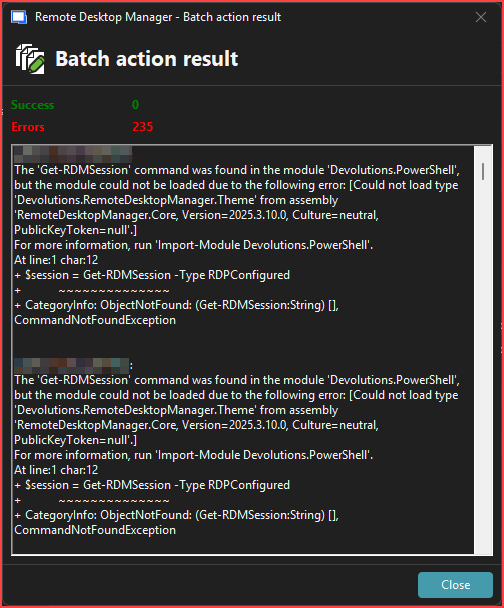
I guess all my code is now outdated after new versions released?:
#UPDATE ENTRIES TO SHOW 1st LETTER AS CAPITAL
$session = Get-RDMSession -Type RDPConfigured
foreach ($sess in $session) {
$sess.Name = $sess.Name.Substring(0,1).ToUpper() + $sess.Name.Substring(1)
Set-RDMSession $sess -Refresh
}
$RDM.Save();
#UPDATE ENTRIES TO SHOW ALL LETTERS AS CAPITAL
$session = Get-RDMSession -Type RDPConfigured
foreach ($sess in $session) {
    $sess.Name = $sess.Name.ToUpper()
    Set-RDMSession $sess -Refresh
}
$RDM.Save();--- Chuck
Overgaard, AZ (-7 MST / Zulu Year-Round)
RDM Version: 2026.2.16.0 64-Bit - Free
0e5c8c3b-8863-4897-8fb2-d6c7169cba3c.png
Hello Chuck,
Thank you for your feedback.
I forgot to specify one important thing in my previous post. The Custom PowerShell commands won't support the Devolutions PowerShell module cmdlets. This feature interacts with the properties of the $connection object directly without having to use the cmdlets. To find out which property you want to update, you can use this method to get the List of property names for PowerShell script.
Your code won't work in this feature, but only from PowerShell. And the RDM.Save() is only supported in the Custom PowerShell commands feature.
If you want to modify all RDP entries to be shown with a capital letter as the first character, you need to select all RDP entries using the Advanced Search dialog, then right-click on the selection to run the following commands in the Custom PowerShell commands dialog.
$connection.Name = $connection.Name.Substring(0,1).ToUpper() + $connection.Name.Substring(1)
$RDM.Save()
And to set the name to all upper cases, you can use these commands.
$connection.Name = $connection.Name.ToUpper()
$RDM.Save()
Let me know if that helps.
Best regards,
Érica Poirier
Hello Chuck,
Thank you for your feedback.
I forgot to specify one important thing in my previous post. The Custom PowerShell commands won't support the Devolutions PowerShell module cmdlets. This feature interacts with the properties of the $connection object directly without having to use the cmdlets. To find out which property you want to update, you can use this method to get the List of property names for PowerShell script.
Your code won't work in this feature, but only from PowerShell. And the RDM.Save() is only supported in the Custom PowerShell commands feature.
If you want to modify all RDP entries to be shown with a capital letter as the first character, you need to select all RDP entries using the Advanced Search dialog, then right-click on the selection to run the following commands in the Custom PowerShell commands dialog.
$connection.Name = $connection.Name.Substring(0,1).ToUpper() + $connection.Name.Substring(1)
$RDM.Save()
And to set the name to all upper cases, you can use these commands.
$connection.Name = $connection.Name.ToUpper()
$RDM.Save()
Let me know if that helps.
Best regards,
@Erica Poirier
Thank you, ma'am...
See, that shows you how long it's been since I have had issues in RDM and had to run PowerShell commands to fix things. ;-)
After doing an advanced search with only Condition 1 as: Connection Type > RDP, and selecting all results to run the all upper case PS command, it worked like a champ: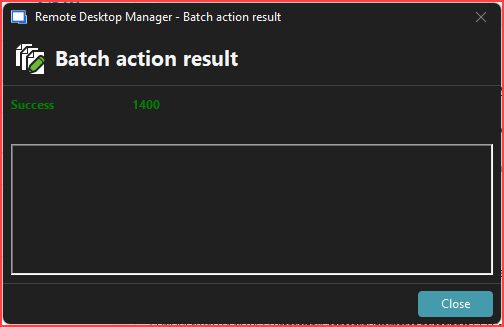
Thank you!
--- Chuck
Overgaard, AZ (-7 MST / Zulu Year-Round)
RDM Version: 2026.2.16.0 64-Bit - Free
441c0cc0-72c3-4815-a91c-dc2b6bae069b.png
Hello Chuck,
Thank you for your feedback.
I'm glad that the solution provided helped you with all your RDP entries.
Best regards,
Érica Poirier