FIDO-2 USB passwordless access feature when logging in to Devolutions account
FIDO-2 USB passwordless access feature when logging in to Devolutions account

Hi All,
I have my personal email account registered as the Devolutions account, like below.
How can I configure my existing FIDO-2 USB token so I can use it for logging in to any RDP session, VMware Center and any credentiall ogin without typing my password ?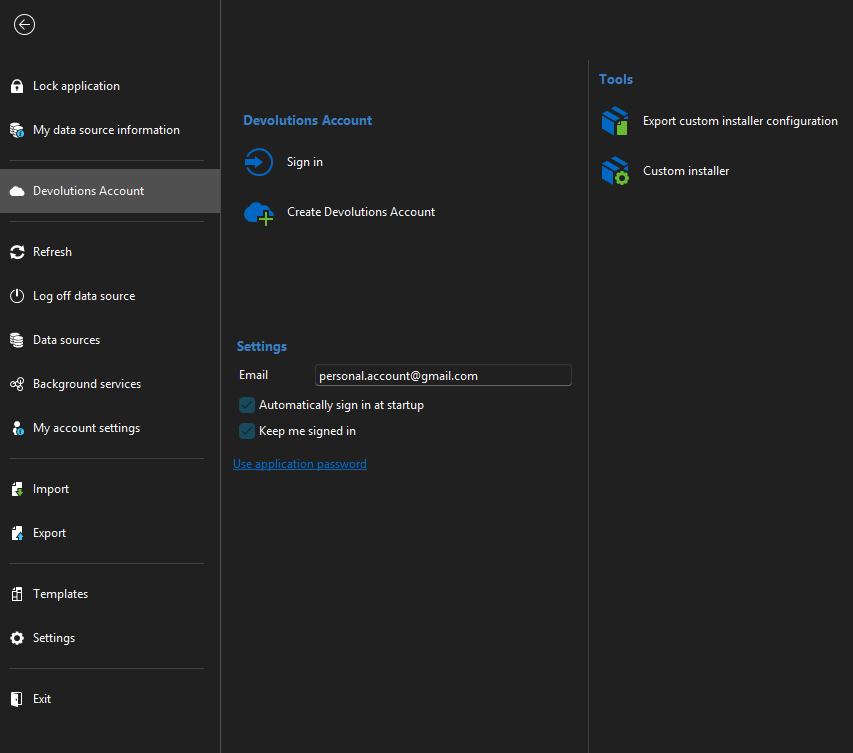
Any help and clarification would be greatly appreciated.
681a2d2f-e7cd-462b-84bd-2812e92b206d.png
Recommended Answer
Hello,
Thank you for reaching out to us.
To resolve your issue, you’ll need to create a template with the required configuration and push it through your synchronizer.
Please follow these steps:
1. In RDM, go to File > Template > Entry Template, then create a new RDP Template.
2. In the RDP template:
Set the Credential to "None".
Under the Advanced tab, check the option Prompt for credentials on client.
3. Save the template.
Next, return to the AD Synchronizer:
4. In the Synchronizer properties, set the template to the one you just created.
5. Click Save, then synchronize again.
After this, you should be prompted for Windows authentication each time you connect to an RDP entry.
Let me know how it goes.
Best regards,
Carl Marien
All Comments (4)
Hello,
Thank you for reaching out to Devolutions Support.
At the moment, I’m not entirely sure I understand what you are trying to achieve. However, I believe the following links from our documentation may be helpful:
https://docs.devolutions.net/rdm/data-sources/multi-factor-authentication/
https://docs.devolutions.net/rdm/data-sources/multi-factor-authentication/yubikey/
If these resources do not address your question, please feel free to clarify or provide more details.
Best regards,
Carl Marien
@Carl Marien,
Thank you for the update, what I am looking for is the ability for the Devolution RDM to use FIDO-2 / Yubikey as the default login to the specific Active Directory template.
So this can save me some time rather than manually right-click properties, and then typing the username and domain, then click Save and Open button , followed by the password.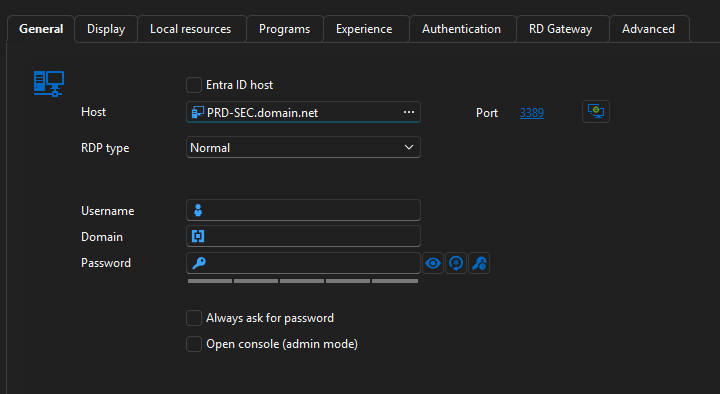
0f947749-983e-4a40-a6b2-0cb38a133bbc.png
Hello,
Thank you for reaching out to us.
To resolve your issue, you’ll need to create a template with the required configuration and push it through your synchronizer.
Please follow these steps:
1. In RDM, go to File > Template > Entry Template, then create a new RDP Template.
2. In the RDP template:
Set the Credential to "None".
Under the Advanced tab, check the option Prompt for credentials on client.
3. Save the template.
Next, return to the AD Synchronizer:
4. In the Synchronizer properties, set the template to the one you just created.
5. Click Save, then synchronize again.
After this, you should be prompted for Windows authentication each time you connect to an RDP entry.
Let me know how it goes.
Best regards,
Carl Marien
@Carl Marien, I will try to experiment with this Advanced settings https://docs.devolutions.net/rdm/kb/knowledge-base/rdp-session-entry/#advanced-tab to suit my needs.
Thank you for your help.