Accessing AVD Client

Hello
i have Problems to connect to my AVD. I followed this documention: Azure WVD client .
For me, it is not possible to Import the rdp file from the rdcleintwpf directory. RDM crashes without any output.
I have configured the settings manually and get this Message: 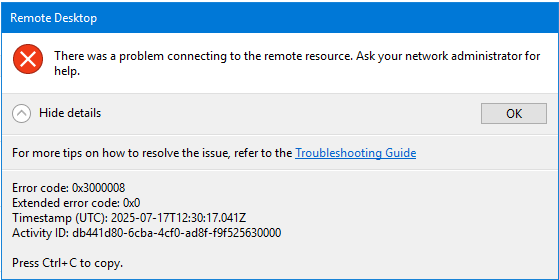
A connection with the Remote Desktop Client (MSRDC) works fine. No Problem.
If have seen, that the RDM as an active Connection to afdfp-rdgateway-r1.wvd.microsoft.com. And nothing more.
The Documentation from Azure WVD client is a year, is there maybe a newer one?
For information: i am using RDM 2025.2.20.0 on Windows 10 (17763.7558)
I hope, someone can help me.
3cc9caca-b8fc-4dd3-a2fc-4da6a34eb14c.png
All Comments (15)
Hello
Thanks for the issue report and I'm sorry you're having trouble here.
First, I'd like to set some expectations that this is an extremely tricky feature. Microsoft has never given a way for third-party clients to to integrate with Azure Virtual Desktop. It's an incredibly frustrating scenario for us. Furthermore, they are making it even harder in the future by deprecating the standalone installer for their "modern" Remote Desktop (MSRDC) client. What we have in RDM is basically several workarounds and a best effort to support this.
That said, I would like to try and help here. The first roadblock is if you crash while importing the .rdp file; configuring the session manually in RDM will never work. It's just too hard to get it right.
I'm surprised that RDM crashes without any output because on my side I just tried this step and it was working. Can you let me know if you have any relevant errors logged in Event Viewer, and/or a corresponding .dmp file in %localappdata%\CrashDumps? If you do have a .dmp, don't attach it here but let me know so I can tell you how to submit that securely.
Can you send me the .rdp file you're trying to import? You can send to me by PM and obfuscate or redact anything sensitive inside (like user credentials).
Finally, what version of the Remote Desktop client do you have installed (in the RD Client, click the "ellipsis" menu in the top-right and choose "About"). Did you install it from the .msi or via the Windows Store?
Please, let me know if something isn't clear or you have other questions
Kind regards,
Richard Markievicz
Hello
Thanks for the issue report and I'm sorry you're having trouble here.
First, I'd like to set some expectations that this is an extremely tricky feature. Microsoft has never given a way for third-party clients to to integrate with Azure Virtual Desktop. It's an incredibly frustrating scenario for us. Furthermore, they are making it even harder in the future by deprecating the standalone installer for their "modern" Remote Desktop (MSRDC) client. What we have in RDM is basically several workarounds and a best effort to support this.
That said, I would like to try and help here. The first roadblock is if you crash while importing the .rdp file; configuring the session manually in RDM will never work. It's just too hard to get it right.
I'm surprised that RDM crashes without any output because on my side I just tried this step and it was working. Can you let me know if you have any relevant errors logged in Event Viewer, and/or a corresponding .dmp file in %localappdata%\CrashDumps? If you do have a .dmp, don't attach it here but let me know so I can tell you how to submit that securely.
Can you send me the .rdp file you're trying to import? You can send to me by PM and obfuscate or redact anything sensitive inside (like user credentials).
Finally, what version of the Remote Desktop client do you have installed (in the RD Client, click the "ellipsis" menu in the top-right and choose "About"). Did you install it from the .msi or via the Windows Store?
Please, let me know if something isn't clear or you have other questions
Kind regards,
@Richard Markiewicz
Hello Richard,
again no Crashdump but interesting Messages in the Eventviewer:
Faulting application name: RemoteDesktopManager.exe, version: 2025.2.20.0, time stamp: 0x68270000
Faulting module name: coreclr.dll, version: 9.0.325.11113, time stamp: 0x67abd784
Exception code: 0xc0000005
Fault offset: 0x00000000002e5e04
Faulting process id: 0x1cc0
Faulting application start time: 0x01dbf71fc00e1d6a
Faulting application path: C:\Program Files\Devolutions\Remote Desktop Manager\RemoteDesktopManager.exe
Faulting module path: C:\Program Files\dotnet\shared\Microsoft.NETCore.App\9.0.3\coreclr.dll
Report Id: db82c763-4fe2-42f4-81c2-f1cb98ff2a96
Faulting package full name:
Faulting package-relative application ID:
Provider
[ Name]
Application Error
-
EventID
1000
[ Qualifiers]
0
Level
2
Task
100
Keywords
0x80000000000000
-
TimeCreated
[ SystemTime]
2025-07-17T14:33:00.943708800Z
EventRecordID
221983
Channel
Application
Application: RemoteDesktopManager.exe
CoreCLR Version: 9.0.325.11113
.NET Version: 9.0.3
Description: The process was terminated due to an unhandled exception.
Stack:
at DevExpress.Dialogs.Core.SystemLayer.Windows.NativeMethods+Shell+UnsafeShell.SHGetPathFromIDListInternal(IntPtr, System.Text.StringBuilder)
at DevExpress.Dialogs.Core.SystemLayer.Windows.NativeMethods+Shell+UnsafeShell.SHGetPathFromIDListInternal(IntPtr, System.Text.StringBuilder)
at DevExpress.Dialogs.Core.SystemLayer.Windows.NativeMethods+Shell.GetPathFromIDList(IntPtr)
at DevExpress.Dialogs.Core.SystemLayer.Windows.Helpers.PidlHelper.ConvertPidlByteArrayToPath(Byte[])
at DevExpress.Dialogs.Core.SystemLayer.Windows.SystemTypedFilesInfoProvider.ConvertByteArrayToPath(Byte[])
at DevExpress.Dialogs.Core.SystemLayer.Windows.SystemTypedFilesInfoProvider.TryRead(DevExpress.Dialogs.Core.MRU.MruItem ByRef)
at DevExpress.Dialogs.Core.MRU.MruStore.ReadBufferValuesIfNeed()
at DevExpress.Dialogs.Core.MRU.MruStore.AddItem(System.String)
at DevExpress.Dialogs.Core.Behaviors.TypedFileNamesBehavior`3[[System.__Canon, System.Private.CoreLib, Version=9.0.0.0, Culture=neutral, PublicKeyToken=7cec85d7bea7798e],[System.__Canon, System.Private.CoreLib, Version=9.0.0.0, Culture=neutral, PublicKeyToken=7cec85d7bea7798e],[System.__Canon, System.Private.CoreLib, Version=9.0.0.0, Culture=neutral, PublicKeyToken=7cec85d7bea7798e]].SaveItems(DevExpress.Dialogs.Core.MRU.IMruStore, System.Collections.Generic.IEnumerable`1<System.String>)
at DevExpress.Dialogs.Core.Behaviors.TypedFileNamesBehavior`3[[System.__Canon, System.Private.CoreLib, Version=9.0.0.0, Culture=neutral, PublicKeyToken=7cec85d7bea7798e],[System.__Canon, System.Private.CoreLib, Version=9.0.0.0, Culture=neutral, PublicKeyToken=7cec85d7bea7798e],[System.__Canon, System.Private.CoreLib, Version=9.0.0.0, Culture=neutral, PublicKeyToken=7cec85d7bea7798e]].AddAndSaveItems(System.Collections.Generic.IEnumerable`1<System.String>)
at DevExpress.XtraEditors.FileDialogFormBase.OnClosed(System.EventArgs)
at System.Windows.Forms.Form.CheckCloseDialog(Boolean)
at System.Windows.Forms.Application+LightThreadContext.FContinueMessageLoop(Microsoft.Office.msoloop, Windows.Win32.UI.WindowsAndMessaging.MSG*)
at System.Windows.Forms.Application+LightThreadContext.FPushMessageLoop(Microsoft.Office.msoloop)
at System.Windows.Forms.Application+LightThreadContext.RunMessageLoop(Microsoft.Office.msoloop, Boolean)
at System.Windows.Forms.Application+ThreadContext.RunMessageLoopInner(Microsoft.Office.msoloop, System.Windows.Forms.ApplicationContext)
at System.Windows.Forms.Application+ThreadContext.RunMessageLoop(Microsoft.Office.msoloop, System.Windows.Forms.ApplicationContext)
at System.Windows.Forms.Form.ShowDialog(System.Windows.Forms.IWin32Window)
at DevExpress.XtraEditors.XtraForm.ShowDialog(System.Windows.Forms.IWin32Window)
at DevExpress.XtraDialogs.Internal.BaseDialogForm.ShowDialog(DevExpress.XtraDialogs.Internal.BaseDialogSettings, System.Windows.Forms.IWin32Window)
at DevExpress.XtraEditors.FileDialogFormBase.ShowDialog(DevExpress.XtraDialogs.Internal.BaseDialogSettings, System.Windows.Forms.IWin32Window)
at DevExpress.XtraEditors.Base.XtraCommonDialog.ShowDialog(DevExpress.XtraEditors.Base.IDialogForm, IntPtr, DevExpress.XtraDialogs.Internal.BaseDialogSettings)
at DevExpress.XtraEditors.FileDialogBase.ShowDialog(DevExpress.XtraEditors.Base.IDialogForm, IntPtr, DevExpress.XtraDialogs.Internal.BaseDialogSettings)
at DevExpress.XtraEditors.Base.XtraCommonDialog.RunDialog(IntPtr)
at System.Windows.Forms.CommonDialog.ShowDialog(System.Windows.Forms.IWin32Window)
at Devolutions.RemoteDesktopManager.Business.GuiHelper.OpenFiles(System.String, System.String, System.String, Boolean, System.Windows.Forms.FormStartPosition)
at Devolutions.RemoteDesktopManager.Business.GuiHelper.OpenFiles(System.String, Boolean)
at Devolutions.RemoteDesktopManager.Forms.FrmImportSelectMode.ButSelectFiles_Click(System.Object, System.EventArgs)
at DevExpress.XtraEditors.BaseButton.OnClick(System.EventArgs)
at DevExpress.XtraEditors.BaseButton.PerformClick()
at Devolutions.RemoteDesktopManager.Forms.FrmImportSelectMode.Timer_Tick(System.Object, System.EventArgs)
at System.Windows.Forms.Timer+TimerNativeWindow.WndProc(System.Windows.Forms.Message ByRef)
at System.Windows.Forms.NativeWindow.Callback(Windows.Win32.Foundation.HWND, Windows.Win32.MessageId, Windows.Win32.Foundation.WPARAM, Windows.Win32.Foundation.LPARAM)
at Windows.Win32.PInvoke.DispatchMessage(Windows.Win32.UI.WindowsAndMessaging.MSG*)
at Windows.Win32.PInvoke.DispatchMessage(Windows.Win32.UI.WindowsAndMessaging.MSG*)
at System.Windows.Forms.Application+LightThreadContext.FPushMessageLoop(Microsoft.Office.msoloop)
at System.Windows.Forms.Application+LightThreadContext.RunMessageLoop(Microsoft.Office.msoloop, Boolean)
at System.Windows.Forms.Application+ThreadContext.RunMessageLoopInner(Microsoft.Office.msoloop, System.Windows.Forms.ApplicationContext)
at System.Windows.Forms.Application+ThreadContext.RunMessageLoop(Microsoft.Office.msoloop, System.Windows.Forms.ApplicationContext)
at System.Windows.Forms.Form.ShowDialog(System.Windows.Forms.IWin32Window)
at DevExpress.XtraEditors.XtraForm.ShowDialog(System.Windows.Forms.IWin32Window)
at Devolutions.RemoteDesktopManager.Managers.SessionMenuManager.DoImport(Devolutions.RemoteDesktopManager.Controls.EnhancedImportBarButtonItem, System.String, System.String, System.String)
at Devolutions.RemoteDesktopManager.Managers.SessionMenuManager.MnuImportRDP_Click(System.Object, System.EventArgs)
at Devolutions.RemoteDesktopManager.Controls.EnhancedBarButtonItem.OnClick(DevExpress.XtraBars.BarItemLink)
at DevExpress.XtraBars.BarItemLink.OnLinkClick()
at DevExpress.XtraBars.BarButtonItemLink.OnLinkAction(DevExpress.XtraBars.BarLinkAction, System.Object)
at DevExpress.XtraBars.ViewInfo.BarSelectionInfo.ClickLink(DevExpress.XtraBars.BarItemLink)
at DevExpress.XtraBars.ViewInfo.BarSelectionInfo.UnPressLink(DevExpress.XtraBars.BarItemLink)
at DevExpress.XtraBars.Controls.CustomLinksControl.OnMouseUp(System.Windows.Forms.MouseEventArgs)
at DevExpress.XtraBars.Controls.CustomPopupBarControl.OnMouseUp(System.Windows.Forms.MouseEventArgs)
at System.Windows.Forms.Control.WmMouseUp(System.Windows.Forms.Message ByRef, System.Windows.Forms.MouseButtons, Int32)
at System.Windows.Forms.Control.WndProc(System.Windows.Forms.Message ByRef)
at DevExpress.XtraBars.Controls.CustomControl.WndProc(System.Windows.Forms.Message ByRef)
at System.Windows.Forms.NativeWindow.Callback(Windows.Win32.Foundation.HWND, Windows.Win32.MessageId, Windows.Win32.Foundation.WPARAM, Windows.Win32.Foundation.LPARAM)
at Windows.Win32.PInvoke.DispatchMessage(Windows.Win32.UI.WindowsAndMessaging.MSG*)
at System.Windows.Forms.Application+LightThreadContext.FPushMessageLoop(Microsoft.Office.msoloop)
at System.Windows.Forms.Application+LightThreadContext.RunMessageLoop(Microsoft.Office.msoloop, Boolean)
at System.Windows.Forms.Application+ThreadContext.RunMessageLoopInner(Microsoft.Office.msoloop, System.Windows.Forms.ApplicationContext)
at System.Windows.Forms.Application+ThreadContext.RunMessageLoop(Microsoft.Office.msoloop, System.Windows.Forms.ApplicationContext)
at Devolutions.RemoteDesktopManager.Program.Main(System.String[])
Provider
[ Name]
.NET Runtime
-
EventID
1026
[ Qualifiers]
0
Level
2
Task
0
Keywords
0x80000000000000
-
TimeCreated
[ SystemTime]
2025-07-17T14:33:00.490537400Z
EventRecordID
221982
Channel
Application
I wonder why there is an access denied when i am Administrator in RDM!
RD Client Version: 1.2.6353.0 (x64)
Hello
That's weird indeed. The crash isn't related to this feature; the file browser dialog is trying to add the file or directory to the Windows shell "most recently used" list and crashing somewhere along the way. I haven't seen that before, and the file browser is a third-party component. I will bring this to the RDM team and see if they know something about it.
In the meantime, to try and shortcut this crash - can you try dragging and dropping the .rdp file from Windows Explorer into the RDM tree view? That should also do the import. Let me know if it works.
Thanks and kind regards,
Richard Markievicz
Hello
That's weird indeed. The crash isn't related to this feature; the file browser dialog is trying to add the file or directory to the Windows shell "most recently used" list and crashing somewhere along the way. I haven't seen that before, and the file browser is a third-party component. I will bring this to the RDM team and see if they know something about it.
In the meantime, to try and shortcut this crash - can you try dragging and dropping the .rdp file from Windows Explorer into the RDM tree view? That should also do the import. Let me know if it works.
Thanks and kind regards,
@Richard Markiewicz
Hello
doing it with drag an drop did the trick. Worked. And i didn´t get the error message as before.
After opening the Session i will get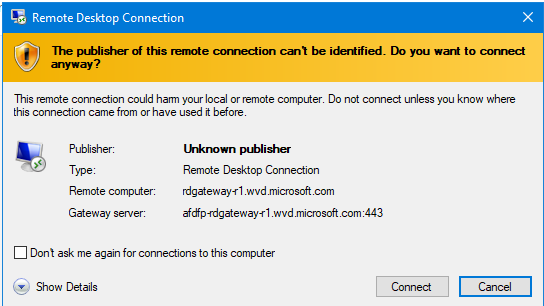 which is normal for me. But in the Details i have seen the Wrong user to connect.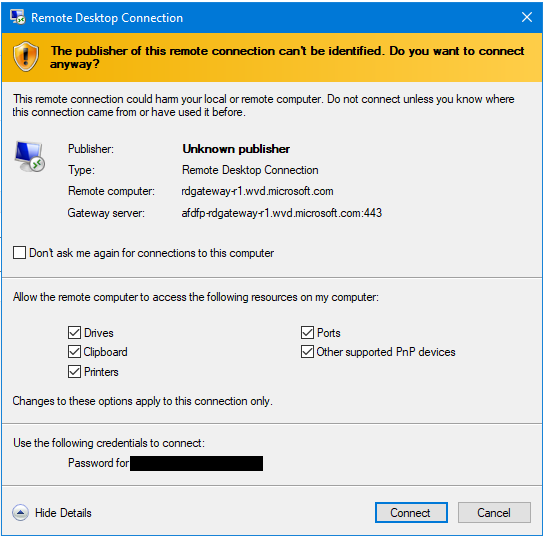
After click to connect i am getting a Windows Security Popup Dialog for afdfp-rdgateway-r1.wvd.microsoft.com:443
Clicking OK showing this Message.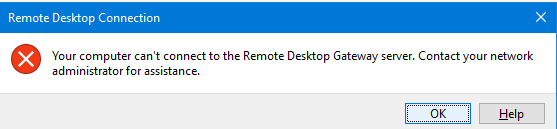
For me, it looks like because i am using the wrong Account for connecting. But i am not possible to change it. Or do i interpret it wrong?
a094a9c4-124f-419f-a0de-cb7b53826676.png
2ea41e7d-ce70-4339-88d6-7b61f31ace43.png
f51a9fc8-8f8a-4830-8b74-1ef6d14feca1.png
Hello
Just to check, did you follow the rest of the setup from the thread you linked? The RDP Application must be set to "MSRDC" and the session display must be configured to "External".
Then start by making sure that the username and password fields are empty (no configured credentials) in the "General" tab and don't specify RD Gateway credentials in the "RD Gateway" tab. This will simplify things to just get the connection working for now.
You should get an Azure AD login prompt (the integrated web view from the MS Remote Desktop client.
Let me know.
Thanks,
Richard Markievicz
Hello
Just to check, did you follow the rest of the setup from the thread you linked? The RDP Application must be set to "MSRDC" and the session display must be configured to "External".
Then start by making sure that the username and password fields are empty (no configured credentials) in the "General" tab and don't specify RD Gateway credentials in the "RD Gateway" tab. This will simplify things to just get the connection working for now.
You should get an Azure AD login prompt (the integrated web view from the MS Remote Desktop client.
Let me know.
Thanks,
@Richard Markiewicz
Hello,
i reconfigured it and i got the Azure AD Login. But no Session window :-( But most of the time a get this message: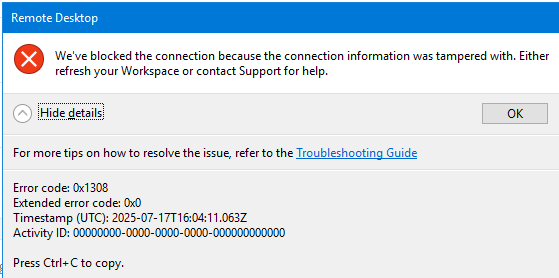
Maybe this is our HTTPS Inspection. I don´t know in the moment, if it active for my client. But it looks much better than before.
Resolving piece by piece :-) Thx for your great Help!!!!
c7cfa8e9-c862-4417-9d05-760c2d066004.png
Hello
I don't think this is related to HTTPS inspection.
Can you confirm that you installed MS Remote Desktop client using the standalone .msi installer, and not through the Windows Store?
Can you also check that you have API hooking enabled in File > Settings > Entry Types > Sessions > Remote Desktop (RDP) > API hooking.
Thanks and kind regards,
Richard Markievicz
Hello
Just to check, did you follow the rest of the setup from the thread you linked? The RDP Application must be set to "MSRDC" and the session display must be configured to "External".
Then start by making sure that the username and password fields are empty (no configured credentials) in the "General" tab and don't specify RD Gateway credentials in the "RD Gateway" tab. This will simplify things to just get the connection working for now.
You should get an Azure AD login prompt (the integrated web view from the MS Remote Desktop client.
Let me know.
Thanks,
@Richard Markiewicz
Hello
The RDP Application is now set to "MSRDC" and the session display is External. I have removed the username in "RD Gateway" and now it always gives me the Azure AD login prompt as expected. But then i get the message about "...blocked then Connection .... " again.
But the Remote Desktop creates the hook: 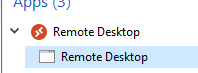
Neverless, tomorrow i will check the https Inspection to be sure.
Regards
Reinhard
923507e9-db25-46f7-896e-fa0689651ece.png
Hello
Thanks for the update.
The MS RD client - I think - in this scenario expects the .rdp file to be signed (files that are downloaded using the AVD feed are signed for integrity). When importing into RDM, the signature is stripped; it cannot be preserved; and we have to do some work on our side to avoid the signature check (RDM will create a new, temporary .rdp file for the session and tell MS RDP to open it).
I guess that something is going wrong in that process. Can you let me know your Remote Desktop Client version? And confirm if it was installed by the .msi or from the Windows Store?
Thanks and kind regards,
Richard Markievicz
Hello
Thanks for the update.
The MS RD client - I think - in this scenario expects the .rdp file to be signed (files that are downloaded using the AVD feed are signed for integrity). When importing into RDM, the signature is stripped; it cannot be preserved; and we have to do some work on our side to avoid the signature check (RDM will create a new, temporary .rdp file for the session and tell MS RDP to open it).
I guess that something is going wrong in that process. Can you let me know your Remote Desktop Client version? And confirm if it was installed by the .msi or from the Windows Store?
Thanks and kind regards,
@Richard Markiewicz
Hello,
Remote Desktop client Version: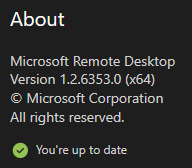

And it is installed from the MSI. Maybe it is too new?
What about Ciphers, TLS or GPO or Edge Version?
Regards
Reinhard
2926404e-cf6c-4933-9000-64345f4a26fa.png
5491b000-a768-48be-b732-64d011555b8e.png
a57112d7-262c-4d6e-85c0-faf3230c77b8.png
Hello
Thanks for the follow up.
On my side, I had an older version of MS RDC but I've updated to 1.2.6353.0 the same as you, and I now I get the same problem as you.
The short answer is: can you try downgrading your MS RDC to an earlier version? Here is the link to the 1.2.6228.0. The installer won't downgrade - you'll need to uninstall the current version, then install this version; and probably resubscribe to your feed(s).
Please let me know if that works.
The long answer is: like I wrote above, the way this works is: we import the .rdp file created by MS RDC and in that process the signature is stripped out. Then, at connection time; RDM creates a temporary .rdp file with the connection information and tells MS RDC to open it. The problem is that MS RDC expects signed .rdp files but we have no way to sign the file in a way acceptable to the client - that's why it tells you the "connection information was tampered with"; it can't verify the signature. RDM contains a workaround - like I said before, there is zero third-party support from Microsoft here - that bypasses the signature check. It appears that the latest MS RDC version(s) have changed something in how that signature check works.
It's unlikely we'll be able to work around this for the latest versions; and as I wrote before this feature is already troubled by the fact that Microsoft recently deprecated the .msi installers for RDC.
However, if using the older version works for; you will probably want to pin that release so it doesn't get automatically updated and break this for you again.
The following PowerShell (run as administrator) should achieve that:
$MsrdcPoliciesRegPath = "HKLM:\Software\Microsoft\MSRDC\Policies"
New-Item -Path $MsrdcPoliciesRegPath -Force | Out-Null
Set-ItemProperty -Path $MsrdcPoliciesRegPath -Name 'AutomaticUpdates' -Value 0 -Type DWORD
Please, let me know if you have any problems or questions
Kind regards,
Richard Markievicz
Hello Richard,
the Downgrade works. But i get two Messages which i didn´t expected.
After starting the connection i will get the Credential Popup from Azure with our Branding. That´s ok. Next step the MFA Verification. That´s OK.
But than i get a second Credential Popup from the Workspace ID. I didn´t extected that. With the correct credentials the login to the AVD works, but after login this error comes: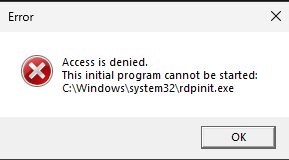
Don´t know why and if it´s a Problem.
Maybe i have to setup my credentials correctly.
Regard
Reinhard
66c90411-7148-42c3-ac09-2a743f9e6252.png
Hello
Ok, it sounds like we have made some progress here.
For the extra unexpected authentication, I'm really not sure about it. I recall a thread on the forum where a user had the same issue but I didn't get that problem on my side. We could not find a solution. Do you have the username and password set for the entry in the "General" tab? Are you authenticating to the machine with an AzureAD account or a local account? If it's AzureAD, do you know if it's a hybrid AD? Is the client machine (the machine running RDM joined to the same domain, and logged in with the same user? There are a lot of variables here, and different setups work with different levels of success. Unfortunately it might just require some experimentation but I'm not sure we can completely avoid this in every case.
For the rdpinit.exe error - I believe I've seen this before too but I don't recall the details. rdpinit.exe is a helper process that's used by the server when you're using RemoteApp. I guess that you are not using RemoteApp. The integration here between RDC and AVD/RemoteApp is not clear to me; but in your session in RDM under the "Programs" tab you could try unchecking "Use RemoteApp (Seamless Mode)". Let me know if it helps.
Thanks and kind regards,
Richard Markievicz
Hello Richard,
rdpinit: Remoteapp was automatically checked when i imported the RDP File. In the Textbox for Program is a Guid. Maybe the GUID for the rdpinit.exe. Unchecking "Use Remoteapp" produces this Error dialog: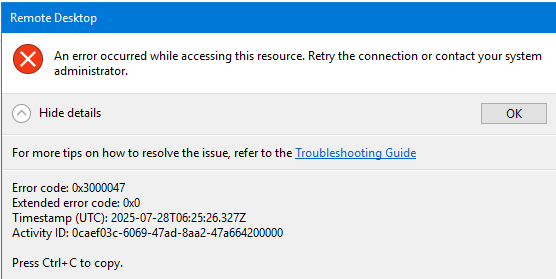
Entering a Username / Password in General Tab has no effect. But doing a Userspecific setting for "Override Gateway" works.
I didn´t find a way to automatically enter a password on this screen: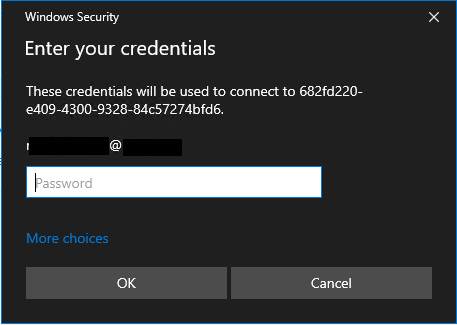 but this would help extremly. The guid is the AVD (endpoint)
Regards
Reinhard
f9c6fd86-77e3-4d91-924d-c7fb48681161.png
984de05a-ecba-47e0-b815-09751c1fa5eb.png
Hello
Yes, sorry - after I suggested disabling the RemoteApp; I did talk to my colleague about it and he said it's required for AVD as they use it for infrastructure, even when connecting direct to a desktop.
I'm afraid we don't have a solution for entering the password. As before, this is purely because Microsoft does not enable third party integration in anyway.
It sounds like this is working as well as we can expect it to at this point?
Another follow up: we've found a way to bypass the signature check on the .rdp even with the latest versions of MS Remote Desktop Client. So, once RDM 2025.2.23 is available, you should upgrade and check if things are still working well on the latest release of MS RDC (1.2.6353).
Please, let me know if you have any further questions or comments
Kind regards
Richard Markievicz