RDP Dynamic resolution uses wrong work area size

Every time I open a new RDP session with
Screen sizing mode =  "Dynamic resolution"
Remote desktop size = "Current work area size"
the actual size of the remote desktop is larger than my work area, so there are scroll bars.
Now I use my mouse to change the width of the navigation bar a few pixels. This leads to RDM recalculating the work area size and after this the remote desktop fits perfectly.
Is there a way to configure my connections so that the remote desktop has the size of the actual work area upon opening the session?
This might be a bug in RDM, but I fear it's just me misunderstanding the configuration options ;-)
Thanks for your help!
Recommended Answer
Hi,
after some direct e-mail communications with support and sending them the recording of the problem, we figured how to fix the behavior. In global Settings > Entry types > Sessions > Remote Desktop (RDP) - there is a setting named Remote Desktop size with option Automatic (not available in particular session properties). If you change global default to
Automatic and then use this default option in session properties, it's finally working!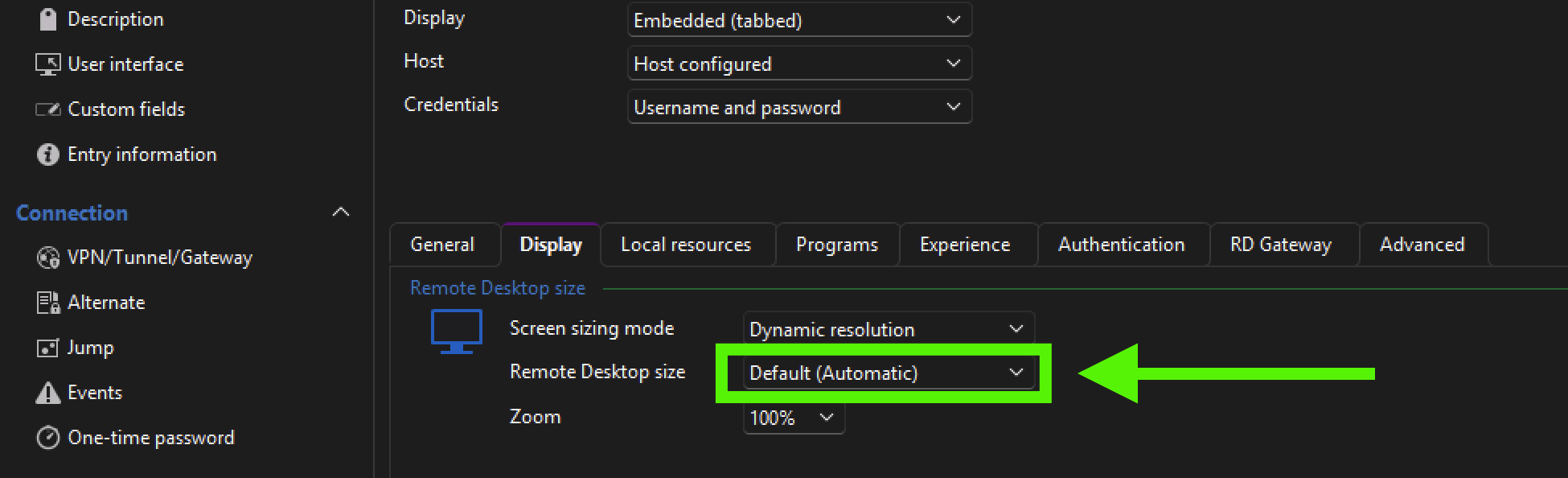
Best Regards,
Jiri Kala
screen.png
All Comments (13)
Hello,
Thank you for reaching out to us regarding this matter.
Could you please provide a screenshot showing the issue with the incorrect work area size?
Additionally, have you tried using the other screen options available in the RDP entries? If so, could you let us know the results?
In the meantime, please ensure that you are using the latest version of RDM (2024.3.20.0).
Feel free to reach out if you have any further questions or need assistance.
Best regards,
Tommy Sanders
Could you please provide a screenshot showing the issue with the incorrect work area size?
Sure. This is how it looks like after I double-click on the connection: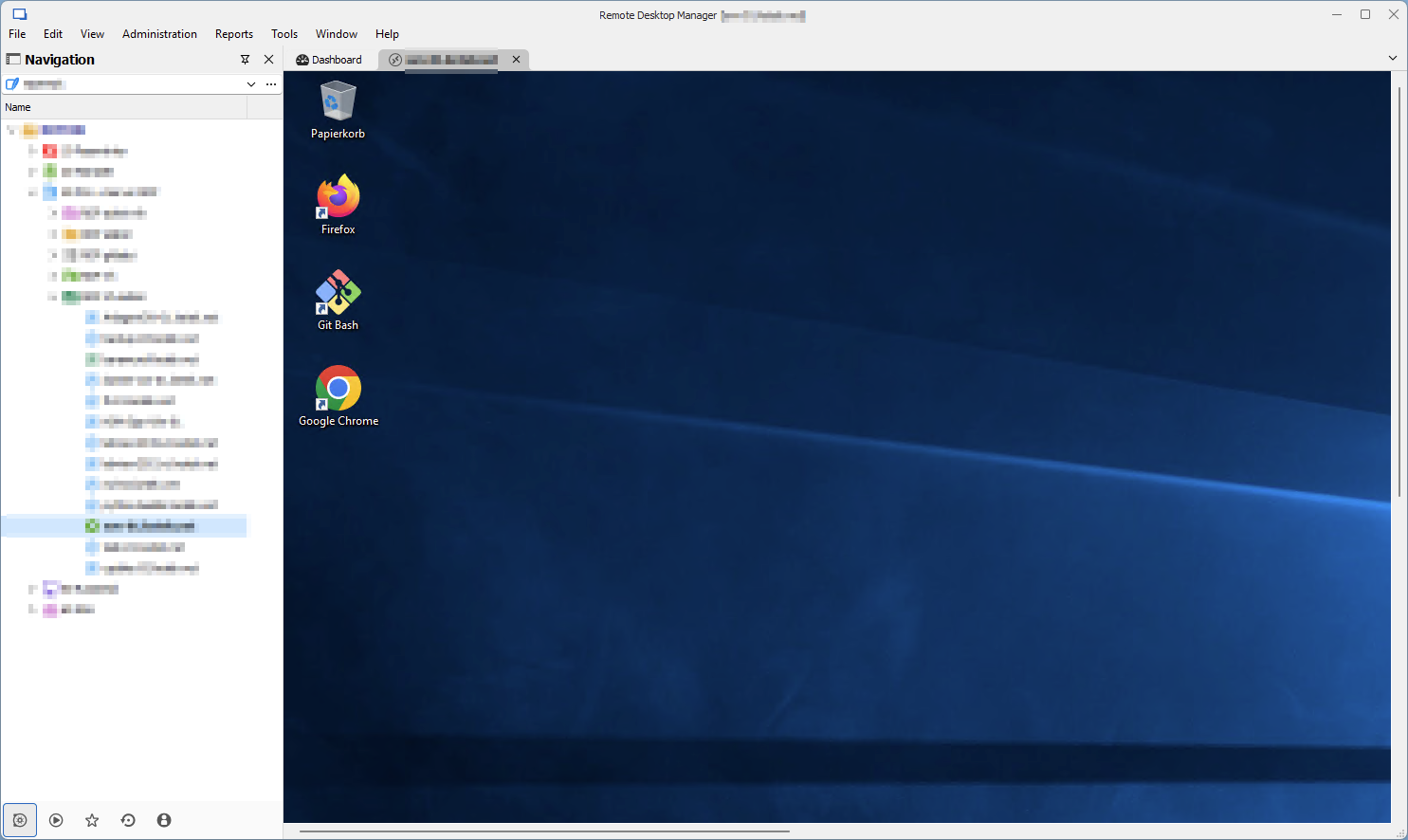
And this is what I see after moving the separator between Navigation bar and work area a tiny bit: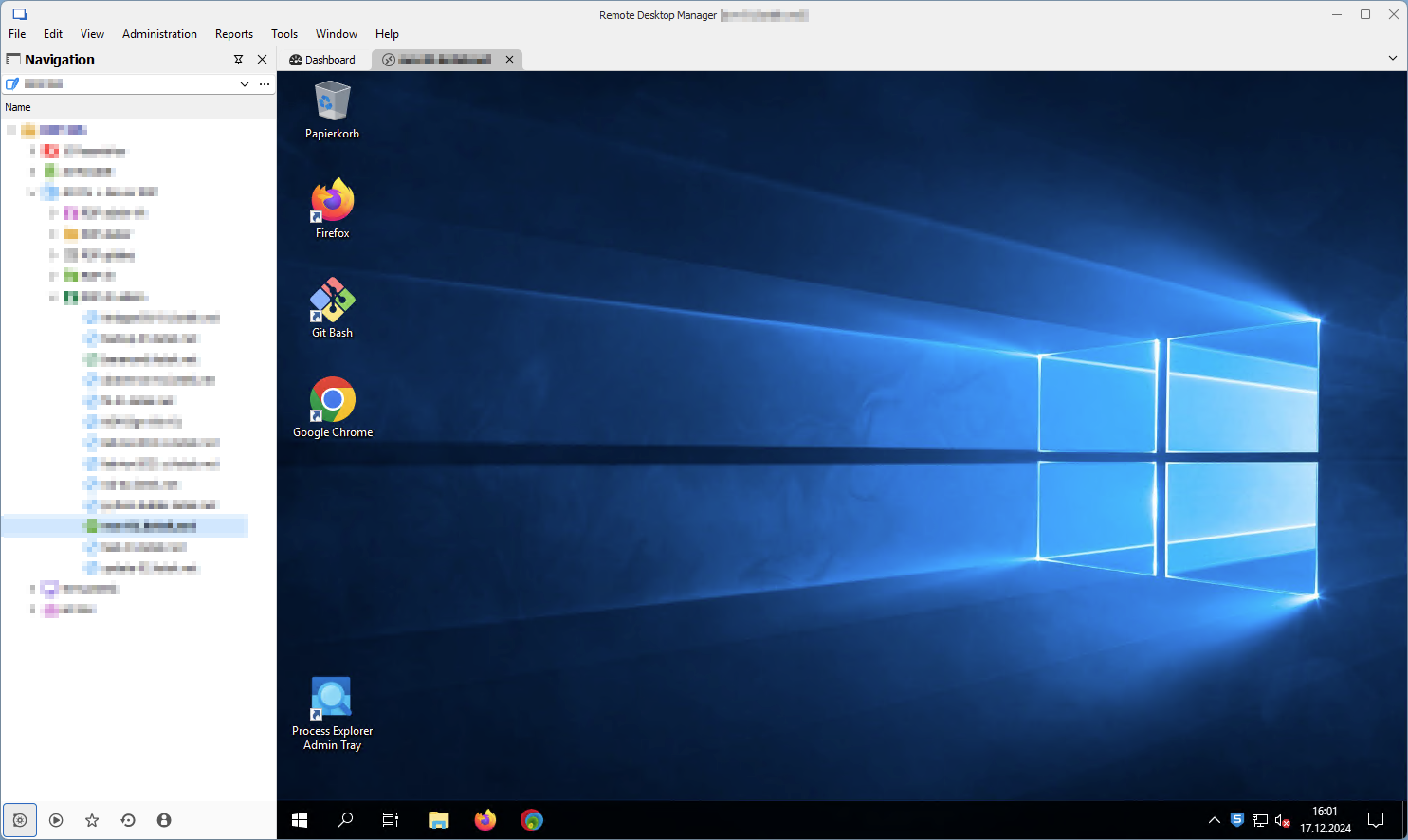
Additionally, have you tried using the other screen options available in the RDP entries? If so, could you let us know the results?
OK, let's check.
I really want to use "Current work area size", so I keep this setting and try it in combination with all Screen sizing modes:
- Default (None): Same problem on opening the session, not improved by resizing the work area.
- Smart reconnect: same problem, solved by resizing the work area
- Smart sizing: Looks almost good, but a bit distorted and downscaled - I assume it's the same problem, but the image is sized to fit the available space.
- Scrollbar: Same as Default (None)
- Dynamic resolution: Same problem, solved by resizing the work area
I also played around with different work area sizes by resizing the navigation area to take up more than half of my screen.
From the results I guess that when the connection is first established, the RDP session is initialized using the current window size (of the complete application window) instead of the work area size. In subsequent resizing operations the correct work area size is used.
This might be a case of finding one place in the code where the wrong constant is used - easy to fix, but hard to find in some cases ;-)
In the meantime, please ensure that you are using the latest version of RDM (2024.3.20.0).
I just upgraded to this version and the behaviour stays exactly the same.
Best regards
Rico
5b0943f9-f350-4fbc-a0b9-00f4b143349c.png
3b301d39-f569-49de-b8e5-38e695c73022.png
grafik.png
Hello,
Thank you for your response,
I have sent you a request for a remote session by email for further investigation.
Best regards,
Tommy Sanders
I also ran into this - connecting to different servers with the exact same GPO/settings, one is the work area size, another has scrollbars for no apparent reason. I found if you change the "Remote desktop size" to a static value, ie: 1024x768, then connect. Then change it back to "Current work area size" and connect again, the scroll bars are gone and the session is the size of your work area again.
Something seems to be stuck on certain connections, thinking the work area is larger than it is. Quite annoying to do when you have multiple connections experiencing the issue.
Hello,
Thank you for reaching out regarding this matter.
Could you please provide more details about your environment, including the RDM version, data source, and any specific GPOs or settings in use?
Additionally, feel free to include any relevant screenshots to help me reproduce the issue on my end.
Best regards,
Tommy Sanders
Sorry for not getting back to you concerning this topic!
(Priorities were shifting...)
It seems to me that in RDM 2025.1.41.0 64-bit (JIT) I am getting the desired result on all hosts when using "Dynamic resolution" with "Remote desktop size = Default (Automatic)".
"Current work area size" is working fine on some hosts, but shows the problem on others.
I wasn't able to pinpoint the difference between those hosts.
If it's regular Windows 10 or 11 it works fine.
If it's Windows Server 2019, it might show the problem or it might work fine.
The ones that show the problem might be considered "typical servers".
The ones that work fine have software installed that is closer to "typical desktop applications".
Sorry if this sounds frustratingly vague!
Best regards
Rico
Hello,
Thank you for getting back to us.
I’ve reopened your case and sent you a remote session request to review the issue.
Please don’t hesitate to book a meeting—I'd be happy to go over this with you.
Best regards,
Tommy Sanders
Hello, I've got the same problem. Is the fix in progress, or am I missing some settings?
Thank you.
Ive been dealing with this for a year now. Affects Windows Server 2022, Windows Server 2019, Windows 11 Enterprise Multi Session.
RDP session defaults "remote desktop size" to my monitor's resolution with scroll bars even if devolutions is set to smart reconnect or dynamic resolution. I can drag to resize the window or simply hit the maximize button twice, then either dynamic or smart reconnect takes over and sets it properly.
What I found as a work around, get your RDP session looking how you want it, open powershell and runGet-CimInstance -Namespace root\cimv2 -ClassName Win32_VideoController | Select-Object CurrentHorizontalResolution, CurrentVerticalResolution
This will retrieve the 'virtual' resolution in your RDP session.
Then go into Devolutions, File > Settings > Entry Types > Sessions > Remote Desktop (RDP). Set screen sizing mode to dynamic, set "Remote Desktop Size" to Custom - and then input the width and height you got from your powershell command.
Then edit all of your RDP entries 1 by 1 and change Display > Screen sizing mode and remote desktop size both to "Default"
Hello,
Thank you for your response.
The solution would be to set the Remote Desktop size to 'Default' in the properties of the entry.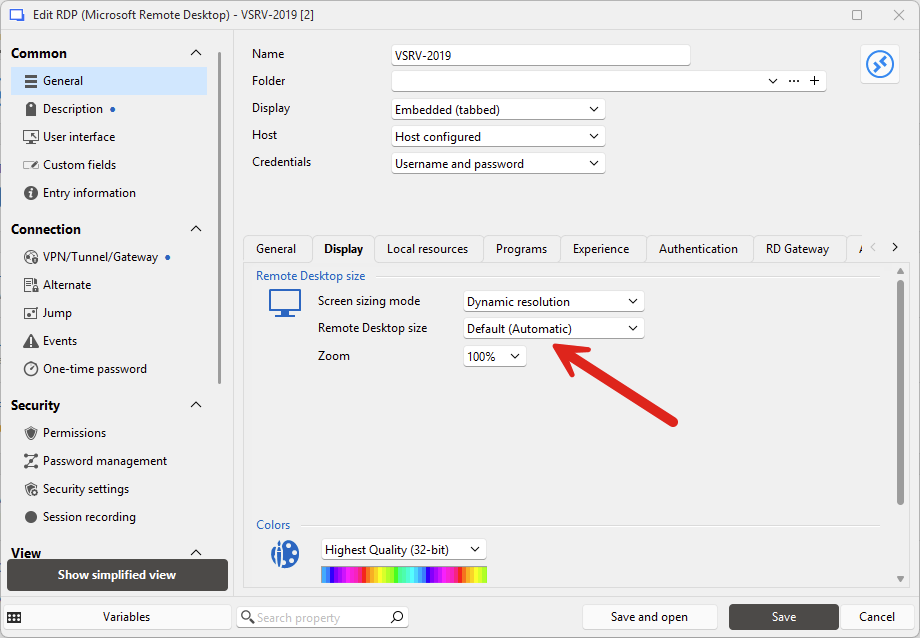
Could you please give that a try and let me know if it works?
Best regards,
Tommy Sanders
024562d3-5be2-4cfa-afe9-122b71a7895d.png
Hi Tommy,
thank you for workaround. Unfortunately it won't work for me as my laptop is connected to 4K big monitor, but outside or at home I use laptop smaller monitor with different resolution.
At this moment I set up a shortcut to "Reconnect" action which I trigger after session is connected. This works. Or I can change slightly the size of left panel which forces resolution to update. Maybe the "temporary" solution can be ne option to "force resolution update after connecting".
Best regards,
Jiri Kala
Hello,
Thank you for your response.
I will discuss this with our developers and get back to you shortly.
Best regards,
Tommy Sanders
Hi,
after some direct e-mail communications with support and sending them the recording of the problem, we figured how to fix the behavior. In global Settings > Entry types > Sessions > Remote Desktop (RDP) - there is a setting named Remote Desktop size with option Automatic (not available in particular session properties). If you change global default to
Automatic and then use this default option in session properties, it's finally working!
Best Regards,
Jiri Kala
screen.png