Missing Settings

Several users have reported that settings are randomly dispersing. The affected items include selected columns in the Navigation pane and pinned shortcuts in the upper left corner. This issue occurs even without an upgrade.
Where are these settings stored?
Client: Windows 11 23H2
Remote Desktop Manager 2024.2.19.0 Licensed
Data source: Microsoft Azure SQL
aab979e5-ad45-4da2-b63f-8b603d92e1df.png
All Comments (7)
Hello,
Thank you for reaching out regarding this matter.
Could you please try navigating to Window > Reset Layout? This should adjust the column size and position correctly.
In the meantime, please ensure that your RDM is updated to the latest version (2024.3.17.0).
Let me know if this resolves the issue.
Best regards,
Tommy Sanders
Hello Tommy,
The problem is not to configure the settings, the problem is that if you make a change the change is reverted to standard setting randomly.
I'm curious where these settings are stored to check if an antivirus might be interfering.
We need to wait for version 2023.3.18.0 due to another bug, though I haven't seen this issue mentioned in the release notes.
Hello
Thank you for your response,
I created a case for you to send me a recording of your issue.
I will try to reproduce it on my end after.
Best regards,
Tommy Sanders
This issue occurs sporadically and can't be consistently reproduced, sometimes taking weeks or months to reappear. I believe it's related to how we manage our computers, not an RDM issue. Could you please tell me where these settings are stored so I can determine what might be overwriting them?
Hello,
Thank you for your response,
I don't know if you are referring to a setting in RDM or outside RDM.
Could you please clarify your question?
In the meantime, the version 2024.3.18.0 is now available.
Best regards,
Tommy Sanders
This is how I have RDM normally, the things in the red boxes are the settings I have problems with.
For a reason I steel can’t figure it out is that suddenly one day these settings change and this is not consistent with RDM upgrades. This has been reported by several people.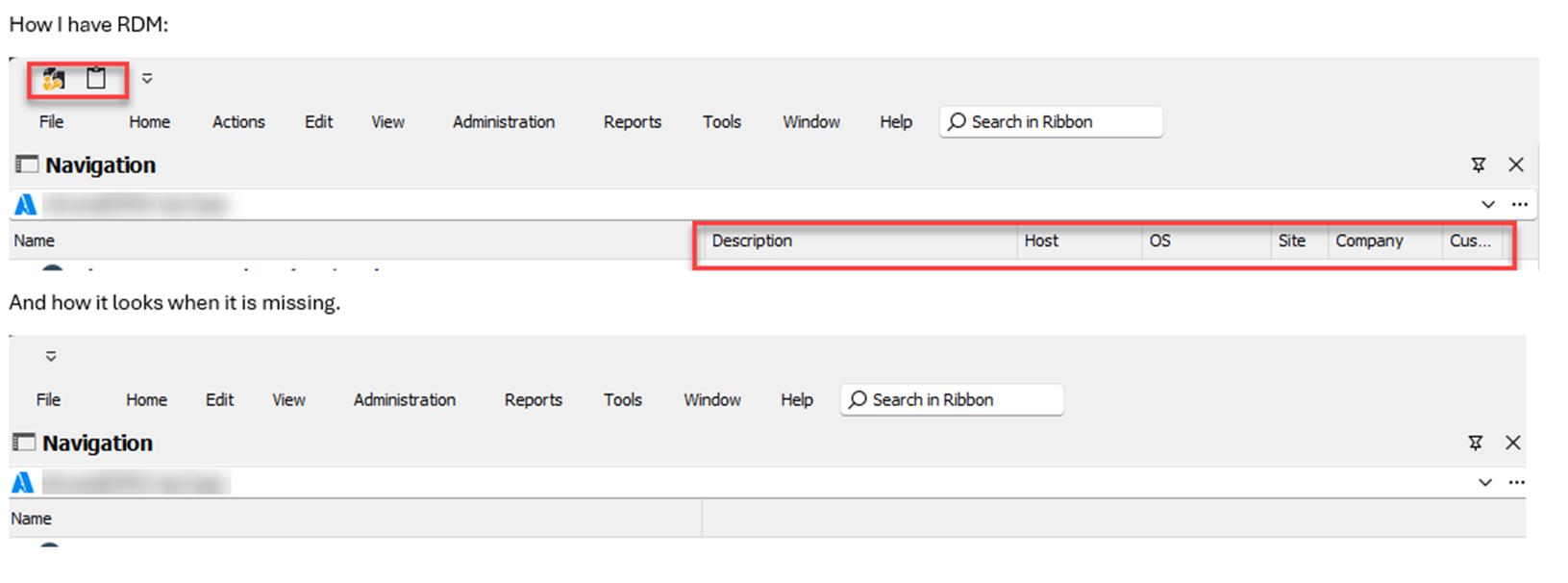
914660ef-b5ec-41b3-9a3a-54254a153d4e.png
Hello,
This issue is most likely due to something in the local configuration of your RDM instance.
For this reason, I would recommend to reset your local configuration.
To do so, please do the following:
1- Close RDM
2- Go under your %localappdata% -> Devolutions folder
3- Rename the "RemoteDesktopManager" folder into "RemoteDesktopManager.old"
4- Start RDM
5- Connect to your data source
Once you are connected to your data source, the issue should no longer occur.
Best regards,
Tommy Sanders