Add CyberArk dashboard account and connection component in session entry
Add CyberArk dashboard account and connection component in session entry
0 vote

I am using CyberArk exclusively to connect to RDP servers within RDM. I am utilizing the CyberArk dashboard and the setting 'connect using dashboard on double click'. While this is useful, I do have to ensure the CyberArk vault account I want to use is selected in the dashboard and then I get a popup asking which connection component to use (e.g. RDP, Web Connection, etc). I would like the ability to create a session entry in my navigation list that would have certain parameters saved, like my vault account and the connection component. That way, I could connect to targets simply by double clicking on the entry in the navigation window.
It would essentially have the same convenience as configuring a session entry without CyberArk, where you can save credentials and targets.
All Comments (13)
Hi Michael!
We technically already have a ticket opened for this, although it has not been scheduled for development yet.
I will attach this thread to the ticket and we will post back on any progress.
Best regards,
Xavier Fortin
Hi!
As of the release of RDM 2025.1, this is now possible. Simply configure CyberArk PVWA entries with the resolving mode set to "PSM Connection":
Attach the connection to any RDP entry (configured with the host you want to connect to):
The preferred component can than be set in the Advanced tab:
Best regards,
Xavier Fortin
Screenshot 2025-03-12 at 9.50.59 AM.png
Screenshot 2025-03-12 at 9.49.56 AM.png
Screenshot 2025-03-12 at 9.48.59 AM.png
Screenshot 2025-03-12 at 9.43.06 AM.png
Hi Xavier,
Thank you for the update! I have been trying this out and troubleshooting issues. I am not able to get an RDP connection to work using this method.
I setup a new credential entry using the CyberArk PVWA component. Added our web services URL, chose SAML as authentication, set the appropriate domain search options for our setup.
When creating a new RDP session entry, I followed your instructions and selected the newly created CyberArk PVWA linked vault. I was able to authenticate and list all of my accounts within CyberArk, I selected the appropriate account to access the RDP server.
I was able to see my selected account and linked vault in the session settings, saved the session component successfully.
When I go to connect to the RDP session component, it pops up to select the PSM connection component, I choose it. Then it hangs for a bit and generates a few errors. I do have debug logging turned on and attached the logs. This has happened on two different systems I tested.
Also, the previous configuration we are using via the CyberArk dashboard no longer works, it generates the same error, (0x80040111).
debug-log.csv
Looking at your log, I believe you are hitting the same issue as here: https://forum.devolutions.net/topics/44219/issue-with-cyberark-dashboard-intergration-in-rdm-after-update-to-2025#204745
The issue was with account from CyberArk that do not prompt for any prerequisite (outside of component/machine name). A fix was already made, and will be available in the next minor version of RDM.
I'd like for you to test with the next version when it is available and reach back if you still have an issue afterward.
Best regards,
Xavier Fortin
Ok, perfect. Yes, that appears to be the same issue. I will test again once the next minor release arrives. Thank you!
Hi Xavier,
I installed 2025.1.25.0 and am able to connect to targets using this method now. One issue I am having is that when I go into the Advanced menu and set a Preferred Component, it still will popup and ask which Connection Component to connect with.
What value to you enter into the Preferred Component field?
Best regards,
Xavier Fortin
I am entering the appropriate Connection Component name for the target as seen on the popup picker. Mostly the default of PSM-RDP is used, I have tried 'PSM-RDP' and just 'RDP'. However, we have some custom connection components too that do not seem to work. For instance, I have a PSM component named 'AWS', when I put 'AWS' in the Preferred component field, upon connection to this session/target, it will popup asking which connection component to use. After manually selecting AWS, it connections without issue.
Xavier,
I found out my issue, the Preferred component entry needs the system name of the Connection Component, rather than the 'display name' of the component. The display name is what shows up in the dropdown if no preferred connection component is defined. I had to look up the back end name of the components, once I tried the system name rather than display name, it works as intended.
One other thing I noticed is that the RDP Display setting of 'Smart sizing' does not seem to work any longer. Previously, we could resize the RDM window and the RDP session would resize to fit the new RDM window size. Now, the RDP session size remains the same as the initial RDM window size.
This is what I was getting to. Components have a display name and an ID. The ID is what we need when we attempt the PSM connection: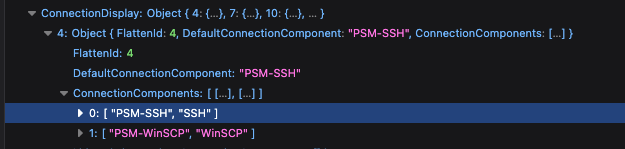
As for your smart sizing issue, is this specifically with a PSM connection? Or any RDP exhibit the issue?
Best regards,
Xavier Fortin
bbaf20cc-5fbf-4ce5-93b3-e41a54f21333.png
Hi Xavier,
I was able to fix my issue. I mis-remembered my settings, I used 'smart reconnect' before and had inadvertently set it to 'smart sizing' in my testing. This is working as before, no issue here, all good. Thank you again!
Glad to hear it! Do not hesitate to reach back if you have any other issues.
Best regards,
Xavier Fortin