Scheduled Auto connect to RDP sessions

Hi Team,
I wanted to know if Devolution RDP supports auto connect of RDP sessions
My scenario is I have VMs that are tasked to shut down at 9pm and power on again the next day at 8am to save on IAAS cost
Everyday when I log on to my workstation I see that the previous connections sessions are disconenct, which is great,t hat tell me that at night the VMs are auto powered off
But, in the morning even though the VMs are powered back on, I have to "Manually" connect to each VM using Devolution RDM, I have about 12 VMs this way.
I wanted to know if there is a option with the settings of the PDP session configured in Devlution RDM at the VM level or the Folder Level in which the VMS reside, to schedule a time to auto connect to the RDP session, so I don't need to manually connect to them
I am aware of creating playlists as well as connecting up the folder it self , but again these all calls for manual intervention which I am trying to avoid 100%
All Comments (2)
You could do this in Powershell.
- Create a Windows task that runs as you, only when logged in (do not save password) and set it to run at a specific time
- For the task's action, point it to a script that opens your sessions, it could be as easy as this:
Import-Module Devolutions.Powershell #Imports module (assumes you've already installed it)
Get-RdmInstance # useful to confirm which instance you are connected to
Open-RdmSession -ID 56adf7f5-xxxx-xxxx-xxxx-e007c4xxxxxx #check the session's properties to get its ID
Open-RdmSession -ID 56adf7f5-xxxx-xxxx-xxxx-f007c4xxxxxx #check the session's properties to get its ID
Open-RdmSession -ID 56adf7f5-xxxx-xxxx-xxxx-g007c4xxxxxx #check the session's properties to get its ID
Hello,
Thank you for providing a solution Paul!
Alternatively, you can create a Playlist entry, that contains all the entries you wish to launch, and launch that playlist entry. It makes it easier to manage instead of having to modify the script every time you wish to add or remove a specific session.
As Paul mentioned, you can grab the ID from the Enbtry information tab in the entry: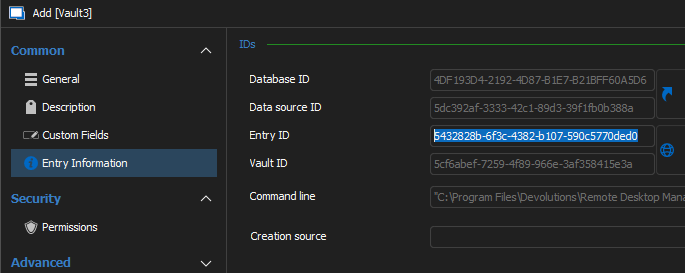
Best regards,
Richard Boisvert
3414754d-c282-4ae3-8f67-bc84726cf3bc.png