Unknown error while trying a RDP session MacOS, Apple Silicon

Hi There,
I recently got a mac with apple silicone.
I imported all connections from my old mac (This is a great feature which saved me a lot of time and effort! so thank you <3)
While trying to connect, I get unknown error... while from Microsoft RDP I'm able to connect to server (So networking is not an issue. My guess is that it's a permissions issue, but I don't know how to fix. )
P.S. - I have discovered the Rosetta emulator, so tried also RDM to run in Rosetta.
Attached is the log file for this latest session.
Thanks!
RDM logs.txt
All Comments (14)
Hi,
Could you enable session logs, reproduce the issue and share the logs in this thread? Here's a guide on how to do this: https://docs.devolutions.net/kb/remote-desktop-manager-macos/how-to-articles/rdm-mac-enable-send-rdp-logs/?q=session+logs
Best regards,
Xavier Fortin
Well,
It's Suddenly started working!
Just by curiosity? Did you turn the session log on? If so, if you disable it, does the issue starts occurring again?
Xavier Fortin
So, I don't know what happened, but now I'm unable to connect again - logs on/off.
See attatched logs, and a screen recording
Screen Recording 2023-09-22 at 15.21.51.mov
5f6b0931-54d3-4a93-ac49-643983985c5a.log
c58bb461-1984-4c93-a8d9-3a184d90cf8a.log
Hello alevy
It seems the problem is intermittent and the second log file you attached shows a timeout connecting to the server (the connection couldn't be established within the default time of 9s). In this case, try going to the "Advanced" settings of the RDP connection and unchecking "Use default TCP acknowledgment timeout". You can increase the corresponding value, perhaps start with 15 or 20s to see if it makes things more robust (note that the value is in milliseconds, so you should enter "15,000" or "20,000").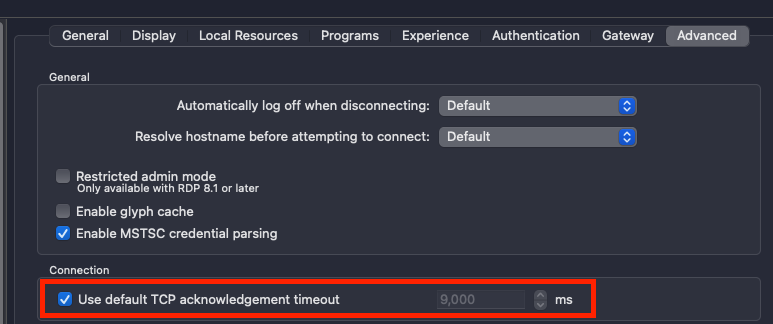
The second log shows that the TCP connection to the server couldn't be established at all (this is the first step, before the RDP protocol starts connecting).This simply indicates that the server couldn't be reached at all over the network and there's nothing we can do to alleviate that case.
Since the problem is intermittent and we see either a successful connection, a timeout, or a complete inability to reach the server, I'd like to ask about the network conditions. What's the setup between your client and the server? Presumably you're connecting over the WAN, perhaps using a VPN? Do you or the server have a slow link or particularly high latency?
Please let me know if something isn't clear or you have further questions.
Thanks and kind regards,
Richard Markievicz
Screenshot 2023-09-22 at 09.24.58.png
Hello, I recently changed from a PC to a MAC, more specifically a 15-inch airbook with OS Ventura 13.6.
The described problem is happening to me too and is resolved by changing the "Use Default TCP acknowledgment timeout" option from default 9,000 to 30,000.
But on the other hand I have to report a BUG since when I want to execute a BATCH edition of the sessions the objects do not change and maintain the default option of 9,000. This problem was reported a while ago but it seems that it persists.
I have about 500 entries so modifying each of them one by one is not an option.
For what it's worth, all of the MAC entries came from a backup made on devolutions from a Windows PC, meaning I was working on Windows, all connections to the devolutions cloud were backed up and restored to the MAC.
Hello
I'll let the RDM Mac team respond to the specific issue of this field not being "batch editable".
However, in case it serves as a workaround in the meantime I'll direct you to check the following thread: https://forum.devolutions.net/topics/39913/batch-edit--password-only. My colleague describes a technique to batch edit fields using a custom script instead of the batch edit interface.
You should be able to follow the advice in that thread but substitute the following script to set the default TCP ack timeout:
set value of _connection of property "RDP.TcpAcknowledgementTimeout" to 30000
save _connection
Please let me know if you have some questions or something isn't clear.
Thanks and kind regards,
Richard Markievicz
Hi,
As Richard pointed out, the current recommended method for batch editing most field is to use Custom AppleScript. We have a ticket opened for the batch edit feature, but it's actually not a simple tasks as many fields are affected and a major rework is necessary.
Best regards,
Xavier Fortin
Hi Richard, it worked just fine, thanks for your input on the matter.
One last question, do you have a link with a list of available properties so we can create our own scripts?
Let me give you and example, now I want to batch edit Scaling to "Optimize for Retina displays" to YES, thanks to you I have the base script and now I have to input the property.
Thanks in advance
Hello
I'll let the RDM Mac team respond to the specific issue of this field not being "batch editable".
However, in case it serves as a workaround in the meantime I'll direct you to check the following thread: https://forum.devolutions.net/topics/39913/batch-edit--password-only. My colleague describes a technique to batch edit fields using a custom script instead of the batch edit interface.
You should be able to follow the advice in that thread but substitute the following script to set the default TCP ack timeout:
set value of _connection of property "RDP.TcpAcknowledgementTimeout" to 30000
save _connection
Please let me know if you have some questions or something isn't clear.
Thanks and kind regards,
Hi hernan1,
Unfortunately no. This requires a bit of hacking around to get this information. For instance, you could create a new entry, make minimal changes to it and export it. Afterwards you can make the changes you want to do with it and export it again, you can then compare the two exported files and you should see new/modified properties and this should give you the information.
Note that this is XML, so if a properties (e.g. <TcpAcknowledgementTimeout>) is inside another tag (e.g. <RDP>) this will give you a path (i.e. RDP.TcpAcknowledgementTimeout).
Best regards,
Xavier Fortin
Xavier this is fine it really works for me because I dont need to do many changes so i can work it out with the XML file.
Thank you guys for great support and awesome product.
Regards
Hi hernan1,
Unfortunately no. This requires a bit of hacking around to get this information. For instance, you could create a new entry, make minimal changes to it and export it. Afterwards you can make the changes you want to do with it and export it again, you can then compare the two exported files and you should see new/modified properties and this should give you the information.
Note that this is XML, so if a properties (e.g. <TcpAcknowledgementTimeout>) is inside another tag (e.g. <RDP>) this will give you a path (i.e. RDP.TcpAcknowledgementTimeout).
Best regards,
Glad to hear it! Do not hesitate if you have any other issues.
Best regards,
Xavier Fortin
Thanks!
Yes, I have a slow connection, and it actually worked :)
The otherone - my bad - I was not connected to VPN.
Thanks!
Yes, I have a slow connection, and it actually worked :)
The otherone - my bad - I was not connected to VPN.
Good news! Thank you for the update.
Please don't hesitate if you have further questions or comments.
Kind regards,
Richard Markievicz