Store Microsoft VPN configuration profile in RDM
0 vote

For me, the real benefit RDM offers is that server connection configuration profiles and their credentials can be stored and shared from a central repository. Firing up RDM on another PC should, in theory, give the user immediate access to all connections.
I'm trying to figure out how to do this when it comes to "simple" L2TP VPN connections. At least in case of Windows, no third party tool is required to create such a VPN connection. And yet, it does not seem possible to start such a connection entirely from within RDM. In particular, it doesn't seem possible to store the server name or the shared secret. It currently seems necessary to configure the VPN profile in Windows which can then be linked and started from RDM. Needless to say, this significantly reduces portability of these connections.
I understand that many VPN add-ons of RDM just start some exe file with parameters in order to create a VPN connection. For Microsoft VPN, the process will be more involved than that but it's still possible to make things more integrated than they are now. For example, it should be possible to define the name of a VPN profile. Then, if the profile is not found on the computer, a new profile is created which can then be linked. Your detailed implementation may vary but at any rate, I believe this would be a very helpful improvement for many.
Some links I found on the topic, in no particular order:
https://gallery.technet.microsoft.com/scriptcenter/Powershell-adding-L2TP-917ecfce
https://stackoverflow.com/questions/46777369/creating-a-vpn-connection-in-powershell
https://docs.microsoft.com/en-us/archive/blogs/tip_of_the_day/tip-of-the-day-configure-vpn-profiles-using-the-sccmwmi-bridge-part-1
All Comments (21)
Hello,
It's indeed more complicated when we are talking about Microsoft L2TP VPN. If you are using a pre-shared key, you would need to follow specific steps to configure it properly since we don't have access to the pre-share key. Eventually, this will be integrated in RDM, but it was not done yet, but it's on our list.
That being said, the VPN L2TP configuration in RDM required a Phonebook file. We are also adding a PowerShell script in the VPN session to add the VPN in Windows and inject the Passphrase. Steps are simple but require precise information. In the first step, we need a Phonebook file. I do not cover this example as too many google search examples exist.
1- Create a phonebook entry with the PBK file.
2- We will configure a Microsoft VPN session.
Important the VPN Name need to be the address that you will connect to. The PowerShell script is not reading the information in the PBK file when creating the local VPN.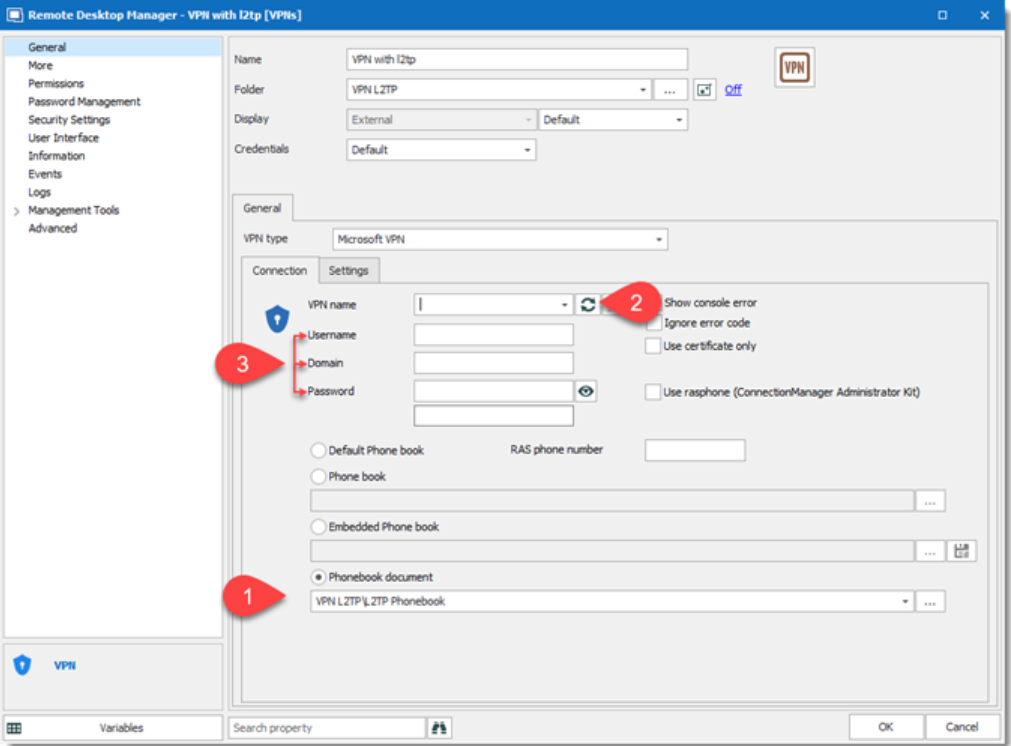
Configure the Microsoft VPN entry as:
1-Select the phonebook previously created
2-Click on the refresh button and select in the dropdown the proper VPN Name
3-Enter the credentials
Now it's time for the PreShared key, under Information – Custom Fields in the Custom #1 Click on the name and change it for PreSharedKey (#1). Then enter the Preshared-Key in the field at the right. At the end as a visual protection only click on the lock at the end (#2)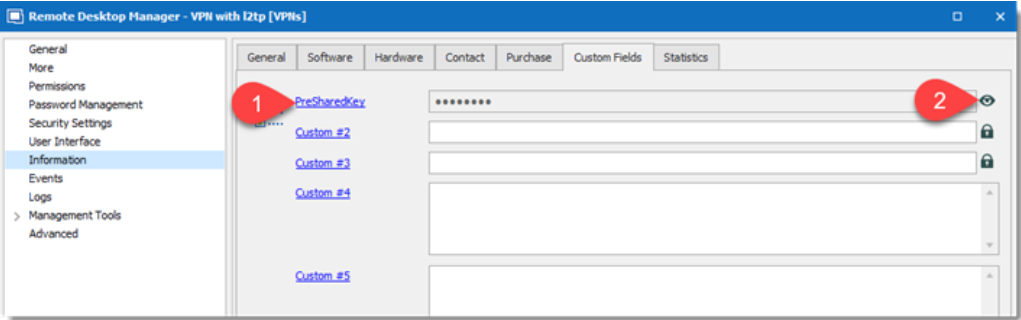
Important the Preshared key is not protected with View Password permission. To prevent the user to see it you need to block the Edit access to the entry.
The last one and the most important is the integration of the PowerShell which will create the VPN configuration in Windows.
Under Events – Before Connect select PowerShell and copy the script above into the box.
# Run from elevated PowerShell session (-verb RunAs)
# May need to run commented line below and answer 'A' OR 'Y'
#set-executionpolicy -executionpolicy unrestricted
$wshell = New-Object -ComObject Wscript.Shell;
$ServerAddress = $RDM.Connection.VPN.Name;
$ConnectionName = $RDM.Connection.VPN.Name;
$PresharedKey = $RDM.Connection.MetaInformation.CustomField1Value;
$Exists = Get-VpnConnection -Name $ConnectionName -ErrorAction
SilentlyContinue -ErrorVariable ProcessError;
If ($ProcessError) {$wshell.Popup('RDM is creating the VPN ' +
$ConnectionName,0,'Creation',0x0);
$Exists = $False};
If ($Exists -eq $False){;
$ServerAddress = $ServerAddress;
$PresharedKey = $PresharedKey;
Add-VpnConnection -RememberCredential -Name $ConnectionName -
ServerAddress $ServerAddress -TunnelType L2tp -L2tpPsk $PresharedKey -
AuthenticationMethod Pap -Force -ErrorAction SilentlyContinue;
$ExistsTest = Get-VpnConnection -Name $ConnectionName -ErrorAction
SilentlyContinue -ErrorVariable ProcessError;
If ($ProcessError) { $wshell.Popup('VPN ' + $ConnectionName + ' -
Cannot be created' + $Error,0,'Error',0x0)} else {$wshell.Popup('VPN ' + $ConnectionName + ' - Succefully Created ',0,'Success',0x0)}; } else {$wshell.Popup('VPN ' + $ConnectionName + ' - Already Exists',0,'Done',0x0)};
You are now ready to start the VPN entry and tell me if something goes wrong or if any improvement can be applied.
Best regards,
Jeff Dagenais
screenshot-6.png
screenshot-5.png
I did as you described in the instructions. First comes the window Done: VPN ALT-VPN Already Exist (Windows window so I understand) I click OK but the second window RDM already comes out-error 703 What could I miss ?
Hello,
Thank you for contacting us on that matter!
That being said, would it be possible for you to provide us your RDM version along with the type of Data Source you are currently using? Also, could you please provide me screenshots of the configuration of your entry via private message?
Best regards,
James Lafleur
Hello,
Jumping in to let you know that we've implemented support for Microsoft L2TP VPN. It will be included in version 2021.1.1.0;
Regards
Jonathan Del Signore
Please give detailed instructions, preferably with screenshots how to use this new feature correctly ?
Hello,
We'll add all the information needed for this feature in our knowledge base. I'll link the page here as soon as it's ready.
Regards
Jonathan Del Signore
Hello,
Here's the link to our knowledge base related to this feature : https://kb.devolutions.net/kb_rdm_create_microsoft_l2tp_vpn_entry.html
Regards
Jonathan Del Signore
And where to download the program version 2021.1.1.0 ? Only 2020.3.26.0 is available via the update menu.
The 2021.1 release is currently planned for February 15th.
Regards
Jonathan Del Signore
It seems February 15 has passed... Where can I download the new release 2021.1.1.0 ?
@vitexeon,
RDM 2021.1.12.0 can be downloaded here
https://remotedesktopmanager.com/home/download#Beta
Best regards,
Jeff Dagenais
No option to insert the ip address. Why?
@rodrigorobeiro,
What do you mean by you are not able to insert an IP address? Could you post a screenshot?
Are you trying to create a simple Microsoft VPN entry or a L2TP Microsoft VPN?
If it's L2TP, please refer to this link https://kb.devolutions.net/kb_rdm_create_microsoft_l2tp_vpn_entry.html
Best regards,
Jeff Dagenais
Hello Rodrigo,
The IP address must be entered in the "VPN name" field. Sorry for the confusion, we plan on changing that because it's not very clear.
Regards
Jonathan Del Signore
In Microsoft terms, the value of VPN Name and VPN IP are two completely different parameters !!
And when we want to create a VPN connection in Microsoft, we first specify the VPN Name that will be displayed in the general list of VPN connections, and then specify the VPN Server IP in the settings... Why do you have this implemented wrong, and when you create an L2TP VPN in RDM, its sent name to the Microsof operating system is the same as the IP....
This is not right !!! The name of the connection and the address of the vpn server are completely different things...
When can you fix this in RDM ? (Add an additional field for Microsoft VPN L2TP and that the record is also created correctly in the operating system )
I haven't tested this myself as I have another system for managing L2TP in RDM. But looking at your Powershell Script from a year ago, I can only assume that vitexeon is right when he says that you don't differentiate between the VPN-Name and the VPN-Serveraddress.
$ServerAddress = $RDM.Connection.VPN.Name;
$ConnectionName = $RDM.Connection.VPN.Name;
So, I agree, you probably should add another field for the server address.
Hello,
You are correct, the connection name and the server address are two different things. We'll adjust the UI to make it clearer, but please note that it won't change anything in terms of the VPN functionality.
Regards
Jonathan Del Signore
Why not change it ? What is the problem so that the NAME field from RDM creates a Microsoft VPN L2TP record with the same name, and rename the VPN NAME field to VPN IP or IP VPN SERVER ....
And the ideal option is to leave the VPN NAME field and let Windows create a VPN L2TP entry under this name in the general VPN selection list.
And add a second field VPN IP SERVER
It's just a shame that Microsoft VPN L2TP with a secret key, one of the most popular entry-level connections. Which has millions of users. And you, after so many years of developing RDM, still can't get it to work correctly... As it is already a shame should be...
Yes that's what we'll do. Leave the VPN name and add a field for the server address. But like I said, this won't make the VPN work for you if it doesn't already work by putting the IP in the VPN name field.
Jonathan Del Signore
Well for this there is a branch with full testing and indicating your errors on the Microsoft VPN L2TP connection with a secret key: https://forum.devolutions.net/topics/34800/windows-vpn-store-psk--powershell-script-does-not-work-still-the-best-
I hope in that branch you will finally solve the problem of Microsoft VPN L2TP connections with a secret key...