RDM hangs after double Azure SQL login popup's (auto went from offline > dialog to login)
RDM hangs after double Azure SQL login popup's (auto went from offline > dialog to login)
Hey,
I have this issue from the beginning I am using this software, but now I finally took time to create a video of the behaviour.
When I open RDM and for some reason I want to stay offline I open it in offline mode.
After some while (dont know why or how) a login box will appear to login to the Azure SQL datasource (note the dialogue is displayed 2 times).
After closing the dialog (press cancel OR fillin password) the application hangs completely. Does not matter if you do/do not have internet connection / connection to the Azure SQL database.
Will attach a video of the issue.
I can easily reproduce, just need to wait a lilttle while after opening the application.
[ PS: this drives me crazy ;) ]
2018-10-18_12h29_03.mp4
2018-10-18_12h32_44.mp4
All Comments (37)
Hello,
Indeed, this is very strange.
In File -> Data Sources, could you send me a screenshot of the Connection, Settings and Advanced tabs.
I would also need to know if the option Automatically go offline is enabled in File -> Options -> Application Start -> Start up online state.
Best regards,
Jeff Dagenais
Sure, see attachments
2018-10-18_21h10_03.png
2018-10-18_21h08_32.png
2018-10-18_21h08_27.png
2018-10-18_21h08_25.png
Hello,
I have configured my data source exactly like yours and when I open RDM 13.6.7.0, I only get one prompt to enter my password.
I've also tested RDM 13.9.14.0 and I am only prompted once.
Are you the only one to encounter this issue in your organization?
If you save the password into the data source configuration, are you still prompted to enter your password in offline mode?
Best regards,
Jeff Dagenais
Saving the password is not allowed on the datasource.
The reason why I work offline somethimes is because we firewall the Azure SQL on IP. When I am on the go i have a 'new ip' which is not allowed to the azure SQL unless I specifically allow it. Therefore I do not want to connect and just work offline for a while.
Reason for the firewall and not allow to save password is because we cannot use the MFA with Azure SQL at the moment... Since you'll need to update the ADAL version in RDM; which should be in next major release?
If i am the only one having this issue: good question, I will ask this.
Hello,
Azure MFA on SQL Azure data source is now supported in RDM Beta and will also available in RDM 14.
RDM 14 should be release this week. If you want to give it a try immediately, the RDM Beta version is available here
https://remotedesktopmanager.com/home/download#Beta
To be able to authenticate using Azure MFA properly, please consult
https://help.remotedesktopmanager.com/index.html?datasources_advanced_sqlazure_configuresqlazureforadconnections.htm
Best regards,
Jeff Dagenais
would like to try, but updating the datasource is a no go, since it would lock out all other users...
Hello,
RDM 14 is now available if you would like to give it a try
https://remotedesktopmanager.com/home/download
Best regards,
Jeff Dagenais
Upgrade installed! Users are reporting they need to uninstall ADAL version 14 and install verion 13... seems like this update still not is using the latest ADAL version.
(kind of annoying the application doesn't work with all versions from 13 and higher ; but just version 13. Could this be somthing you could change/implement?)
That shouldn't be the case, are you running RDM in English? Maybe the translation has not been updated?
Stéfane Lavergne
I am talking about ADAL version, not RDM :)
How can I activate MFA with Azure SQL? see attachment for issue
2018-10-23_17h40_42.png
@Sander,
In File -> Data Sources, you configuration should look like the following:
This help article should help as well
https://help.remotedesktopmanager.com/index.html?datasources_advanced_sqlazure_configuresqlazureforadconnections.htm
Best regards,
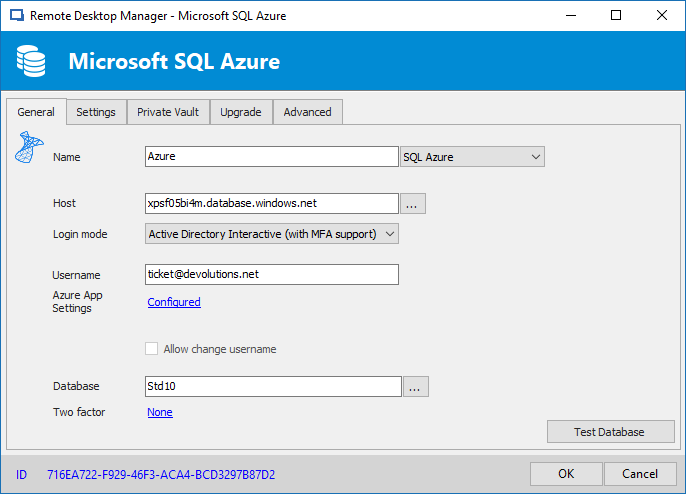
Jeff Dagenais
2018-10-23_12-10-08.png
Thanks! I already thought is was really weird setting up a app registration without filling in the app id somewhere. Maybe it is a good idea to add it to the article.
Next problem: I stilll receive a login box on which I need to fill a password.
After filling in I get the following exception:
System.ArgumentException: Cannot use 'Authentication=Active Directory Interactive' with 'PWD' connection string keywords.
at System.Data.SqlClient.SqlConnectionString..ctor(String connectionString)
at System.Data.SqlClient.SqlConnectionFactory.CreateConnectionOptions(String connectionString, DbConnectionOptions previous)
at System.Data.ProviderBase.DbConnectionFactory.GetConnectionPoolGroup(DbConnectionPoolKey key, DbConnectionPoolGroupOptions poolOptions, DbConnectionOptions& userConnectionOptions)
at System.Data.SqlClient.SqlConnection.ConnectionString_Set(DbConnectionPoolKey key)
at System.Data.SqlClient.SqlConnection.set_ConnectionString(String value)
at System.Data.SqlClient.SqlConnection..ctor(String connectionString, SqlCredential credential)
at Devolutions.RemoteDesktopManager.Business.DataSources.SQLServerConnectionDataSource.CreateDbConnection(String connectionString)
at Devolutions.RemoteDesktopManager.Business.DataSources.SQLServerConnectionDataSource.cb237041e20b5e69dd4663ff2ed975633(String c18973cea236a9feff75c32ca7d1697d5, String c5b591b7955deb9ddac9f502d298faf48, String ceb81d1ee93f91e0bc57f34876c263863)
Tried creating a new datasource with the same setting; then I get the error attached in the printscreen: "Use integrated security or enter a password!"
2018-10-24_00h07_41.png
Note that the new login modes are not available in documentation (SQL Azure part).
@Sander,
Can you try creating a new data source configuration and set it to Azure AD MFA without setting any of the other fields. My guess is this data source was a configured as another authentication type before and it has saved some values internally that are causing your issue. I've tried a few combinations to reproduce your issue without luck.
Also, if you could export your data source configuration, open it in your favorite text editor and edit out any and all private information. Send me the file please, this way I can diagnose what happened and actually fix the issue.
Example export:<?xml version="1.0"?><DataSourceExporter> <DataSources> <SQLServerConnectionDataSource> <AllowOfflineCaching>false</AllowOfflineCaching> <ID>b11a1d4b-7201-4535-b3e6-4c27754cde0b</ID> <IsReadOnly>false</IsReadOnly> <Name>Azure AD with MFA</Name> <PersonalDataSourceID>aaaaaaaa-bbbb-cccc-dddd-eeeeeeeeeeee</PersonalDataSourceID> <PromptForOfflineMode>false</PromptForOfflineMode> <RepositoryID>00000000-0000-0000-0000-000000000000</RepositoryID> <SafePrivateVaultMasterKeyPassword /> <SessionCachingType>DisableCaching</SessionCachingType> <TwoFactorInfo /> <AllowBetaDatabaseUpgrade>false</AllowBetaDatabaseUpgrade> <CommandTimeout>60</CommandTimeout> <AzureApplicationID>aaaaaaaa-bbbb-cccc-dddd-eeeeeeeeeeee</AzureApplicationID> <AzureRedirectUri>https://somedomain.com/</AzureRedirectUri> <Database>_DB_NAME_</Database> <LoginMode>AzureActiveDirectoryInteractive</LoginMode> <Server>_SERVER_.database.windows.net</Server> <SqlAzure>true</SqlAzure> <Timeout>30</Timeout> <User>_EMAIL_@_DOMAIN_.com</User> </SQLServerConnectionDataSource> </DataSources></DataSourceExporter>
Best regards,
Stéfane Lavergne
Hey my datasource file:
<?xml version="1.0"?>
<DataSourceExporter>
<DataSources>
<SQLServerConnectionDataSource>
<AllowOfflineEdit>true</AllowOfflineEdit>
<AllowOfflineMode>true</AllowOfflineMode>
<AlwaysAskForPassword>true</AlwaysAskForPassword>
<AutoGoOffline>true</AutoGoOffline>
<ID>a568ee2c-b4af-4828-bc1e-0c6dc4cae806</ID>
<IsReadOnly>false</IsReadOnly>
<Name>MYNAME</Name>
<PromptForOfflineMode>false</PromptForOfflineMode>
<RepositoryID>00000000-0000-0000-0000-000000000000</RepositoryID>
<SafePrivateVaultMasterKeyPassword />
<TwoFactorInfo>
<AccountName>A568EE2C-B4AF-4828-BC1E-0C6DC4CAE806</AccountName>
</TwoFactorInfo>
<AllowBetaDatabaseUpgrade>false</AllowBetaDatabaseUpgrade>
<CommandTimeout>60</CommandTimeout>
<AzureApplicationID>XXXXXXX</AzureApplicationID>
<AzureRedirectUri>XXXXXXXXXXXXXXXX/AzureRedirectUri>
<Database>XXXXXXXX</Database>
<LoginMode>AzureActiveDirectoryInteractive</LoginMode>
<SafePassword />
<Server>XXXXXXXXXXXX</Server>
<SqlAzure>true</SqlAzure>
<Timeout>30</Timeout>
<User>XXXXXXXXXXXXXXXXXXXXx</User>
</SQLServerConnectionDataSource>
</DataSources>
</DataSourceExporter>
When creating a new datasource i get the exception in attachment
Hi,
I had a chat with Stefane and we would like to do a remote session.
You should receive shortly an email with our booking link.
Best regards,
David Grandolfo
No email received...
I tried creating a new Azure SQL database to test around with MFA; this does not work either. You guys can create a new DB and use MFA from the start??
Note that in the connection dialog I can use the Test database button (http dialog pops up goes away and i get a success message).
When i press OK to save my settings i get the message: "Use integrated security or enter a password!"
@sander,
The email for the remote session has been sent from our new ticketing system.
You may have received it in your spam or junk mail folder. Could you verify if it's the case?
Best regards,
Jeff Dagenais
Seems like we are dealing with the same issue. We are also trying to setup RDM with Azure AD integrated (MFA) but also have a good connection but when we try to close the window we are experiencing the same issue as Sander.
Going to follow this topic :)
Hi Bram,
This issue might be related to the other issue you post at https://forum.devolutions.net/topic30731-user-not-able-to-login-sql-azure-database.aspx?lastpage=1#post122422 .
Could you test by unchecking the options below. They can be edit under File -- Data source -- Settings tab of the data source.
Best regards,
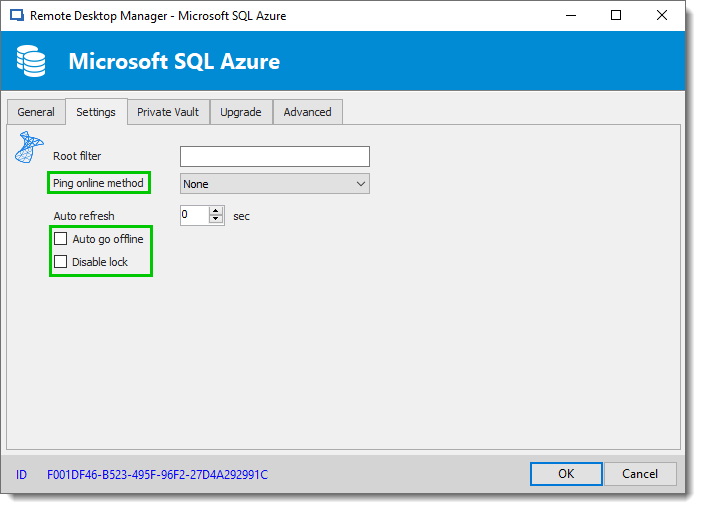
David Grandolfo
SQL_Azure_Ping.png
Hi David,
Thank you for your reply, I do think it is related to the other post and think that should be solved first as the option you hightlight above are already set in my DataSource (I think by default as we have not modified those yet).
Thank you!

Disabled
We are having the same issue. test connection works but then we get Cannot use 'Authentication=Active Directory Interactive' with 'PWD' connection string keywords when we try to log in to the data source
Hello Joseph,
Have you been able to configure the Azure App Settings in the data source configuration?
And which version are you testing with?
Best regards,
David Grandolfo
Disabled
Yes we created the app in azure and added the app id and reply url in the data source configuration. We are using version 14.1
Hi,
We were able to reproduce the issue internally, our next beta version will contain a fix for this.
Best regards,
David Grandolfo
Hi Joseph,
We released today a beta version of RDM 14.1.1 which should contain a fix for authentication issue.
Could you could download RDM 14.1.1 Beta from https://remotedesktopmanager.com/home/download and test if it's working properly.
Best regards,
David Grandolfo
Disabled
no we are still getting the "Cannot use 'Authentication=Active Directory Interactive' with 'PWD' connection string keywords " error.
Wow this is odd, I will have another look.
Best regards,
Stéfane Lavergne
@joseph,
Could you please export your data source and send us the configuration. I'm thinking something is odd/wrong internally that I'm not able to reproduce.
WARNING! Make sure you remove all sensitive information.
- File > Data Sources > Export (do not password protect the file)
- Open the file in any text editor and substitute any/all information sensitive information with 'x'
Something like this:<?xml version="1.0"?><DataSourceExporter> <DataSources> <SQLServerConnectionDataSource> <AllowOfflineCaching>false</AllowOfflineCaching> <ID>b2c97e8e-02bc-4ad9-8d19-434790459856</ID> <IsReadOnly>false</IsReadOnly> <Name>xxxxxxxxxx</Name> <PersonalDataSourceID>xxxxxx</PersonalDataSourceID> <PromptForOfflineMode>false</PromptForOfflineMode> <SafePrivateVaultMasterKeyPassword /> <SessionCachingType>DisableCaching</SessionCachingType> <TwoFactorInfo /> <AllowBetaDatabaseUpgrade>false</AllowBetaDatabaseUpgrade> <CommandTimeout>60</CommandTimeout> <AzureApplicationID>xxxxxxxxx</AzureApplicationID> <AzureRedirectUri>xxxxxx</AzureRedirectUri> <Database>xxxxx</Database> <LoginMode>AzureActiveDirectoryInteractive</LoginMode> <SafePassword>xxxxxxxxxx<SafePassword> <Server>xxxxxxxxxx</Server> <SqlAzure>true</SqlAzure> <Timeout>30</Timeout> <User>xxxxxxxxxxxxxxxxxxxxxxxx</User> </SQLServerConnectionDataSource> </DataSources></DataSourceExporter>
Stéfane Lavergne
Disabled
I emailed in the configuration, did you get it?
@joseph I have not received it.
Can you please resend it to support@devolutions.net
Thanks
Stéfane Lavergne
@joseph
We think we found the issue. We had another user contact us with essentially the same issue. The good news is we have it fixed internally the better news is there is a workaround that can work for you now.
1 - Edit your data source configuration.
2 - Temporarily set the Login mode: Active Directory Password
3 - Set the password to anything and make sure that "Always ask password" is not checked
4 - Set the Login mode back to: Active Directory Interactive
5 - OK & OK
Let me know if this workaround resolves the issue for you.
Best regards,
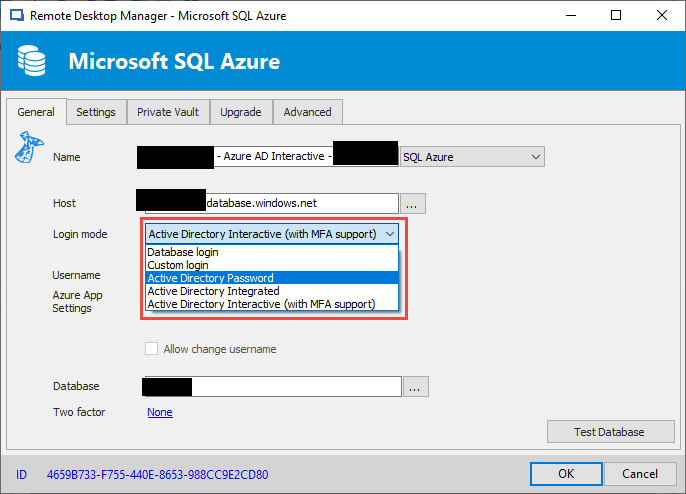
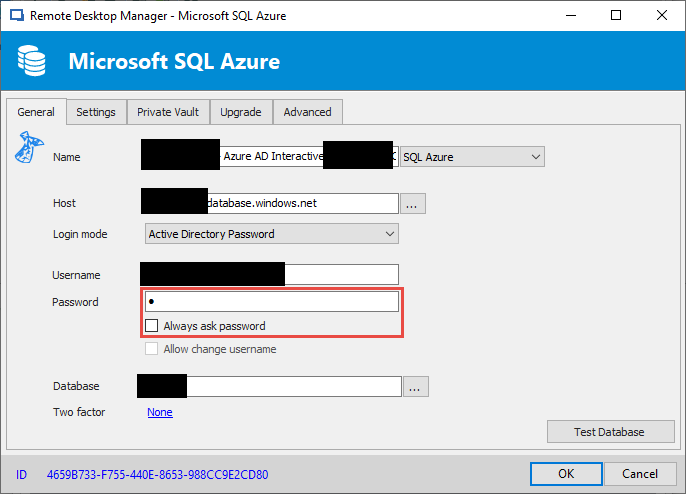
Stéfane Lavergne
2019-01-03_15-48-58.png
2019-01-03_15-49-18.png
Does not work. Same error as ever before!
I think it is because we disallowed the password save in the datasource:
" If that is the case, as an administrator, simply go in the Administration tab -> Data Source Settings -> Password Policy and check the "Disable password saving for data source access" that way the option ''Always ask for password'' will be grayed out for the users."
Ok thank you for the update.
A new v14.1.x build should be out soon (next few days). I'm very confident that it will resolve the issue without the need for a workaround.
I will let you know when it's available.
Best regards,
Stéfane Lavergne
Disabled
The work around worked for us. Thank you.