Smart Reconnect as a Default Not Working
I've done multiple batch edits and many single edits on a handful of Windows 2012 and 2008 servers that I use on a daily basis using the settings you see attached in the screen shot.
In spite of these settings, they all recently started to either or both a) open in External full screen, and upon hitting Restore, b) have scrollbars even though Smart Reconnect is set for the server's profile.
I did the batch edit and set the session template defaults as recommended here:
https://forum.devolutions.net/topic28128-enable-smart-reconnect-by-default.aspx
I've been fighting this for days and now I'm frustrated that I haven't been able to find the right settings to make things work the way they have been up until this last week.
I'm willing to uninstall and reinstall (haven't yet) if you think that will fix it, or if there is some kind of profile rebuild/reset I can do, I'm desperate to not have every connection require 5 extra steps to get the display correct every time I pull up a server.
My machine is a Surface Pro 4 (with high DPI) recently updated (couple weeks ago) to Creators Update for what that's worth. DPI settings for sessions on the Surface alone changed but I don't think the settings I'm fighting started annoying me until this last week.
Thank you!
2017-07-28 13_24_59-Remote Desktop Manager - EXCHANGE702-02 (PHX).png
All Comments (11)

Hello,
What is your version of RDM ?
What is your Datasource ?
Best regards,
Zacharia Ellaham
12.6.0.0 and MS SQL 2012.
Hello,
Indeed, I don't think that reinstalling the application is the appropriate solution.
Could you post some print screens of the issue so that I can understand the issue more properly.
Best regards,
Jeff Dagenais
Hello,
Sorry for the slow response, I've been away from work sick this week.
Since I last posted, I did upgrade to version 12.6.2.0, and still experienced the issue.
But for what it's worth, they have stopped opening in External full screen mode this morning after fiddling with settings, so that's one less hassle.
However, once I'm connected, I still have scroll bars and no smart reconnect is happening to resize the window to the work space automatically so I can see the host's task bar. If I manually choose Reconnect from the tab, it resizes properly.
All of this is with testing new settings by closing the program and reopening from scratch each time.
Attached are screenshots of my program settings which indicate that "Current work area size" should be the default, and specific settings for a server I've been testing with. Manually setting the individual server's "Remote desktop size" from "Default" to "Current work area size" does nothing to change the behavior, still see scroll bars when I connect.
Thank you,
Casey
2017-08-04 10_23_24-Remote Desktop Manager - P7ININF01002.png
2017-08-04 10_15_32-Greenshot.png
2017-08-04 10_13_15-Remote Desktop Manager.png
Hello,
Could you post a print screen of the Display tab in the properties of your RDP session please.
Best regards,
Jeff Dagenais
Isn't that what this screen shot is showing?
2017-08-04 10_15_32-Greenshot.png
Hello,
Sorry, I miss that one.
Could you go in File -> Options -> Types -> RDP and set the Display mode and Remote desktop size options to Default to see if that help.
Best regards,
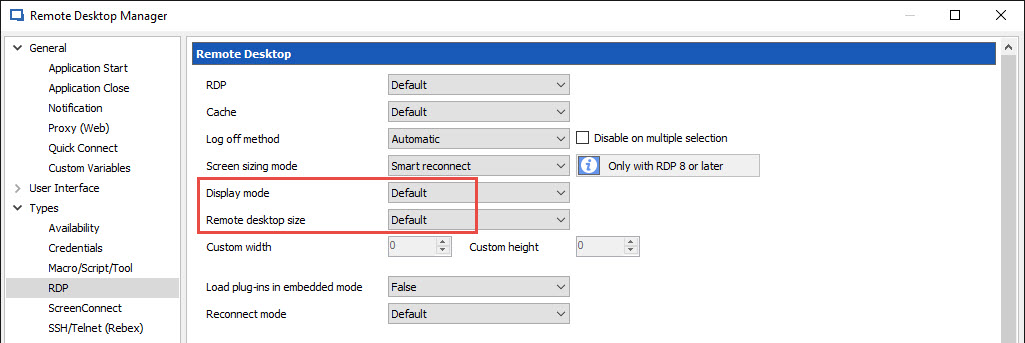
Jeff Dagenais
2017-08-04_13-37-22.jpg
Ok, those settings seem to work for the few I've tested after changing to that. Thank you so much! This has been driving me crazy. Really appreciate the help.
Hello,
Glad that is now working!
Thank you for your feedback.
Best regards,
Jeff Dagenais
I have been struggling with the identical issue for some time now, a search led me to this thread. I followed the suggested resolution steps of setting display mode and size to default in settings, still always having scrollbars appear. What other steps should I try or information to collect?
@Brant
What version of RDM do you have? Do you have a High DPI monitor?
What are the settings you have in File -> Options -> Types -> RDP?
Best regards,
Marc Beauséjour