Regression - Full Screen Only Windows Key Capture Settings for RDP Sessions
Regression - Full Screen Only Windows Key Capture Settings for RDP Sessions

Hi Gang,
With one of the recent updates (sadly I cannot confirm for sure exactly how long ago this last worked) I've seen some issues with the settings (and functionality) surrounding RDP.
Specifically, this setting:
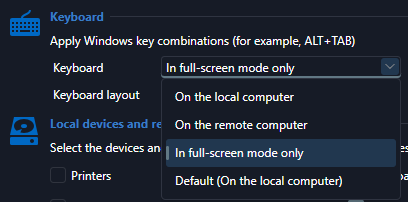
When setting it to 'Default' it shows the Default as "On the local computer", and yet the default is actually "In full-screen mode only".
The reason I'm raising that as an issue though, is because I found it due to my main issue with one of the updates, causing the "In full-screen mode only" setting to stop working entirely.
I have now overridden the individual RDP entries to specify full-screen explicitly, yet when I go into full screen (including after a full PC restart since setting the setting), it does not capture windows key combinations (specifically Alt+Tab) unless I first explicitly activate "Windows key on the remote computer" in the context menu of the connected session, which seems to be the equivalent of toggling the config from "On the local computer" to "On the remote computer" even after exiting full screen again.
If I launch the session in full screen instead of activating it after connecting, it does select the "Windows key on the remote computer" setting by default, but then does not toggle it off when I exit full screen mode.
So, where in the past having "In full-screen mode only" configured meant "Windows key on the remote computer = true when full screen, and false when not, automatically", it seems to now mean "Set Windows key on the remote computer = true if session opened in full screen, otherwise set to false, and all subsequent changes must be manual"
Which feels like a regression.
All Comments (2)
Hello,
Thank you for the detailed description. We reproduced the behaviour on our side and confirmed it is a bug. It is logged with our development team, including your point about the keys not switching back to the local computer when leaving full screen, and the “Default” label not matching the actual behaviour.
Until a fix is released, here are two workarounds:
Open the entry directly in full screen: right-click the entry > Open with parameters > Open full screen. Windows key combinations will then go to the remote computer.
In a session that is already open, use Windows key on the remote computer in the session’s context menu to switch it on or off manually as needed.
I will keep this case open and let you know as soon as a version with the fix is available.
Best regards,
Carl Marien
Hello Sam,
Good news, The fix for this issue is now available in Remote Desktop Manager 2026.3.19.0.
With "In full-screen mode only", Windows key combinations now go to the remote computer when you switch an open session to full screen, and back to the local computer when you leave full screen. You no longer need to open the entry directly in full screen or switch "Windows key on the remote computer" by hand from the session's context menu.
The same version also corrects the Keyboard setting on "Default" in the RDP entry. It now shows the value from your application settings, so it reads "Default (In full-screen mode only)" when that is your global setting.
Could you update to 2026.3.19.0 and let me know whether Alt+Tab follows full screen again on your side? Once you confirm, I will close this case.
Best regards,
Carl Marien