Stuck in a ghost window!

Hi, i login today and i had the RDM window on my taskbar stuck, i click on it nothing happened, i tried to alt-tab and i saw this window which was nowhere to be found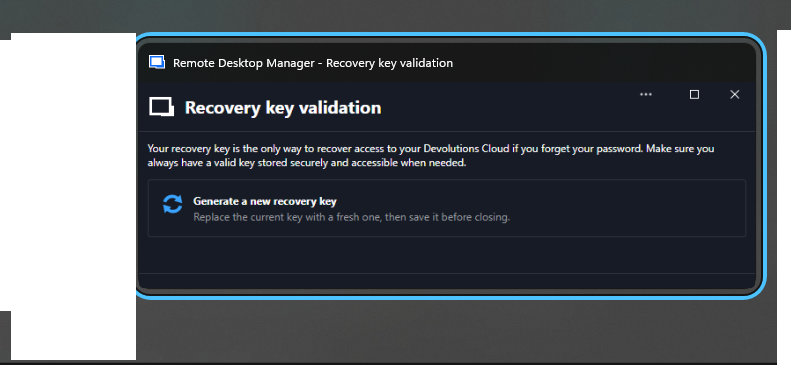
i click , right click, nothing i could get this window in foreground. And of course RDM is never load. Auto update so latest version.
Please help, i do not have my main working tool!
RDM for Windows 11
Purchased Enterprise Edition v2026.x
Screenshot 2026-11-03 093305.png
Recommended Answer
Hello skoupidaki,
Thanks for the screenshot, it shows exactly which window is holding Remote Desktop Manager back.
It is the Recovery key validation prompt. Remote Desktop Manager shows it to the owner of a Devolutions Cloud while it connects, and waits for an answer before it goes on. A new Devolutions Cloud starts with a temporary recovery key, sent in the welcome email, and after 30 days you are asked to replace it. While the key is still the temporary one, the prompt only offers "Generate a new recovery key" and cannot be postponed, as in your screenshot.
The same prompt opens in Devolutions Cloud on the web, and answering it there clears it in Remote Desktop Manager too.
1. Sign in to your Devolutions Cloud in a web browser, with the owner account. The Recovery key
validation prompt opens.
2. Click "Generate recovery key", then "Download PDF". Keep the PDF somewhere safe, because it is the
only way back into your Devolutions Cloud if the password is ever lost. Generate the key only
once, so this PDF stays the valid one.
3. End Remote Desktop Manager in Task Manager, then start it again.
https://docs.devolutions.net/cloud/knowledge-base/how-to-articles/use-the-recovery-key-with-devolutions-cloud/#validate-your-recovery-key
If no prompt opens on the web, go to Administration - System settings - Danger zone and click Generate next to Generate recovery key instead, which downloads the PDF.
The next reminder comes in six months. If it ever opens out of reach again, answer it on the web and restart Remote Desktop Manager.
If Remote Desktop Manager still does not open after these steps, let us know here.
Best regards,
Michel
Michel Audi
All Comments (4)
Hello skoupidaki,
Thanks for the screenshot, it shows exactly which window is holding Remote Desktop Manager back.
It is the Recovery key validation prompt. Remote Desktop Manager shows it to the owner of a Devolutions Cloud while it connects, and waits for an answer before it goes on. A new Devolutions Cloud starts with a temporary recovery key, sent in the welcome email, and after 30 days you are asked to replace it. While the key is still the temporary one, the prompt only offers "Generate a new recovery key" and cannot be postponed, as in your screenshot.
The same prompt opens in Devolutions Cloud on the web, and answering it there clears it in Remote Desktop Manager too.
1. Sign in to your Devolutions Cloud in a web browser, with the owner account. The Recovery key
validation prompt opens.
2. Click "Generate recovery key", then "Download PDF". Keep the PDF somewhere safe, because it is the
only way back into your Devolutions Cloud if the password is ever lost. Generate the key only
once, so this PDF stays the valid one.
3. End Remote Desktop Manager in Task Manager, then start it again.
https://docs.devolutions.net/cloud/knowledge-base/how-to-articles/use-the-recovery-key-with-devolutions-cloud/#validate-your-recovery-key
If no prompt opens on the web, go to Administration - System settings - Danger zone and click Generate next to Generate recovery key instead, which downloads the PDF.
The next reminder comes in six months. If it ever opens out of reach again, answer it on the web and restart Remote Desktop Manager.
If Remote Desktop Manager still does not open after these steps, let us know here.
Best regards,
Michel
Michel Audi
Thank you! that did it.
Weird though you should check why it is stuck in that way and never shown the window.
Also a bit confused you are saying that every 30 days i need a new recovery key or is the first one which is temp and now with the generated im good?
Thanks again!
RDM for Windows 11
Purchased Enterprise Edition v2026.x
Hello,
Thank you for the feedback.
Yes, you're good now. The 30 day prompt only applies to the temporary key from the welcome email. The key you generated replaces it and does not expire, so you won't need a new one every 30 days.
The reminder Michel mentioned for six months from now is a check, not a new key. When it opens, you can:
- enter the key from your PDF and click Validate key
- click I already have a valid recovery key, which dismisses it for another six months
Thanks for pointing out that the prompt opened out of reach. To help us look into it, could you tell us the exact Remote Desktop Manager version you are running?
Thank you in advance!
Best regards,
Hello,
Thank you for the feedback.
Yes, you're good now. The 30 day prompt only applies to the temporary key from the welcome email. The key you generated replaces it and does not expire, so you won't need a new one every 30 days.
The reminder Michel mentioned for six months from now is a check, not a new key. When it opens, you can:
- enter the key from your PDF and click Validate key
- click I already have a valid recovery key, which dismisses it for another six months
Thanks for pointing out that the prompt opened out of reach. To help us look into it, could you tell us the exact Remote Desktop Manager version you are running?
Thank you in advance!
Best regards,
@Sam Moynihan
My version is 2026.3.16.0 64bit Enterprise
Many thanks again for the workaround.
RDM for Windows 11
Purchased Enterprise Edition v2026.x