Issue with Bitwarden Sync

RDM 2026.3.13.0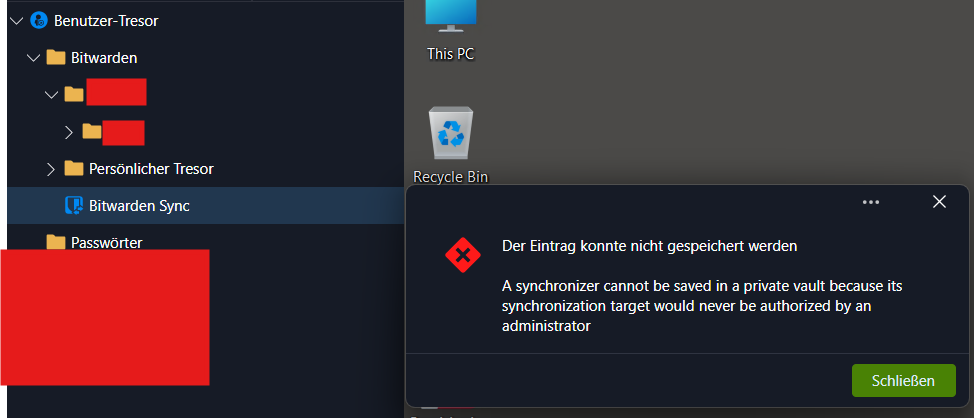
I created 3 entries in Bitwarden (personal vault).
The entries are present in Bitwarden, but they do not appear in RDM (using Bitwarden Sync).
As a test, I tried running the sync with a new folder as the destination (the “Passwörter” folder).
Then I get this message: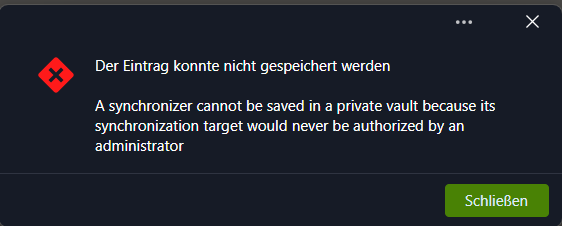
2b11c213-4f94-4b0f-b06c-e8d89d0b7e54.png
c6dfe8b6-e6c6-4634-8e41-52898b91bb29.png
All Comments (3)
Hi Footless4468,
Thanks for the screenshots, they make it clear what is happening.
This is an intended change on the Devolutions Server side rather than a bug. For security reasons, synchronizers are no longer allowed in the user vault. A synchronizer connects out to an external service with stored credentials, and that kind of outbound connection has to live in a vault an administrator controls. This also explains your missing entries: your existing "Bitwarden Sync" sits in your user vault, so the server now refuses to run it, and nothing new is imported. Changing its destination folder fails for the same reason.
You have two options:
- Move the synchronizer to a shared vault. Recreate the Bitwarden synchronizer in a shared vault where you have full access, ideally inside a folder with permissions restricted to you. The imported entries will then land there, and only you will see them. If you don't have a suitable vault, your DVLS administrator can create one for you.
- Use the Bitwarden credential entry instead. If you only need your Bitwarden credentials in your sessions, you can use the Bitwarden credential entry type, which you can keep in your user vault. It looks up your Bitwarden credentials when you need them, so nothing has to be synchronized. Both entry types are described here: https://docs.devolutions.net/rdm/knowledge-base/knowledge-base-articles/entry-settings/bitwarden/
Once that is done you can delete the old "Bitwarden Sync" entry from your user vault, since it can no longer run there.
Let me know how it goes.
Eduard Sepulveda Lopez
I wanted to test option 2.
I created an entry in my user folder as follows.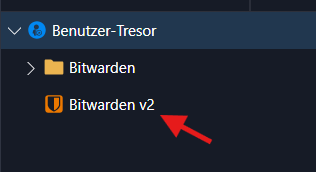
So what do I do with it now? :)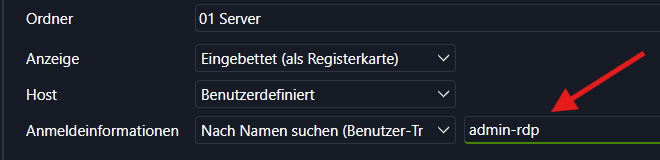
So far, for my RDP sessions, I've selected the option:
“Search for an entry named ‘admin-rdp’ in my Bitwarden Sync (Personal Vault)”
d46652bc-c9a3-4728-95d1-a034d58c795e.png
e8f6bf88-3ac3-41a4-abea-b5676e32c6a3.png
Hi Footless4468,
You're almost there. Your RDP sessions use "Find by name (user vault)" with admin-rdp. That option looks for a credential entry in your user vault whose name is exactly admin-rdp. Until now that was the entry the Bitwarden Sync created. RDM doesn't look inside your "Bitwarden v2" entry, so you just need to give it the name your sessions already search for:
- Edit the "Bitwarden v2" entry and rename it to admin-rdp.
- In the General tab, click the ellipsis next to Credentials and pick the admin-rdp item from your Bitwarden vault. This ties the entry to that one item.
- Save. Delete the old admin-rdp entry that the sync created in your "Bitwarden" folder (or delete the whole folder if you don't need it anymore). Otherwise RDM finds two entries with the same name and asks you which one to use, and the old one has a password that won't update anymore.
Your RDP sessions don't need any change. They keep searching for admin-rdp and now find the entry that reads the password live from Bitwarden.
If your sessions use other names too, create one Bitwarden entry for each name the same way.
Let me know how it goes.
Eduard Sepulveda Lopez