2026.3.12.0 - Issue with Work Area Screen

Hello,
After the latest update, I encountered several issues when switching between Embedded Mode, Full Screen Mode, and Work Area Mode.
Full Screen Mode
I noticed the following behavior:
- If I go to Server → right-click → Open with Parameters from the menu and then switch to Full Screen Mode, the application starts opening in Full Screen, but then switches to a smaller screen with black areas at the top and bottom, as shown in the attached screenshot.
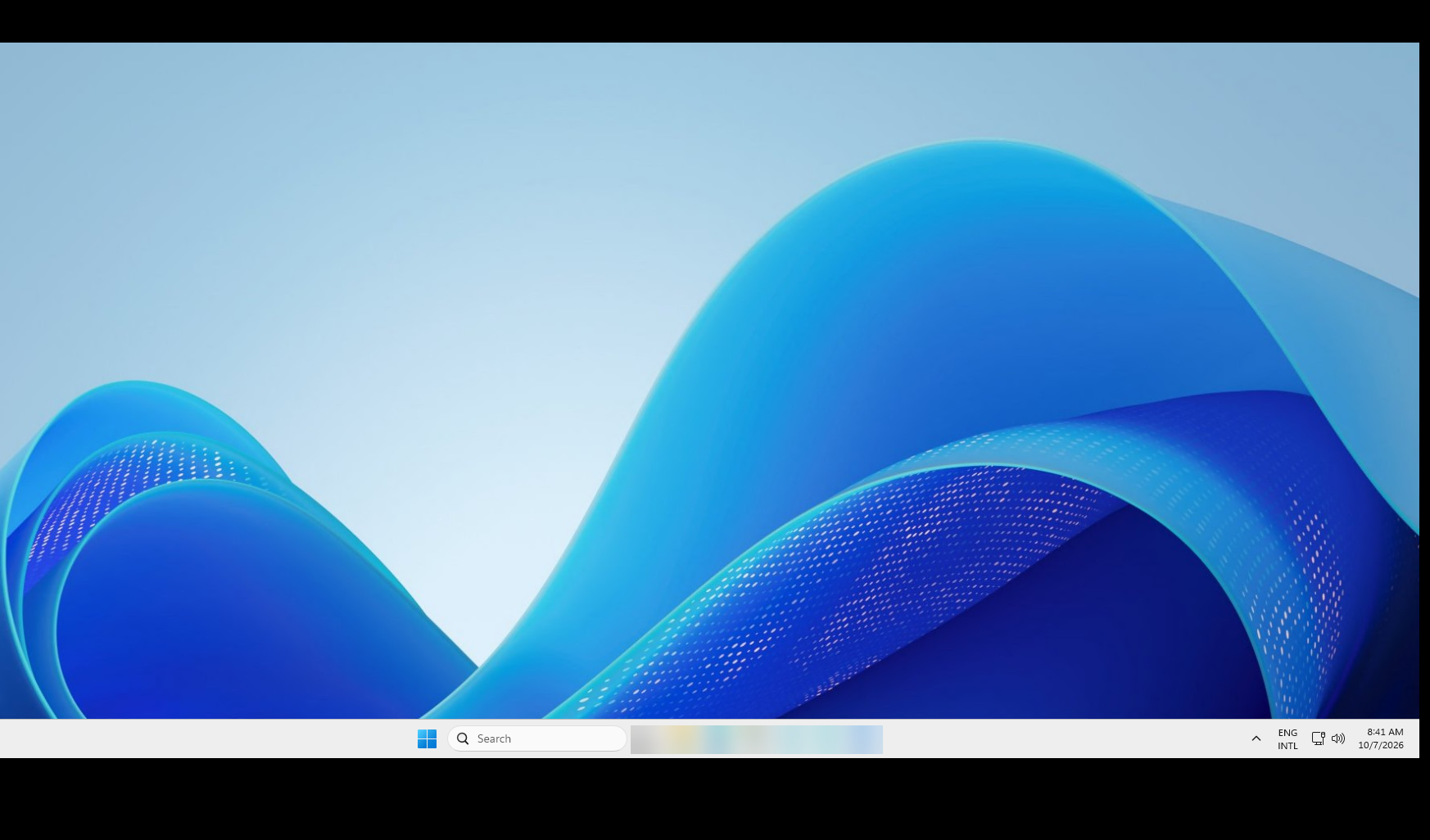
- If I switch to Full Screen Mode from Embedded Mode, it works correctly and opens in full screen.
- If I switch to Full Screen Mode from Work Area Mode (when Work Area Mode is accessible), it also works correctly.
Work Area Mode
Work Area Mode does not work properly. I always get a black screen when trying to switch to it.
There is also one specific behavior I noticed:
- When I am in Full Screen Mode and try to switch to Work Area Mode, clicking on Work Area Mode does not switch to Work Area Mode. Instead, it switches to Embedded Mode.
Server configuration: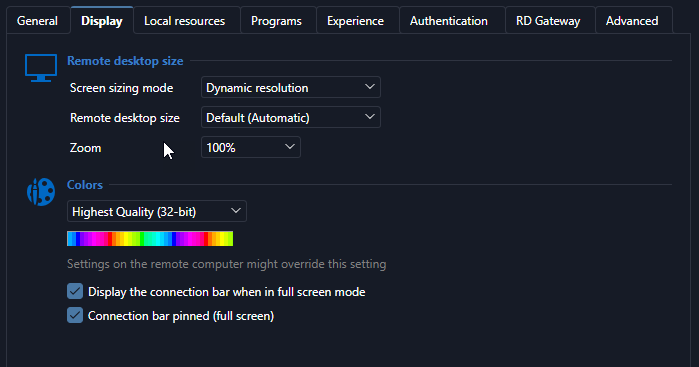
Thank you very much.
d4da50c6-8a3f-4bca-9943-3d10cdb60196.png
41785160-784c-4c46-8905-341f6171e65a.png
All Comments (1)
Hello,
Thank you for the detailed description and the screenshots.
Black screen in Work Area mode
This is a known regression in 2026.3.12.0. It has already been fixed and the fix will be in the next update, 2026.3.13.0.
Full Screen shrinking with black bars
This happens when the entry's Screen sizing mode is set to Dynamic resolution. Until a fix is available, set Screen sizing mode to Default instead, and Full Screen will fill the screen correctly. In the meantime, I will report this issue to our developer team for review.
Work Area switching back to Embedded from Full Screen
When a session is already in Full Screen, the Work Area option exits full screen instead of switching modes. Once you're on 2026.3.13.0, which fixes the black screen above, you can work around it by exiting Full Screen first and then choosing Work Area screen from Embedded mode. To make sure we're looking at the same steps as you, could you record a short video of this one? Please show the session in Full Screen and where you click to switch to Work Area.
Please upload the video to this SharePoint link and let us know when it's been uploaded.
FOR-56 746
Thank you in advance!
Best regards,